
Smart FSM documentation
Everything you need to install, set up and run your field-service business: requests and estimates, work orders and dispatch, technicians and clients, stock and invoices, the client portal, your own website, the Android and iPhone apps, and the AI tools.
Overview
Smart FSM is a complete field-service management system. Run it for your own company, or as a SaaS: companies sign up, pick a plan and manage jobs, technicians, clients and invoices in one place, with their data kept completely separate.
How the pieces fit together
| Part | What it is | Who uses it |
|---|---|---|
| Admin panel | The back office: clients, assets, work orders, scheduling, stock, invoices, reports and settings. | Super admin, owner, managers |
| Technician workspace | "My Jobs" in the browser, plus the Technician mobile app: GPS check-in, photos, signature, time tracking, works offline. | Employees (technicians) |
| Client portal | The client's own view: estimates to approve, invoices to pay, jobs in progress, equipment and service history. | Clients |
| Company website | A public website per company with services, online booking, "track my job" and its own domain. | Visitors and clients |
| Mobile apps | Flutter apps for Android and iPhone: FSM Technician and FSM Client. | Technicians and clients |
| API | REST API (/api/v1) used by the apps, and an inbound webhook for other systems. | Developers |
Quick-start checklist
- InstallCheck the requirements, create the database, upload the files and run the installer.
- Log in and secure the accountsUse the default logins once, then change every password.
- Switch on the background workAdd the cron line so reminders, recurring invoices, maintenance jobs and the queue run.
- Company and emailIn Settings fill in the company and email (SMTP) tabs. See Settings.
- Describe what you doAdd work order types, services and parts, then your clients and technicians.
- Take your first jobCreate a request or a work order, schedule it on the dispatch board, and let the technician complete it.
Server requirements
Smart FSM is built with Laravel. Make sure your hosting meets the following before you start.
- PHP
- 8.1 or newer (8.2 or 8.3 is fine)
- Database
- MySQL 5.7+ (8 recommended) or MariaDB 10.3+
- Web server
- Apache (with
mod_rewrite) or Nginx - HTTPS
- Strongly recommended. Required for the mobile apps, online payments, GPS check-in in the browser and push notifications.
- Cron
- One cron line, see Background work
Required PHP extensions
Folders that must be writable
storage, bootstrap/cache and public/uploads (website pictures). The installer checks these too.
PHP upload limits
Technician photos can be up to 10 MB and a client request can carry 5 photos. Set upload_max_filesize = 12M and post_max_size = 40M in php.ini. The apps shrink photos to about 1 MB before sending, so the defaults usually work.
Create the database
The steps below use cPanel. Other hosting panels offer the same options under similar names.
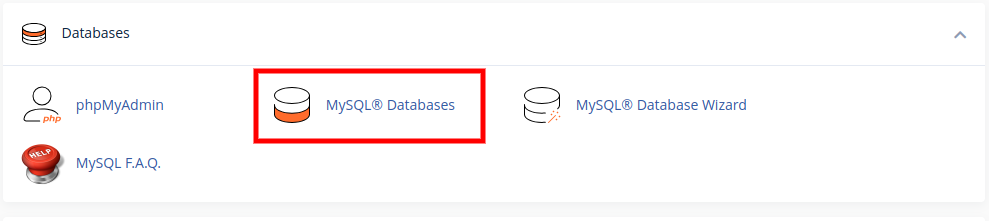
- Open the database toolIn your hosting panel go to Databases and click MySQL® Databases.
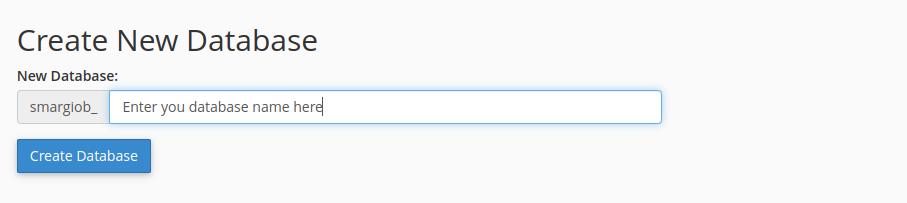
- Create the databaseType a name and click Create Database. Your host adds a prefix to the name; write the full name down.
- Create a database userIn Add New User enter a user name and a strong password (use the generator) and click Create User.
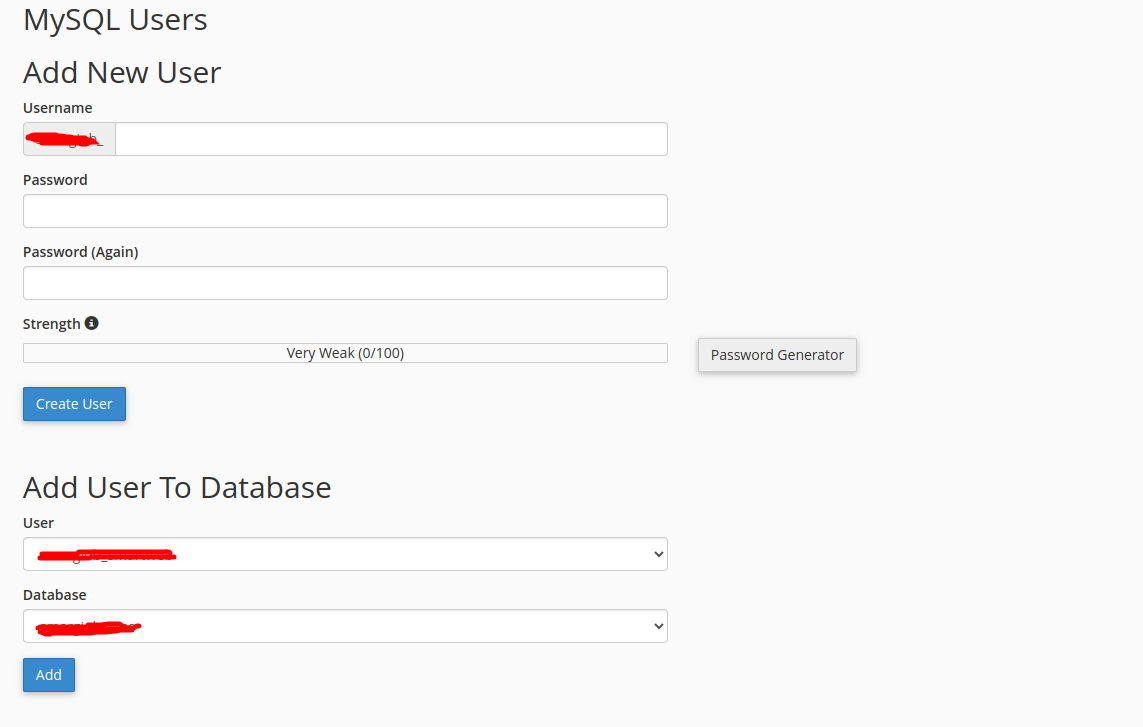
- Add the user to the databaseIn Add User To Database choose the user and the database, then click Add.
- Give all privilegesTick ALL PRIVILEGES and click Make Changes.
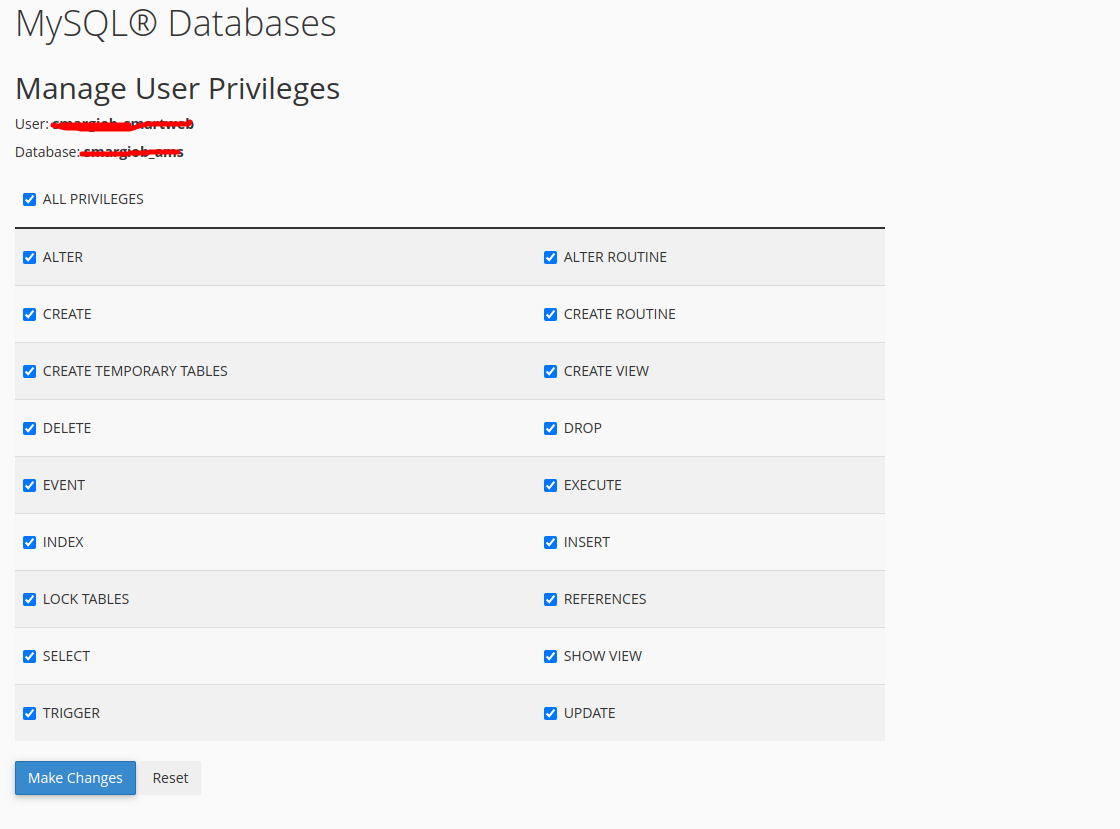
localhost), database name, user name and password. The installer asks for them in step 5.Upload the files
Upload the contents of the main_file folder from your download to your web root.
- Open the File ManagerLog in to cPanel and open File Manager under Files.
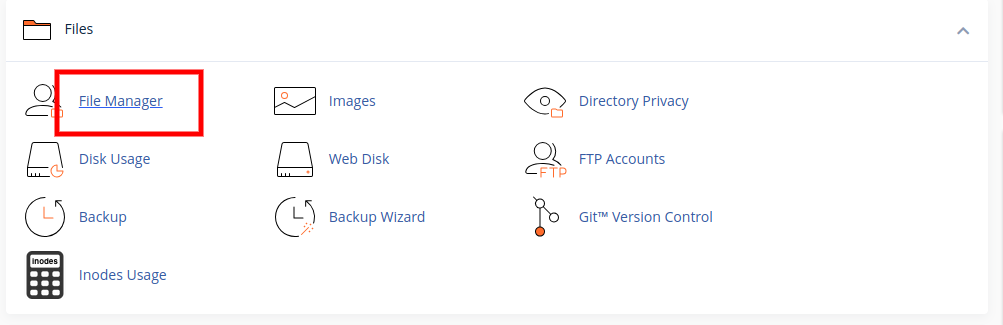
- Go to the right folderFor your main domain this is
public_html. For a sub-domain or sub-folder, open that folder instead.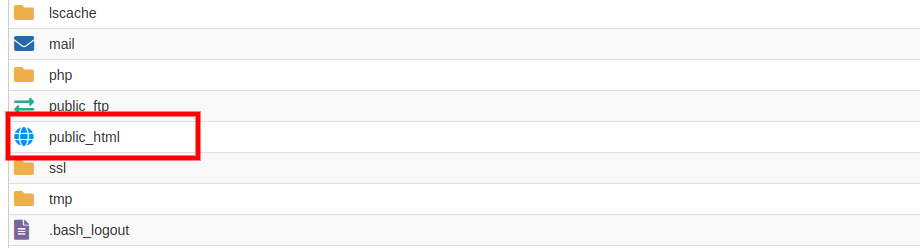
- Upload and extractClick Upload, choose the zip file, wait for 100%, then right-click it and choose Extract. Make sure the files from
main_file(including the hidden.htaccess) end up directly in the folder. - CheckYou should see
app,bootstrap,config,public,storage,artisanand the other Laravel folders.
documentation or mobile_app folders to the web root. They are for you, not for visitors.Run the installer
A web installer sets up the application in a few minutes.
- StartOpen
https://yourdomain.com/installin your browser. This starts the App Installation Process.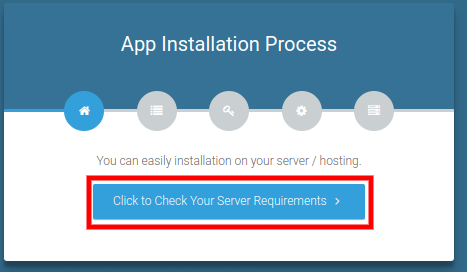
- Check the serverClick Click to Check Your Server Requirements. Everything should be ticked.
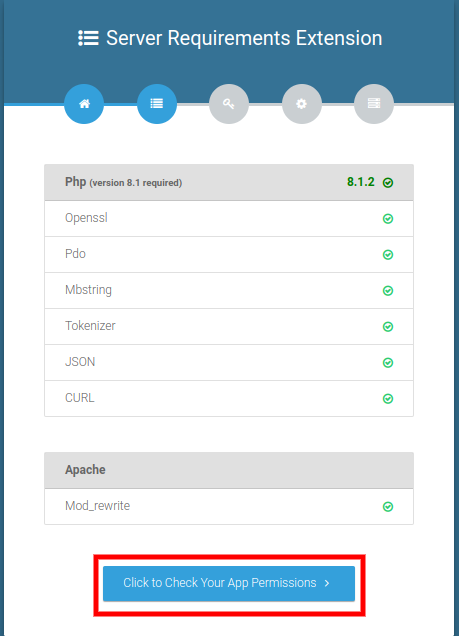
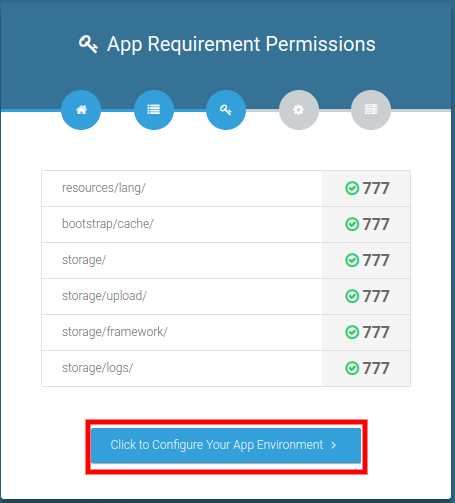
- Check permissionsThe installer checks the folder permissions. When all are fine, click Click to Configure Your App Environment.
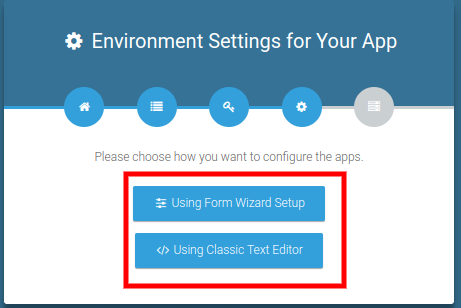
- Choose the setup typeSelect Using Form Wizard Setup.
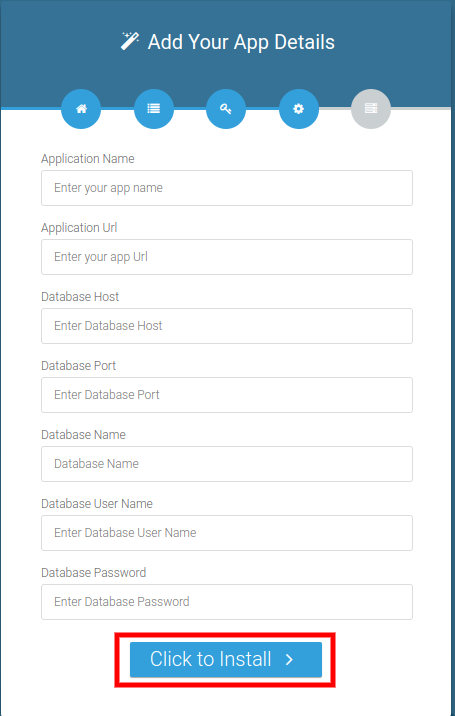
- Enter the app and database detailsFill in the database host, name, user and password from the previous step, plus an application name and the application URL. Click Click to Install.
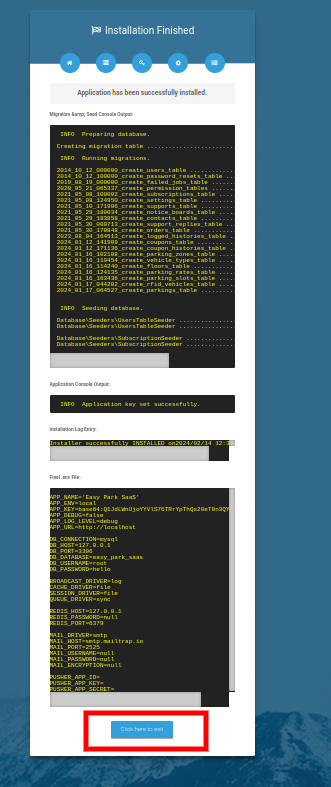
- FinishWhen you see Application has been successfully installed, click Click here to exit.
After installation
A few minutes of setup now saves problems later.
- Log inOpen your site and sign in with a default account.
- Change the passwordsOpen Settings → Password for each default account.
- Add the cron lineSee Background work. Without it reminders, recurring invoices and preventive maintenance do not run.
- Set up emailSettings → Email SMTP, then send a test message. Invitations, estimates, invoices and reminders all use it.
- Fill in the company detailsName, logo, address, currency and date format under Settings.
- Turn debug offIn
.envsetAPP_ENV=productionandAPP_DEBUG=false. See Going live.
Background work (cron job)
Smart FSM does some work on its own: overdue-invoice reminders, recurring invoices, preventive-maintenance work orders, SLA and warranty alerts, and queued messages. A single cron line makes it all run.
The scheduler
In cPanel open Cron Jobs and add this line to run every minute. Replace the path with the folder that contains artisan.
* * * * * cd /home/youraccount/public_html && php artisan schedule:run >> /dev/null 2>&1
| Task | When | What it does |
|---|---|---|
Overdue invoice reminders (invoices:remind-overdue) | Daily 09:00 | Emails clients about unpaid invoices past their due date, once a week per invoice. |
Service contract alerts (contracts:alerts) | Daily 07:45 | Warns owners about contracts ending within 30 days. |
Warranty alerts (assets:warranty-alerts) | Daily 07:30 | Warns owners about equipment warranties ending within 30 days. |
SLA digest (workorders:sla-alerts) | Daily 07:00 | Owner digest of overdue and SLA-breached work orders. |
Preventive maintenance (maintenance:generate) | Daily 06:00 | Creates work orders for schedules that are coming due. |
Recurring invoices (invoices:recur) | Daily 05:30 | Issues the next copy of every recurring invoice that is due. |
AI weekly summary (ai:weekly-summary) | Mondays 08:00 | Emails a short AI summary to owners who switched it on. |
| Scheduler heartbeat | Every minute | Lets the super admin dashboard show whether cron is running. |
| Queue worker | Every minute, when QUEUE_CONNECTION is not sync | Sends emails and other queued jobs in the background. |
Default logins
The installer creates three accounts so you can look around straight away.
| Role | Password | |
|---|---|---|
| Super admin | superadmin@gmail.com | 123456 |
| Owner (company) | owner@gmail.com | 123456 |
| Manager (staff) | manager@gmail.com | 123456 |
Roles and how it fits together
Everyone sees only what belongs to them. The menu changes with the role and with the permissions the owner has given.
| Role | What they can do |
|---|---|
| Super admin | Runs the platform: companies (owners), plans, coupons, payments, the landing page (CMS) and system health. Cannot see a company's jobs. |
| Owner | The company. Has the full admin panel for their own business and their own data only. |
| Manager / staff | Created by the owner. Permissions come from the role the owner gives them (Staff Management → Role). |
| Employee (technician) | Works their assigned jobs: My Jobs, attendance, leave, trips. Also uses the Technician app. |
| Client | The customer. Uses the portal, the company website or the Client app. |
The owner's menu
| Group | Contains |
|---|---|
| Home | Dashboard and Staff Management (users, roles, login history) |
| Operations | My Jobs, WO Request, Estimation, Work Order (with dispatch board, workflow rules, preventive maintenance and archive), Service Contracts |
| Customers & Assets | Client, Asset, Branches |
| Inventory & Purchasing | Services & Parts, Procurement (suppliers and purchase orders) |
| Finance | Invoice, Expense |
| Team | Employee, Attendance, Leave, Trips |
| Insights & Tools | Report (including Insights & Analytics), AI Assistant, Import & Export, Activity Log, Trash, N8N |
| Website & Communication | My Website, Contact Diary, Notice Board |
| System Configuration | WO Type, Expense Type, Email Notification |
Setting up your business
Describe what you do once, and every job after that is quicker.
| Where | What to add |
|---|---|
| System Configuration → WO Type | The kinds of job you do (Repair, Installation, Inspection ...). Used on work orders and in reports. |
| Services & Parts | Your services (with a price, a unit and a checklist of tasks) and your parts (with SKU, price, cost price and, optionally, stock tracking). See Services, parts and stock. |
| System Configuration → Expense Type | Categories for expenses (fuel, tools, travel ...). |
| System Configuration → Email Notification | Which emails, SMS and WhatsApp messages go out for which event. See Messages. |
| Work Order → Workflow | Rules for work orders: locked statuses, automatic invoice, required signature and SLA hours. See below. |
| Branches | Optional. Add locations if you run more than one office; each can bill in its own currency. |
| Settings | Company details, logo, currency, date format, email (SMTP), payment gateways and the AI key. |
Workflow rules
Open Work Order → Workflow (owner only) to set how strict the company wants to be:
- Locked statuses – finished jobs (completed, cancelled, rejected) can no longer be changed.
- Automatic invoice – when a job is completed an invoice is created from its services and parts.
- Signature required – a job cannot be completed until the client has signed.
- Invoice terms – the number of days an automatic invoice is due in.
- SLA hours – how many hours a job may stay open for each priority (low, medium, high, critical). A job still open after that time is flagged SLA breached everywhere and in the daily digest.
Clients and staff
People are added once and reused on every job.
Clients
Customers & Assets → Client. Each client is a login account with a company name and a service and billing address. The client page shows everything for that client at a glance: requests, estimates, work orders and invoices. Clients you add can sign in to the portal and the Client app; you can also let them book online and convert the booking into a client in one click.
Technicians and staff
Team → Employee adds technicians; Staff Management → User adds managers and others. Choose a role to decide what each person may do. A plan can limit how many technicians and clients you may have (see SaaS administration).
Roles and permissions
Staff Management → Role lets the owner create roles and tick exactly which pages and actions each role may use (view, create, edit, delete for every module).
Sign-in history and two-factor
Staff Management → Logged History lists every sign-in with its time and place. Each user can turn on two-factor authentication in Settings.
Assets (equipment)
The things you look after: boilers, air-conditioners, lifts, vehicles.
Customers & Assets → Asset. Each asset belongs to a client and can have an asset number, a serial/GIAI number, dates (purchase, installation) and a warranty expiry, plus a parent asset for sub-parts.
- Service history – open an asset and choose History to see every job done on it.
- QR label – print a label with a QR code. Technicians and clients scan it in the apps to open the asset on the spot.
- Warranty alerts – owners get an email 30 days before a warranty ends; clients see it on their dashboard.
- Import / export – see Search, inbox and tools.
Services, parts and stock
One catalogue for what you sell and use on jobs.
Services and parts
Inventory & Purchasing → Services & Parts. A service has a price, a unit, a list of service tasks (a checklist with a time for each) and can be shown on your website. A part has a SKU, a price and a cost price (so job profit can be calculated).
Stock tracking
Tick Track stock on a part and enter the quantity and a reorder level. Stock goes down automatically when a job using the part is completed, and every change is recorded as a stock movement (job, purchase order or manual adjustment). Parts at or below the reorder level appear in Needs your attention on the dashboard.
Suppliers and purchase orders
Procurement holds your suppliers and purchase orders. Create an order (or start one from the low-stock list), then receive it: the quantities are added to stock in one step.
Requests and estimates
Where a job begins.
Work order requests
Operations → WO Request. A request comes from a client (portal, app or website booking), from staff, or from another system through the inbound webhook. It has a description, priority, the equipment, a preferred day and time, and can carry photos. Requests can be shown as a list, a kanban board (pending, in progress, completed, cancelled) or archived. Assign a technician and turn the request into a work order.
Estimates (quotes)
Operations → Estimation. Build a quote from your services and parts and send it to the client. The client approves it with a drawn signature (or declines it) in the portal or the Client app; the name, time and IP address of the signer are kept. The owner sees "Estimates waiting for approval" on the dashboard.

Work orders
The heart of the system: who does what, where and when.
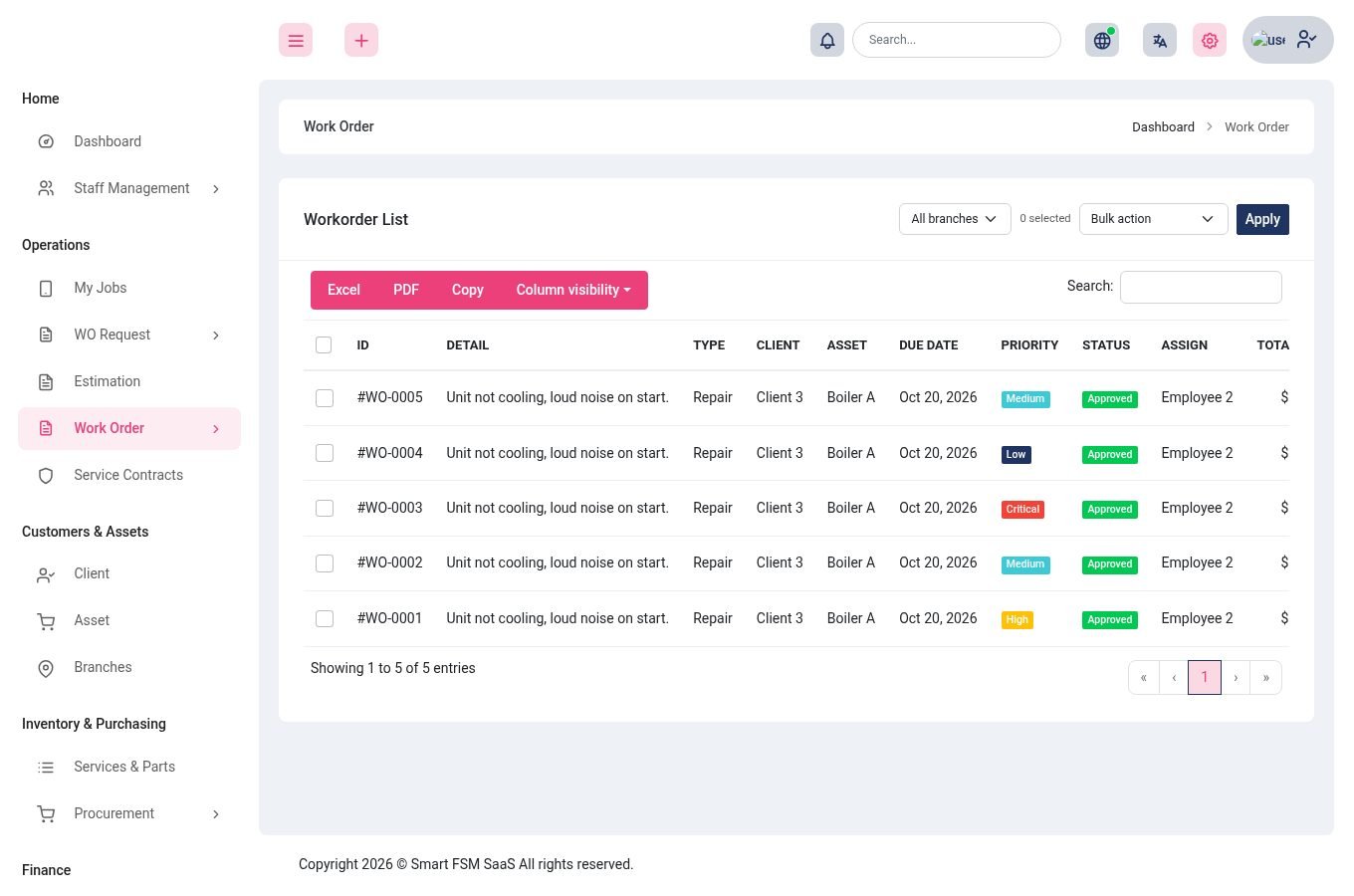
Operations → Work Order. A work order links a client, an asset, a type, a priority (low, medium, high, critical), a technician and an appointment (date and time), with the services and parts used and the checklist tasks.
| Status | Meaning |
|---|---|
| Pending | Created, waiting to be approved or started. |
| Approved | Confirmed and ready to be worked. |
| On hold | Paused (waiting for a part or the client). |
| Completed | Finished. If the workflow says so, an invoice is created and stock is deducted. |
| Cancelled / Rejected | Closed without work being done. These are locked when strict statuses are on. |
- List, kanban and archive – switch views; archive finished jobs to keep the list tidy (they can be restored).
- SLA – a job open longer than the hours set for its priority is flagged SLA breached.
- Status history – every status change is logged with who made it and from where (web or app).
- Notifications – the technician and the client are told when a job is assigned, scheduled, started or completed (see Messages).
Dispatch board and calendar
Plan the week at a glance.
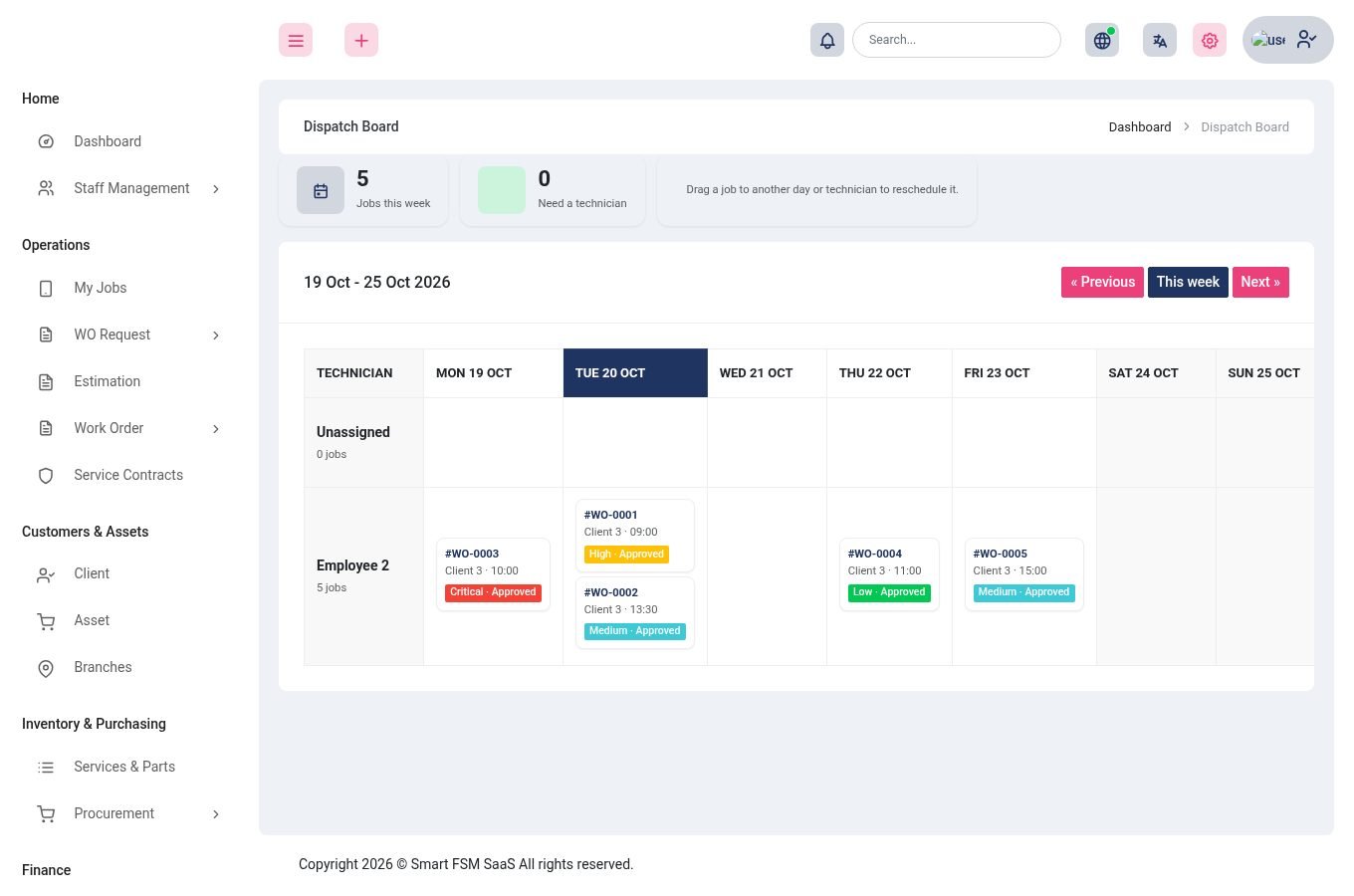
Work Order → Dispatch board shows one row per technician and one column per day. Drag a job card onto another day or another technician to reschedule it. The top of the board counts the jobs this week and those that still need a technician; click Suggest technician on an unassigned job and the system proposes the person with the fewest jobs that day (preferring someone who has worked on the same asset before).
Every technician also gets a private calendar link on the My Jobs page. Paste it into Google, Outlook or Apple Calendar to see assigned jobs there.
The technician workspace
Everything a technician needs on one page, in the browser or in the app.
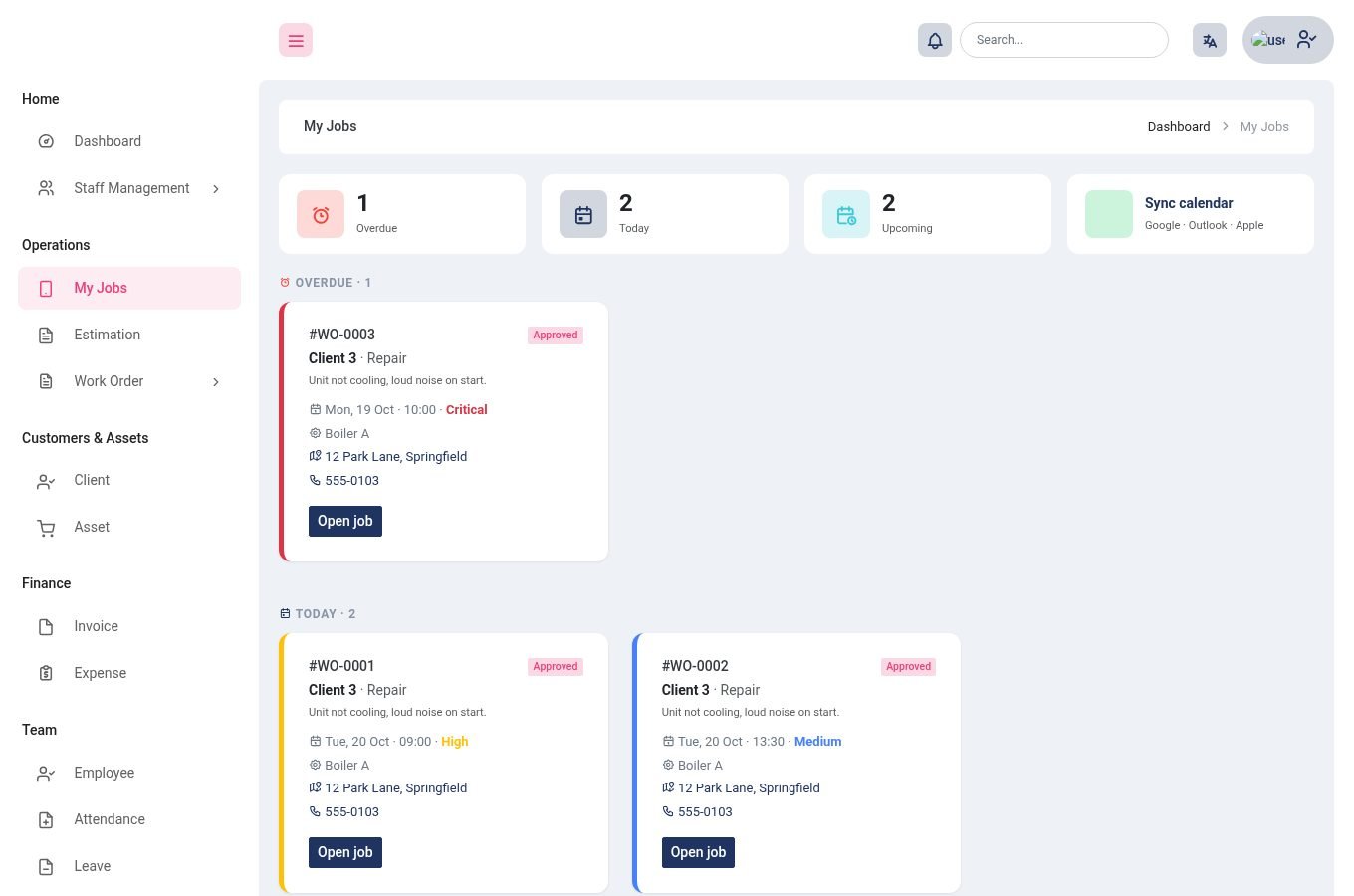
Employees open My Jobs (also the Technician app). Jobs are grouped into Overdue, Today and Upcoming, each with the client, the problem, a map link to the address and a tap-to-call number.
- GPS check-in and check-out – records where and when the technician arrived and left.
- Before and after photos, notes (with voice dictation in the app) and the checklist.
- Parts used – add parts from the catalogue (whole quantities); stock is deducted on completion.
- Client signature drawn on the screen, and complete job, which applies the company's workflow rules.
- Clock in and out, trips (mileage) and time-off requests under Attendance, Trips and Leave.
- Works as an app – the browser version can be added to the phone's home screen (it has a manifest and an offline page).
Preventive maintenance and contracts
Repeat work that plans itself.
Preventive maintenance
Work Order → Preventive Maintenance. Create a schedule for an asset: the client, the technician, and how often (every N days, weeks, months or years). A few days before each due date the system creates the work order for you (daily at 06:00) so nothing is forgotten.
Service contracts
Operations → Service Contracts records a client's agreement: title, the asset, amount, billing cycle, start and end dates and terms. Owners are warned 30 days before a contract ends and clients see their active contracts on their dashboard.
Sites and branches
Service Contracts → Sites lists the places you service for each client, so a job can be tied to the right address. Branches lets a company with several offices keep work and invoices separate, each with its own currency if needed.
Invoices and payments
From finished job to paid invoice.
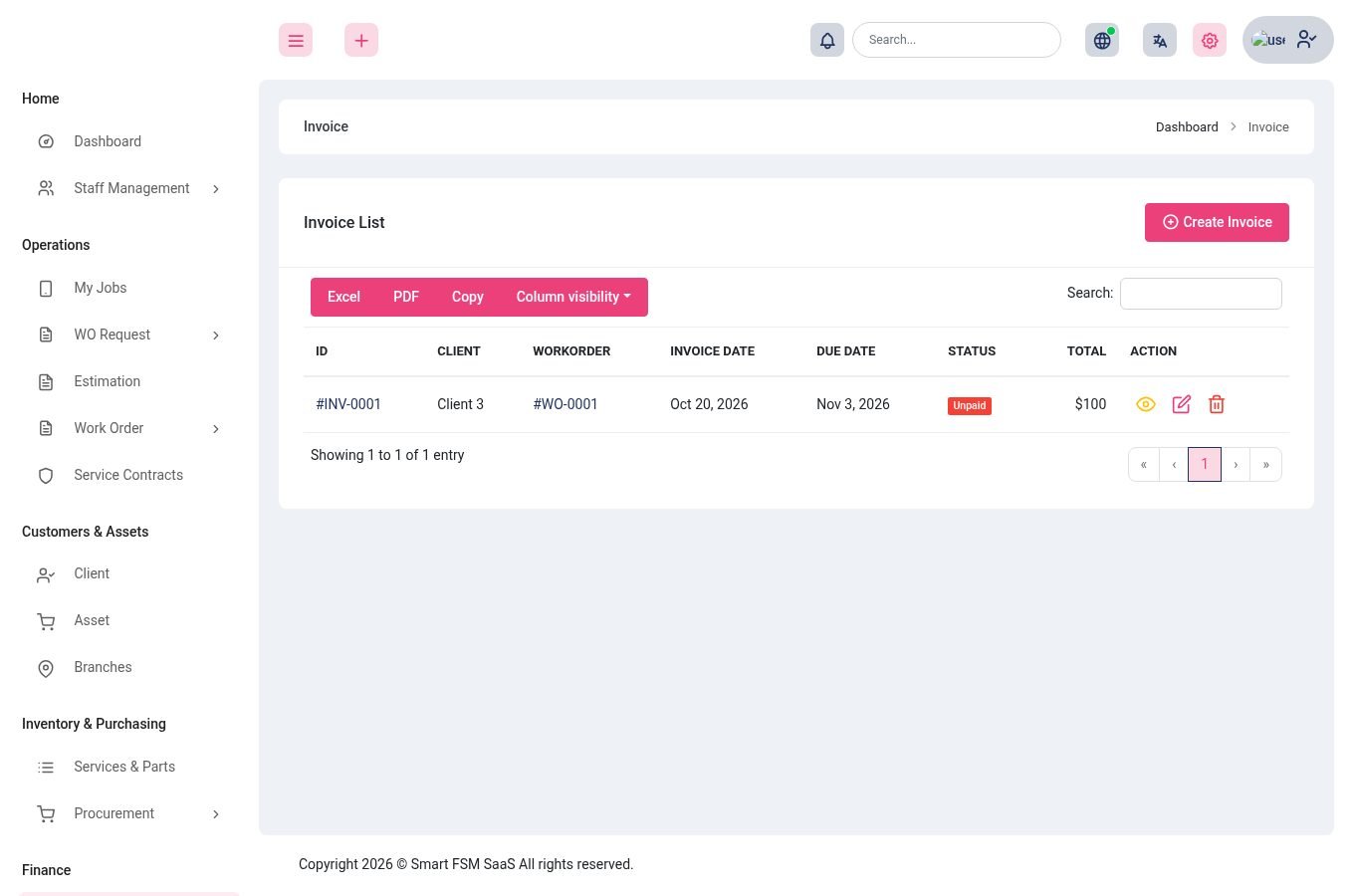
- Create an invoice from a work order (automatic or by hand) with the services and parts, a discount, tax percent, due date and notes. The currency can differ per invoice.
- Payments – record partial or full payments; the balance and the status (unpaid / paid) update automatically. A credit note can reduce what is owed.
- Online payment – clients pay from the portal or app with Stripe, PayPal, Flutterwave, Paystack or a bank transfer (you approve the transfer). Switch gateways on in Settings.
- Recurring invoices – set a repeat interval and the next copy is issued automatically (daily at 05:30).
- Reminders – unpaid invoices past due are emailed to the client once a week, until paid.
- Send an invoice by email in one click.
Expenses, attendance, leave and trips
The day-to-day cost and time side.
- Expense – record costs with a type, amount and receipt; use them in profitability reports.
- Attendance – employees clock in and out (web or app); owners see the hours per day and per technician.
- Leave – employees request time off; the owner approves or rejects it. Pending requests appear in Needs your attention.
- Trips – mileage per trip, with distance, used in the weekly totals.
Reports and insights
Know how the business is doing.
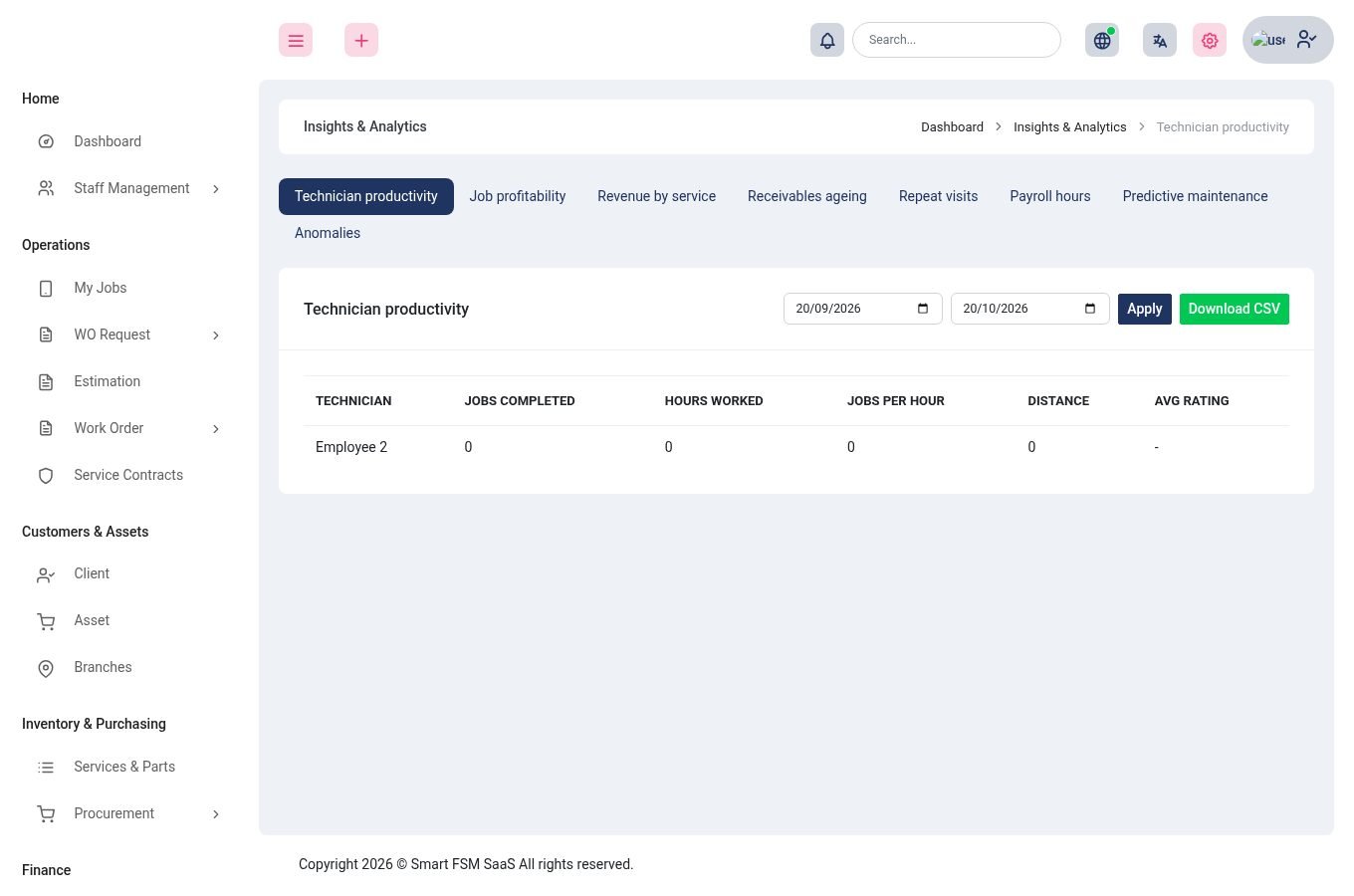
Insights & Tools → Report has the classic reports (requests, estimates, work orders, invoices, attendance, leave) and Insights & Analytics, with eight ready-made reports you can switch between with the tabs at the top. Pick a date range and press Download CSV to export any of them.
| Report | Answers |
|---|---|
| Technician productivity | Jobs completed, hours worked, jobs per hour, distance and average rating for each technician. |
| Job profitability | Revenue minus parts cost and other costs for each job. |
| Revenue by service | Which services earn the most. |
| Receivables ageing | Who owes what, grouped by how late it is. |
| Repeat visits | Jobs that came back for the same asset soon after, a sign of a poor first fix. |
| Payroll hours | Hours worked per employee for the period, ready for payroll. |
| Predictive maintenance | Assets likely to need service soon, based on their history. |
| Anomalies | Unusual jobs or invoices that deserve a second look. |
Search, inbox, import and other tools
The tools that keep things tidy.
- Search – the search box in the top bar finds work orders, clients, assets, invoices and requests by name or number.
- Inbox – the bell shows notifications (new job, estimate approved, invoice paid) and links straight to the item. The same inbox is in the apps.
- Import & Export – export work orders, invoices, estimates, clients, assets and parts to CSV. Import assets and services/parts from CSV (up to 1,000 rows; rows with errors are skipped and listed, good rows are kept).
- Activity Log – who created, changed or deleted what, and when.
- Trash – deleted work orders, requests, estimates, invoices, clients and others can be restored from here.
- Notice Board and Contact Diary – internal notes and an address book for your team.
Dashboards
Each person starts on a page made for their job.
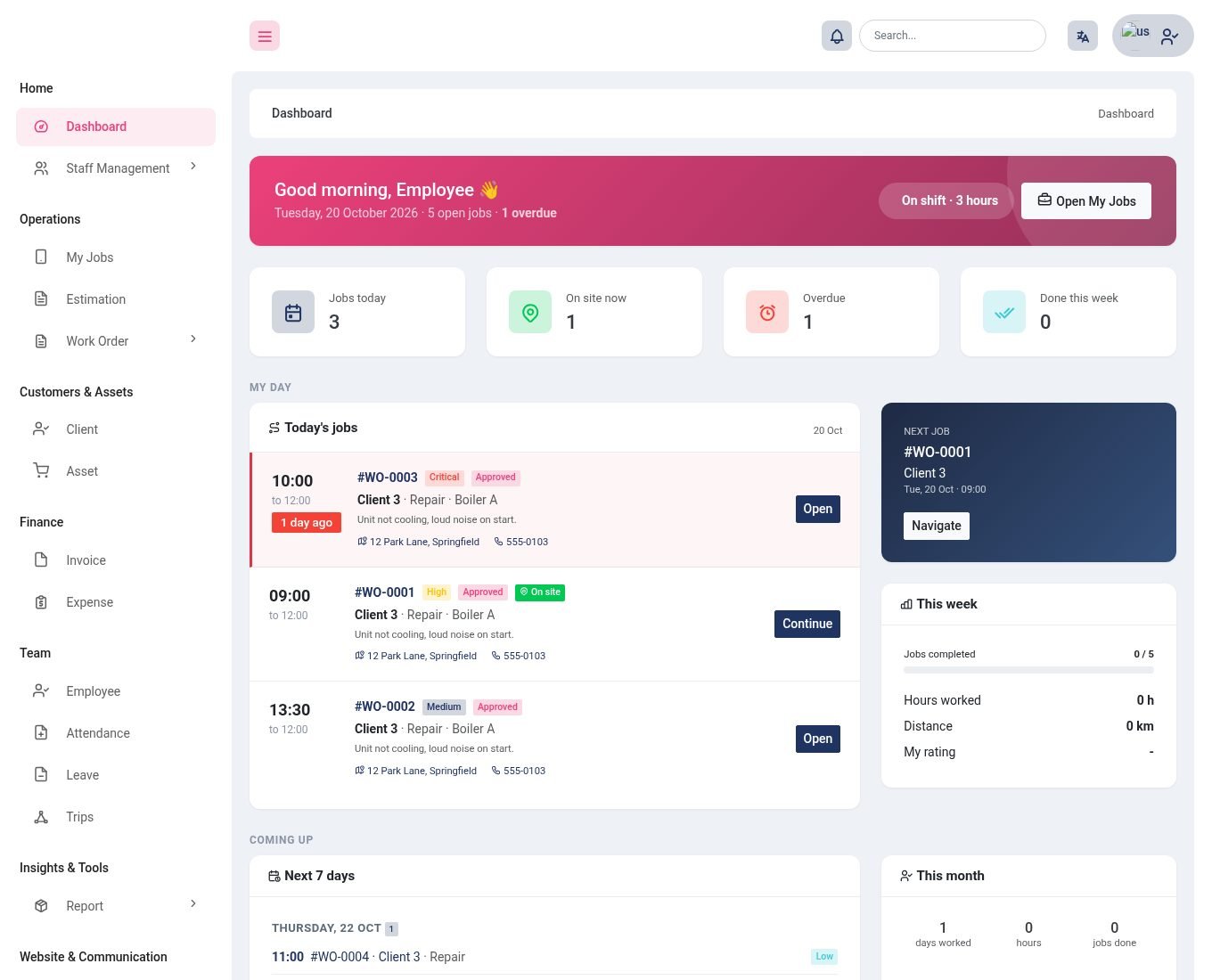
| Who | What the dashboard shows |
|---|---|
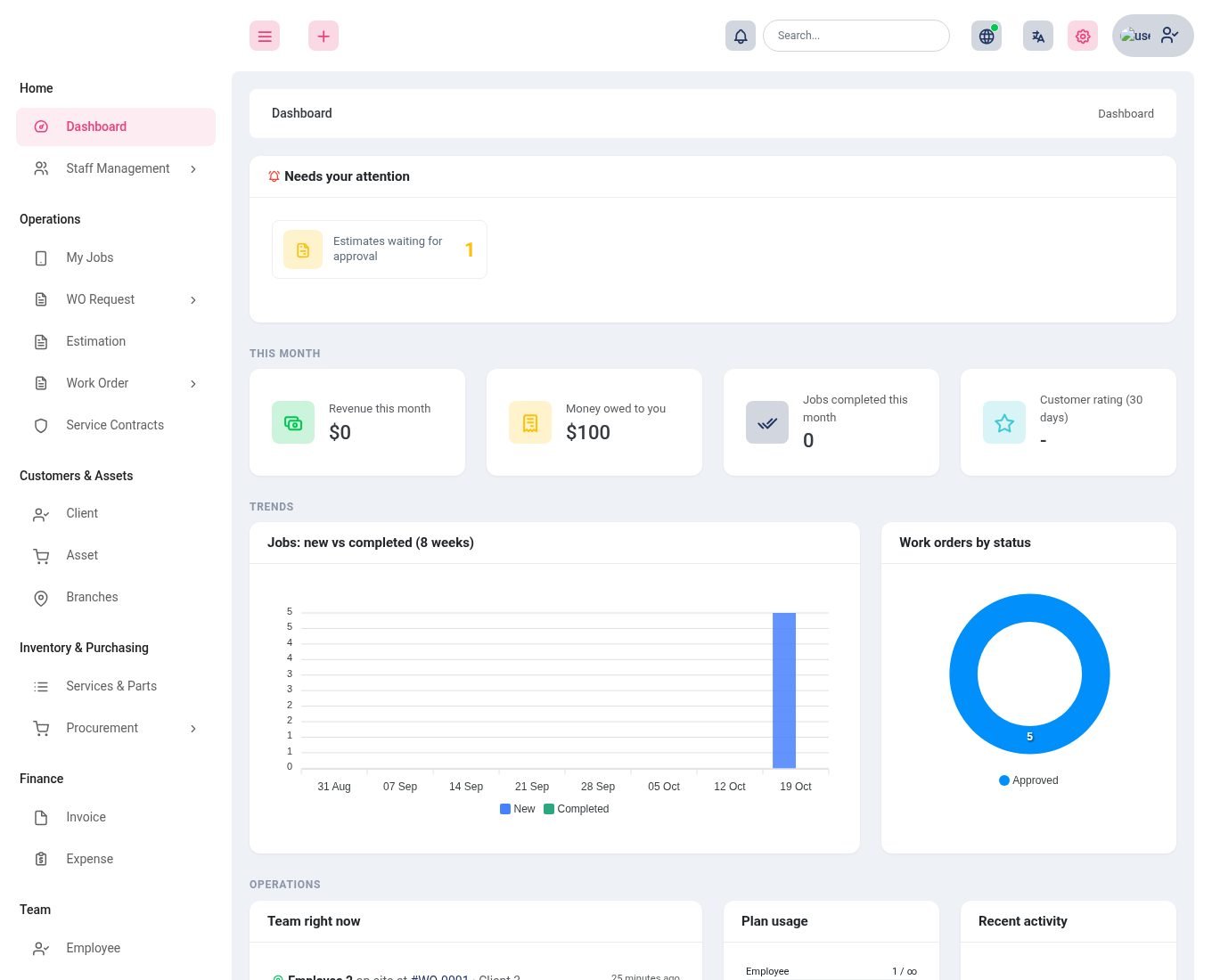
| Owner / manager | Needs your attention (overdue jobs, SLA breaches, requests with no technician, estimates waiting, overdue invoices, low stock, warranties and contracts ending, leave to review); this month's revenue, money owed, jobs completed and customer rating compared with last month; an 8-week chart; work orders by status; who is on site right now; plan usage and recent activity. |
| Technician | A greeting and shift clock; today's jobs with address and call links; the next job; this week's progress; the next 7 days; this month's attendance; recent jobs, feedback and notifications. |
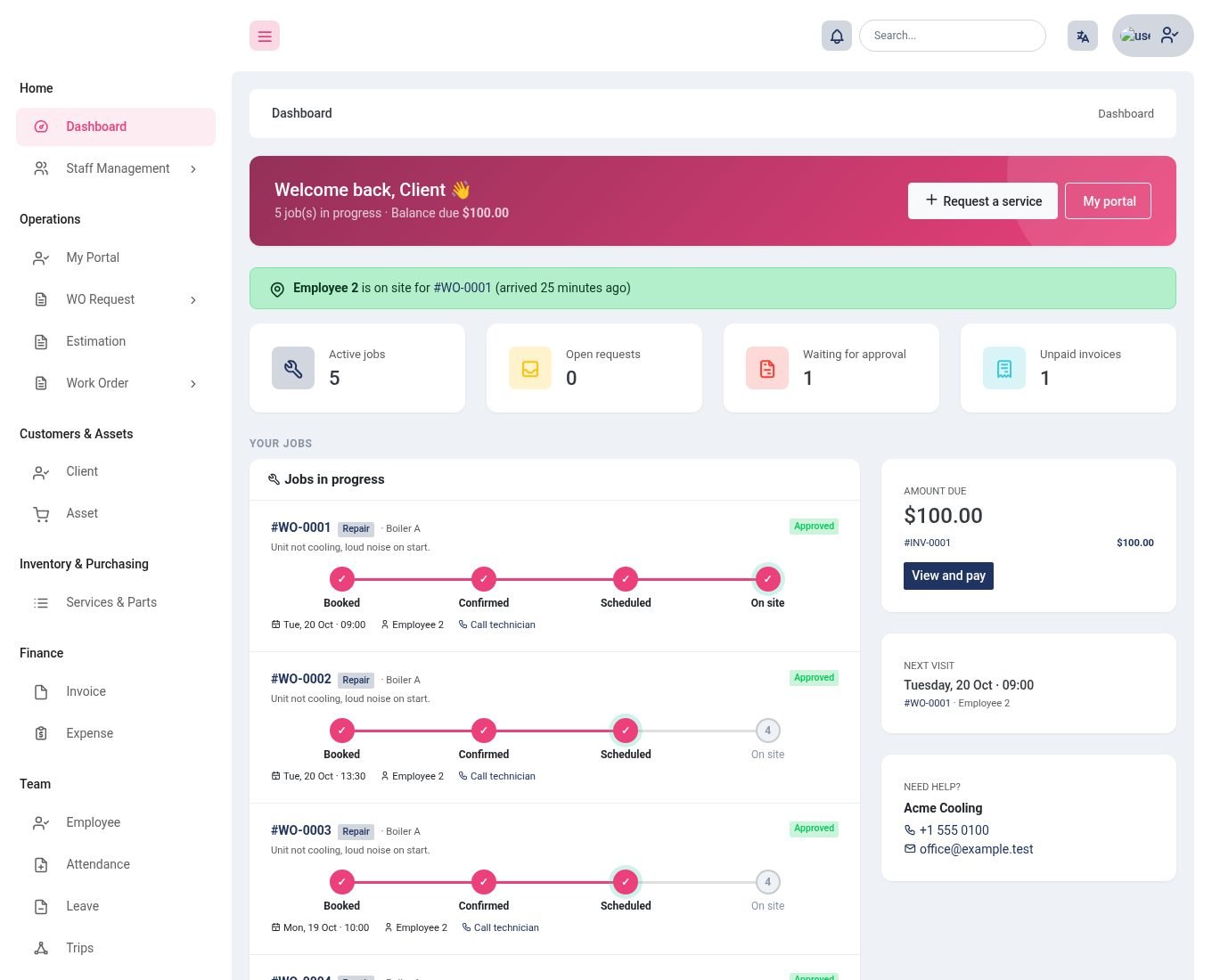
| Client | Amount due, jobs in progress with a progress tracker, next visit, estimates to approve, open requests, equipment with warranty status and service history. |
| Super admin | Companies and plans, plan revenue, plans about to expire, the busiest companies, AI use, mobile devices and a System health card. |
Client portal
Clients sign in with the same login page and see their own world.
The client's menu is My Portal, WO Request, Estimation, Work Order, Asset, Invoice and Settings. My Portal is the hub:
- Estimates awaiting approval – approve with a drawn signature or decline.
- Unpaid invoices – open and pay online.
- Open work orders – status, technician and the scheduled time.
- Request service – describe the problem, choose the equipment, urgency and a preferred day and time.
- Rate finished jobs – the ratings feed the technician's score and the reviews on your website.
The client dashboard also lists their equipment (with warranty dates and last service) and active service contracts. Clients get an email and an inbox message when a job is scheduled, a technician arrives, an estimate or invoice is ready or a job is completed.
Company website
Every owner gets a public website, built from blocks they can edit, on their own domain if they like.
Owners open My Website in the menu (the globe icon in the top bar shows the website address and custom domain at any time). Until the site is switched on only the owner can see it.
Pages and the page editor
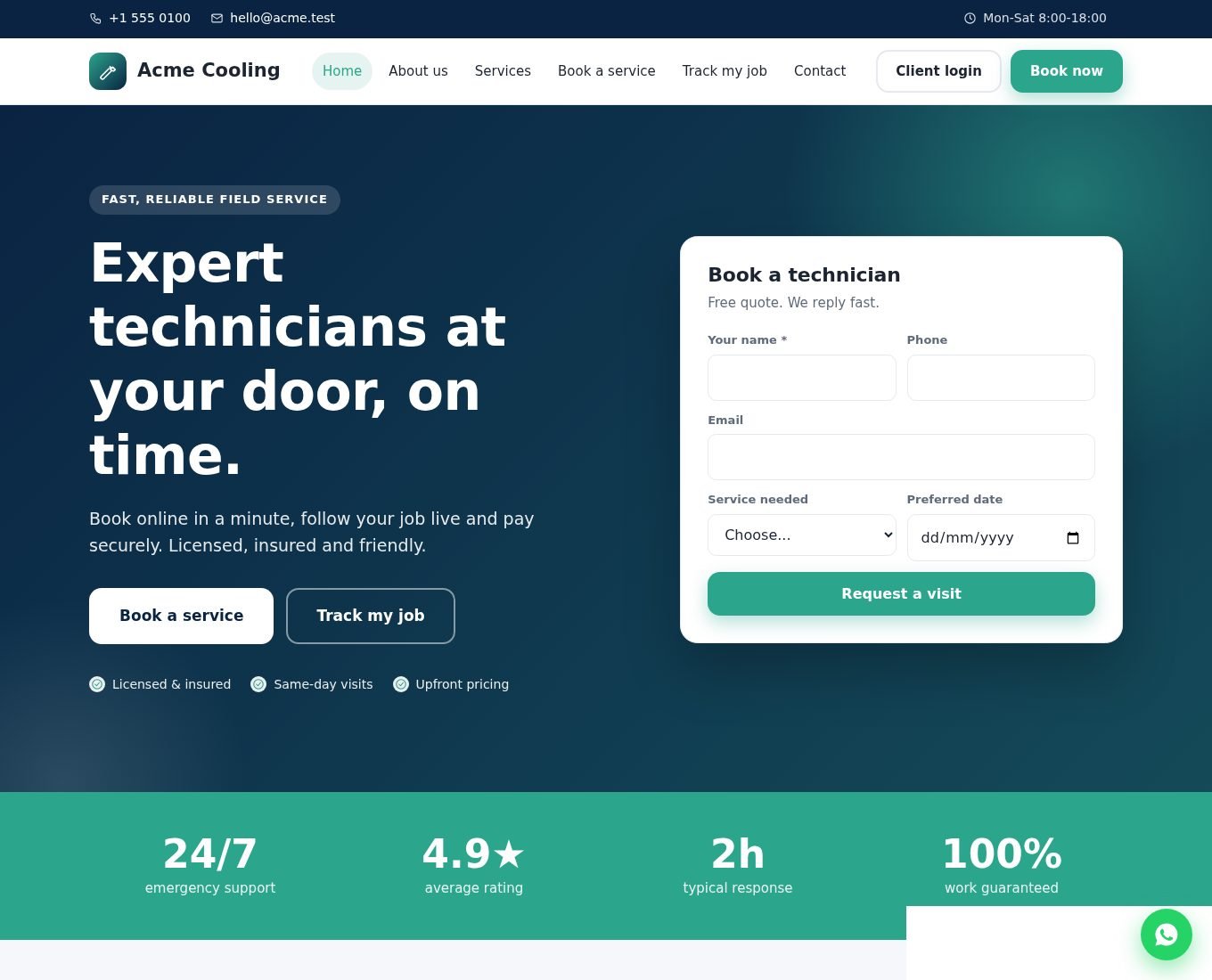
A new site starts with Home, About us, Services, Book a service, Track my job and Contact. Add more from templates: Our work, Our team, Pricing, Reviews, FAQ, Privacy and Terms. In the editor each page is a list of blocks you can add, reorder, switch off or edit:
Each page also has its own menu position, search-engine title and description, and a switch to publish or hide it. The page that is marked Home is the front page.

Pictures
In the page editor every picture field shows your picture library as thumbnails: click one to use it, or press Upload a picture to add a new one on the spot. Blocks without a picture get a matching illustration drawn in your website colours (tools, house, team or shield), so a new site never looks empty; you can switch it off per block. Service pages and the Team block (with show my technicians automatically) fill their pictures from your own data.
Header and footer
The footer has a "ready when you are" banner with Book and Call buttons, your logo and short description with social icons (Facebook, Instagram, X, LinkedIn, YouTube, TikTok and WhatsApp are recognised from the link), quick links to your menu pages, your services, your contact details, and a bottom bar with the legal pages (Privacy and Terms, when you have them), Back to top and the copyright line. On phones a round call button stays on the screen next to the WhatsApp button.
Look and feel
My Website → Settings & brand: company name and tagline, logo, two colours, font (modern, classic, friendly), corner style, light or dark theme, phone, email, address, opening hours, a WhatsApp button, social links, footer text, a service-area list for the postcode check and a picture library (JPG, PNG, WebP or GIF up to 2 MB).
Services on the website
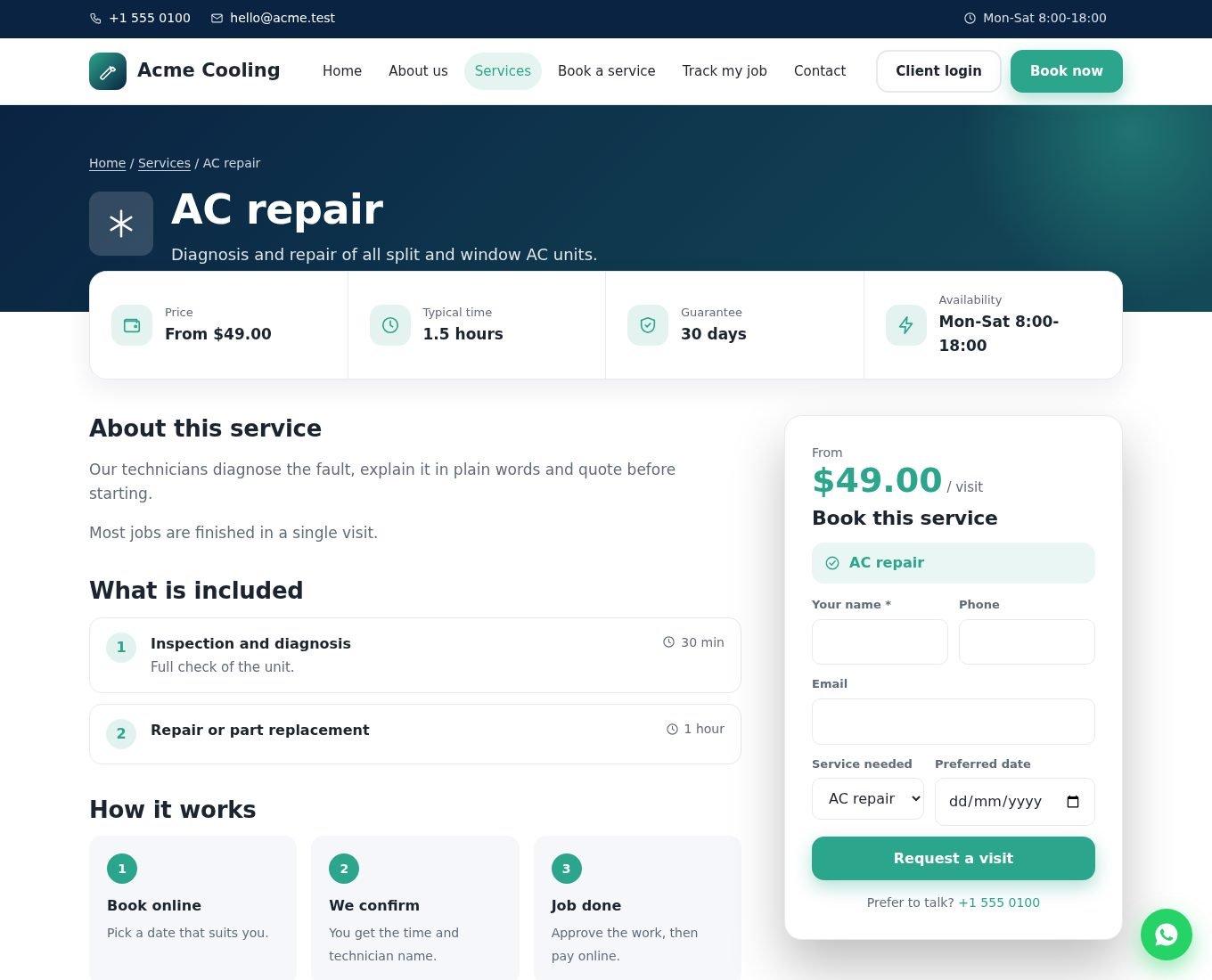
The website uses the services you already keep in Services & Parts. On a service's form, open Show on my website to switch it on, choose an icon, write the full details and upload a picture (used as the thumbnail). Each service gets its own page with its price, the checklist as What is included, a booking form with the service already chosen and links to related services.
Bookings and enquiries
Visitors fill in the booking form (name, phone or email, service, address, date and time, the problem). It is saved under My Website → Enquiries and you get a notification. Press Create request on a booking to make (or find) the client and create a pending work order request in one step; the client limit of your plan is respected. Spam is blocked with a hidden field and rate limits.
Track my job
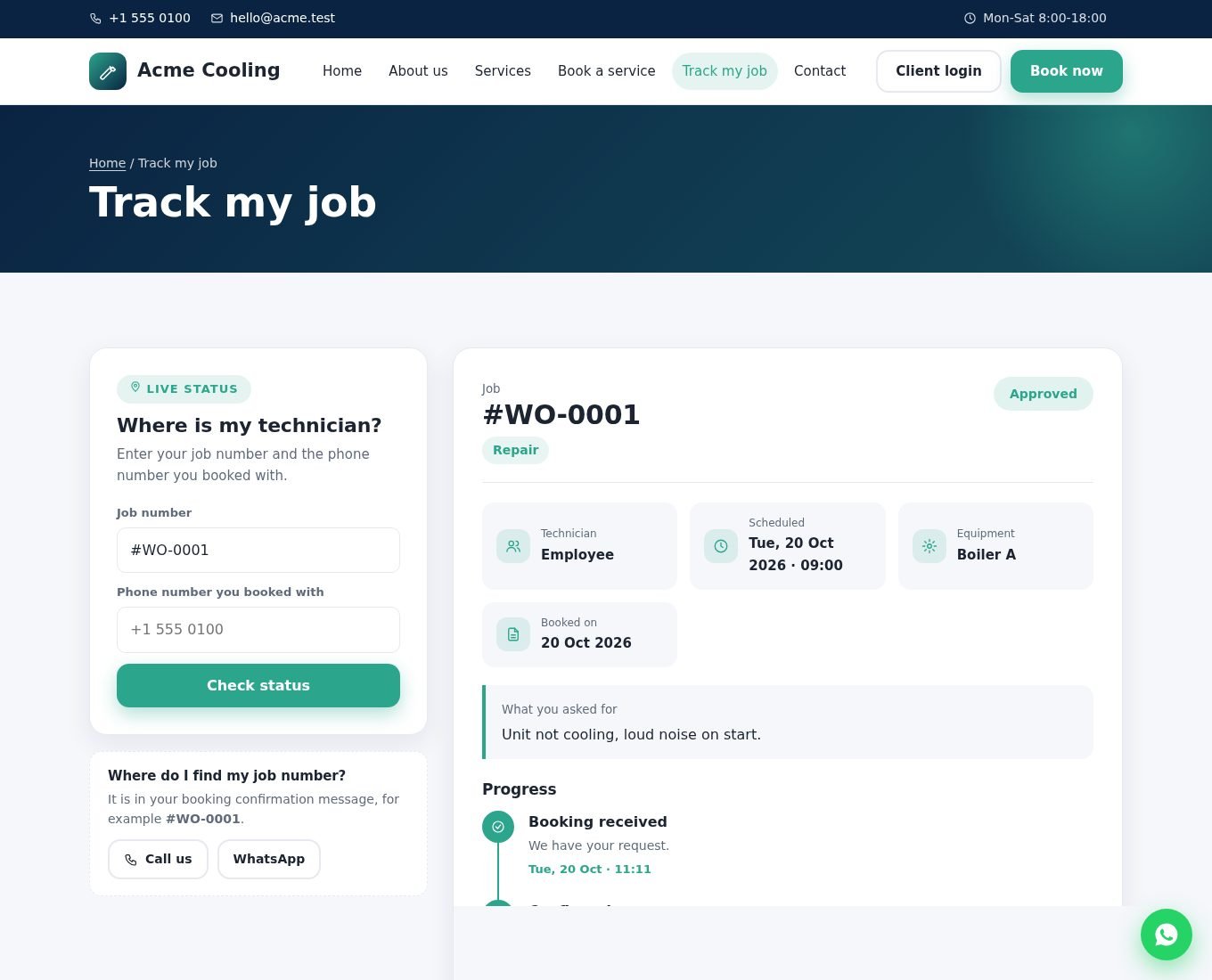
Clients enter their job number and the phone number saved on their account and see a live job card: status, technician (first name), appointment, equipment, what they asked for, a progress timeline (booking received, confirmed, scheduled, on site, completed) and the invoice balance. A wrong combination shows nothing, so strangers cannot probe job numbers.
Your own domain
- Point the domain at your serverAt your domain registrar create an
Arecord for the domain (andwww) pointing at the IP address of this server, and make your web server accept that host name. - Enter itMy Website → Settings & brand → Your own domain, for example
www.acme-cooling.com. Use only the host name, nohttps://. - Switch the website onTick Website is live and save.
- CheckOpen the domain. The home page and all other pages are served on it; the
/site/your-nameaddress keeps working too. Both addresses are listed under the globe icon in the top bar.
Search engines
Every page has its own title, description and canonical address; a sitemap.xml lists all published pages and services; business details are added as structured data (LocalBusiness) including the average rating when reviews exist. Switched-off sites ask search engines not to index them.
Mobile apps
Two Flutter apps, each for Android and iPhone, in the mobile_app folder.
| Folder | App | For |
|---|---|---|
technician_app/android_app and iphone_app | FSM Technician | Employees |
client_app/android_app and iphone_app | FSM Client | Clients |
Both apps look like the web app: soft grey background, white cards, a hero card and bottom navigation with an Inbox badge. The colour follows the company's website colour, sent by the server at sign-in.
FSM Technician
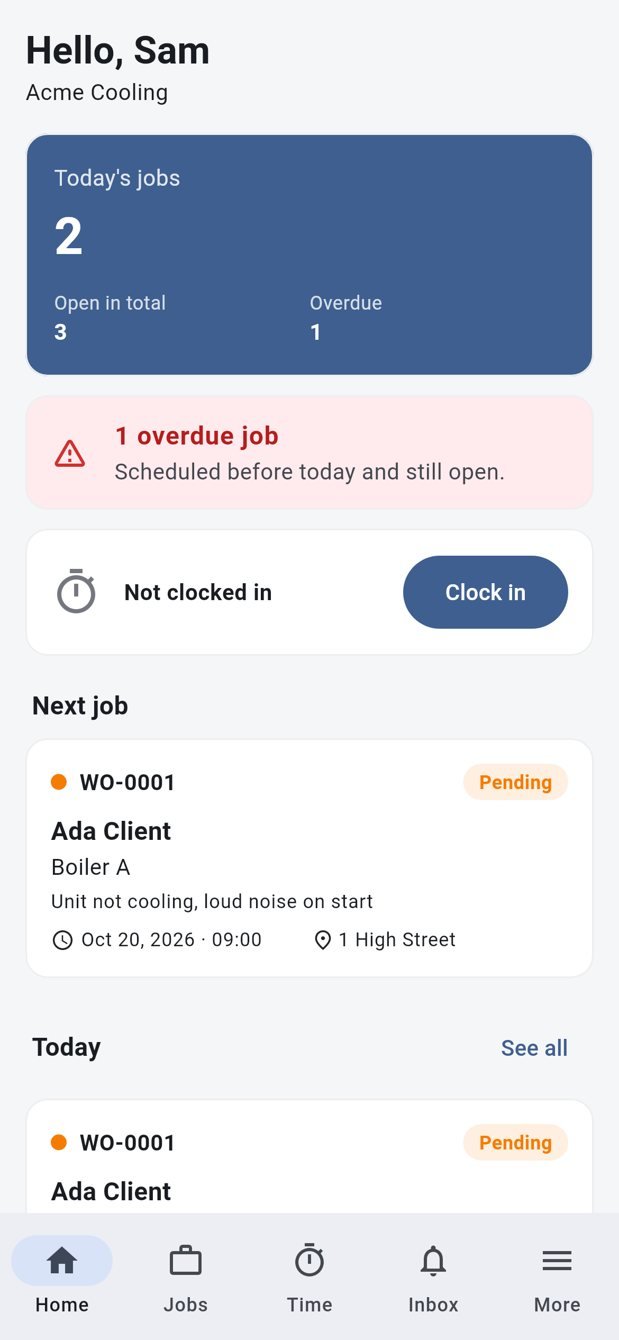
- Home – today's jobs, overdue alert, next job, shift clock, and an AI plan for the day (shown only when the company's plan and settings include AI; it is written when the technician asks and kept for 3 hours).
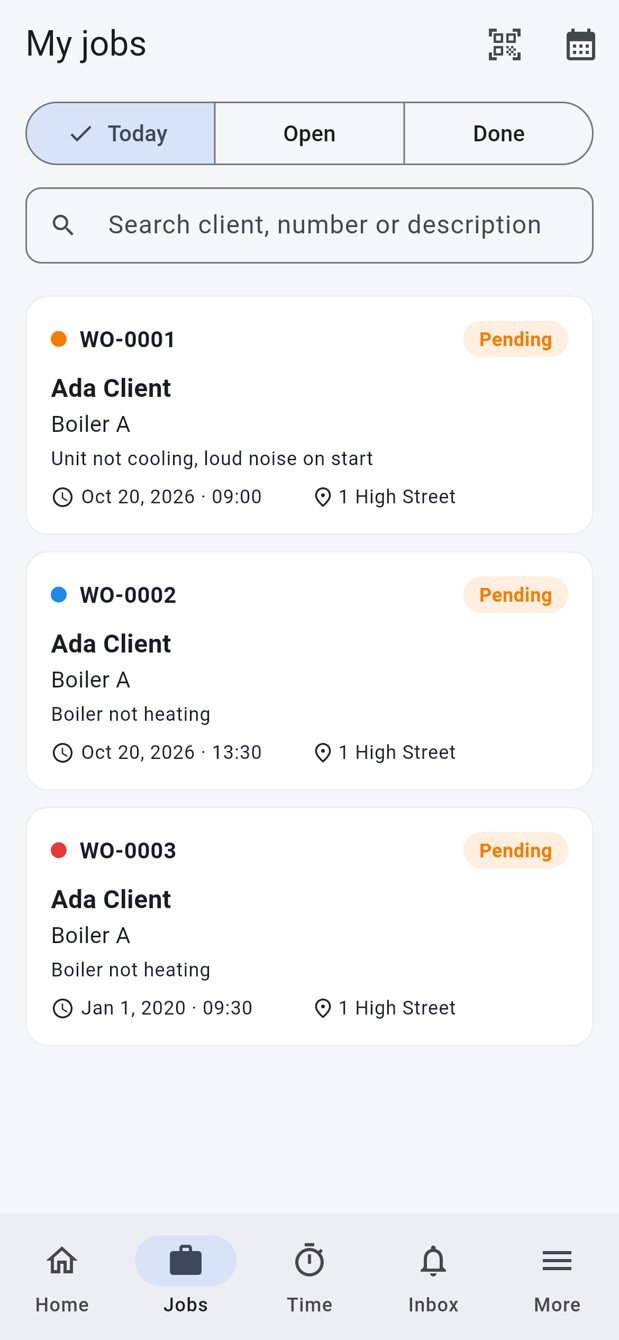
- Jobs – Today / Open / Done, search, calendar view and QR scan of asset labels.
- Job – client and site with call / email / navigate, GPS check-in and out, checklist, parts (with stock), history, before and after photos, notes with voice dictation and an AI tidy-up, AI diagnosis, client signature, hold / start and complete (the company's rules are enforced).
- Time – clock in/out with a timer, shift history, trips and time-off requests.
- Works offline – jobs are cached; check-ins, photos, signatures, notes, status changes, parts and clock-ins are saved on the phone and uploaded in order when the connection returns (More → Waiting to upload shows the queue).
FSM Client
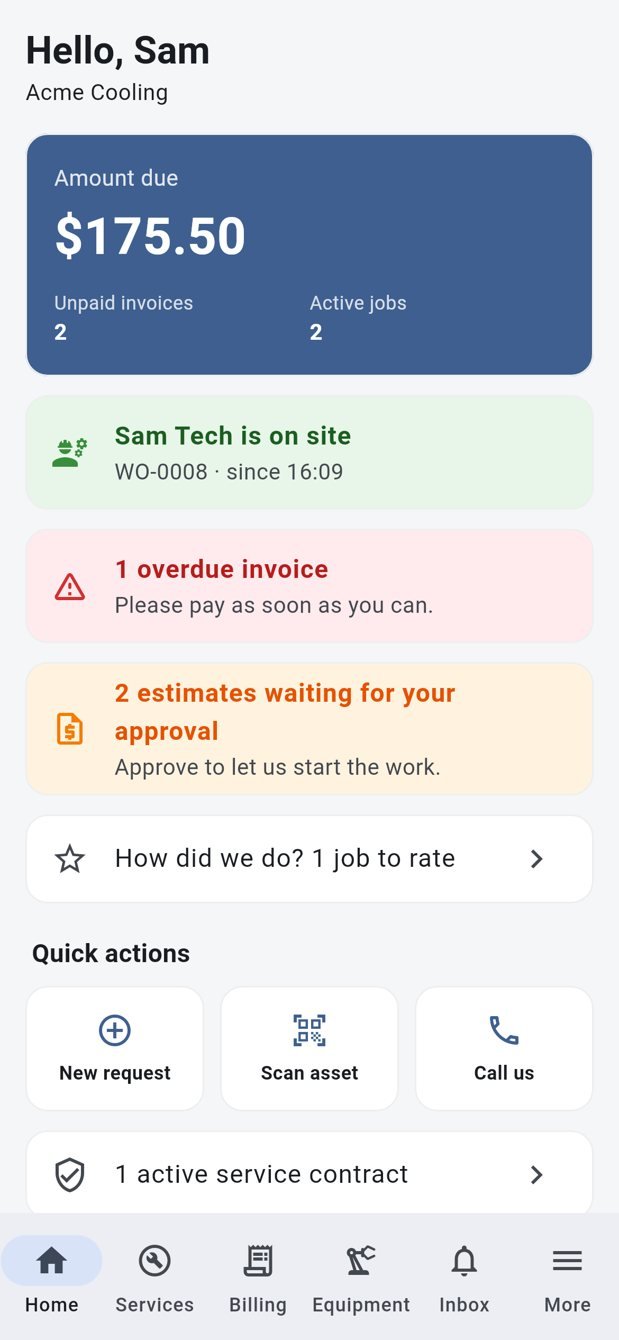
- Home – amount due, "technician is on site", overdue invoices, estimates waiting, next visit, jobs to rate.
- Services – request a service (description, equipment, urgency, preferred time, up to 5 photos; sent later if offline), see requests and jobs with a progress timeline, and rate finished work.
- Billing – approve estimates with a drawn signature or decline; see invoices, payments and the balance; pay online (opens the company's secure payment page, already signed in).
- Equipment – my assets with history and warranty, QR scan, service contracts.
Company code, branding and the platform console
The two apps are published once and serve every company. A company is found by its company code: staff and customers type it, scan the company's QR code, or open its invite link (/join/your-code) the first time. The app then shows that company's logo, name, colour and welcome text before anyone signs in. Email addresses are unique across the platform, so sign-in itself only needs email and password; when the app has a company code it is sent too, and an account from another company is refused.
Owner: open Settings → Branding & Mobile App to change the app name, logo, main colour, welcome text, support phone and email, which parts of the Client app customers see (requests, estimates, invoices, equipment, contracts) and the company code. The page also shows the QR code and invite link to print or send. Changes reach the phones the next time the app opens. Hidden parts are switched off on the server too, not only in the app. Changing the code makes old QR codes and links stop working.
Super admin: open Mobile Apps in the menu. Set the store links shown on invite pages, the minimum app version (older apps are asked to update), a maintenance message (the apps pause while it is filled), and the default look for new companies. The company list shows each company's code, users, registered phones and last use, and can switch the apps off for one company, which also signs its people out.
There is one app for everybody; companies are not given their own store apps. After a person signs in, the app and the web panel show that company's own name, logo, favicon (browser tab icon) and colour.
How customers get the app
Add the Get our app block (or the ready-made Get our app page template) to your website. It shows a QR code, your company code and the Google Play / App Store buttons, filled in automatically; the store links are set by the super admin. Customers scan the QR code or type the company code in the app and sign in with the email on their account. Settings → Branding & Mobile App keeps the company code and invite link (with Copy and Print buttons) and points to the website section; if an owner has no company code yet, one is made from the company name.
Signing in and security
Email and password, a two-factor code when it is switched on, and an optional fingerprint / face lock. The session is kept in the phone's secure storage. API tokens last 90 days (SANCTUM_EXPIRATION_MINUTES); changing the password signs the person out of other phones and deactivating the account locks them out at once.
Build and publish the apps
You need the Flutter SDK (flutter doctor). Open a project folder, for example mobile_app/technician_app/android_app.
flutter pub get
flutter run --dart-define=API_BASE_URL=https://your-company.example
flutter test && flutter analyze
flutter build appbundle --dart-define=API_BASE_URL=https://your-company.example   # Android (Google Play)
flutter build ipa       --dart-define=API_BASE_URL=https://your-company.example   # iPhone, on a Mac with Xcode
Leave API_BASE_URL out and the sign-in screen asks for the server address (handy while testing; debug builds accept plain http://).
The folder layout
Each of the four projects is a complete Flutter project with lib/ (api, state, util, screens, widgets), test/, tool/, docs/ and its own android/ or ios/. android_app and iphone_app share the same code; after changing one, run mobile_app/check-sync.sh to be sure the other matches.
Before publishing
- Application id / bundle id –
com.smartfsm.fsm_technicianandcom.smartfsm.fsm_client. Change them to your own. - Android signing – create a key with
keytooland put its details inandroid/key.properties(it is git-ignored). - Icons – replace
assets/icon.pngandassets/icon_foreground.png, then rundart run flutter_launcher_icons. - iPhone – open
ios/Runner.xcworkspaceon a Mac, set your team and bundle id, add the Push Notifications capability and Background Modes → Remote notifications.
Push notifications (optional)
- Create a Firebase projectAdd the Android and iOS apps with your application ids.
- Add the app filesAndroid:
google-services.jsoninandroid/app/. iPhone:GoogleService-Info.plistinios/Runnerin Xcode, and your APNs key in Firebase. - Tell the serverIn Firebase create a service-account key (JSON), save it on the server and set
FCM_CREDENTIALS=/full/path/to/service-account.jsonin.env.
Without this everything still works and the in-app inbox fills up; only the phone pop-ups are missing.
AI tools
Optional helpers that save typing and time. Each company connects the AI service it prefers, using its own key, and the plan must include AI.
- AI Assistant (Insights & Tools) – ask in plain words: "Which jobs are overdue?", "What is unpaid?", "What do boiler services usually cost?". It answers only from your own data and cannot change anything; when you ask it to assign a technician it proposes the assignment and waits for you to confirm.
- Request triage – suggests a priority and a type for a new request.
- Fault diagnosis – from the job description and the asset's history, suggests likely causes and parts to bring (also in the Technician app).
- Note tidy-up – turns a technician's rough or dictated notes into clear sentences.
- Weekly summary – an email every Monday morning for owners who tick the box on the AI Assistant page.
Connect your AI service (owner)
Only the owner of a company can connect AI. Managers, technicians, clients and even the super admin cannot see or change the key.
- Open the AI settingsSettings → AI Settings (the tab only appears for the owner, and only if the plan includes AI).
- Choose the serviceGPT models, Anthropic (Claude), Google (Gemini), Mistral, DeepSeek, Groq, OpenRouter, or Other – any service that accepts the common chat format, with its own https address.
- Model (optional)Leave it empty to use the recommended model of that service, or type the exact model name you want.
- Paste the keyIt is stored encrypted and never shown again; leave the box empty later to keep the saved key.
- Test, switch on, savePress Test connection (nothing is saved or counted), tick Switch AI on and save.
AI and plans
- AI is a feature of the plan: in Pricing tick AI Features on the plans that include it and set AI requests per day for each plan (0 means no limit). A company on a plan without AI sees no AI buttons at all.
- Every call is logged with its tokens and counted against the plan's daily limit; the settings page shows how many requests the company has used today.
- The cost of the calls is billed by the AI service to the owner who entered the key.
- The photo check in the Technician app needs a service that can look at pictures; the settings page tells you when the chosen one cannot.
- If the assistant says "not enabled", check that the owner switched AI on, saved a key, and that the plan includes AI.
Messages and automation
The system tells people what they need to know, and can talk to your other tools.
Email, SMS and WhatsApp templates
System Configuration → Email Notification lists every message the system sends (new user, new request, request assigned, estimate created or approved, work order created, assigned or completed, invoice created or paid ...). For each one choose the channels (email, SMS, WhatsApp) and edit the wording with placeholders such as {company_name} or {new_user_name}. SMS uses Twilio; WhatsApp needs its settings filled in. Every message is also copied into the person's in-app inbox.
Queue
With QUEUE_CONNECTION=sync (the default) messages go out immediately. Set it to database and messages are sent in the background by the scheduler, so pages stay fast.
N8N and webhooks
Insights & Tools → N8N sends events to your N8N (or Zapier / Make) workflow: client created, user created, request created and assigned, work order created, assigned and completed, estimate created and approved, invoice created and paid.
The page also shows your private inbound webhook, so other tools can create a request. Send JSON to https://yourdomain.com/api/inbound/<token>/wo-request:
{ "client_email": "client@example.com", "request_detail": "Boiler is leaking", "priority": "high", "asset_id": 12, "due_date": "2026-11-01" }
The client must already exist for your company. The token is secret; if it leaks, generate a new one.
Settings and integrations
Everything that is set once lives under Settings (the gear icon).
| Tab | What it controls |
|---|---|
| General / Company | Name, logo, favicon, address, currency symbol, date and time format, and the invoice, estimate and work order number prefixes. |
| Email SMTP | The mail server used for every message. Send a test email after saving. |
| Payment | Stripe, PayPal, Flutterwave, Paystack and bank transfer for invoices (and for plans, when you run a SaaS). Sandbox or live. |
| SMS / WhatsApp | Twilio details for text messages and WhatsApp. |
| AI Settings (owner only) | The AI service, model, key and the on/off switch. See Connect your AI service. |
| Password / 2FA | Change your password and turn on two-factor authentication. |
| Theme | Colour, layout, light or dark mode, right-to-left. Owners and the super admin can open it from the gear icon in the top bar. |
Languages and themes
Twelve languages are included.
English, Arabic, Danish, Dutch, French, German, Italian, Japanese, Polish, Portuguese, Russian and Spanish. Users choose their language from the language icon in the top bar. The super admin can add a language and edit any translation line. Arabic switches the layout to right-to-left.
The theme settings (gear icon) change the main colour, light or dark sidebar and body, and compact layouts. The website of each company has its own look (see Company website) and the apps follow the company colour.
API
A REST API serves the mobile apps and is open to your own tools.
- Base address –
https://yourdomain.com/api/v1. Everything is JSON. - Sign in –
POST /auth/loginwith email and password (plus/auth/otpfor two-factor) returns a token. Send it asAuthorization: Bearer <token>. - Roles – a token is either a technician or a client token and can only use that role's routes (
/tech/...or/client/...). - Technician routes – jobs (list, detail, check-in, photos, signature, notes, status, parts, complete, AI diagnose), shift and time tracking, trips, leave, parts catalogue, asset scan.
- Client routes – dashboard, requests (with photos), work orders and rating, estimates and their response, invoices, assets, contracts, QR scan.
- Shared –
/me, avatar, password, device registration for push, and the notification inbox. - Safe to retry – uploads from the apps carry a
client_uuid, so a request repeated after a bad connection is never saved twice. - Errors –
{ "message": "...", "code": "...", "errors": { ... } }with the usual HTTP status codes. - Limits – signed-in users may make 300 requests a minute; anonymous calls 60.
The full contract is the OpenAPI file mobile_app/technician_app/android_app/docs/openapi.yaml (a test checks it against the real routes).
SaaS administration
Run Smart FSM as a service for many companies.
- Companies – the super admin's Customers page lists every company (owner), lets you activate or deactivate it and sign in as it.
- Plans – Pricing holds the packages: price, duration and limits on technicians, clients and work orders per month, plus which add-ons the plan includes (AI features with a daily request limit, N8N, login history ...). Companies see their usage on their dashboard and are stopped, politely, at the limit.
- Payments – companies pay for a plan by Stripe, PayPal, Flutterwave, Paystack or bank transfer (approved by the super admin). Pricing → Transactions lists them.
- Coupons – discounts with a validity and a usage limit; Coupons → History shows where they were used.
- Landing page (CMS) – System Settings → CMS edits the public home page, extra pages (terms, privacy), the FAQ, the footer and the login page. Visitors who are not signed in see the landing page at your main address.
- System health – the super admin dashboard shows whether cron is running, pending database updates, failed queue jobs, push and AI keys, and how many phones are registered.
Upgrading
Always back up first.
- Back upDownload your
.envfile,.htaccessand thestoragefolder, and export the database. - Replace the filesUpload and replace everything with the contents of
main_filefrom the new version. - RestorePut your
.env,.htaccessandstorageback. - Run the updateLog in and follow the steps in the update wizard, or run
php artisan migrateon the command line. - Clear cachesRun
php artisan optimize:clear(or delete the files inbootstrap/cacheandstorage/framework/views).
resources/lang. Keep a copy of any translation you changed. Changes to core files are also lost, so keep your own customisations separate.Going live checklist
Before real customers use it.
APP_ENV=production,APP_DEBUG=falseand the correctAPP_URL(with https).- Change all default passwords and turn on two-factor for owners.
- Use
QUEUE_CONNECTION=databaseand the cron line so emails are sent in the background. - Set up SMTP and send a test email; set up the payment gateways in live mode.
- Install an SSL certificate (also on every custom website domain).
- Run the web server and the cron job as the same user, so cached files can be shared (see Troubleshooting).
- Run
php artisan migrateandphp artisan optimize:clearafter every update. - Take regular database and
storagebackups, includingpublic/uploads. - Never copy a
.envfile or session files into a public code repository.
Troubleshooting and FAQ
Common problems and what to try.
| Problem | Try this |
|---|---|
| A blank page or 500 error | Check storage/logs/laravel.log. Make sure storage and bootstrap/cache are writable, then run php artisan optimize:clear. |
| "Failed to open stream" for a cache file | The web server cannot write into a folder created by another user (for example after running artisan as a different user). Run chmod -R a+rwX storage or make the web server and cron the same user. |
| Emails are not arriving | Test SMTP in Settings. Check the cron line is running and, if you use a queue, that the worker is running. |
| Reminders, recurring invoices or maintenance jobs are not created | The cron line is missing. The super admin dashboard shows when the scheduler last ran. |
| Website pictures show as broken | Make sure public/uploads is writable. If your site is served from the main folder (not public), the .htaccess rewrite list must include uploads. |
| The website shows 404 | It is switched off. Tick Website is live in My Website → Settings & brand. While it is off, only the signed-in owner can preview it. |
| "Track my job" finds nothing | The job number must match and the phone number must be the one saved on that client (the last 8 digits are compared). |
| A custom domain shows the wrong site | Check the DNS record points at this server and that the domain is entered exactly as a host name, with no https://. |
| The app cannot sign in | Check the server address, that the site uses https, and that the account is active. Run the latest migrations. |
| Push notifications do not arrive | Check FCM_CREDENTIALS points at the service-account file, and that the app has the Firebase files. |
| AI says it is not available | Ask the owner to switch AI on and save a key in Settings → AI Settings, and check that the plan includes AI and the daily limit has not been reached. |
| A page looks old after an update | Run php artisan optimize:clear and hard-refresh the browser. |
Environment variables
Set in the .env file. Run php artisan optimize:clear after changing it.
| Key | Default | Purpose |
|---|---|---|
APP_ENV / APP_DEBUG / APP_URL | - | Environment, debug output and the public address. |
DB_* | - | Database host, name, user and password (set by the installer). |
MAIL_* | - | Mail server (also editable in Settings). |
QUEUE_CONNECTION | sync | Use database in production. |
SANCTUM_EXPIRATION_MINUTES | 129600 | How long a mobile sign-in lasts (90 days). |
FCM_CREDENTIALS | - | Path to the Firebase service-account JSON for push notifications. |
For developers: the PHP tests only run against a database called smart_fsm_phpunit (see phpunit.xml) and refuse any other, because they rebuild the database. Create it once with CREATE DATABASE smart_fsm_phpunit;.
Change log
What changed, newest first.
Version 2.0 – 20 October 2026
- Technician and Client mobile apps for Android and iPhone, with offline mode, push notifications and a REST API.
- Company websites with a block editor, custom domains, online booking, service pages and job tracking.
- New dashboards for owner, technician, client and super admin.
- Dispatch board, preventive maintenance, service contracts, sites and branches.
- Stock tracking, suppliers and purchase orders.
- Estimates approved with a signature, recurring invoices and overdue reminders.
- Insights & Analytics reports, activity log, trash, import / export and global search.
- AI assistant, request triage, fault diagnosis and weekly summaries, working with the AI service each owner chooses (GPT, Claude, Gemini, Mistral and more), included by plan with a daily limit.
- Menu regrouped by workflow; cleaner menus for employees and clients.
Support
Stuck? We are happy to help.
Open a ticket at support.smartwebinfotech.com. Please include your purchase code, the page you were on, what you expected and what happened, and, if you can, the last lines of storage/logs/laravel.log.