
Smart Fleet documentation
Everything you need to install, set up and run your fleet or vehicle-rental business: vehicles, drivers and clients, bookings and online booking requests, live tracking, maintenance and costs, reports, the client portal, your own website, the mobile web app and Android / iPhone apps, and the AI tools.
Overview
Smart Fleet is a complete fleet and vehicle-rental management system. Run it for your own company, or as a SaaS: companies sign up, pick a plan and manage vehicles, drivers, clients and bookings in one place, with their data kept completely separate.
How the pieces fit together
| Part | What it is | Who uses it |
|---|---|---|
| Admin panel | The back office: vehicles, drivers, clients, bookings, tracking, maintenance, costs, reports and settings. | Super admin, owner, managers |
| Client portal | The client's own view: request a booking, trips, payments, statement, documents and reviews. | Clients |
| Driver workspace | The driver's view in the browser and in the apps: today's trips, start and finish, problem reports, fuel and expenses. | Drivers |
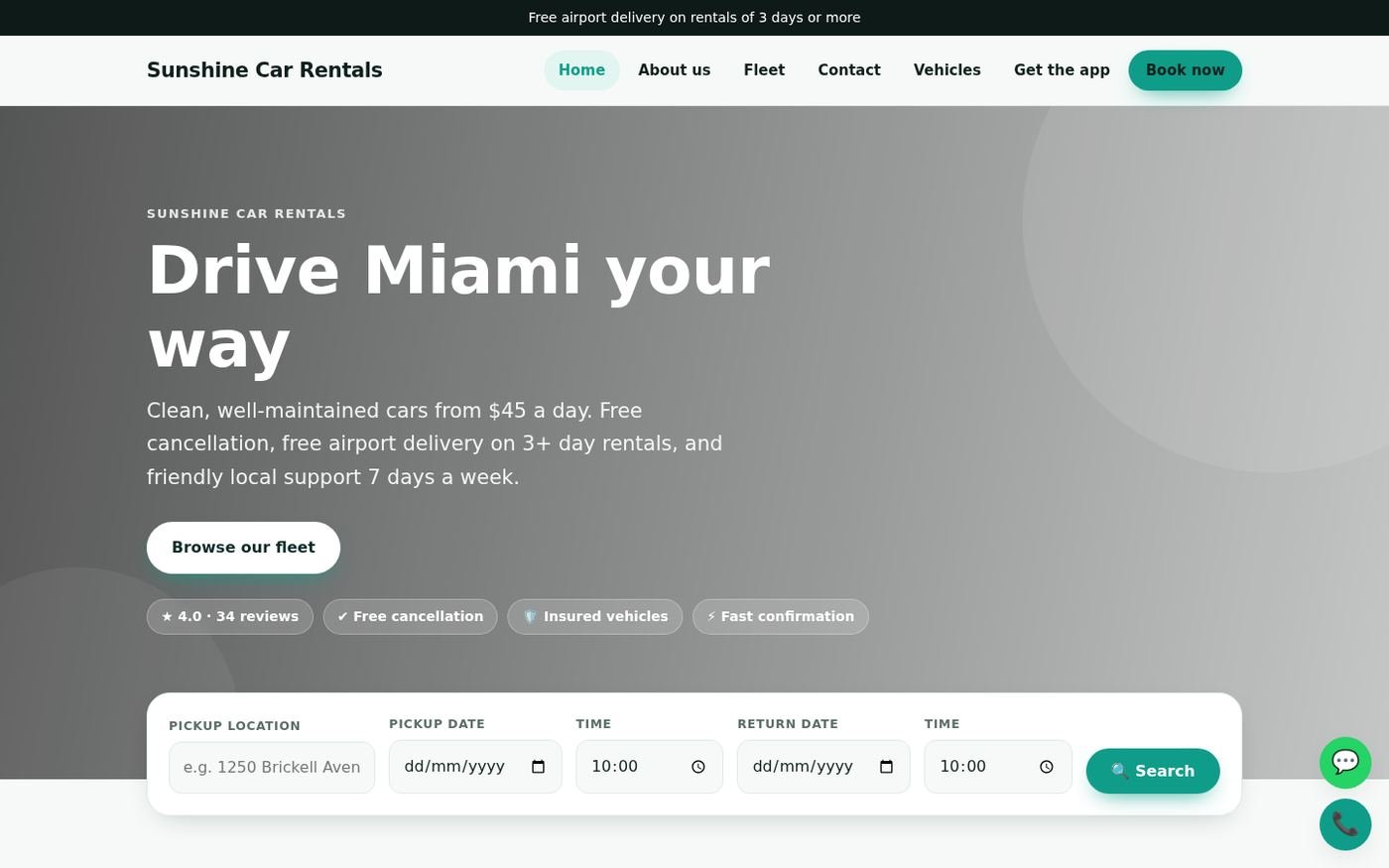
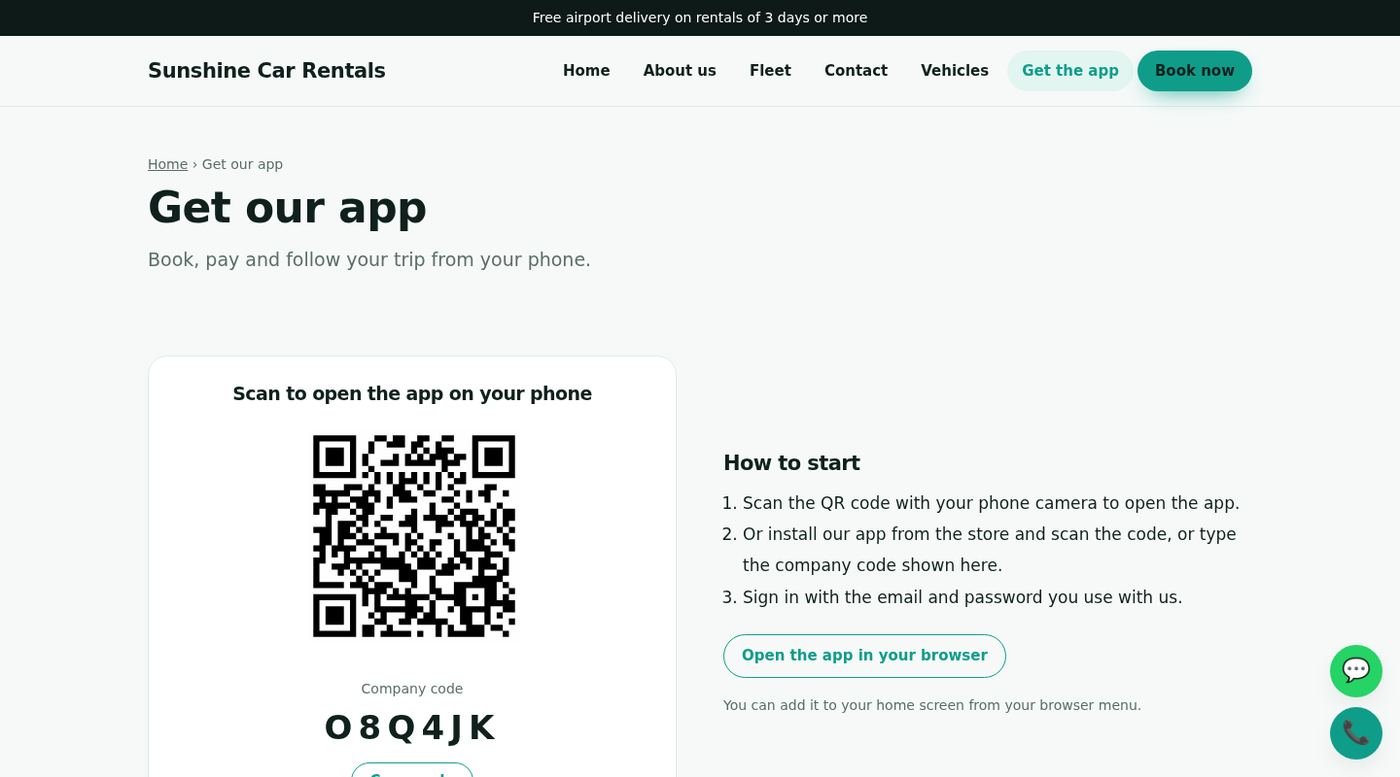
| Owner website | A public website per owner with the fleet, online booking, enquiries, an own domain and a "Get our app" page with a QR code. | Visitors and clients |
| Mobile web app | An installable web app at /mobile/<app code> for customers and drivers. Works in the phone's browser and can be added to the home screen. | Clients and drivers |
| Android / iPhone apps | Flutter source for the Customer app and the Driver app, in the mobile folder (add-on). | Clients and drivers |
| API | REST API (/api/v1 and /api/v2) used by the apps, plus an endpoint for GPS / OBD devices. | Developers |
Quick-start checklist
- InstallCheck the requirements, create the database, upload the files and run the installer.
- Log in and secure the accountsUse the default logins once, then change every password.
- Switch on the background workAdd the cron line so reminders, digests, backups and the queue run. The Super Admin's Settings → Scheduler tab shows the exact line and whether it works.
- Company and emailIn Settings fill in the company and email (SMTP) tabs. See Settings.
- Describe your fleetAdd vehicle types, inspection types and expiration types, then your vehicles, drivers and clients.
- Take your first bookingCreate a booking (or approve a request), assign a driver, and watch it on the dashboard.
- Go onlinePublish your website and share the app link or QR code from Mobile Web App.
Server requirements
Smart Fleet is built with Laravel. Make sure your hosting meets the following before you start.
- PHP
- 8.1 or newer (8.2 or 8.3 is fine)
- Database
- MySQL 5.7+ (8 recommended) or MariaDB 10.3+
- Web server
- Apache (with
mod_rewrite) or Nginx - HTTPS
- Strongly recommended. Required for the mobile apps, online payments, GPS sharing from the browser and push notifications.
- Cron
- One cron line, see Background work
- mysqldump
- Optional, used by the automatic database backup. Without it you can still back up from your hosting panel.
Required PHP extensions
Folders that must be writable
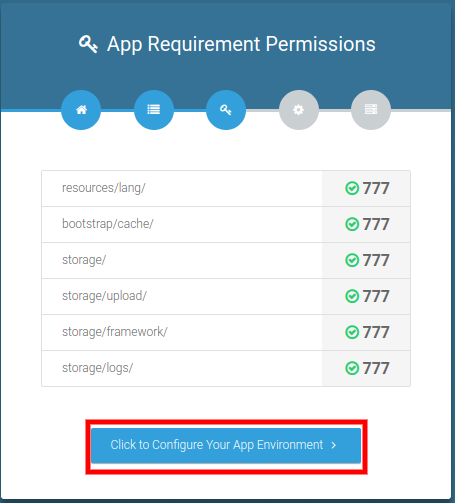
storage (including storage/upload for pictures and documents) and bootstrap/cache. The installer checks these too.
PHP upload limits
Vehicle photos, driver receipts and client documents can be up to 5 MB each. Set upload_max_filesize = 12M and post_max_size = 40M in php.ini if you allow several photos at once (a driver can attach 4 photos to a trip).
Create the database
The steps below use cPanel. Other hosting panels offer the same options under similar names.
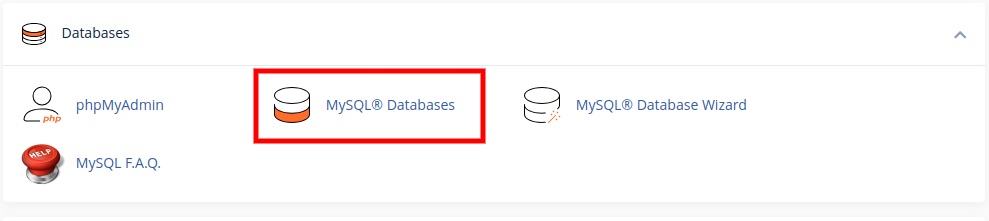
- Open the database toolIn your hosting panel go to Databases and click MySQL® Databases.
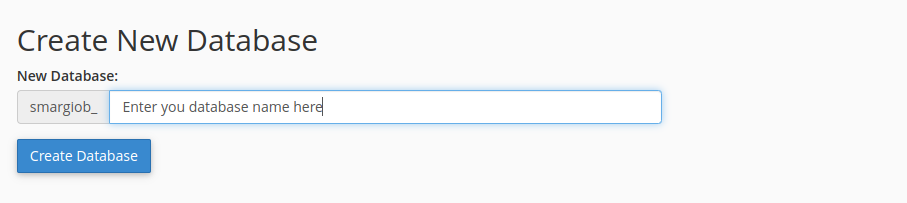
- Create the databaseType a name and click Create Database. Your host adds a prefix to the name; write the full name down.
- Create a database userIn Add New User enter a user name and a strong password (use the generator) and click Create User.
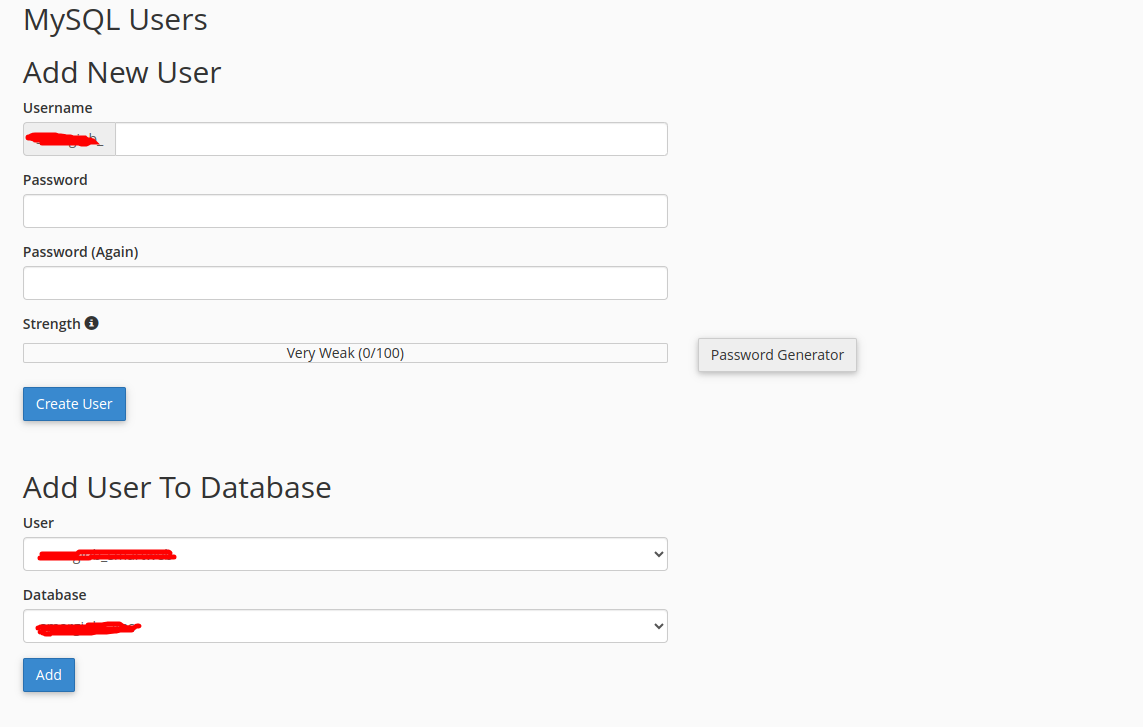
- Add the user to the databaseIn Add User To Database choose the user and the database, then click Add.
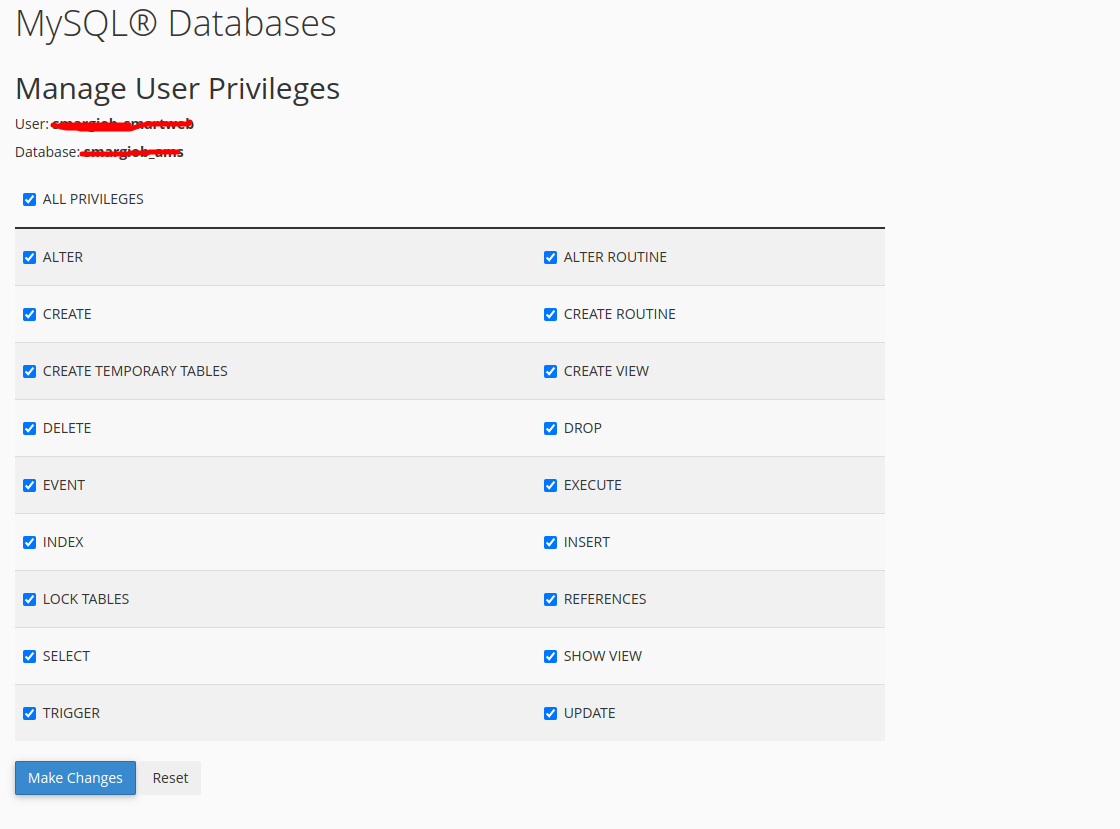
- Give all privilegesTick ALL PRIVILEGES and click Make Changes.
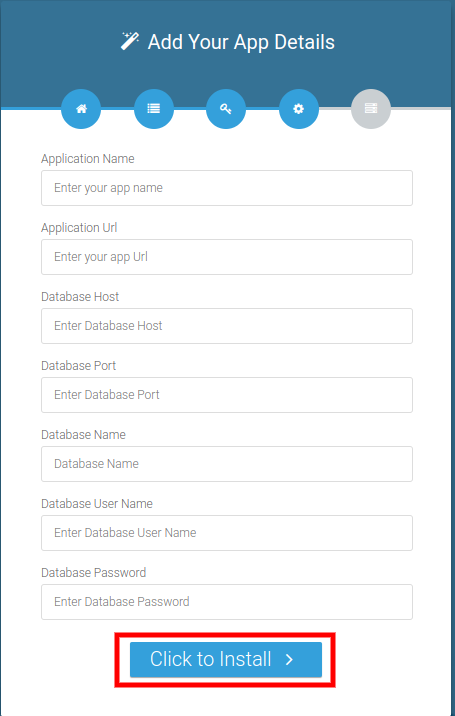
localhost), database name, user name and password. The installer asks for them in step 5.Upload the files
Upload the contents of the main_file folder from your download to your web root.
- Open the File ManagerLog in to cPanel and open File Manager under Files.
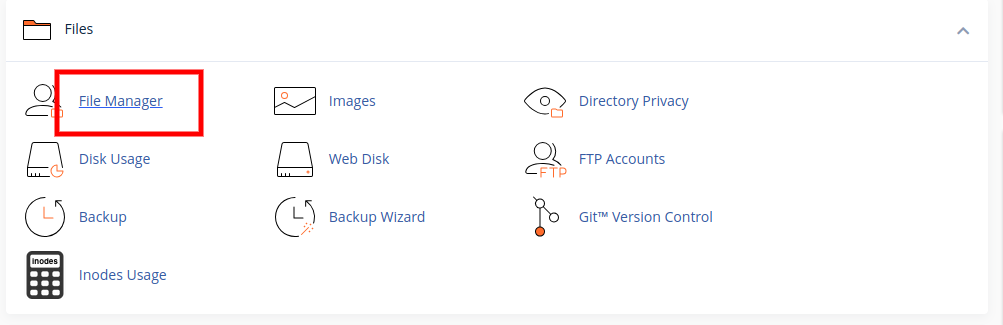
- Go to the right folderFor your main domain this is
public_html. For a sub-domain or sub-folder, open that folder instead.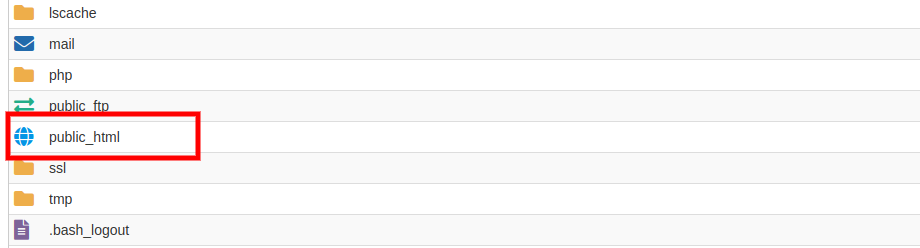
- Upload and extractClick Upload, choose the zip file, wait for 100%, then right-click it and choose Extract. Make sure the files from
main_file(including the hidden.htaccess) end up directly in the folder. - CheckYou should see
app,bootstrap,config,public,storage,artisanand the other Laravel folders.
documentation or mobile folders to the web root. They are for you, not for visitors. The included .htaccess already blocks direct access to storage/private (client ID documents) and to backups; keep it.Run the installer
A web installer sets up the application in a few minutes.
- StartOpen
https://yourdomain.com/installin your browser. This starts the App Installation Process.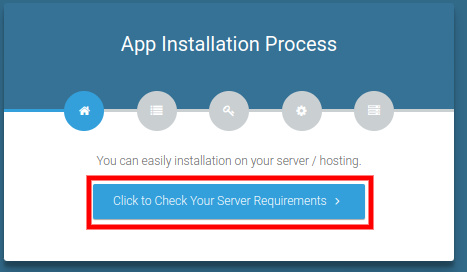
- Check the serverClick Click to Check Your Server Requirements. Everything should be ticked.
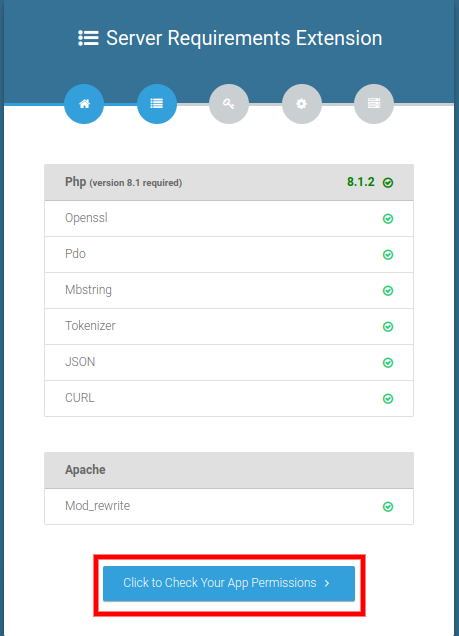
- Check permissionsThe installer checks the folder permissions. When all are fine, click Click to Configure Your App Environment.
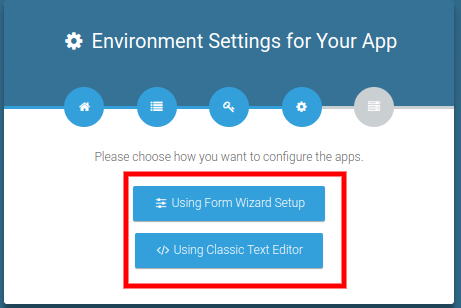
- Choose the setup typeSelect Using Form Wizard Setup.
- Enter the app and database detailsFill in the database host, name, user and password from the previous step, plus an application name and the application URL. Click Click to Install.
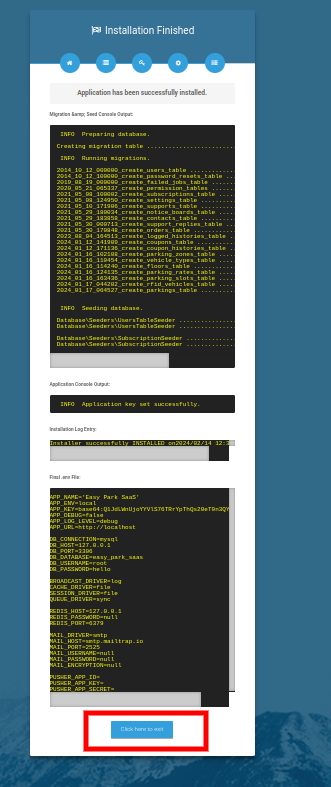
- FinishWhen you see Application has been successfully installed, click Click here to exit.
After installation
A few minutes of setup now saves problems later.
- Log inOpen your site and sign in with a default account.
- Change the passwordsOpen Settings → Password for each default account.
- Add the cron lineSee Background work. Without it reminders, digests, backups and queued messages do not run.
- Set up emailSettings → Email SMTP, then send a test message. Invitations, booking mails, invoices and reminders all use it.
- Fill in the company detailsName, logo, address, currency and date format under Settings.
- Turn debug offIn
.envsetAPP_ENV=productionandAPP_DEBUG=false. See Going live. - Rotate secrets you sharedIf the
.envfile was ever public or sent to someone, generate a newAPP_KEYand change the database password.
Background work (cron job)
Smart Fleet does some work on its own: expiry digests, subscription reminders, late fees, weekly AI summaries, database backups, cleaning old tracking points and the message queue. A single cron line makes it all run.
The scheduler
In cPanel open Cron Jobs and add this line to run every minute. Replace the path with the folder that contains artisan.
* * * * * cd /home/youraccount/public_html && php artisan schedule:run >> /dev/null 2>&1
| Task | When | What it does |
|---|---|---|
| Heartbeat | Every minute | Writes the time of the last run. The Super Admin's Scheduler tab shows it, so you can see that the cron line really works. |
Expiry digests (fleet:send-expiry-digests) | Hourly, in each owner's own digest hour | Emails the owner what expires or needs service soon (registrations, insurance, licences, service due). |
Subscription reminders (fleet:subscription-dunning) | Daily 07:00 | Reminds owners whose plan is about to end and moves lapsed owners to the free plan after the grace days. |
Late fees (fleet:apply-late-fees) | Hourly | Updates the late fee of open bookings that are past their return time and have a late fee per day. |
Weekly AI summary (fleet:ai-weekly-summary) | Hourly, once a week per owner | Sends owners with AI a plain-language summary of the week. |
Database backup (fleet:backup) | Daily 02:30 | Saves a zipped database backup to storage/app/backups and keeps the newest 7. |
Clean tracking points (fleet:prune-locations) | Daily 03:30 | Deletes tracking points older than 90 days. |
Queue (queue:work) | Every minute | Sends queued email and SMS (only when QUEUE_CONNECTION is not sync). |
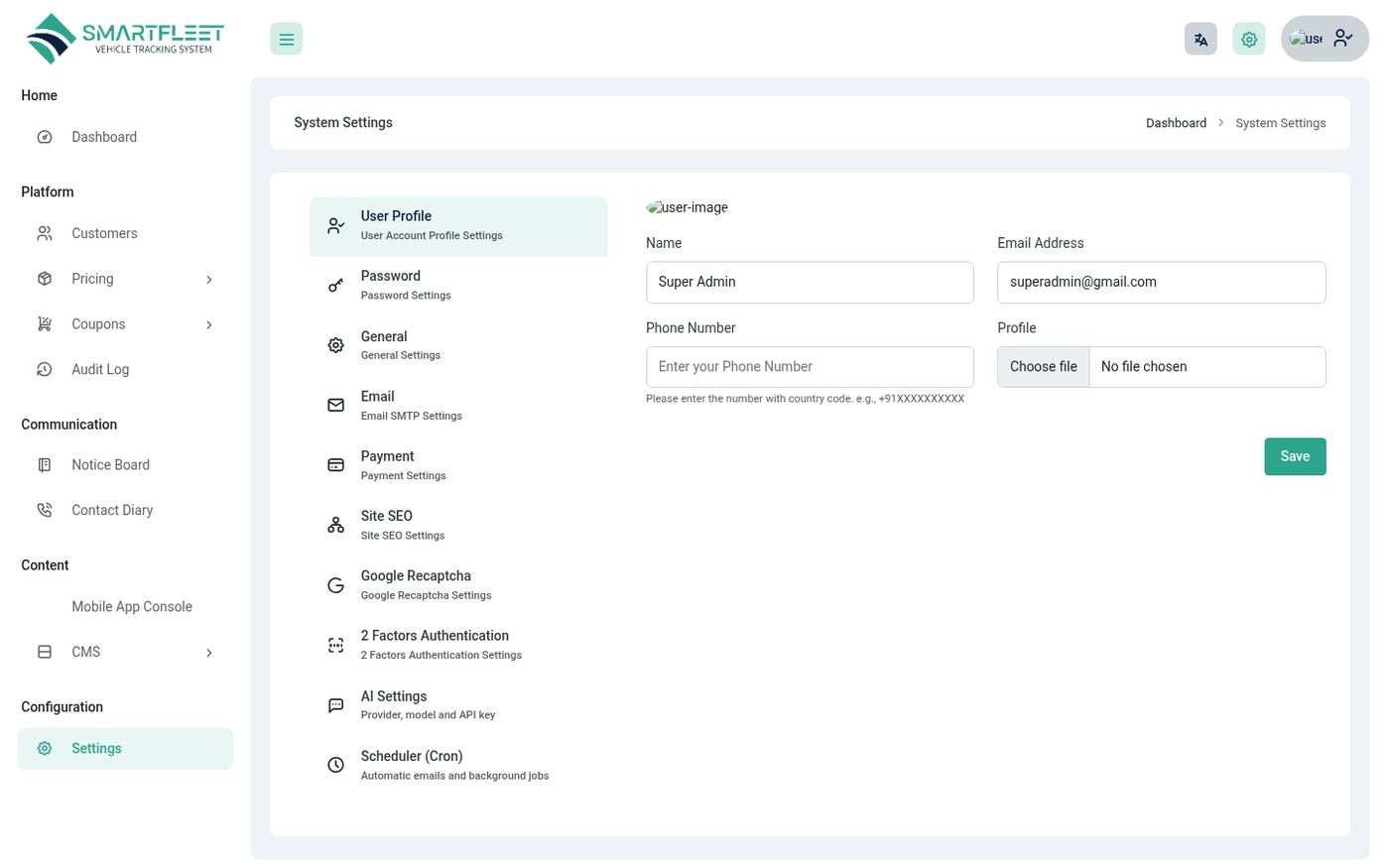
Default logins
The installer creates three accounts so you can look around straight away.
| Role | Password | |
|---|---|---|
| Super admin | superadmin@gmail.com | 123456 |
| Owner (company) | owner@gmail.com | 123456 |
| Manager (staff) | manager@gmail.com | 123456 |
Roles and how it fits together
Everyone sees only what belongs to them. The menu changes with the role and with the permissions the owner has given.
| Role | What they can do |
|---|---|
| Super admin | Runs the platform: customers (owners), packages, coupons, transactions, the landing page, settings, the scheduler, backups and the Mobile App Console. Cannot see a company's bookings. |
| Owner | The company. Has the full admin panel for their own business and their own data only, plus the website and the Mobile Web App page. |
| Manager / staff | Created by the owner. Permissions come from the role the owner gives them (Staff Management → Roles). |
| Client | The owner's customer. Requests bookings, pays, sees trips and invoices, uploads documents. |
| Driver | Sees only the trips assigned to them and the workspace for them. |
The owner's menu
| Group | Contains |
|---|---|
| Home | Dashboard, Staff Management (users, roles, audit log, login history), AI Assistant |
| People | Client, Driver |
| Operations | Bookings (all bookings, booking requests, rental agreements), Live Tracking, Driver Reports, Driver App |
| Fleet | Vehicles (with inspections), Maintenance (services, expiration reminders, parts inventory, vendors), Costs (fuel, expense, fines & tolls, accidents & claims) |
| Insights | Cost Analytics, Report (income, expense, profit / loss, vehicle availability), Report Center |
| Communication | Notice Board, Contact Diary |
| Subscription | Plans & Billing (when pricing is on) |
| Content | My Website, Mobile Web App, CMS |
| Configuration | Types (vehicle, inspection, expiration), Notifications (email templates, rules), N8N, Settings |
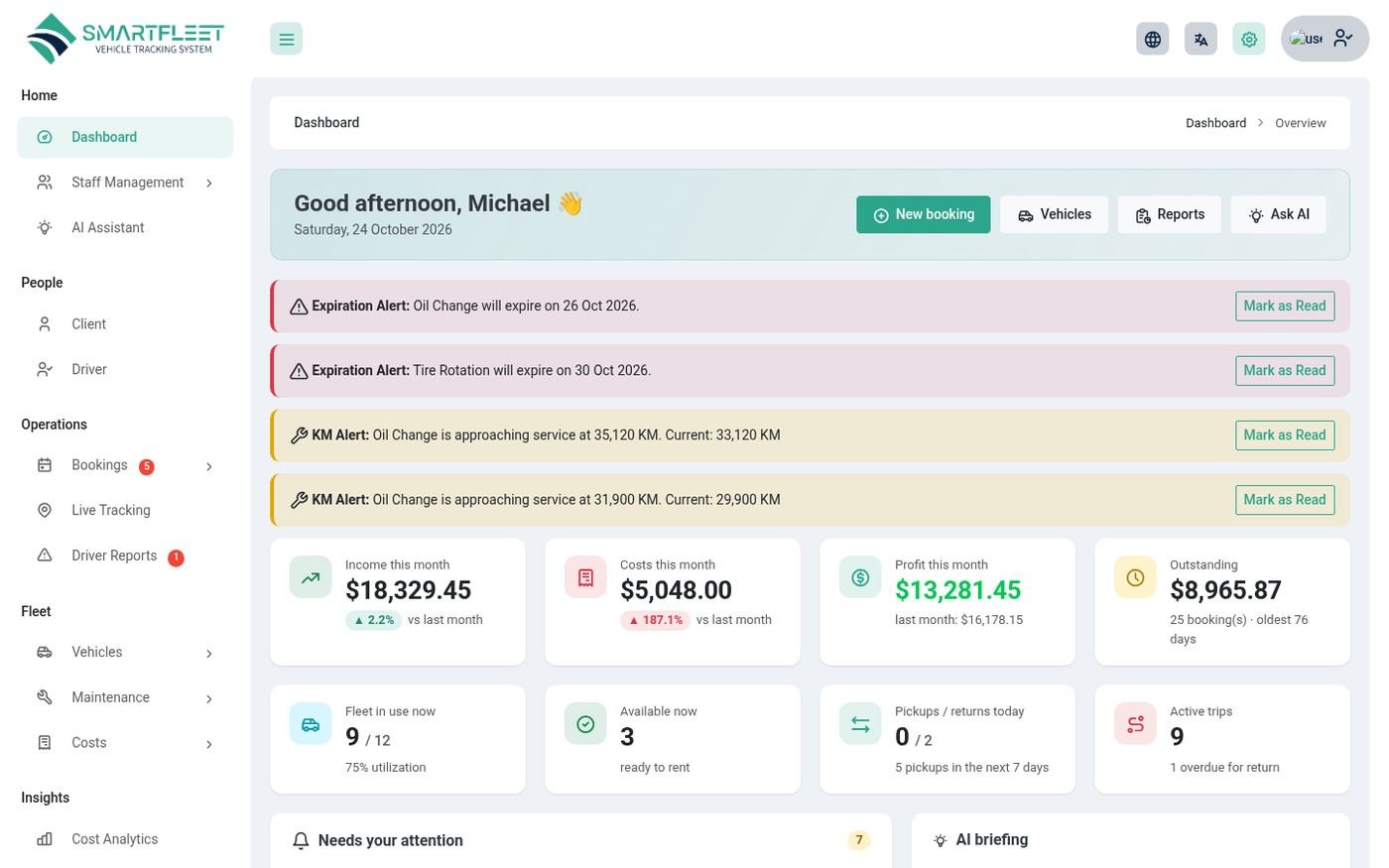
Setting up your fleet
Describe what you have once, and every booking and report after that is quicker.
| Where | What to add |
|---|---|
| Types → Vehicle Type | The kinds of vehicle you have (Sedan, SUV, Van, Bike ...). Used on vehicles, filters on your website and in reports. |
| Types → Inspection Type | The inspections you do (pre-trip, return, annual ...). Used on Vehicles → Inspection. |
| Types → Expiration Type | What expires: registration, insurance, permit, driving licence, service due. Used by reminders. |
| Maintenance → Vendors and Parts Inventory | Your garages and suppliers, and the spare parts you keep (SKU, price, stock, minimum stock). |
| Settings → Company / Email / Rental | Your business details, mail server and rental agreement text. See Settings. |
Clients and drivers
People are added once and reused on every booking.
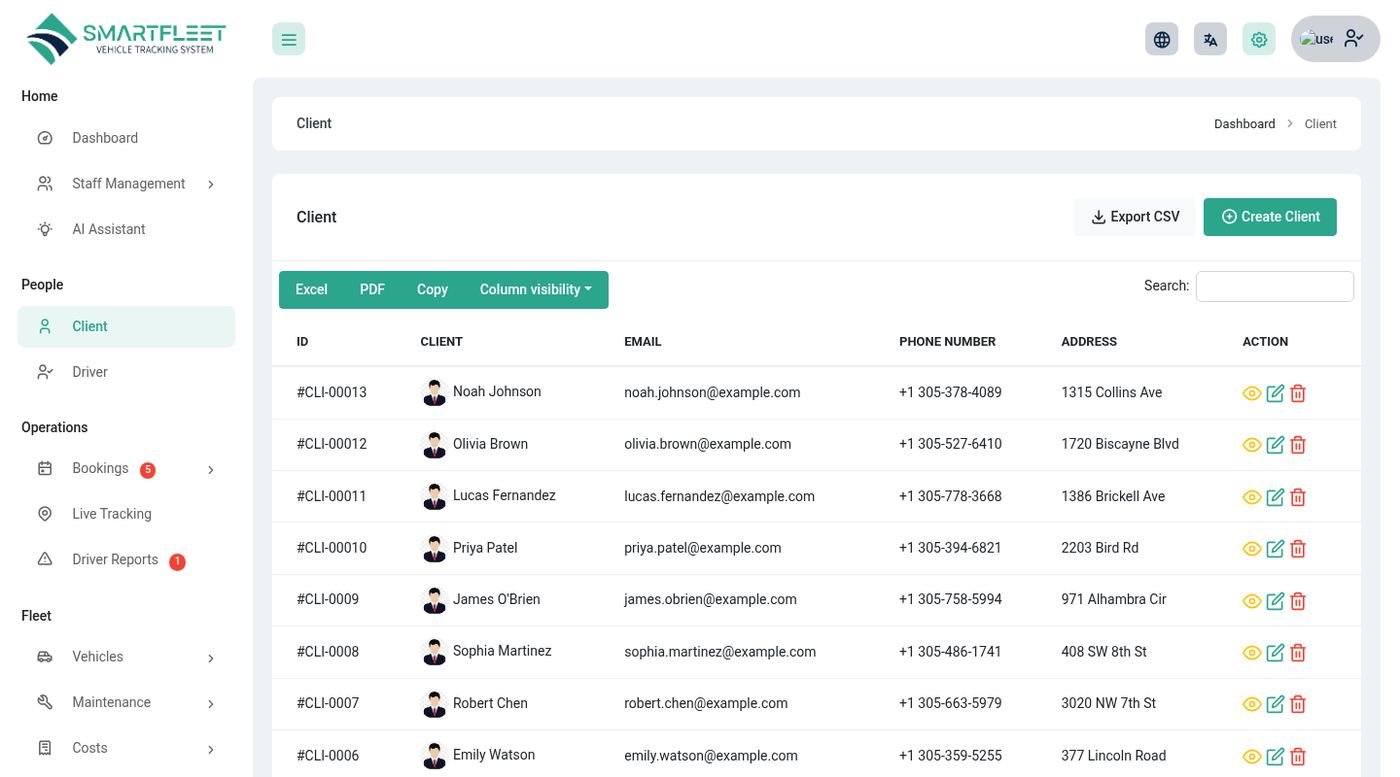
Clients
Open People → Client and click Create Client. A client has a name, email, phone and address, and a sign-in so they can use the client portal and the apps. You can also create a client straight from a website enquiry: My Website → Enquiries & Requests → Create client opens the form with the visitor's name, email and phone already filled in.
- Each client page shows their bookings, payments and uploaded documents.
- Documents (driving licence, ID card, passport) are approved or rejected by your staff. Files are stored privately and cannot be opened by a web address.
- Plan limits: the number of clients you can add depends on your subscription plan.
Drivers
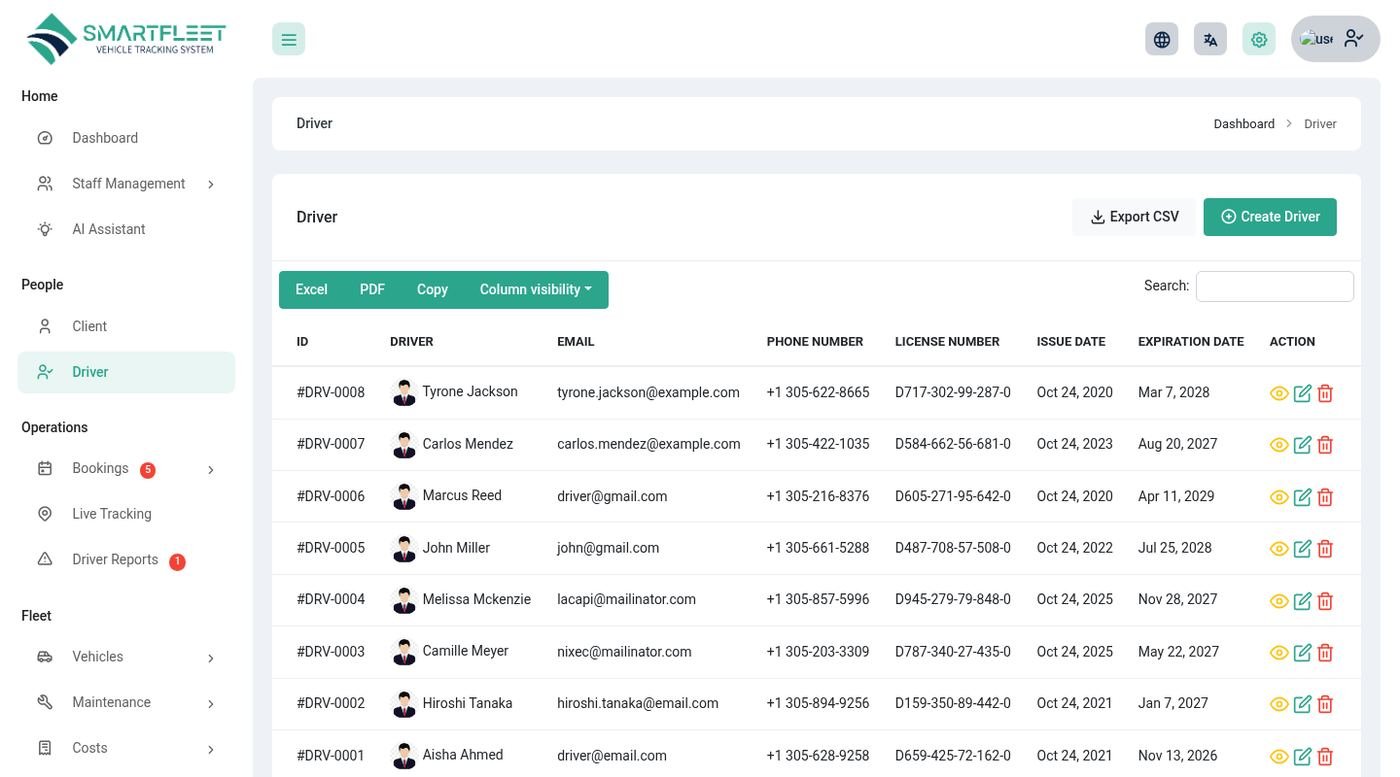
Open People → Driver. A driver has a sign-in, a driving licence number and expiry, and a phone number. The licence expiry feeds the expiry reminders, and each driver gets a score based on speeding alerts and trips.
Staff, roles and security
- Staff Management → Users adds managers and other staff; Roles decides what each role may open, create, edit or delete.
- Audit Log shows who changed what, and Logged History shows sign-ins (when your plan includes it).
- Every user can turn on two-factor authentication in Settings → 2 Factor Authentication.
- The super admin can impersonate an owner to help; the banner has a link to go back.
Vehicles
Every vehicle in one list, with its documents, history and status.
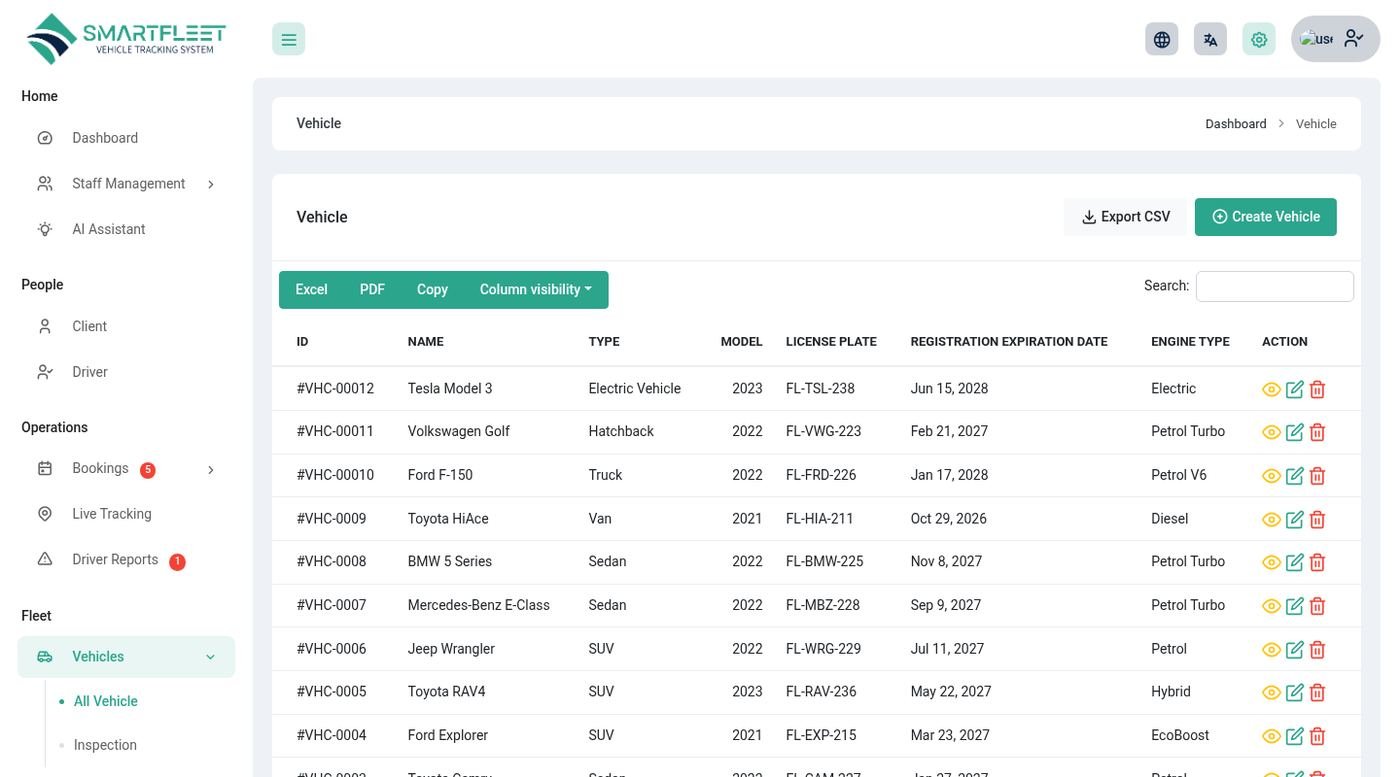
Open Fleet → Vehicles and click Create Vehicle: name, type, model, registration (licence plate), engine type and number, colour, kilometres, speed limit, registration expiry and a document upload.
- Inspections – record a pre-trip or return inspection with notes and photos under Vehicles → Inspection.
- Speed limit – used for speeding alerts. When a vehicle has none, the default of 100 km/h applies (
FLEET_SPEED_LIMIT). - Tracker token – a GPS / OBD device sends its position with this token. See Live tracking.
- Website fields – photos, features, transmission, fuel and day / week / month rates for your owner website.
- Availability – Report → Vehicle Availability shows which vehicles are free on which days.
Bookings and booking requests
From the first enquiry to the signed agreement and the final payment.
Creating a booking
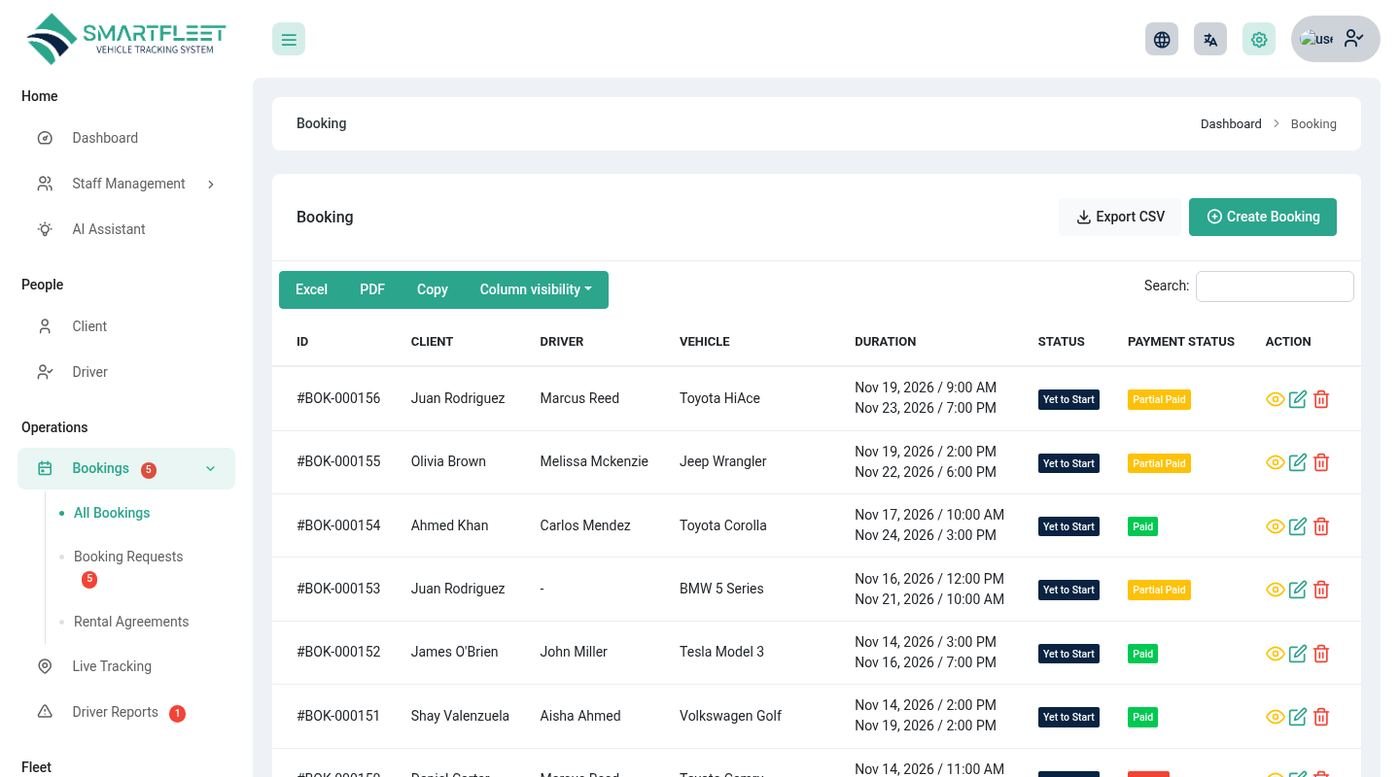
- Open Operations → Bookings → All Bookingsand click Create Booking.
- Choose the client, vehicle and driverThe system checks the vehicle and the driver for clashes. A vehicle or driver that is already booked for those dates cannot be saved, and you are told why.
- Enter the dates, places and amountPick-up and return date and time, pick-up and drop-off address, travellers, distance and the total amount.
- SaveA booking number is created (for example
BOK-00017) and an agreement draft is prepared automatically.
A booking moves through Yet to start → On going → Completed, or Cancelled. Starting and finishing is normally done by the driver (see Driver workspace).
Booking requests
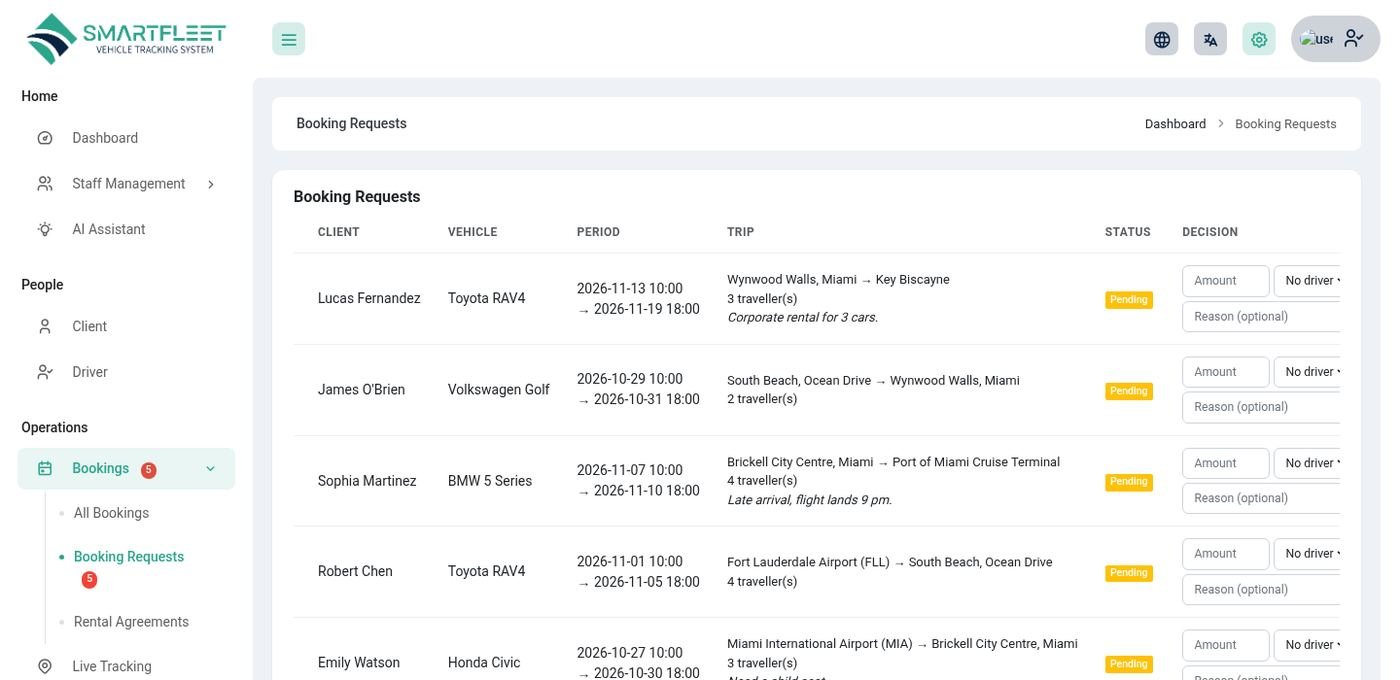
Clients can ask for a vehicle from the portal, the apps, or your website. These arrive under Bookings → Booking Requests. Open a request to approve it (enter the amount and optionally a driver; the booking is created and the client is told) or reject it with a note. The vehicle is checked again at approval time, so a request for a vehicle that has been booked in the meantime is refused with a message.
Rental agreements
Bookings → Rental Agreements holds the agreement for each booking, built from the text you set in Settings → Rental Agreement. The client and the driver can sign digitally.
Cancelling
Clients can cancel their own booking from the portal or the apps up to 24 hours before it starts (fleet.client_cancel_hours). Staff can change or cancel a booking at any time.
Invoices and payments
Every booking has an invoice and a running balance.
- Invoice – open a booking and click Invoice. It shows the amount, payments and what is still due. Print it or save it as PDF from the browser.
- Add a payment – on the booking, add a payment (cash, bank, card) with date and reference. The status changes to Paid when nothing is due.
- Online payment – clients can pay with Stripe, PayPal, Flutterwave, Paystack, Razorpay or send a bank transfer with a proof that you approve. Set the keys in Settings → Payment.
- Safe by design – a gateway reference can credit a booking only once, a client can pay only their own booking, and never more than the amount due.
- Late fees – enter a Late Fee per Day on a booking; when the vehicle is not returned in time, the fee is worked out and added automatically (hourly job).
- Statement – clients see every booking with total, paid and due in Statement and can download it as CSV.
Live tracking
See where your vehicles are, get told about problems, and share a trip with the client.
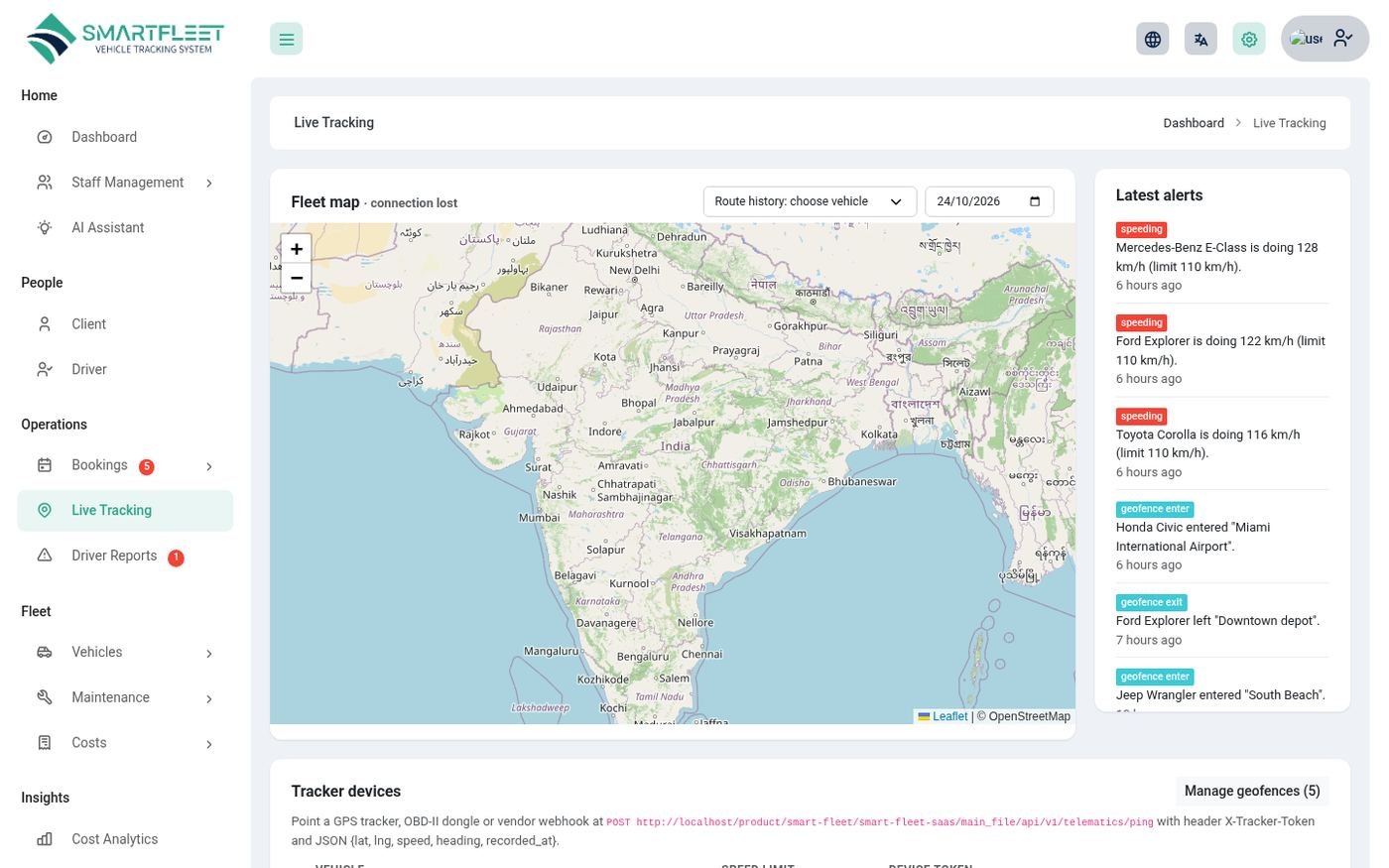
Open Operations → Live Tracking for the map of all vehicles with their last known position, speed and time. A vehicle with no signal for 15 minutes is shown as offline.
Where the positions come from
- The driver's phone – while a trip is running, the Driver app or the driver's mobile web app sends the position about every 20 seconds. The app asks the driver first and stops when the trip ends.
- A GPS or OBD device – open the vehicle, create a tracker token (shown once) and set the device to send to
POST /api/v1/telematics/pingwith the headerX-Tracker-Tokenand a body like{"lat": 25.77, "lng": -80.19, "speed": 62, "heading": 90}.
Alerts
The map page lists the latest alerts: speeding (above the vehicle's limit), geofence enter and exit (zones you draw under Geofence) and SOS from a driver. Alerts can also be sent by email (see notification rules).
Share a trip
A client can create a read-only live link for a running or upcoming trip and send it to the person being picked up. The link shows only that vehicle's position, and the client can turn it off at any time.
FLEET_LOCATION_RETENTION_DAYS) and then deleted by the daily clean-up job. Drivers are told when sharing starts, and it only runs during a trip.Driver workspace and reports
What drivers do in the browser or in the app, and what you see as a result.
What a driver can do
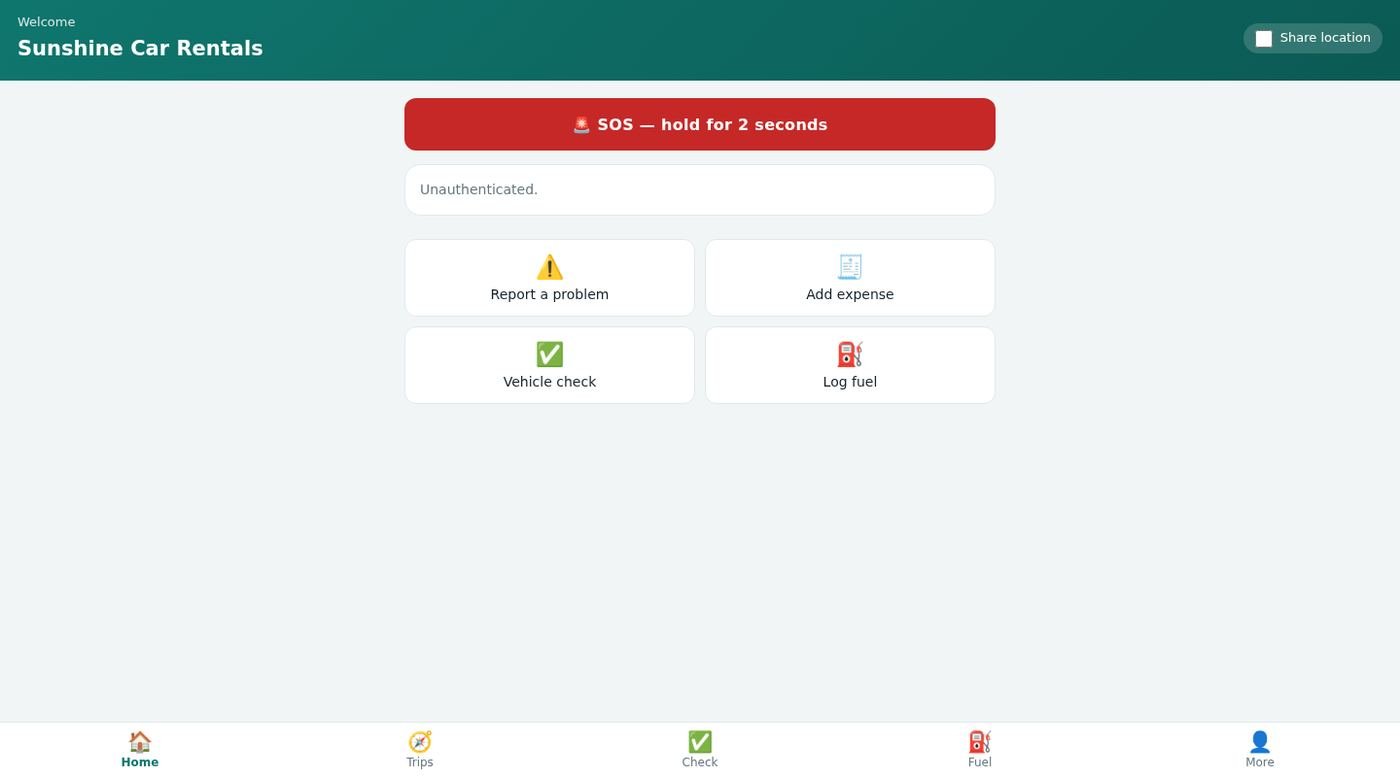
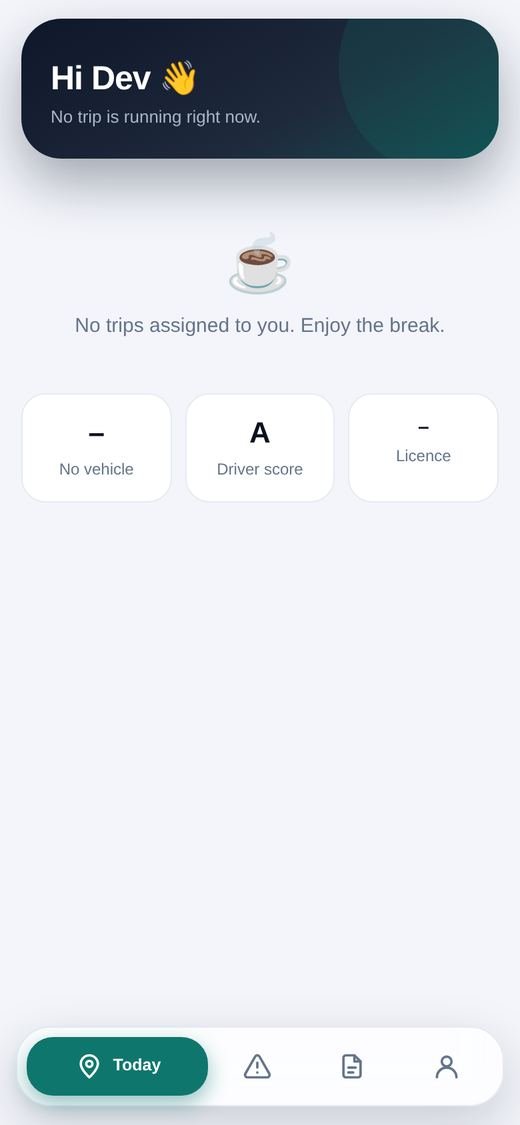
- Today – the current trip, the rest of today and upcoming trips, with the client, pick-up and drop-off, and a button to call the client.
- Start a trip – enter the odometer (it cannot be lower than the last reading), fuel level, tick the handover checklist, add a note and up to 4 photos.
- Finish a trip – the same again at the end. The distance is worked out and the vehicle's kilometres are updated.
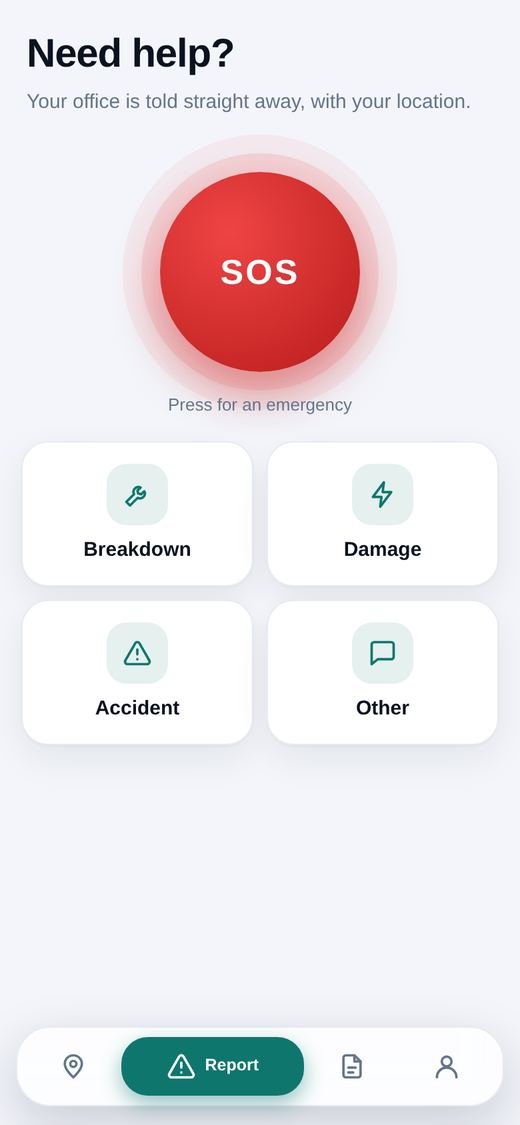
- Report a problem – breakdown, damage, accident, other, or SOS, with photos and the driver's position. The owner gets an email, and an SMS for an SOS if Twilio is set up.
- Fuel and expenses – add a fuel fill-up or an expense with a receipt photo.
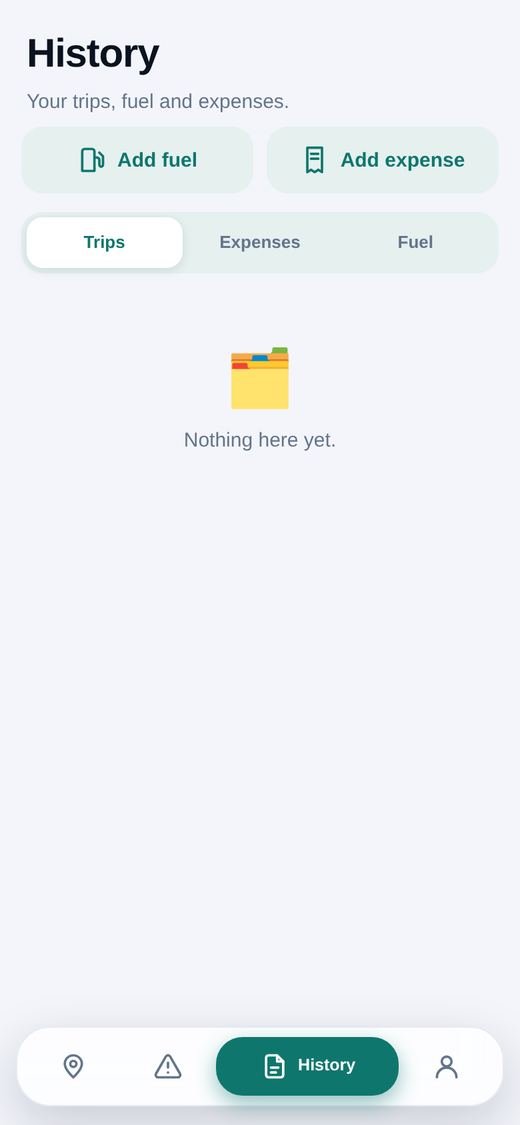
- History – finished trips with distance, expenses and fuel.
Driver reports (owner)
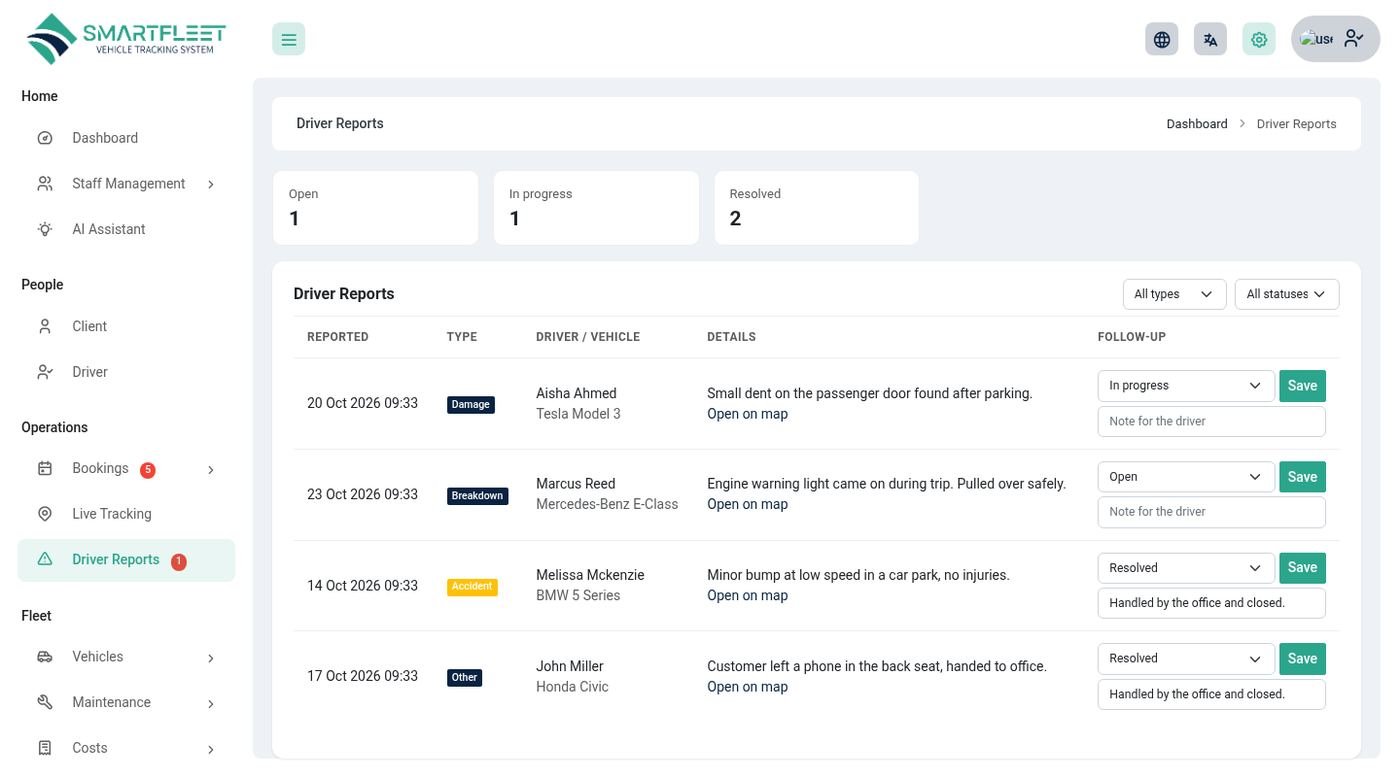
Operations → Driver Reports lists everything drivers report, newest first, with type, vehicle, driver, position and photos. Open one to change its status (new, in progress, resolved) and add a note. SOS reports are highlighted.
Maintenance and reminders
Keep every vehicle legal and in good shape.
Services
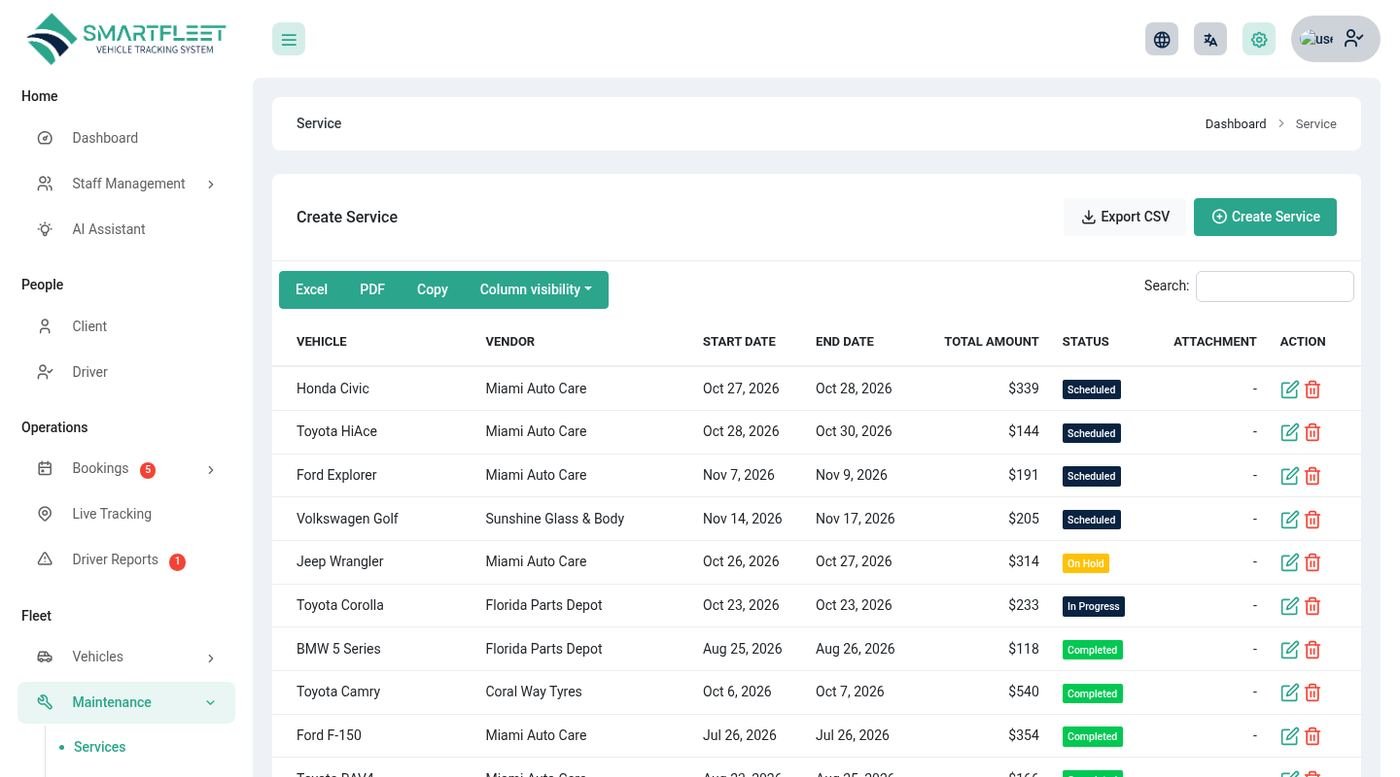
Maintenance → Services records each service: vehicle, vendor, dates, cost, notes and the parts used. Parts used are taken off your stock automatically. The system estimates the next service from the history and warns when one is due or overdue.
Parts inventory and vendors
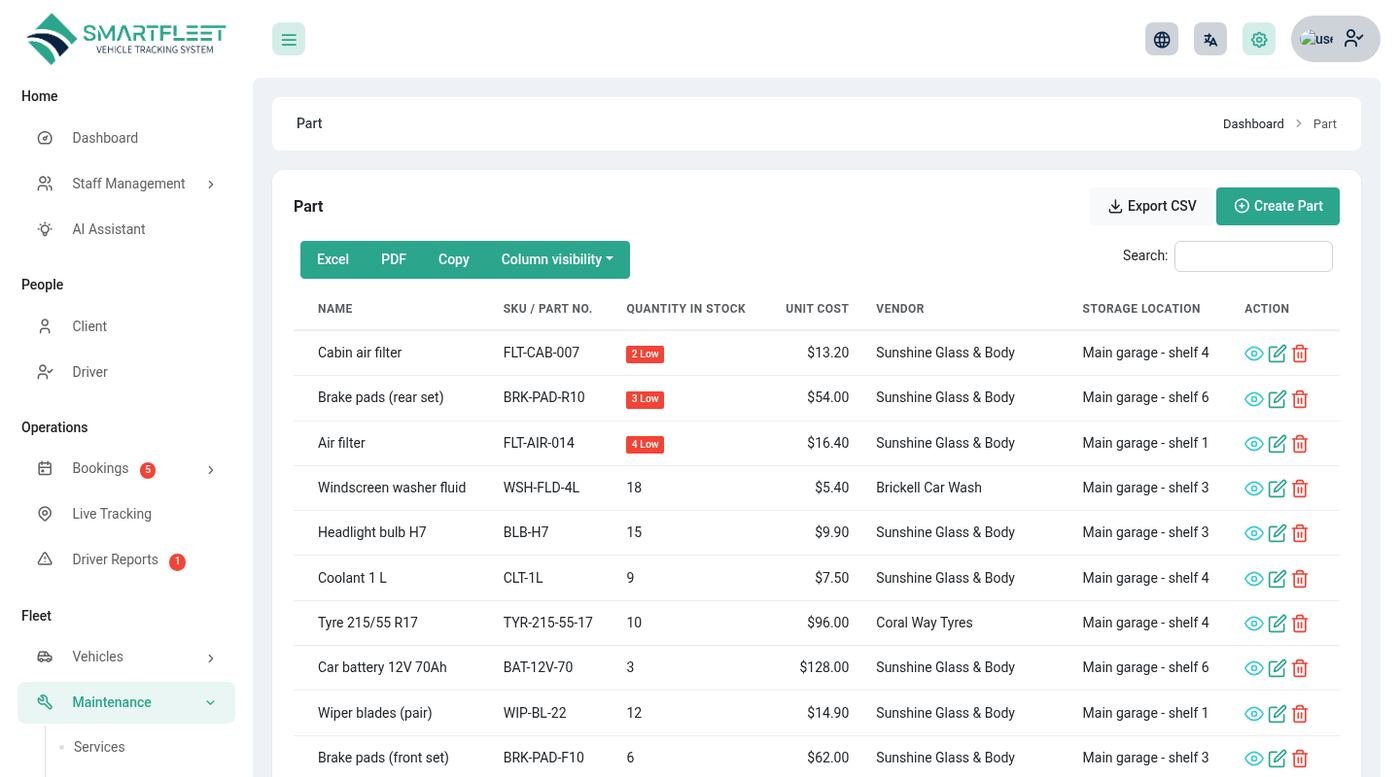
Parts Inventory lists parts with SKU, price, stock and the minimum stock, and highlights what is low. Vendors keeps your garages and suppliers.
Expiration reminders
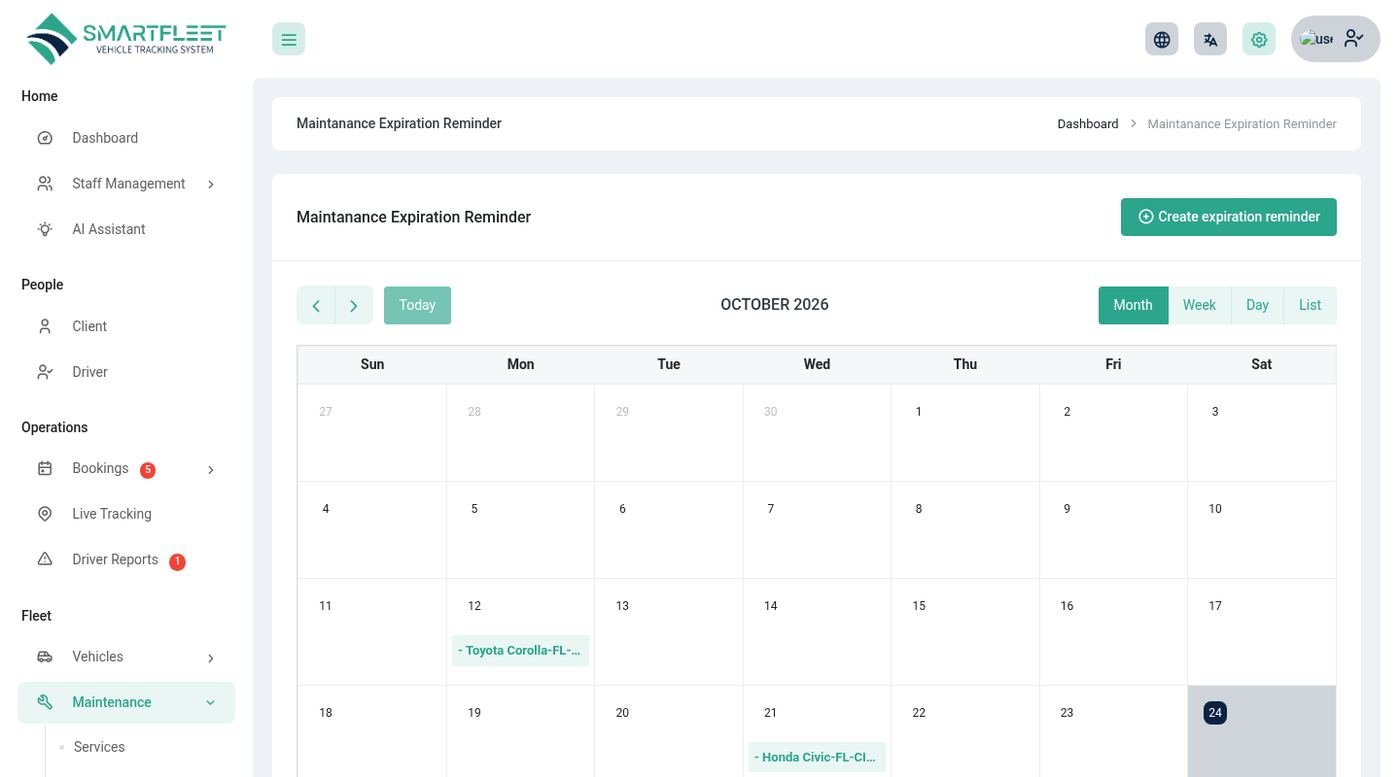
Maintenance → Expiration Reminder shows a calendar of everything that expires or is due: registration, insurance, permits, licences and service by date or by kilometres. Reminders appear on the dashboard and are emailed in the daily digest. The warning period is 15 days and the kilometre buffer 500 km by default (FLEET_REMINDER_DAYS, FLEET_REMINDER_KM_BUFFER).
Fuel, expenses and costs
Know what each vehicle costs you.
- Fuel – litres, amount, odometer and station per fill-up. Drivers can add their own.
- Expense – any other cost, with a receipt. Drivers can add these too.
- Fines & tolls – record fines with the vehicle, driver, date and whether they are paid.
- Accidents & claims – record an accident and follow the insurance claim.
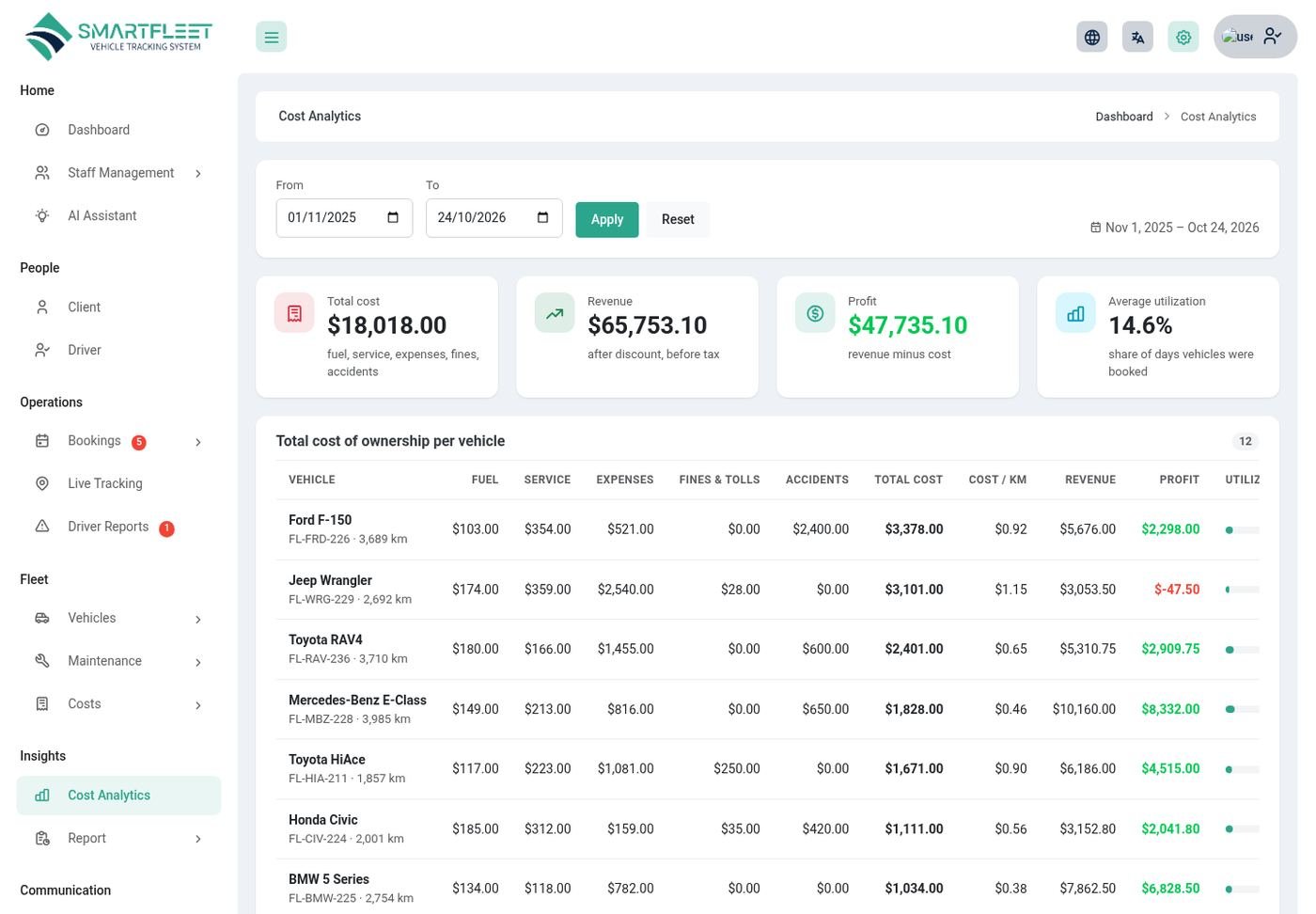
- Cost analytics – Insights → Cost Analytics shows the total cost of ownership per vehicle (service, fuel, expenses, fines, claims) against what it earned, for any period.
Reports and analytics
The numbers behind your business.
| Report | What it shows |
|---|---|
| Income report | Money received per period. |
| Expense report | Costs per period and category. |
| Profit / Loss | Income against costs, month by month. |
| Vehicle availability | Which vehicles are free on which days. |
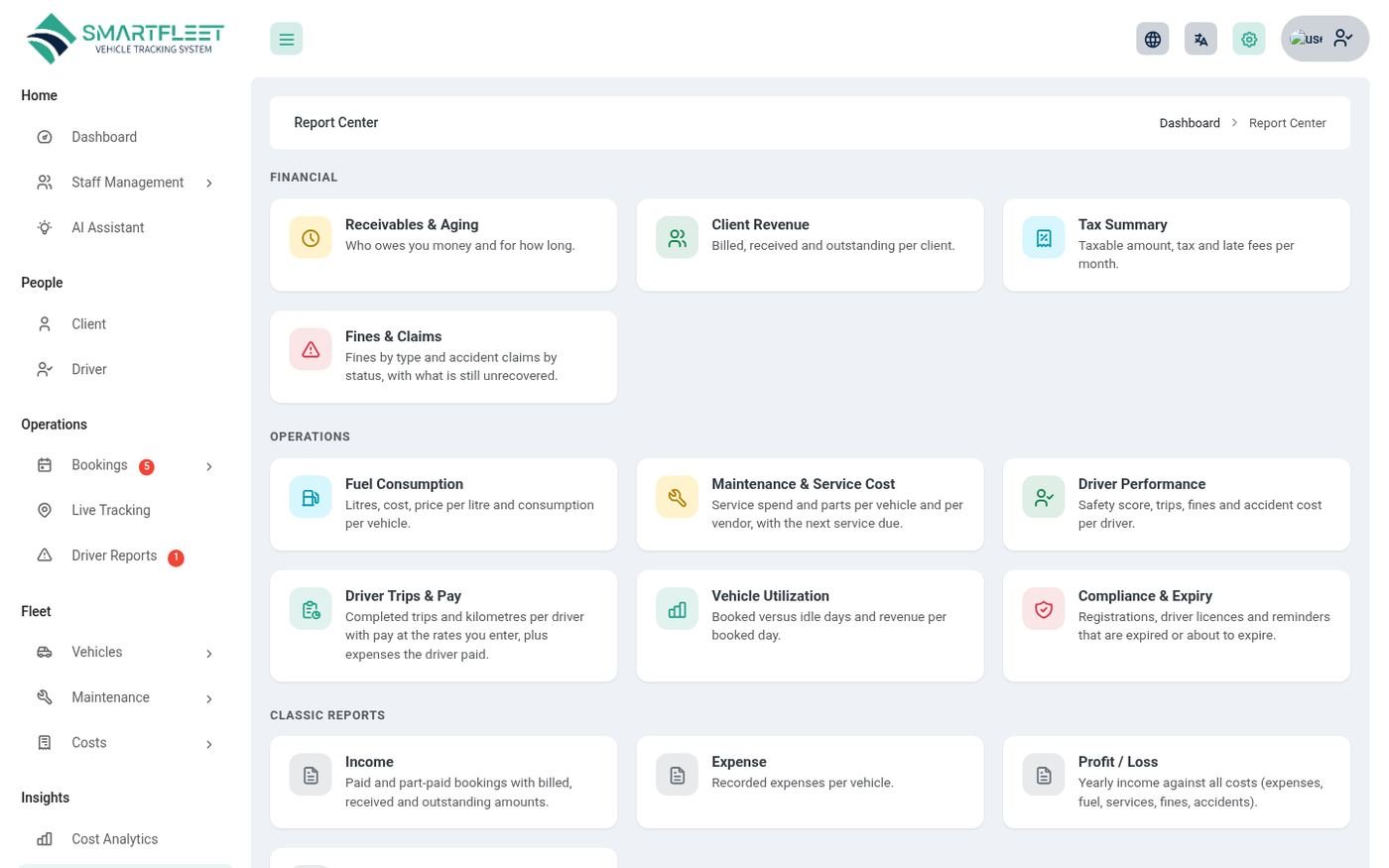
| Report Center | Financial, operations and compliance reports in one place: receivables ageing, client revenue, tax summary, fuel consumption, maintenance and service cost, driver performance, vehicle utilisation, compliance and expiry, profit and loss. Each one can be exported to CSV. |
Dashboards
Each role starts on a page made for them.
- Owner – income, costs, profit and outstanding for the month; fleet in use, available now, pick-ups and returns today, active trips; a Needs your attention list (overdue returns, unpaid bookings, expiries, service due); an AI briefing; income against costs for 12 months; a fleet status chart; and quick buttons. New owners also see a Getting started checklist.
- Manager – the same operations view with the numbers their role allows.
- Client – next trip, amount due, recent bookings and a button to request a booking.
- Driver – current and upcoming trips, vehicle, licence expiry and score.
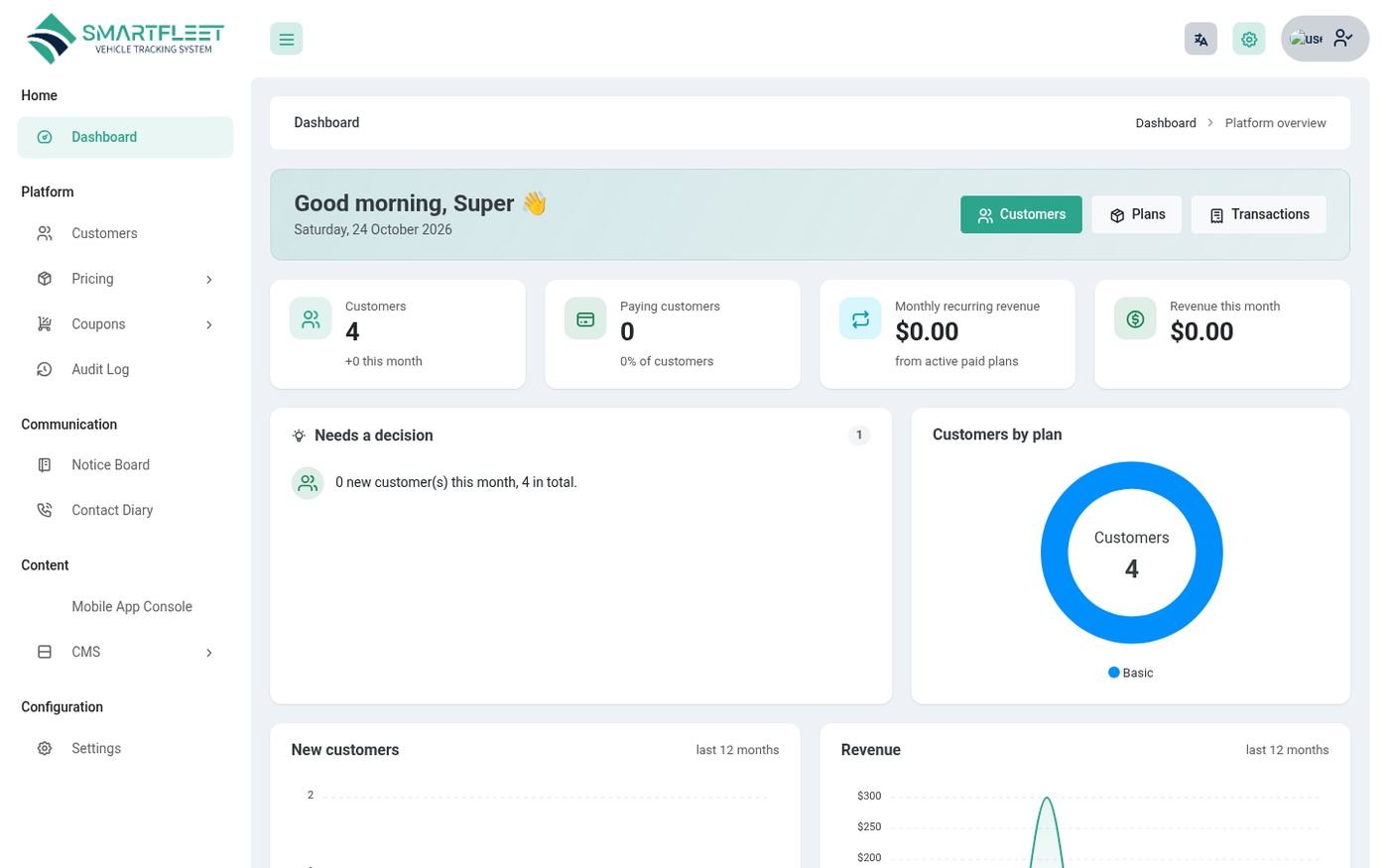
- Super admin – customers, plans, revenue, new customers and customers per plan.
Client portal
Clients help themselves, so you answer fewer calls.
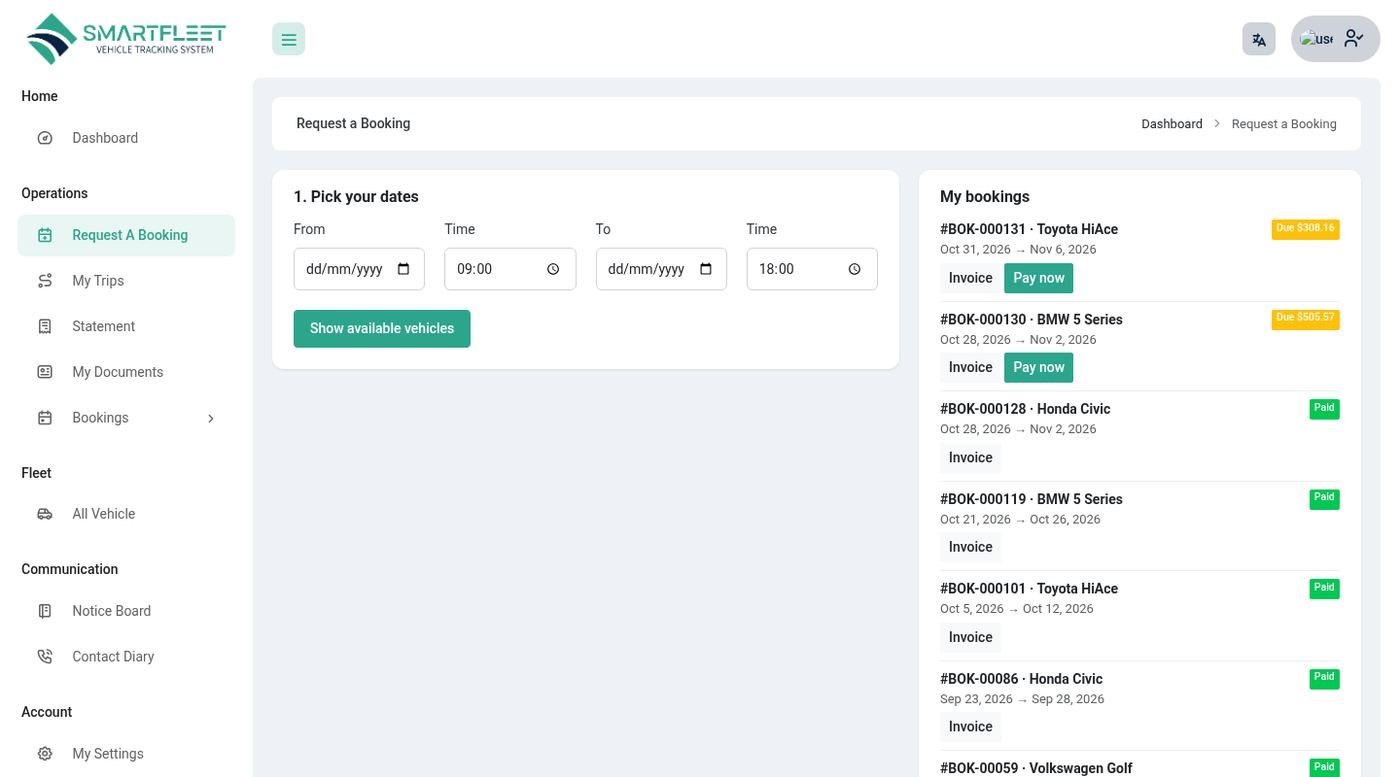
- Request a booking – the client picks dates, sees only the vehicles that are free, and sends a request with pick-up and drop-off.
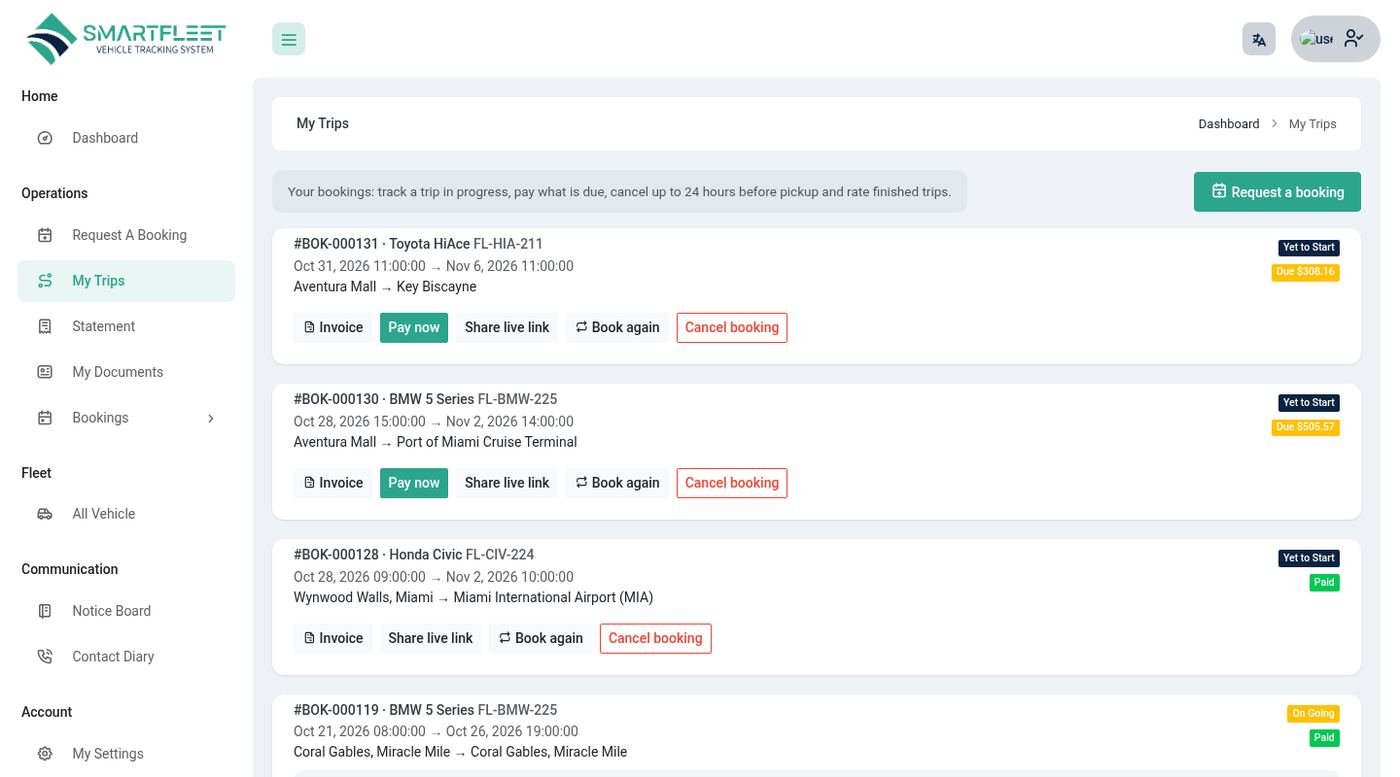
- My Trips – every booking with status, amount and due. The client can pay online, cancel (inside the free window), rate a finished trip and create a live link for a trip.
- Track live – on a running trip the client sees the vehicle on a map (when the vehicle has a recent position).
- Statement – total, paid and due per booking, with CSV download.
- My Documents – upload a driving licence, ID or passport. Staff approve or reject them and the client gets an email.
Owner website
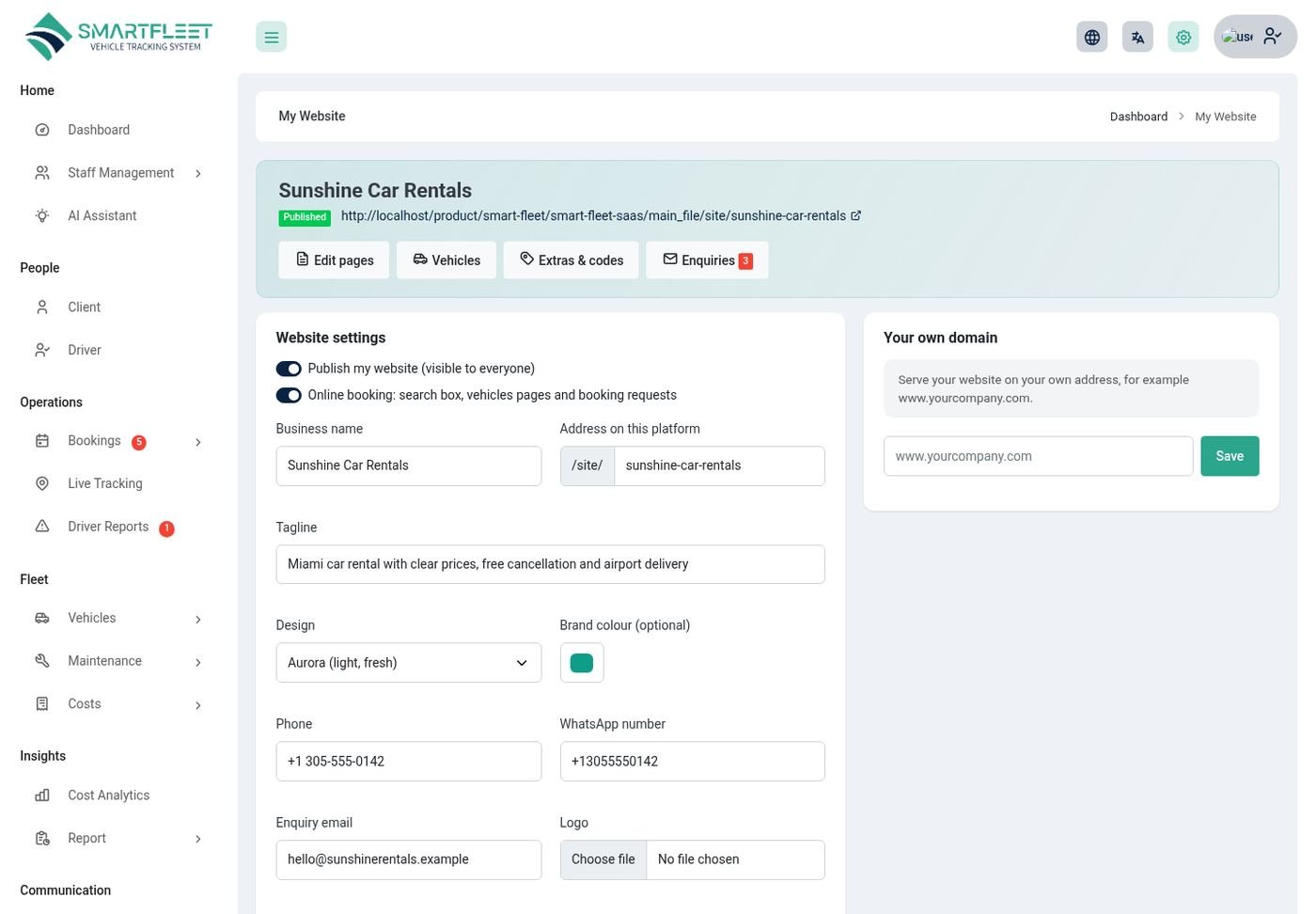
Every owner gets a public rental website: no coding, with online booking built in. It is included in plans that have the Website feature switched on.
Open Content → My Website. The globe icon in the header also shows your website address (and your own domain once it is live) with copy and open buttons.
Pages and the page editor
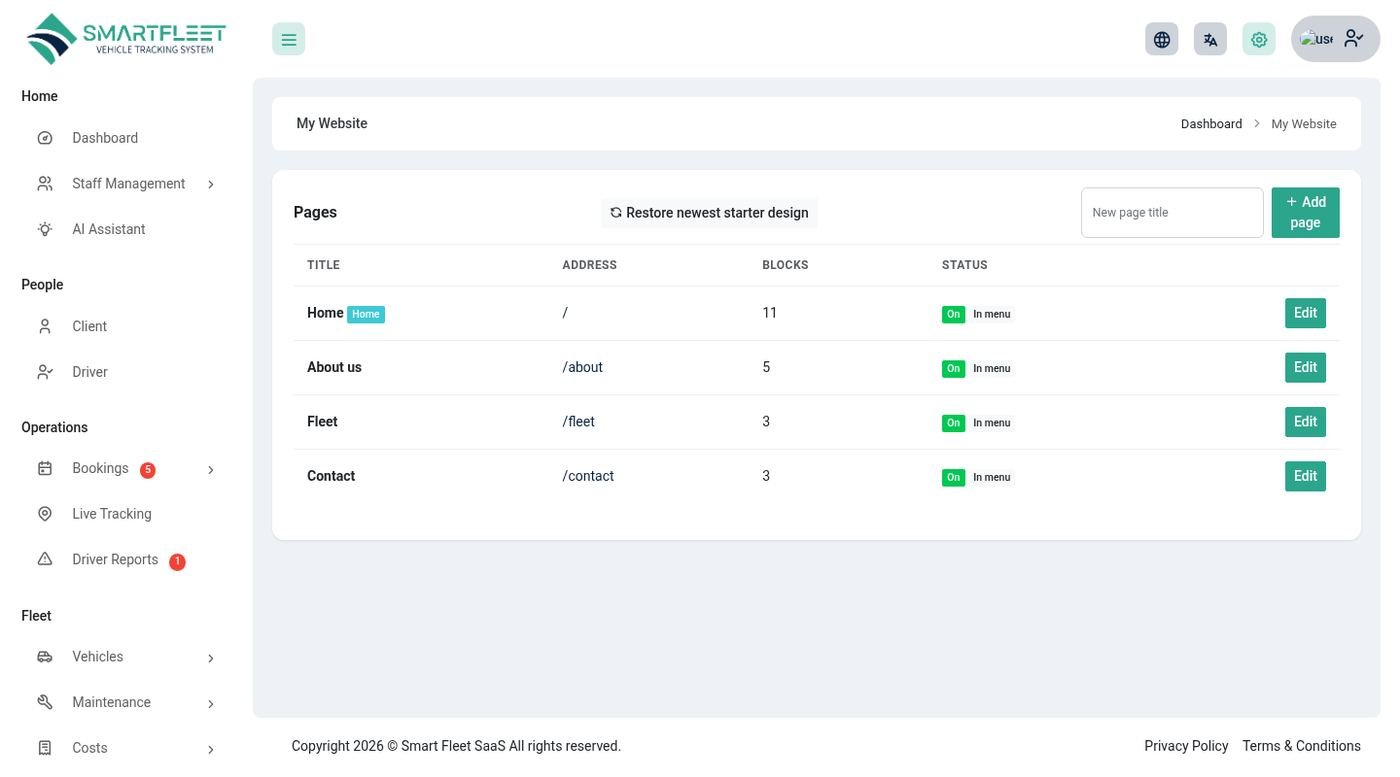
A new website starts with Home, About, Fleet and Contact. Pages lets you edit them, add pages (they appear in the menu) and restore the starter design. Each page is built from blocks you switch on, order and fill in: hero, stats, text, features, fleet, steps, testimonials, FAQ, call to action, contact, trust, split picture and text, gallery, team, pricing, map and video. Pictures are uploaded as JPG, PNG or WebP up to 5 MB.
Vehicles on the website
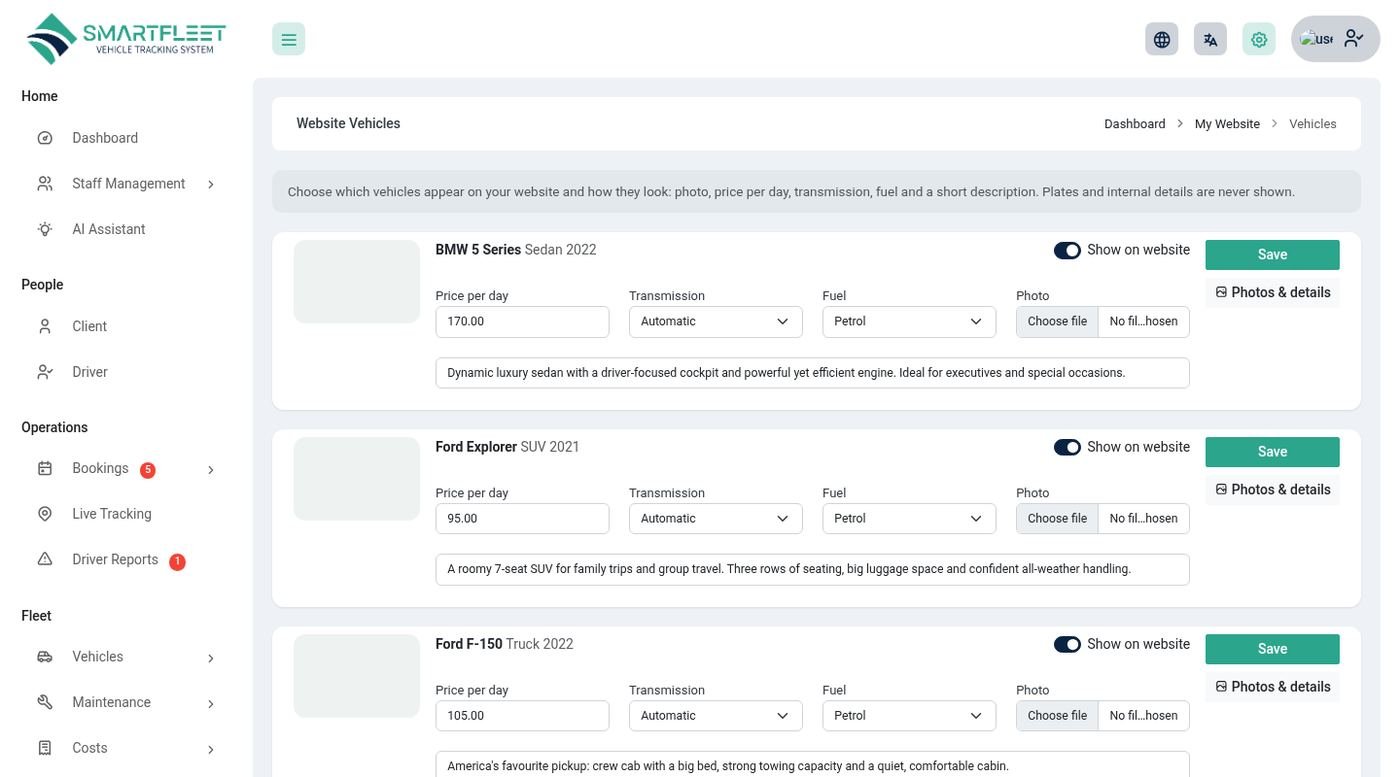
Website Vehicles chooses which vehicles are shown and lets you add up to 8 photos, a cover picture, features, details, transmission, fuel, description and day, week and month rates. Only vehicles you switch on are visible.
Online booking
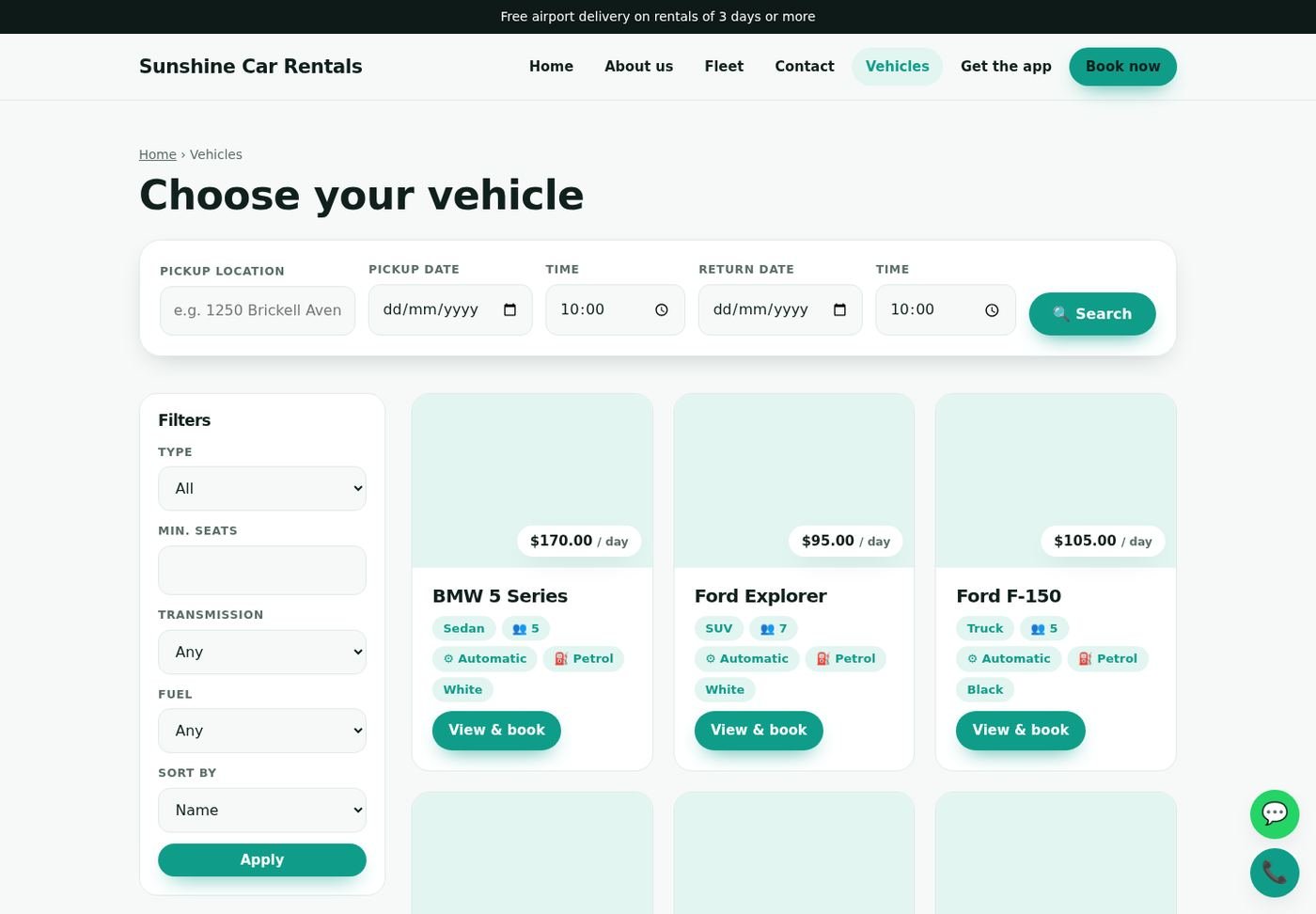
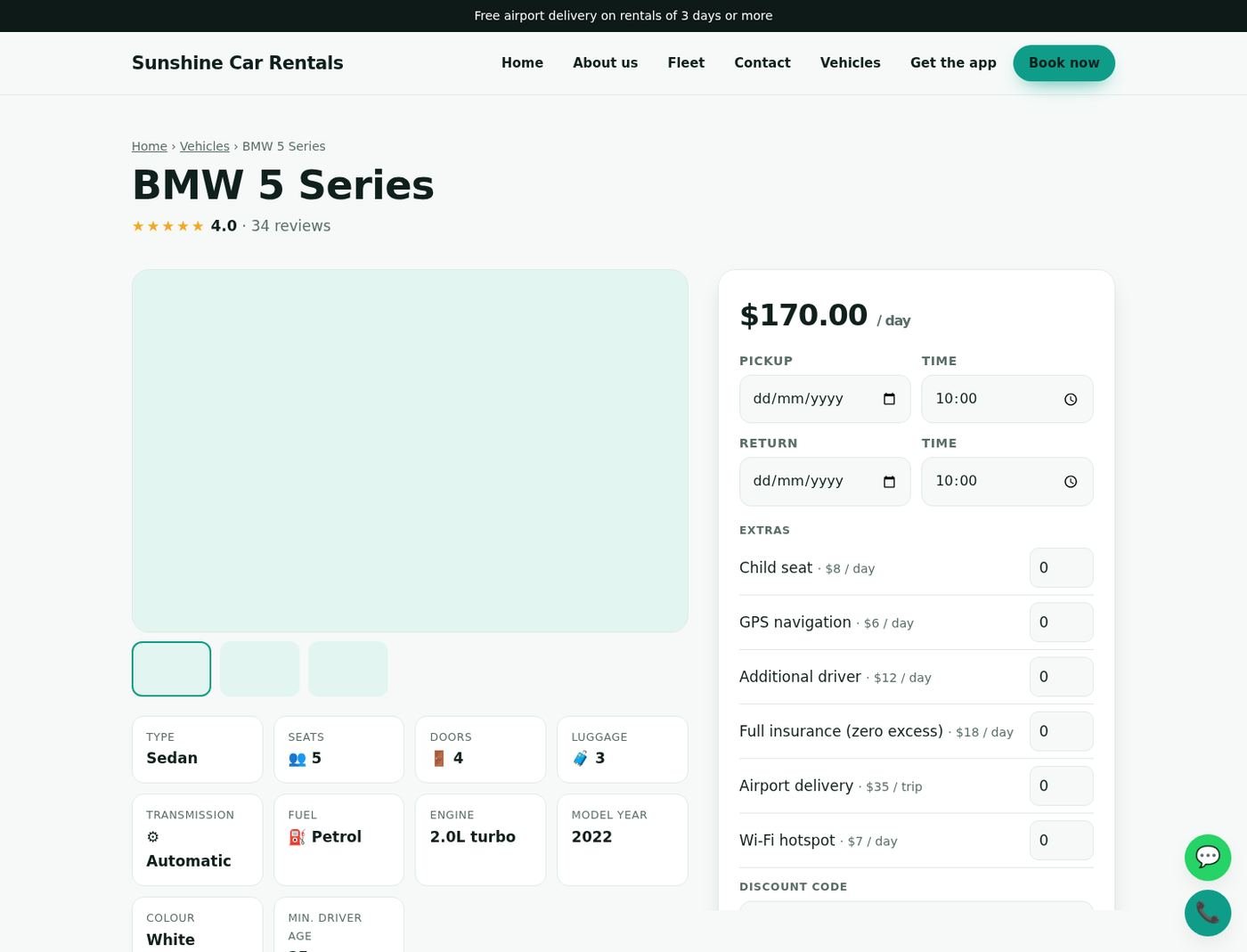
Visitors search by dates, open a vehicle and get a live price quote: days (a started day counts), the week and month rates when cheaper, extras, a discount code, tax and a deposit. They send a request with their details; you get an email and the request appears in Enquiries & Requests. The price is calculated again on the server, so it cannot be changed from the browser.
- Extras & Codes – add extras (child seat, GPS, extra driver; priced per day or per trip) and discount codes (percent or fixed).
- Settings & Domain – name, logo, hero picture, announcement bar, opening hours, rental terms, tax, deposit, social links, WhatsApp and call buttons, Google Analytics and Facebook Pixel.
Enquiries and requests
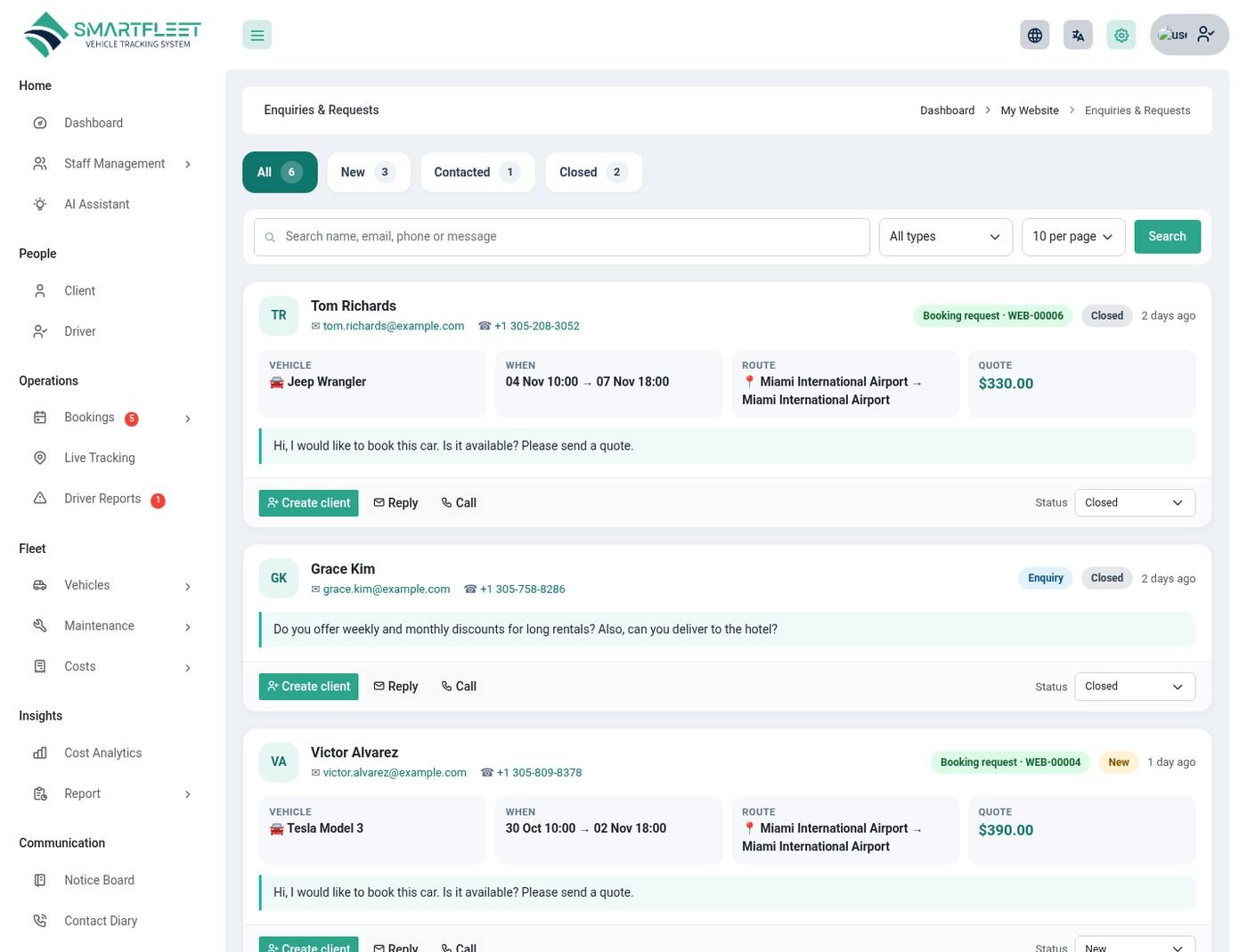
Enquiries & Requests lists everything visitors send, as cards. Use the tabs (All, New, Contacted, Closed), the search box and the type filter to find one, and the page selector (10, 25 or 50 per page) with the page numbers underneath. Each card has Create client (or Create booking once the visitor is a client), Reply, Call and a status selector.
Your own domain
In Settings & Domain enter your domain (for example www.fast-rent.com) and follow the instructions: point it at the server and add the TXT record shown, then click Verify. Once verified, the website is served on your domain, and /login and the other platform pages keep working on it. Own domains are included in plans with the Custom domain feature.
Search engines
Every page has a title and description, the site has a sitemap (/sitemap.xml on your own domain) and structured data (AutoRental with rating). Set a page's SEO title and description in the page editor.
Mobile web app and mobile apps
One address for everyone. Customers and drivers use the same app code; the app shows booking screens to customers and trip screens to drivers.
| Option | What it is | How people get it |
|---|---|---|
| Mobile web app | An installable web app that runs in the phone's browser on Android and iPhone. Included. | Open https://yourdomain.com/mobile/<APP CODE> or scan the QR code. Then Add to Home Screen. |
| Customer app and Driver app | Flutter apps for Android and iPhone, in the mobile folder (add-on). | Build them, publish them, and put the store links in the Mobile App Console. |
App code, branding and QR code
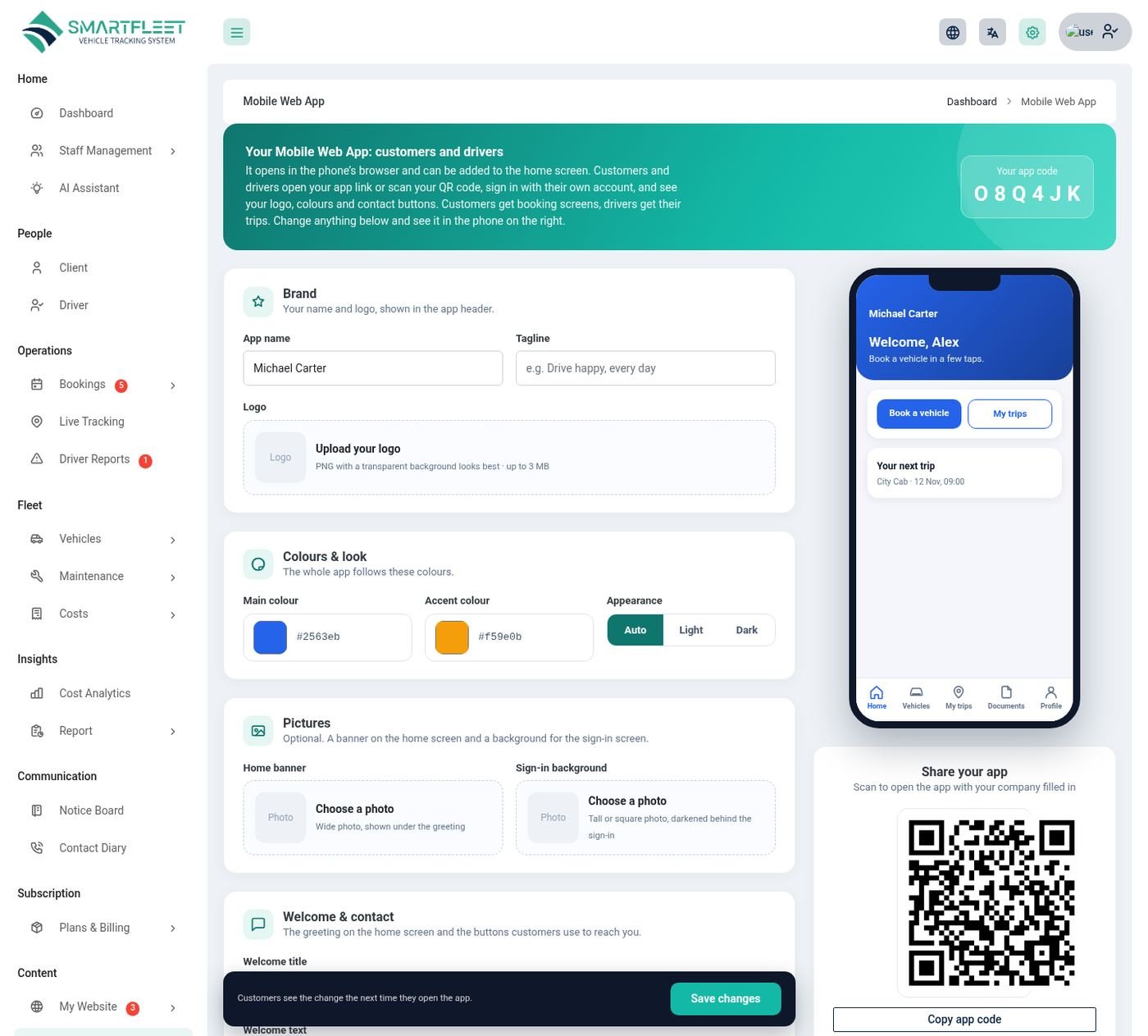
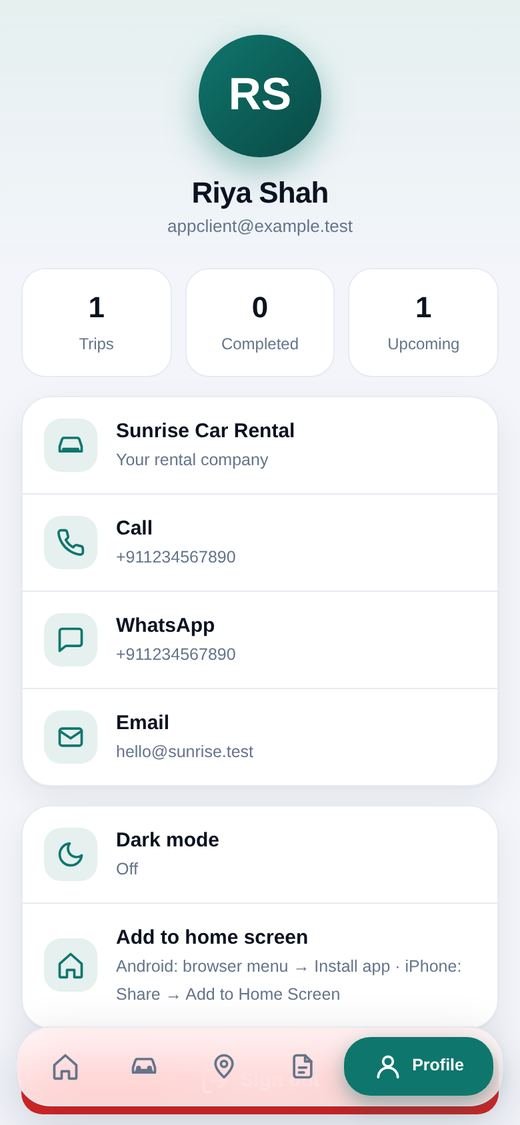
Each owner has a 6-character app code. Open Content → Mobile Web App to see it, to set the name, logo, colours, light / dark look, welcome text, banner, support contacts and tabs customers see, and to share the QR code, the app code and a ready-made message. A phone preview updates as you type.
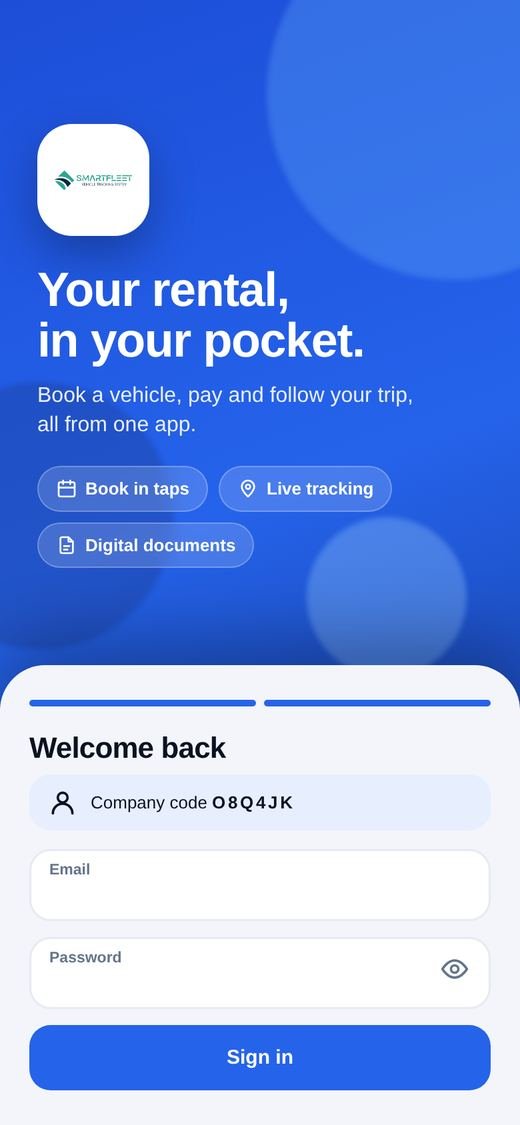
- Before sign-in the app shows the platform's own logo, title and colours. After sign-in it switches to the owner's branding.
- The QR code opens the app with the owner's code already filled in. The same QR code is on the owner's website: Get the app in the menu, the footer, and a page at
/get-app. - "Copy message" gives a ready text for WhatsApp or email with the code and the link.
What customers see
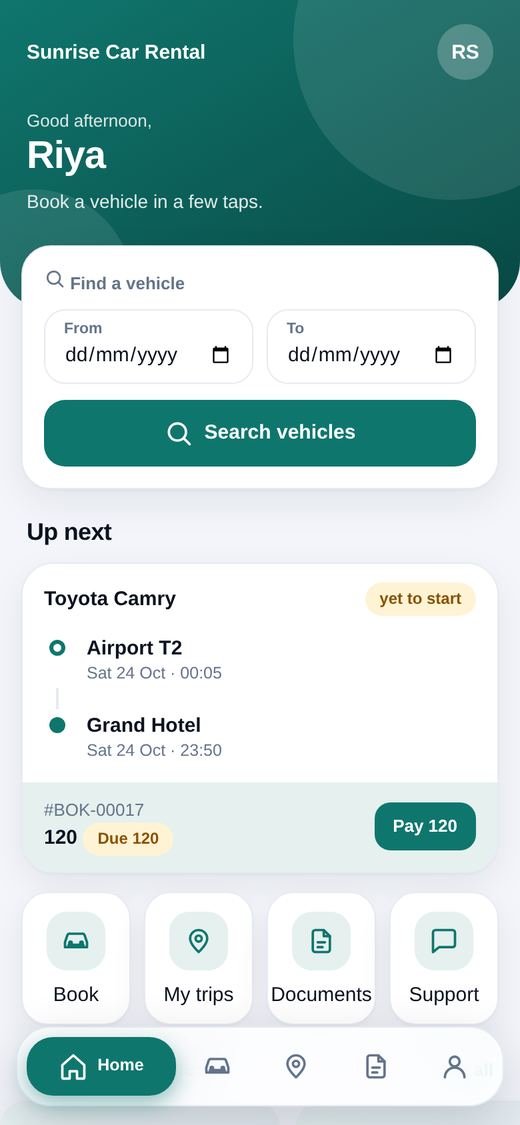
- Home – a quick vehicle search by dates, the next trip and popular vehicles.
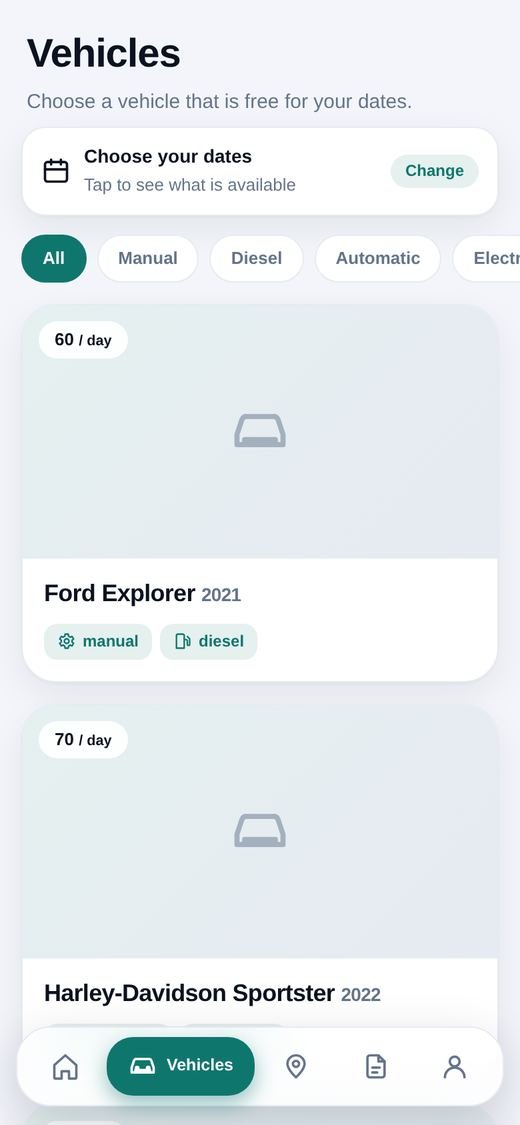
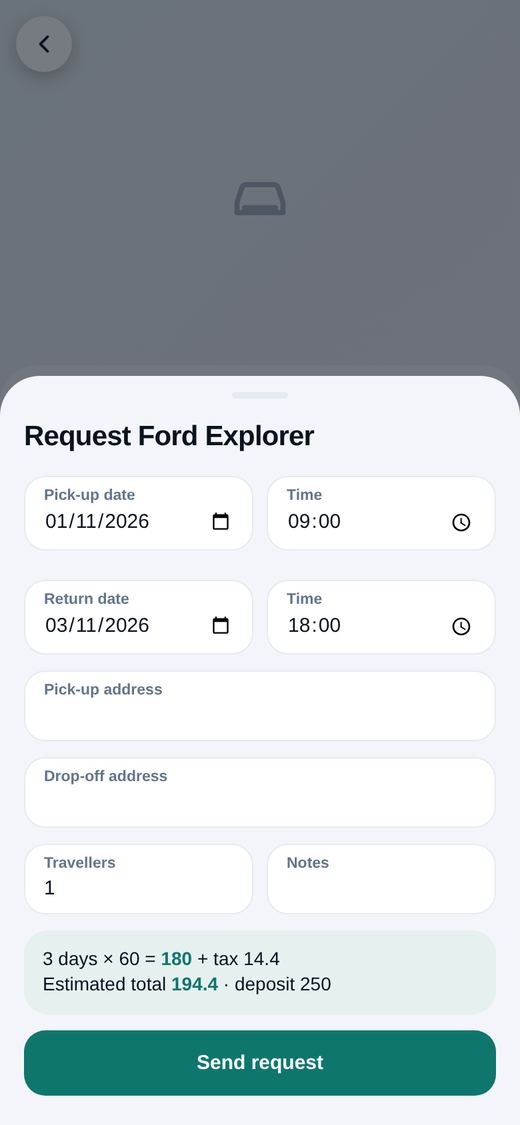
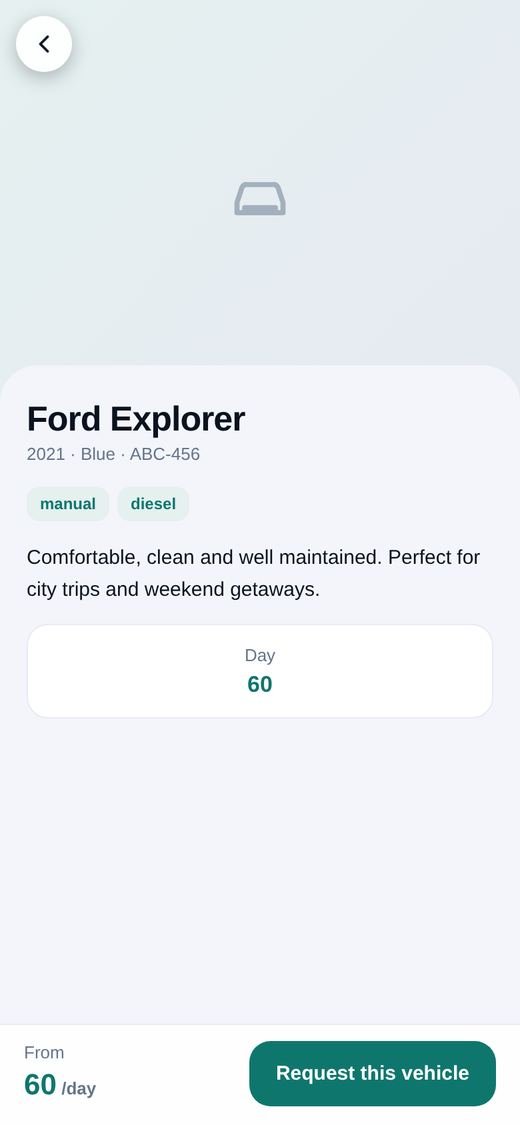
- Vehicles – filters, a search box, saved vehicles (heart), a full vehicle page with photos and rates, and a booking request with a price estimate (days, week / month rate, tax and deposit) that also warns when the vehicle is already booked.
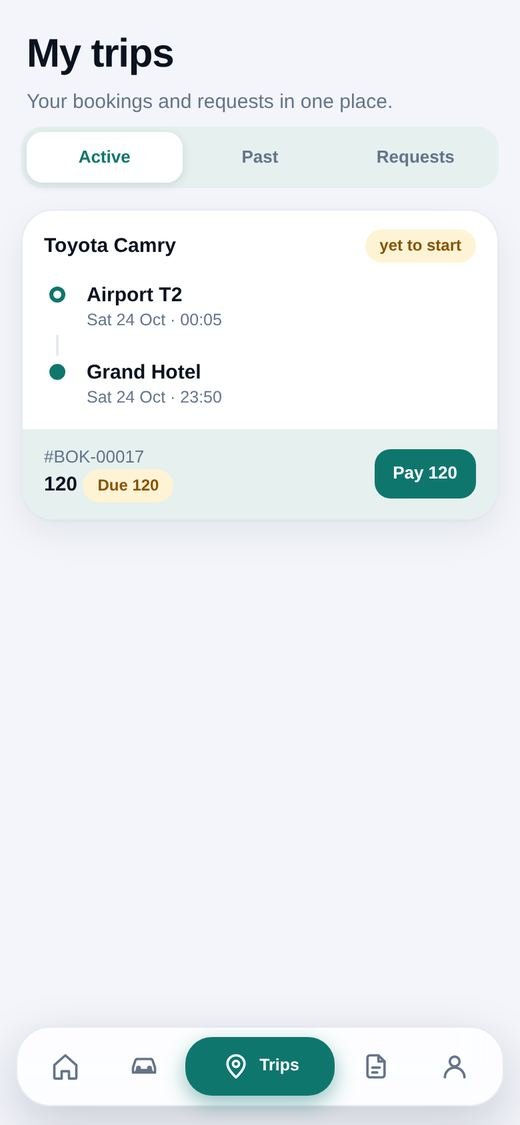
- My Trips – Active, Past and Requests. Tap a trip to open the trip details page.
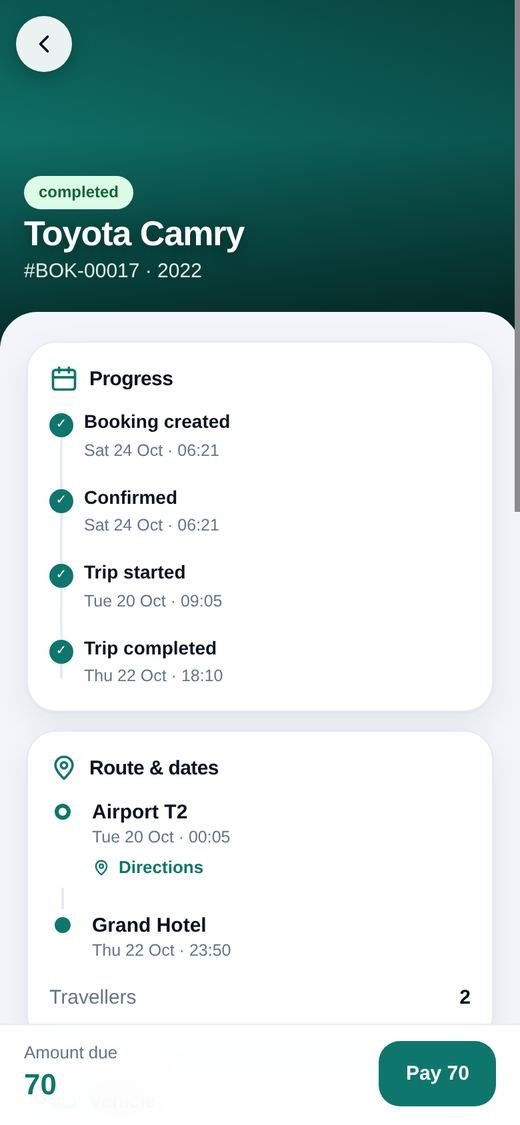
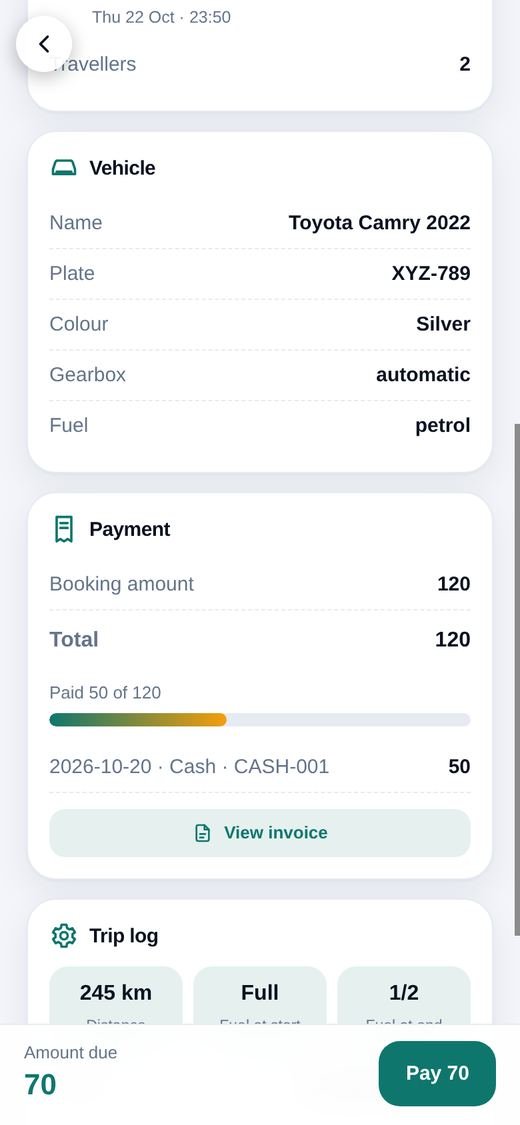
- Trip details – progress timeline (request, confirmed, started, completed), route with directions, the driver's name with a call button, vehicle details, a full payment breakdown (amount, discount, tax, late fee, total, paid, due, every payment), the trip log (distance and fuel), rental agreement status, the customer's rating, a live link to share the vehicle's position, and buttons to pay, view the invoice, track live, cancel or rate.
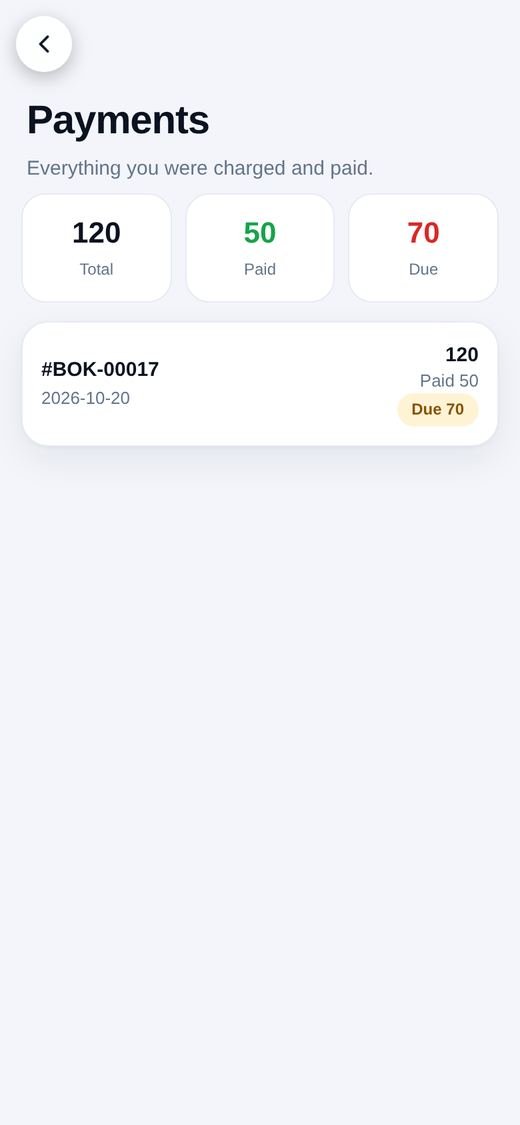
- Payments & statement – every booking with total, paid and due.
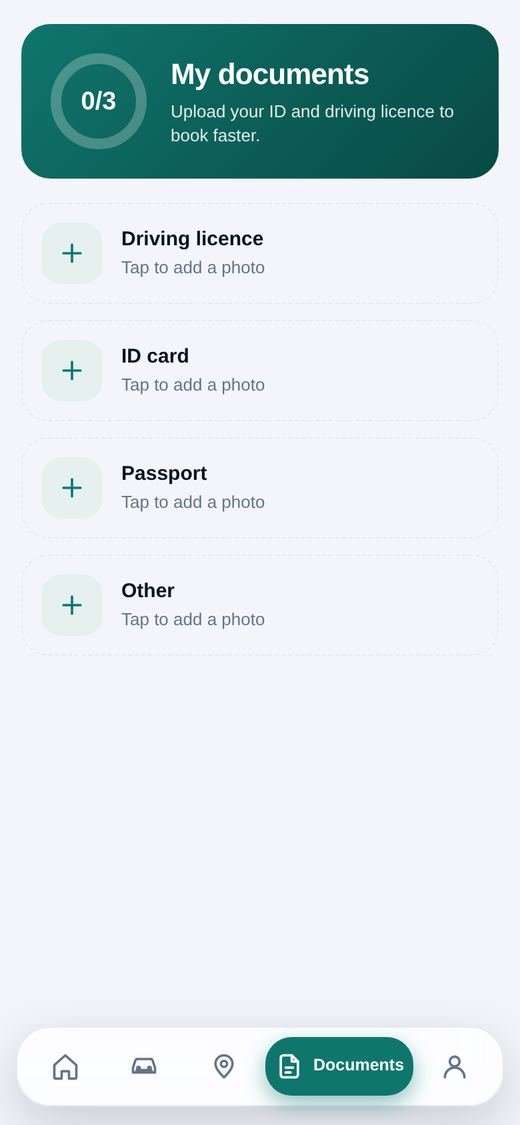
- Documents – upload a licence, ID or passport with progress shown.
- Profile – edit name, phone and address, change the password, contact buttons and a dark-mode switch.
What drivers see
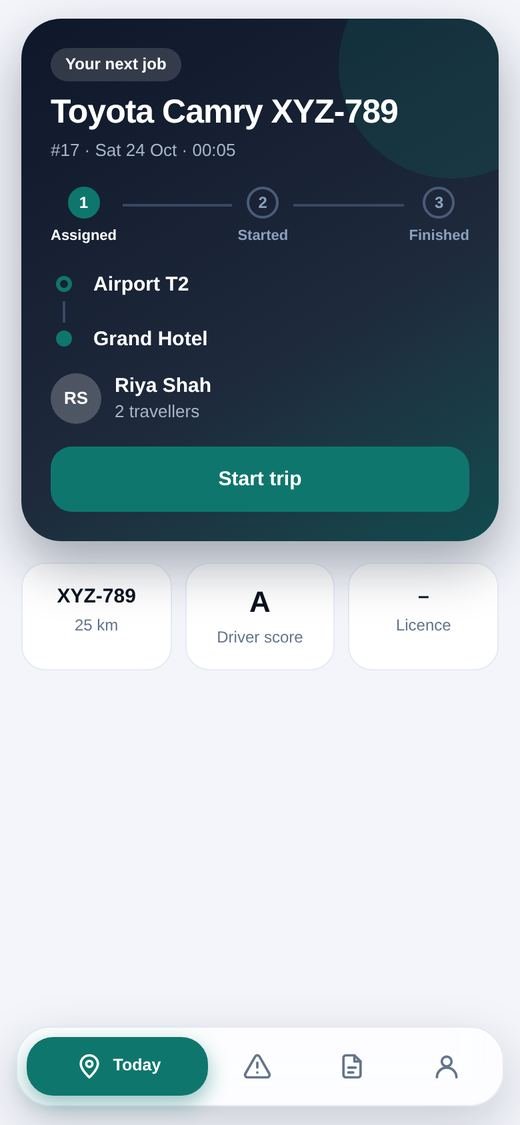
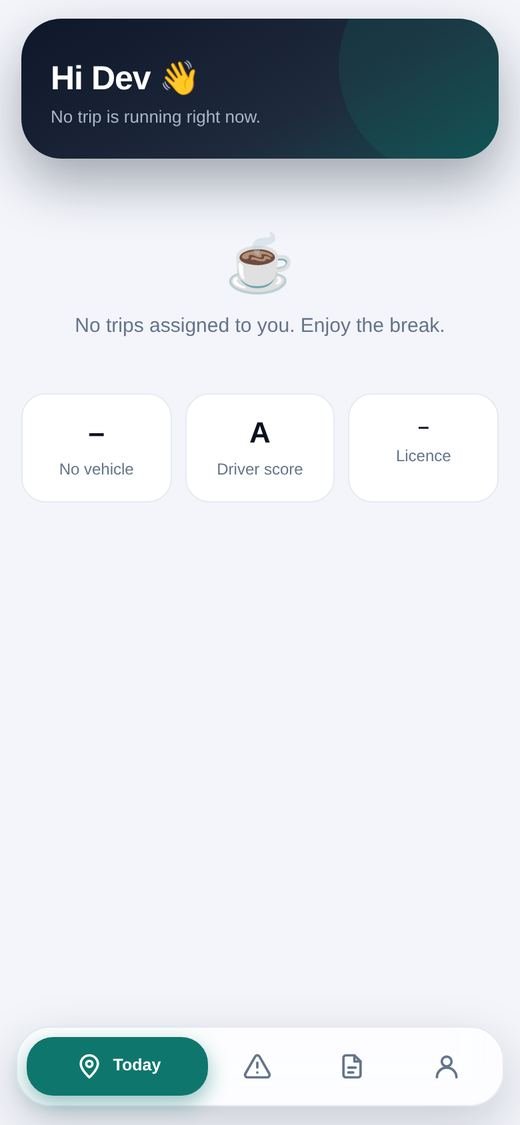
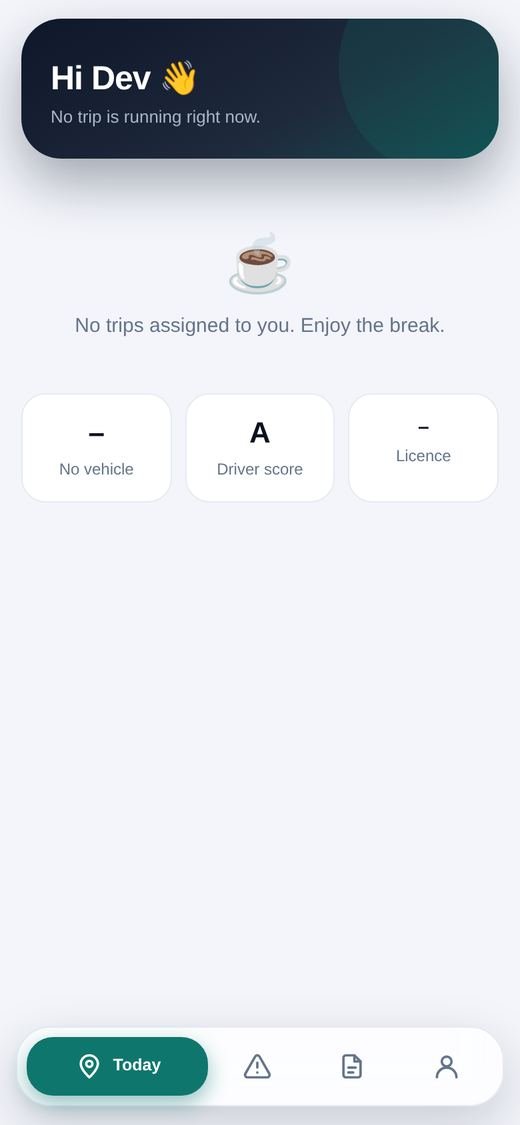
- Today – the current job with a Start / Finish stepper, the rest of today and upcoming trips, and a daily vehicle check (odometer, fuel, six quick checks, notes and a photo).
- Trip details – progress, the route with one-tap navigation to the pick-up and drop-off, the customer with a call button, vehicle details, the readings (start and end odometer, distance, fuel), the handover checklist results with the notes and photos, and any reports made on that trip.
- Start and finish – odometer, fuel, checklist, note and up to 4 photos. Live location is shared while the trip runs, also in the background in the store app.
- Report – a big SOS button and breakdown, damage, accident and other reports, with the history of the driver's reports and the office's replies.
- History – finished trips (tap for the details), expenses and fuel, with buttons to add fuel and expenses. Text entries are saved on the phone when there is no signal.
- Profile – edit name and phone, change the password.
The Mobile App Console (super admin)
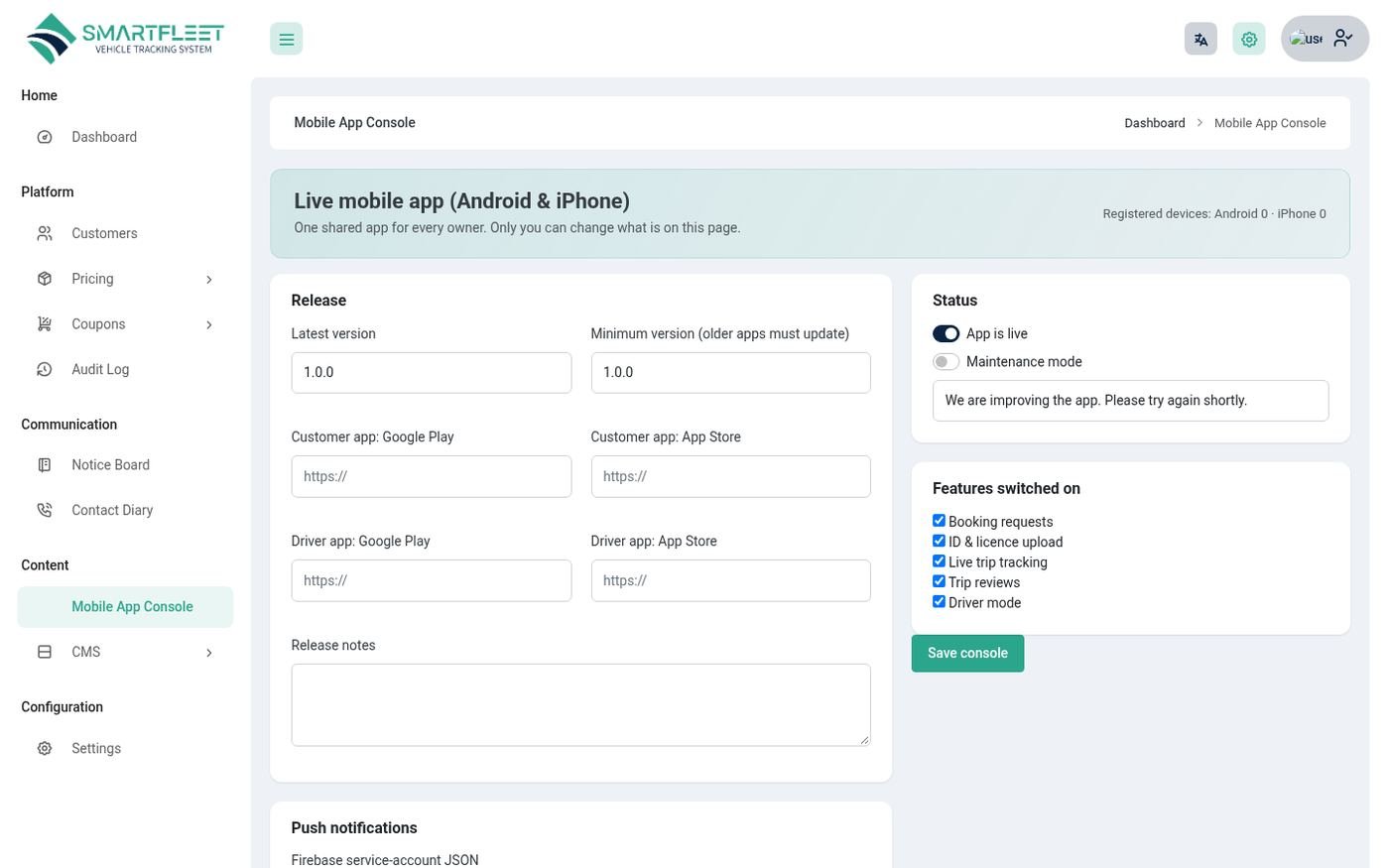
The super admin controls the live app from Platform → Mobile App Console: the latest and the minimum version (older apps are told to update), the store links for the Customer and Driver apps, maintenance mode with a message, which features are switched on (booking, documents, tracking, reviews, driver mode) and the push settings. Owners cannot open this page.
Signing in and security
- Sign in with the app code, email and password. The same message is shown for a wrong code, email or password, so codes cannot be guessed.
- A phone signs in with a token that lasts 60 days and is removed on sign-out.
- Clients only ever see their own data; drivers only their own trips.
- Paying opens your secure payment page through a single-use link that works for 5 minutes.
Build and publish the apps
The Flutter source is in the mobile folder: customer_app and driver_app. You need Flutter 3, and for stores an Apple Developer account (iPhone, needs a Mac) and a Google Play account.
The folder layout
mobile/
  customer_app/   android/  ios/  assets/  lib/  test/  README.md
  driver_app/     android/  ios/  assets/  lib/  test/  README.md
Run and test
cd mobile/customer_app
flutter pub get
flutter run --dart-define=API_BASE=https://yourdomain.com/api/v2
# an app for one owner only (no code screen):
flutter run --dart-define=API_BASE=https://yourdomain.com/api/v2 --dart-define=COMPANY=AB12CD
10.0.2.2 only works from the Android emulator. On a real phone use your computer's address on the same Wi-Fi (for example http://192.168.1.20/.../api/v2) or your real https:// server. Plain http:// works in debug builds only; release builds need HTTPS. If sign-in says "Cannot reach the server", the message names the address the app tried.Before publishing
- Set the package idsThe placeholders are
com.smartfleet.customer_appandcom.smartfleet.driver_app. Change them to your own. - Name and iconThe apps are named "Smart Fleet" and "Smart Fleet Driver" with the system logo. Replace
assets/icon.pngand rundart run flutter_launcher_iconsto change the icon. - PermissionsAndroid needs camera and location; iPhone needs the camera, location and the Location updates background mode for the Driver app (already added). Google and Apple review background location strictly: keep the in-app explanation and mention it in your privacy policy.
- Build
flutter build appbundle --release --dart-define=API_BASE=https://yourdomain.com/api/v2for Google Play,flutter build ipa --release ...for the App Store. - Tell the platformPut the store links and the new version in the Mobile App Console. The QR code, the website button and the update screen use them.
Push notifications (optional)
- Create a Firebase projectAdd the Android and iPhone apps, put
google-services.jsoninandroid/app/andGoogleService-Info.plistinios/Runner/, and upload the Apple push key. - Add the service accountIn Firebase open Project settings → Service accounts → Generate new private key and paste the whole JSON file into the Mobile App Console.
Customers then get a message when a booking request or a document is approved or rejected. Without Firebase the apps work normally, just without push.
AI tools
An assistant that knows your fleet, and a daily briefing you do not have to write.
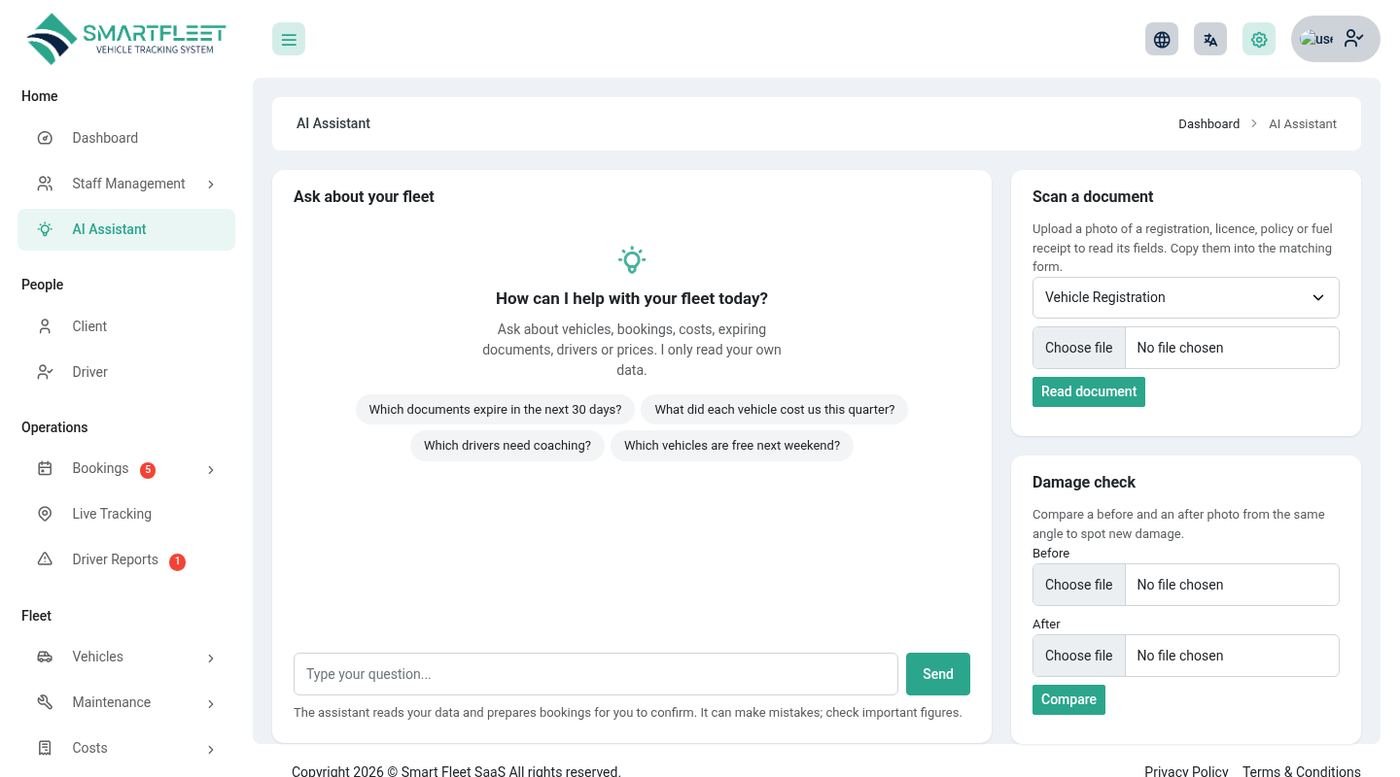
- AI Assistant – ask questions in plain language ("which vehicles are overdue for return?", "what did we spend on fuel last month?"). It looks at your own data only and shows its answer; it can also read a photo of a document or a damaged vehicle with the providers that support images.
- Daily briefing – the dashboard's AI briefing card summarises what is urgent, what changed and what to do first.
- Weekly summary – an email with the week in plain words (sent by the scheduler).
Connect your AI service (owner)
In Settings → AI choose a provider, paste your key and click Test. Each owner uses their own key, so usage is billed to them by the provider.
| Provider | Reads images |
|---|---|
| OpenAI (GPT) | Yes |
| Anthropic (Claude) | Yes |
| Google (Gemini) | Yes |
| OpenRouter | Yes |
| Mistral AI, DeepSeek, Groq | No |
| Other (any OpenAI-compatible address) | No |
AI and plans
AI is a plan feature (Packages → AI). Each owner also has a monthly token allowance from the plan, or FLEET_AI_MONTHLY_TOKENS (200,000 by default; 0 means unlimited) when the plan sets none. Usage is logged per owner.
Messages and automation
Let the system tell people what they need to know.
Email, SMS and WhatsApp
- Email notifications – Configuration → Notifications → Email Notification lets you switch each message on or off and edit its text.
- SMS – add your Twilio details in Settings → Twilio to send SMS (for example to the owner when a driver presses SOS, or to a client when a document is approved).
- WhatsApp – notifications through Twilio WhatsApp, with the same templates.
- Push – to the mobile apps (see Build and publish).
Notification rules
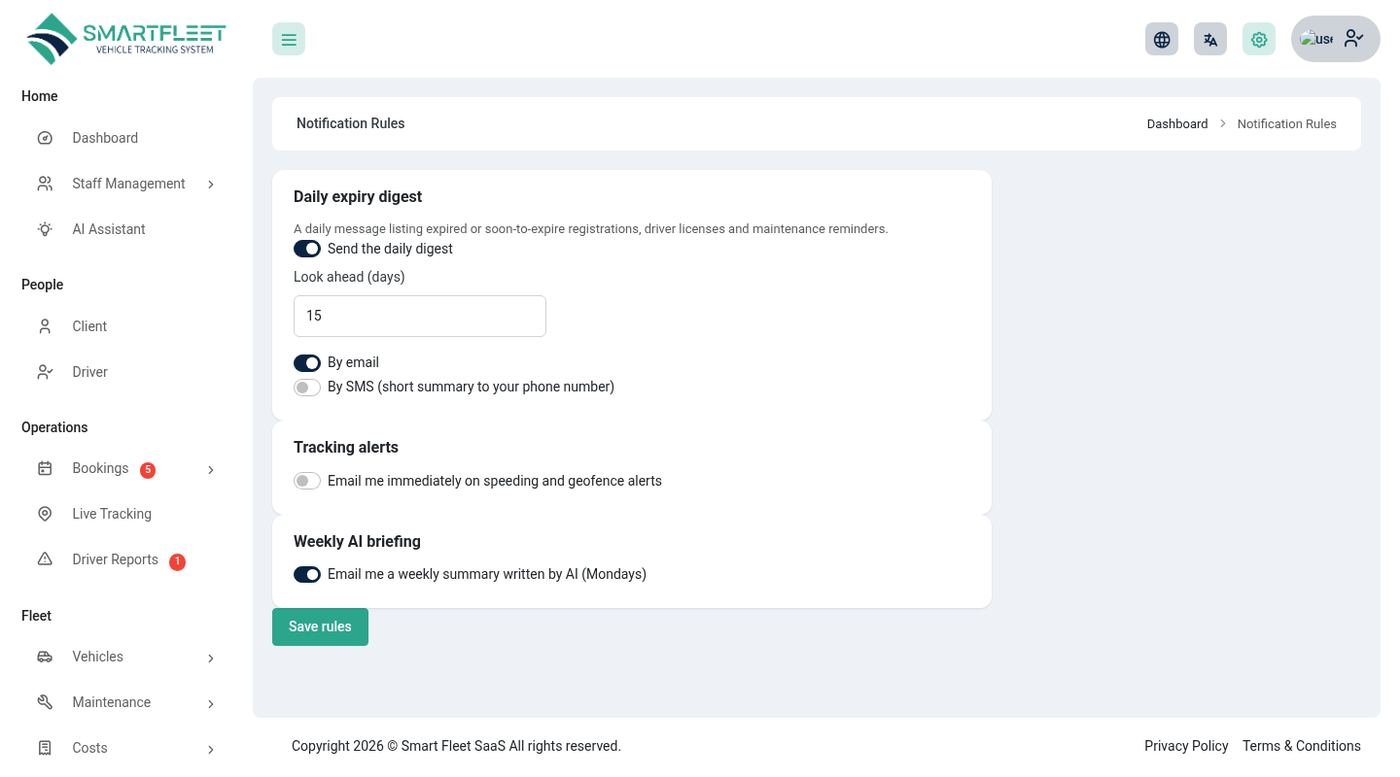
Notifications → Notification Rules sets what you want to be told about and when: the daily expiry digest and its time, tracking alerts (speeding, geofence, SOS), and the weekly AI briefing. Each owner's digest is sent in their own time zone and digest hour.
n8n
Configuration → N8N connects Smart Fleet to your n8n workflows with a webhook, so new bookings and other events can start your own automations. Available when your plan includes it.
Queue
For many emails, set QUEUE_CONNECTION=database in .env. The scheduler then sends queued messages every minute.
Settings and integrations
Everything is in Settings; the tabs you see depend on your role.
| Tab | What it does |
|---|---|
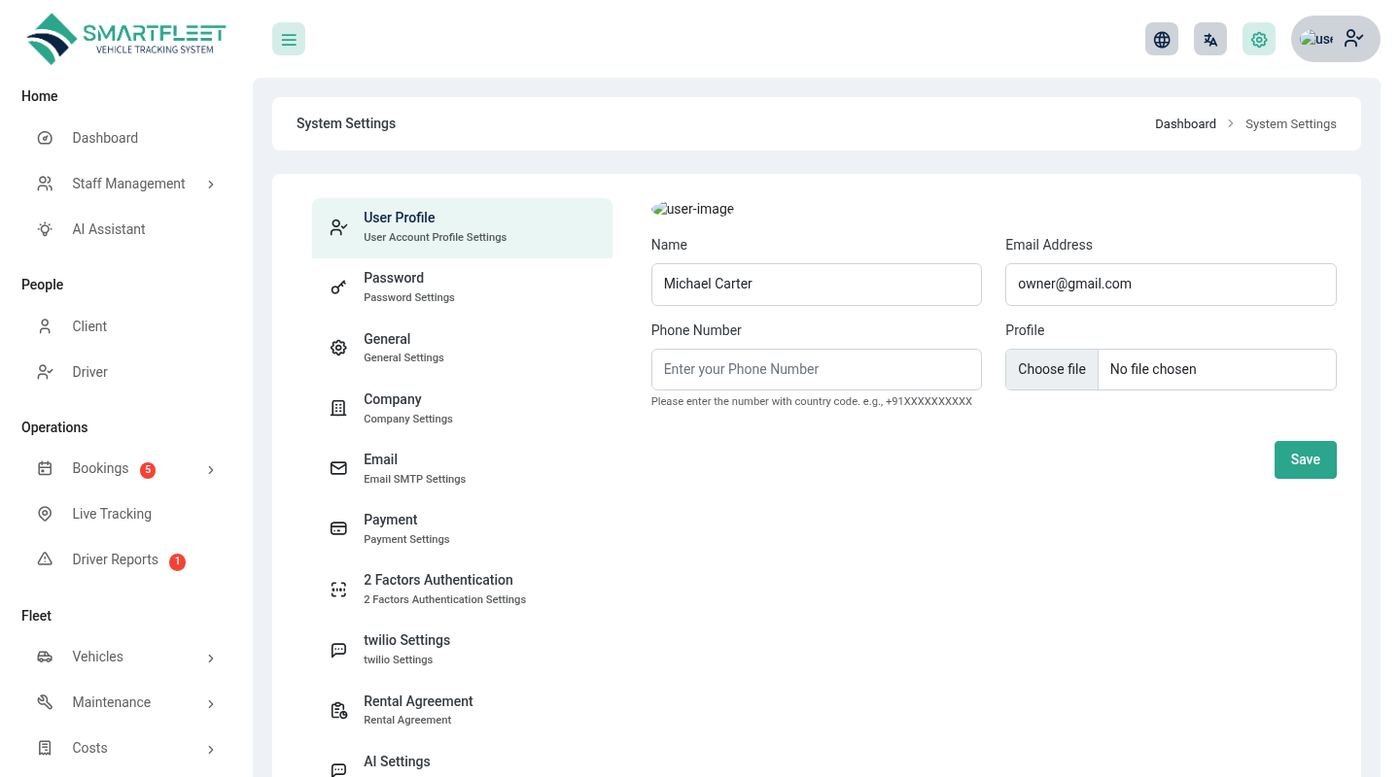
| Account / Password | Your name, picture and password. |
| General (super admin) | Application name, logos, favicon, footer text, date and time format, currency. |
| Company | The owner's company details and logo. |
| Email SMTP | Mail server and a test message. |
| Payment | Keys for Stripe, PayPal, Flutterwave, Paystack, Razorpay and bank-transfer details. The super admin's keys are for subscriptions; each owner's are for their clients' bookings. |
| Rental Agreement | The text used for agreements. |
| Twilio | SMS and WhatsApp. |
| AI | Provider, key, model and a test button. |
| 2 Factor Authentication | Turn on a code from an authenticator app. |
| Site SEO, Google reCAPTCHA | Landing page SEO and spam protection on sign-up and sign-in. |
| Scheduler (super admin) | The cron line, whether it is running, the secret web address, backups and what each task does. |
Backups
The scheduler saves a zipped copy of the database every night at 02:30 into storage/app/backups and keeps the newest 7 (FLEET_BACKUP_KEEP). The super admin can also create one and download it from the Scheduler tab. These files cannot be opened by a web address. Copy them off the server regularly.
Languages and themes
Make it look and sound like yours.
- Languages – each language is a folder in
resources/lang. Add a folder (copyen) and translate the text; it then appears in the language menu in the header. Right-to-left languages switch the layout automatically. - Theme – the gear icon in the header opens the theme settings: colour presets and a custom colour picker, light or dark mode, font style, RTL / LTR, boxed layout and sidebar options.
- Brand – logos and favicon under Settings → General.
API
A REST API for the apps and your own tools. Responses are JSON and a token is needed for everything except sign-in, branding and the device endpoint.
Authentication
POST /api/v1/auth/login with email, password (and otp if two-factor is on) returns a token. Send it as Authorization: Bearer <token>. Permissions are the same as in the admin panel, and clients and drivers only see their own records. Requests are rate-limited.
API v1 (back office and drivers)
| Endpoint | Purpose |
|---|---|
GET /api/v1/me, POST /api/v1/auth/logout | Current user and sign-out. |
GET /api/v1/vehicles, /vehicles/{id} | Vehicles (paged) and one vehicle with its last position. |
GET|POST /api/v1/bookings, GET /bookings/{id} | List, create and read bookings. |
GET /api/v1/fuels, /reminders/due, /analytics/costs | Fuel entries, reminders that are due and cost analytics. |
GET /api/v1/driver/home, /today, /history, /profile, /trips/{id} | The driver's trips, history, profile and the full details of one trip (checklists, photos, readings, reports). |
POST /api/v1/driver/trips/{id}/start, /finish | Start or finish a trip (odometer, fuel level, checklist, photos). |
POST /api/v1/driver/location, /issues, /fuel, /expense, /daily-check | Position, problem report, fuel, expense and daily check. |
API v2 (the mobile apps)
| Endpoint | Purpose |
|---|---|
GET /api/v2/config?version=1.0.0 | Versions, maintenance message and switched-on features. Called when the app starts. |
GET /api/v2/branding/{code} | Checks an app code (the app only keeps the code until sign-in). |
POST /api/v2/auth/login | Sign in with code, email, password. Returns the token, the user and the owner's branding. |
GET /api/v2/vehicles, /vehicles/{id} | The owner's website vehicles; add from and to to see only free ones. |
GET /api/v2/trips, /trips/{id}, POST /trips/{id}/cancel, /review, /share, /web-link, GET /trips/{id}/track | The client's trips, the full trip details, and what they can do with them. web-link returns a single-use link to the payment page or the invoice. |
POST /api/v2/quote, GET /api/v2/statement | A price estimate for a vehicle and dates, and the client's statement. |
GET|PUT /api/v2/profile | The signed-in customer's or driver's own details, and password change. |
GET|POST /api/v2/requests | Booking requests. |
GET|POST|DELETE /api/v2/documents | Client documents. |
POST /api/v2/devices | Register the phone for push notifications. |
GPS / OBD device endpoint
POST /api/v1/telematics/ping with the header X-Tracker-Token (or ?token=) and the fields lat, lng, optional speed, heading and recorded_at. The token belongs to one vehicle and is stored hashed. Up to 240 requests a minute are accepted.
SaaS administration
Run Smart Fleet as a business. These pages are for the super admin.
| Where | What it does |
|---|---|
| Platform → Customers | Every owner company, their plan and status. You can switch one off, delete one, or impersonate to help them. |
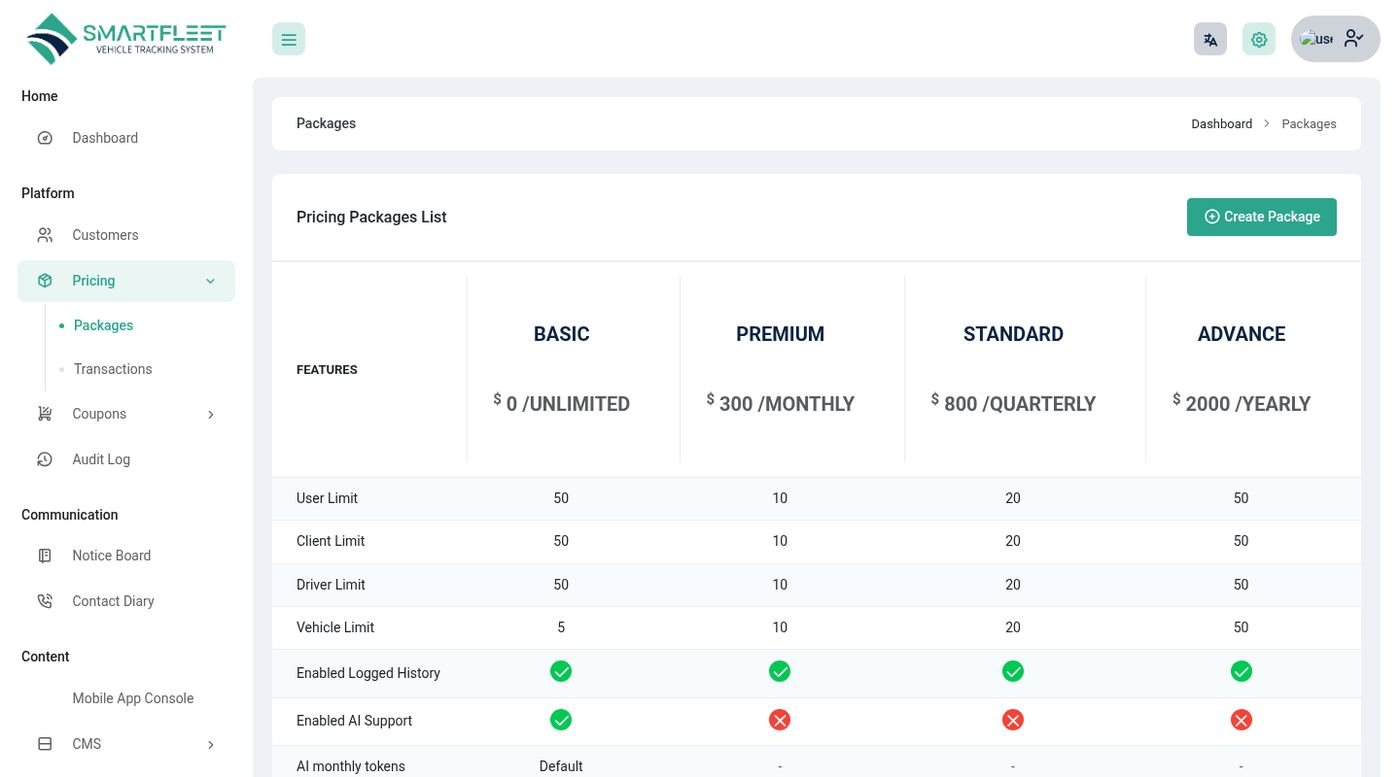
| Platform → Pricing → Packages | Plans with monthly, quarterly, yearly and unlimited prices, and limits for users, drivers and clients. Features per plan: logged history, AI, n8n, website and custom domain. A plan can be a free trial. |
| Coupons | Discount codes for subscriptions, with usage history. |
| Transactions | Every subscription payment. Approve or reject bank-transfer payments here. |
| CMS | The landing page sections, custom pages, FAQ, footer and sign-in page text. |
| Settings | Turn the landing page, the register page, owner email verification and the pricing section on or off; payment gateways for subscriptions; SEO; reCAPTCHA; the Scheduler tab. |
| Mobile App Console | See above. |
When a plan ends
The daily reminder job warns owners before their plan ends. After the plan has lapsed and the grace period (3 days by default, FLEET_GRACE_DAYS) has passed, the owner is moved to the free plan (FLEET_FREE_PLAN_ID, plan 1 by default) and features the free plan does not include are switched off. Nothing is deleted.
Upgrading
Take a backup first, then update.
- Back upDownload the latest database backup from the Scheduler tab (or export it from your hosting panel) and copy your
.envand thestorage/uploadfolder. - Upload the new filesUpload the new
main_filecontents over the old ones. Do not overwrite.envorstorage/upload. - Update the databaseOpen
https://yourdomain.com/updateand follow the steps. It runs the new migrations. If you have SSH,php artisan migrate --forcedoes the same. - Sync permissionsRun
php artisan fleet:sync-permissions(or just open the update page) so new menu items and permissions reach every role. - Clear caches
php artisan optimize:clear.
Going live checklist
Tick these before real customers arrive.
- HTTPS is on and
APP_URLuseshttps://. APP_ENV=productionandAPP_DEBUG=false.- All default passwords changed, and two-factor turned on for the super admin and owners.
- The cron line works: the Scheduler tab shows a recent heartbeat.
- SMTP works: send a test message.
- Payment gateways are in live mode with live keys, and one real payment was tested.
.htaccessis in place andhttps://yourdomain.com/.envand/storage/app/backups/answer "Forbidden" (test them in the browser).- Backups are copied off the server regularly.
- If you use the apps: the production API address is built in, store links and version are set in the Mobile App Console, and a privacy policy mentions camera and location use.
- Your own terms and conditions and privacy policy are on the website.
Troubleshooting and FAQ
The usual suspects and what to do about them.
| Problem | What to check |
|---|---|
| A white page or "500 server error" | Look at the last lines of storage/logs/laravel.log. Check that storage and bootstrap/cache are writable, then run php artisan optimize:clear. |
| New menu items are missing for a role | Run php artisan fleet:sync-permissions, then optimize:clear. Or open the role and tick the new permissions. |
| Reminders, digests or backups never arrive | The cron line is not running. Check the Scheduler tab for the last heartbeat. Also check your email settings. |
| Uploaded pictures do not show (404) | Pictures are saved under storage/upload and served at /storage/upload/.... Check the folder exists and is writable, and that the .htaccess rules were uploaded. |
| Images do not show on the owner website | Same as above. Also check the vehicle is switched on under Website Vehicles. |
| The own domain shows the platform instead of the website | The domain must be verified (the TXT record) and the website published. Check that the domain points to the same server and the plan includes Custom domain. |
| The mobile app says "Cannot reach the server" | Open <API_BASE>/config in the phone's browser; it should show a short JSON text. A real phone cannot use 10.0.2.2 or localhost. Release builds need HTTPS. |
| The app says "Invalid code, email or password" | The account must belong to the owner whose app code was entered, and must be a client or a driver (owners and managers sign in on the website). |
| Live tracking shows nothing | A trip must be running (started) for the phone to share. For devices check the token and that the vehicle has a recent position. The map marks vehicles with no signal for 15 minutes as offline. |
| A booking cannot be saved | The vehicle or the driver is already booked for those dates. The message names which one. |
| Push notifications do not arrive | The Firebase service-account JSON must be saved in the Mobile App Console, the Firebase files must be in the app, and the phone must have allowed notifications. |
| AI says it is not available | Your plan needs the AI feature, a key must be saved under Settings → AI, and the monthly allowance must not be used up. |
FAQ
- Can I run it for one company only?
- Yes. Turn off the register page and the pricing section, and give your company the biggest plan.
- Does each owner see other owners' data?
- No. Every record belongs to one owner and every screen, report, API call and website page is limited to it.
- Do I need the Flutter apps?
- No. The mobile web app already gives customers and drivers a phone experience. The Flutter apps are for the stores.
- Can customers get a store app with my own name and icon?
- Yes, by building the Customer app with your own package id, name, icon and
--dart-define=COMPANY=<your app code>. - Where are client ID documents stored?
- In
storage/private, which cannot be opened by a web address. Only the client and your staff can open them from the admin panel.
Environment variables
Set in the .env file. Run php artisan optimize:clear after changing it.
| Key | Default | Purpose |
|---|---|---|
APP_ENV / APP_DEBUG / APP_URL / APP_KEY | - | Environment, debug output, the public address and the encryption key. |
DB_* | - | Database host, name, user and password (set by the installer). |
MAIL_* | - | Mail server (also editable in Settings). |
QUEUE_CONNECTION | sync | Use database in production. |
FLEET_REMINDER_DAYS | 15 | How many days ahead expiry reminders start. |
FLEET_REMINDER_KM_BUFFER | 500 | Kilometres before a service due point when a reminder starts. |
FLEET_DIGEST_TIME / FLEET_WEEKLY_TIME | 08:00 | Hour of the daily digest and the weekly AI summary (in each owner's time zone). |
FLEET_SPEED_LIMIT | 100 | Speed limit (km/h) for vehicles without their own. |
FLEET_LOCATION_RETENTION_DAYS | 90 | How long tracking points are kept. |
FLEET_BACKUP_KEEP / FLEET_BACKUP_UPLOADS | 7 / true | How many backups to keep, and whether uploads are included. |
FLEET_AI_MONTHLY_TOKENS | 200000 | Monthly AI allowance when the plan sets none (0 = unlimited). |
FLEET_FREE_PLAN_ID / FLEET_GRACE_DAYS | 1 / 3 | The plan lapsed owners fall back to, and the days of grace before that. |
For developers: the PHP tests need their own database (see phpunit.xml) and rebuild it. Never point them at your live database.
Change log
What changed, newest first.
Version 2.0 – 24 October 2026
- Owner website with a page editor (17 block types), 6 themes, vehicle pages, online booking with live quotes, extras, discount codes, enquiries inbox and own domains.
- Mobile web app for customers and drivers with owner branding after sign-in, QR code and a "Get our app" page; Customer and Driver Flutter apps (add-on) with QR scan, push and background trip tracking; Mobile App Console for the super admin.
- Client portal: booking requests, trips, pay, track, cancel, rate, statement, documents and live trip links.
- Driver workspace: trip start and finish with handover checklist and photos, SOS and problem reports, fuel and expenses, offline entries, driver score.
- Live tracking map, geofences, speeding alerts and a GPS / OBD device endpoint.
- Parts inventory, vendors, fines & tolls, accidents & claims, cost analytics and the Report Center with CSV export.
- AI assistant, daily briefing and weekly summary with OpenAI, Claude, Gemini, Mistral, DeepSeek, Groq, OpenRouter or any compatible service, per owner and per plan.
- Notification rules, expiry email digests, audit log and onboarding checklist.
- Free trial plans, plan features for website and custom domain, subscription reminders.
- Super admin Scheduler page (cron line, heartbeat, secret address) and nightly database backups.
- Trip details pages in the customer and driver apps, price estimate in the booking request, saved vehicles and search, payments statement, profile editing, share live link, driver navigation, daily vehicle check and report history.
- Safer uploads and payments: private storage for client IDs, backups not reachable by address, payment references that can only be used once.
- New dashboards, sidebar menu and design for every role.
Version 1.9 – 29 May 2026
- WhatsApp notifications, Razorpay payments, digital signature, new UI for the dashboard, client and driver modules.
Version 1.8 – 5 March 2026
- n8n and OpenAI integrations; small improvements in the agreement module.
Version 1.7 – 23 August 2025
- Maintenance expiration reminder calendar; invoice, expense, vehicle availability and profit & loss reports; client dashboard; driver and client rental agreements; SMS templates and Twilio; Paystack.
Version 1.6 – 8 April 2025
- UI improvements, dynamic landing page CMS, pricing features on / off, two-factor authentication, impersonation, custom colour picker.
Earlier versions
- 1.5 (Dec 2024) email notification templates and owner email verification · 1.4 (Sep 2024) Flutterwave · 1.3 (Apr 2024) theme colours · 1.2 (Feb 2024) layout improvements · 1.0 (Feb 2024) initial release.
Support
Stuck? We are happy to help.
Open a ticket at support.smartwebinfotech.com. Please include your purchase code, the page you were on, what you expected and what happened, and, if you can, the last lines of storage/logs/laravel.log.