
Law Practice documentation
Everything you need to install, set up and run your legal practice: clients and advocates, cases and hearings, documents, time and invoices, messages and e-signatures, the client login, your own website, the client app, AI tools and running it as a SaaS.
Overview
Law Practice is a complete legal practice management system. Run it for your own firm, or as a SaaS: firms sign up, pick a plan and manage clients, cases, hearings, documents, time and invoices in one place, with their own website and a client app.
How the pieces fit together
| Part | What it is | Who uses it |
|---|---|---|
| Admin panel | The back office: clients, advocates, cases, hearings, documents, billing, reports and settings. | Super admin, owner, staff, advocates |
| Client login | The same system with a short menu: own cases, hearings, invoices, documents, messages and signatures. | Clients |
| Firm website | A public website with lawyer profiles, services, a blog, enquiries and a page for the client app. | Anyone on the internet |
| Client app | Flutter app for Android and iPhone. One app for every firm; the firm is found by its company code or QR code. | Clients |
| Platform console | Packages, coupons, referrals, transactions, mobile app switches and the landing page. | Super admin |
Quick-start checklist
- InstallCheck the requirements, create the database, upload the files and run the installer.
- Log in and secure the accountsUse the default logins once, then change every password.
- Switch on the background workAdd the cron line so hearing reminders and queued emails run.
- Company and emailIn Settings fill in the company and email (SMTP) tabs. See Settings.
- Describe how you workAdd courts, stages, categories and practice areas, then your advocates and clients.
- Open your first caseCreate a case, add its hearings, and invoice the work from the Billing menu.
Server requirements
Law Practice is built with Laravel. Make sure your hosting meets the following before you start.
- PHP
- 8.1 or newer (8.2 or 8.3 is fine)
- Database
- MySQL 5.7+ (8 recommended) or MariaDB 10.3+
- Web server
- Apache (with
mod_rewrite) or Nginx - HTTPS
- Strongly recommended. Required for online payments and the mobile app.
- Cron
- One cron line, see Background work
Required PHP extensions
Folders that must be writable
storage and bootstrap/cache. Uploaded logos, photos, documents and signatures are kept under storage/upload. The installer checks these too.
PHP upload limits
Documents can be up to 10 MB and website photos up to 4 MB. Set upload_max_filesize = 12M and post_max_size = 24M in php.ini.
Create the database
The steps below use cPanel. Other hosting panels offer the same options under similar names.
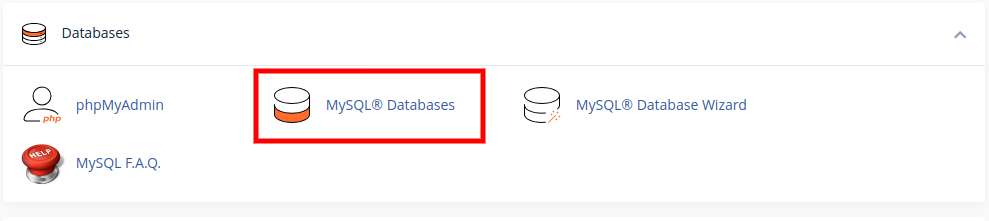
- Open the database toolIn your hosting panel go to Databases and click MySQL® Databases.
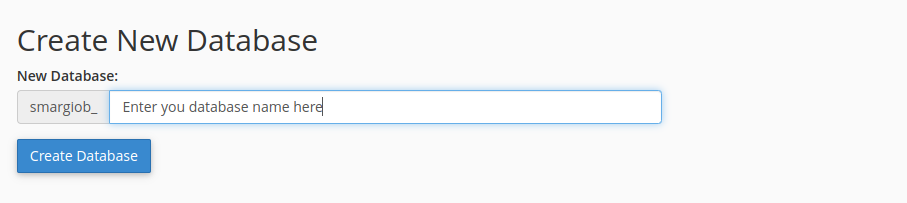
- Create the databaseType a name and click Create Database. Your host adds a prefix to the name; write the full name down.
- Create a database userIn Add New User enter a user name and a strong password (use the generator) and click Create User.
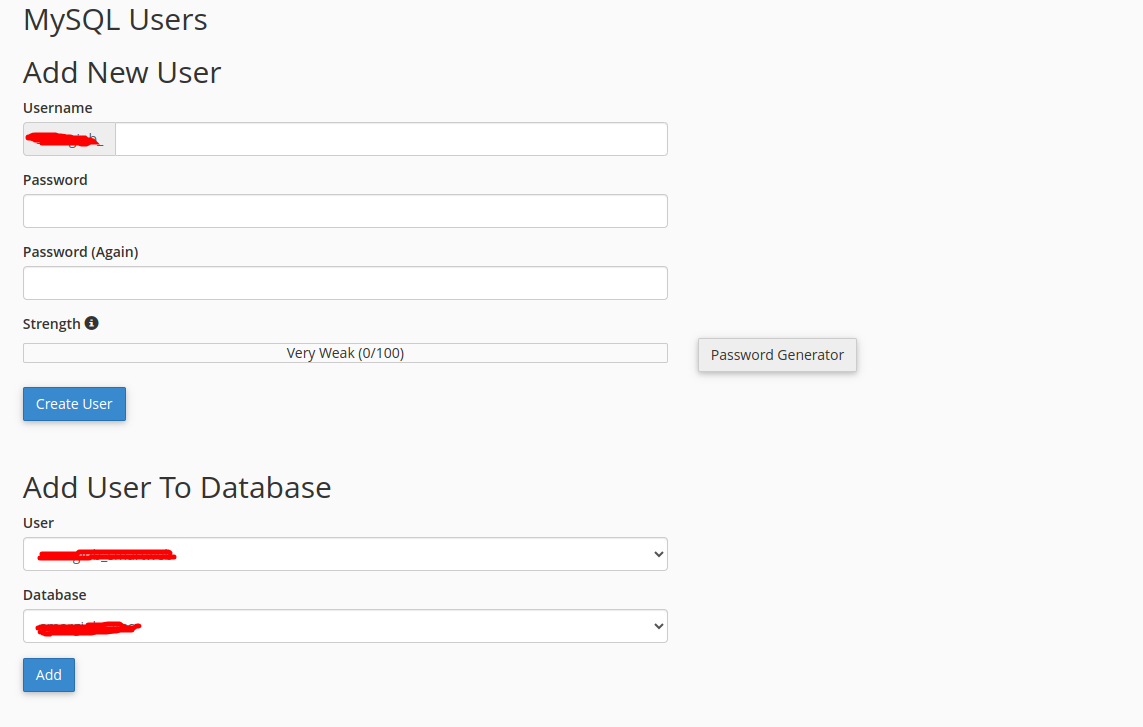
- Add the user to the databaseIn Add User To Database choose the user and the database, then click Add.
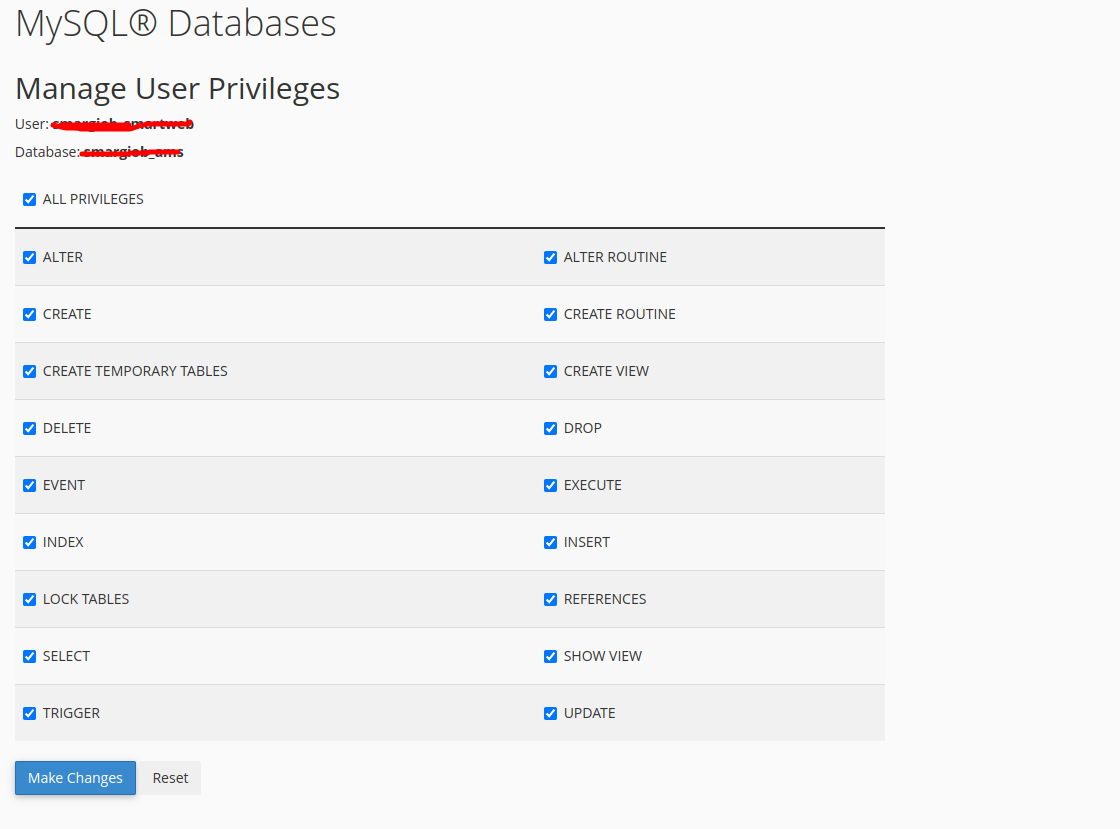
- Give all privilegesTick ALL PRIVILEGES and click Make Changes.
localhost), database name, user name and password. The installer asks for them in step 5.Upload the files
Upload the contents of the main_file folder from your download to your web root.
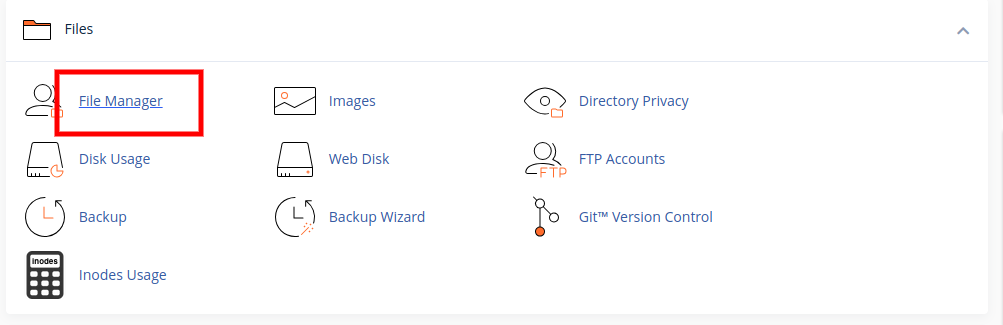
- Open the File ManagerLog in to cPanel and open File Manager under Files.
- Go to the right folderFor your main domain this is
public_html. For a sub-domain or sub-folder, open that folder instead.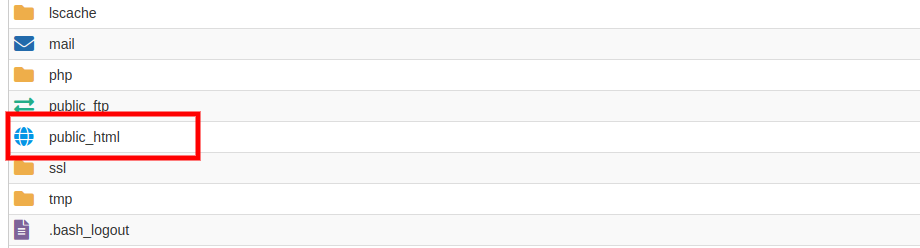
- Upload and extractClick Upload, choose the zip file, wait for 100%, then right-click it and choose Extract. Make sure the files from
main_file(including the hidden.htaccess) end up directly in the folder. - CheckYou should see
app,bootstrap,config,public,storage,artisanand the other Laravel folders.
documentation or mobile_app folders to the web root. They are for you, not for visitors.Run the installer
A web installer sets up the application in a few minutes.
- StartOpen
https://yourdomain.com/installin your browser. This starts the App Installation Process.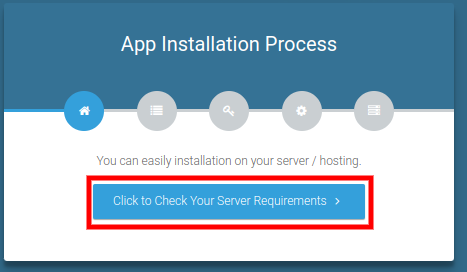
- Check the serverClick Click to Check Your Server Requirements. Everything should be ticked.
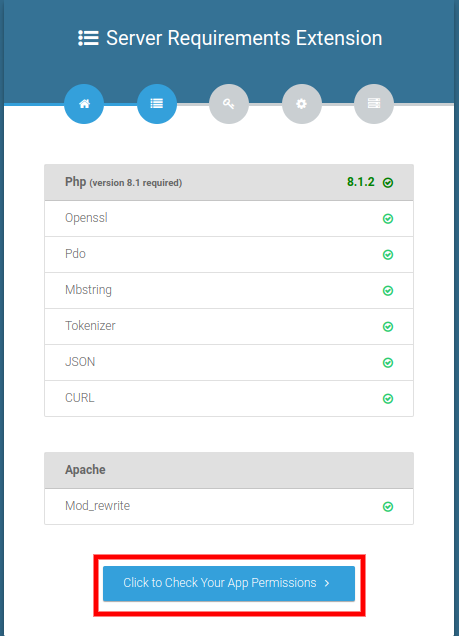
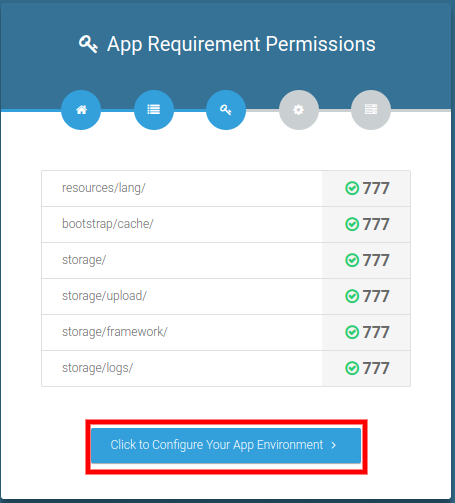
- Check permissionsThe installer checks the folder permissions. When all are fine, click Click to Configure Your App Environment.
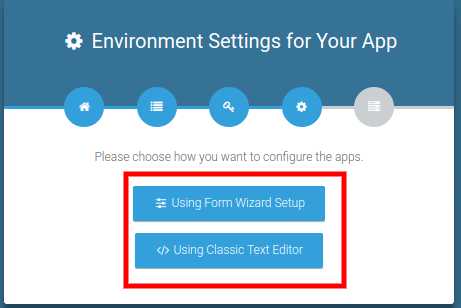
- Choose the setup typeSelect Using Form Wizard Setup.
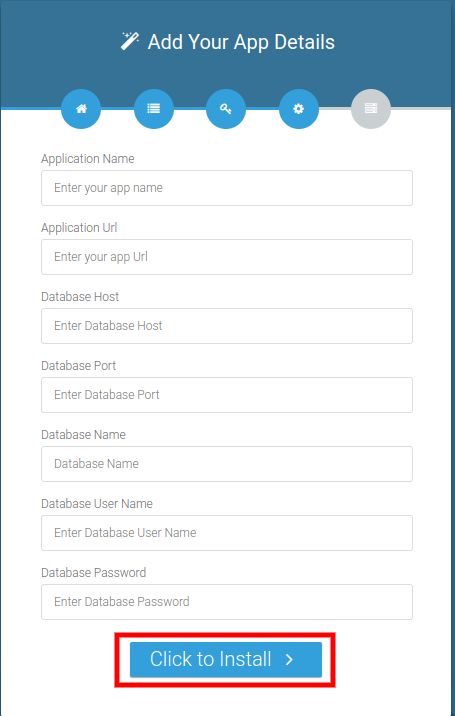
- Enter the app and database detailsFill in the database host, name, user and password from the previous step, plus an application name and the application URL. Click Click to Install.
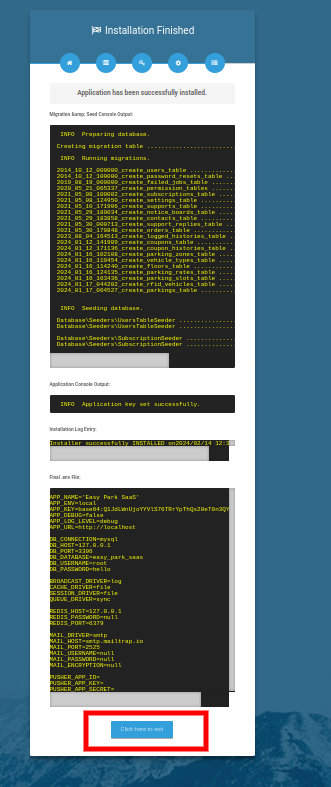
- FinishWhen you see Application has been successfully installed, click Click here to exit.
After installation
A few minutes of setup now saves problems later.
- Log inOpen your site and sign in with a default account.
- Change the passwordsOpen Settings → Password for each default account.
- Add the cron lineSee Background work. Without it hearing reminders do not go out.
- Set up emailSettings → Email SMTP, then send a test message. Invitations, reminders, message alerts and signature requests all use it.
- Fill in the company detailsName, logo, address, currency and date format under Settings.
- Turn debug offIn
.envsetAPP_ENV=productionandAPP_DEBUG=false. See Going live.
Background work (cron job)
Law Practice does some work on its own: hearing reminders by email, SMS and WhatsApp, and queued messages. A single cron line makes it run.
The scheduler
In cPanel open Cron Jobs and add this line to run every minute. Replace the path with the folder that contains artisan.
* * * * * cd /home/youraccount/public_html && php artisan schedule:run >> /dev/null 2>&1
| Task | When | What it does |
|---|---|---|
Hearing reminders (app:hearing-reminder) | Daily | Queues a reminder for every hearing coming up: email, SMS and WhatsApp to the client and the advocate, once per person per day. |
The queue
With QUEUE_CONNECTION=sync (the default) reminders and notices are sent while the page loads. For a busy site use QUEUE_CONNECTION=database and run a worker, for example php artisan queue:work --tries=3 kept alive by your host or Supervisor.
Default logins
The installer creates accounts so you can look around straight away.
| Role | Password | |
|---|---|---|
| Super admin | superadmin@gmail.com | 123456 |
| Owner (firm) | owner@gmail.com | 123456 |
| Advocate | advocate@gmail.com | 123456 |
| Client | client@gmail.com | 123456 |
Roles and how it fits together
Everyone sees only what belongs to them. The menu changes with the role and with the permissions the owner has given.
| Role | What they can do |
|---|---|
| Super admin | Runs the platform: customers (firms), packages, coupons, referrals, transactions, mobile app switches, the landing page (CMS) and settings. Cannot see a firm's cases. |
| Owner | The firm. Has the full admin panel for their own firm and their own data only, including their website, AI key and client app look. |
| Staff | Created by the owner under Staff Management. Permissions come from the role the owner gives them. |
| Advocate | Sees only the cases they lead or are on the team of, with their hearings, documents, messages, time entries and invoices. |
| Client | Sees only their own cases, hearings, invoices, documents, messages and signature requests. |
The owner's menu
| Group | Contains |
|---|---|
| Home | Dashboard, Staff Management (users, roles, login history) and Search |
| Clients & Cases | Client, Advocate, Case, Hearing, Calendar, Evidence, Document, Messages, Signatures, File Library and Advice |
| Billing | Invoice, Pending Bank Transfers, Time Tracking and Expense |
| Insights | Report, Management Reports and Activity Log |
| Communication | Contact Diary, Notice Board, Email Notification and N8N |
| My Website | Website Builder |
| System Setup | Master (case category and stage, court, document category, judge, practice area, police station), Transactional (matter, tag, task) and Expense Type |
| Account | Plan & Billing, Mobile App and Settings |
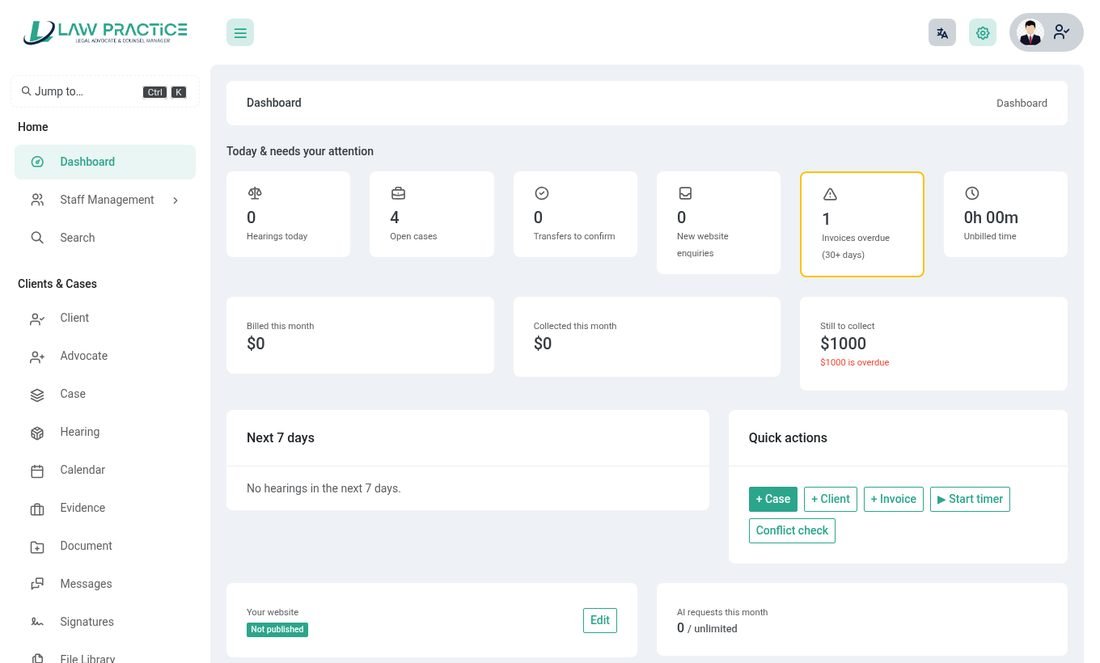
Setting up your firm
Describe how you work once, and every case after that is quicker.
| Where | What to add |
|---|---|
| System Setup → Master → Case Category / Case Stage | The kinds of matter you handle and the steps a case goes through. Shown on cases and in reports. |
| Master → Court, Judge, Police Station | Courts, judges and police stations to pick on a case. |
| Master → Practice Area | Your areas of law. They also appear on your website. |
| Master → Document Category | Groups for documents (contracts, pleadings, correspondence ...). |
| Transactional → Matter, Tag, Task | Matter types, labels and standard tasks. |
| System Setup → Expense Type | Kinds of expense for the Expense menu. |
Clients, advocates and staff
People are added once and reused on every case.
Clients
Clients & Cases → Client. Each client is a login account with contact details and an address. Open a client to see everything for them: their cases, invoices and a timeline of what happened and when. Give them the email and password you set so they can use the client login and the client app.
Advocates
Clients & Cases → Advocate holds your lawyers, with their work history. An advocate's page shows their cases and a timeline. Each advocate gets a login that shows only their own cases.
Staff and roles
Staff Management → User adds secretaries, paralegals and managers. Role lets the owner create roles and tick exactly which pages and actions each role may use (view, create, edit, delete for every module). A plan can limit how many users, advocates and clients you may have (see SaaS administration).
Sign-in history and two-factor
Staff Management → Logged History lists sign-ins with time and place. Each user can turn on two-factor authentication in Settings; when they do they are shown one-time recovery codes in case the phone is lost.
Conflict check
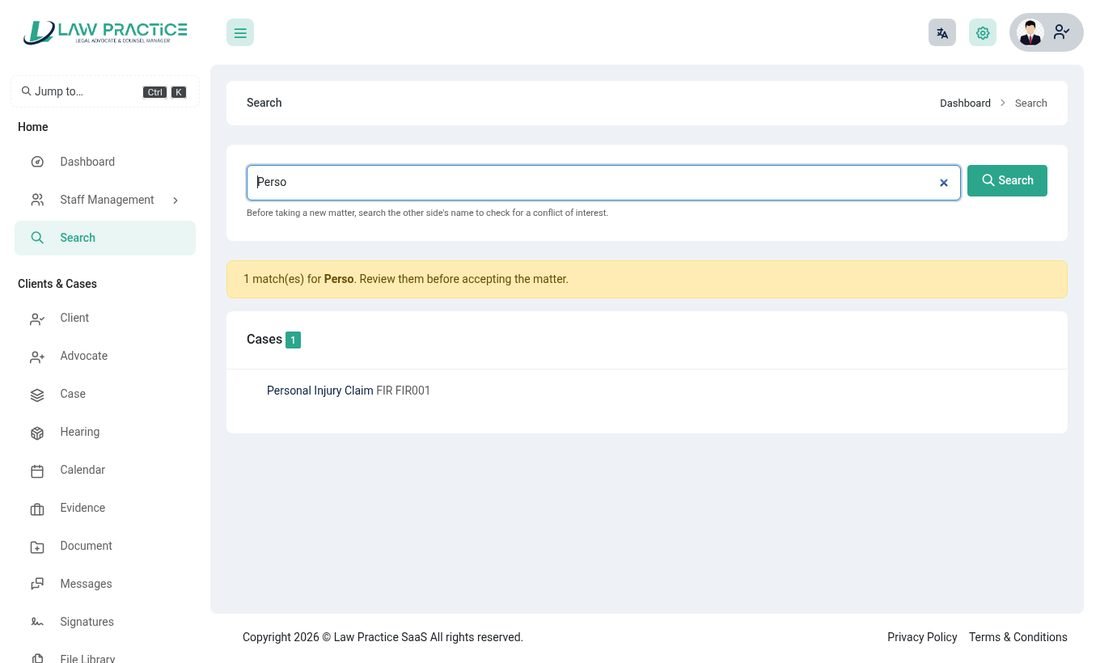
Before accepting a new client, open Search and type a name, email or phone number. It looks through clients, advocates, cases, hearings, documents and the contact diary at once and warns when something matches.
Cases
The centre of the system: everything about a matter in one place.
Clients & Cases → Case. A case has an automatic number, a title, the client, the lead advocate, court, judge, stage, matter, category, police station, FIR number, a description and private internal notes. The list can be searched, sorted, exported and filtered by column.
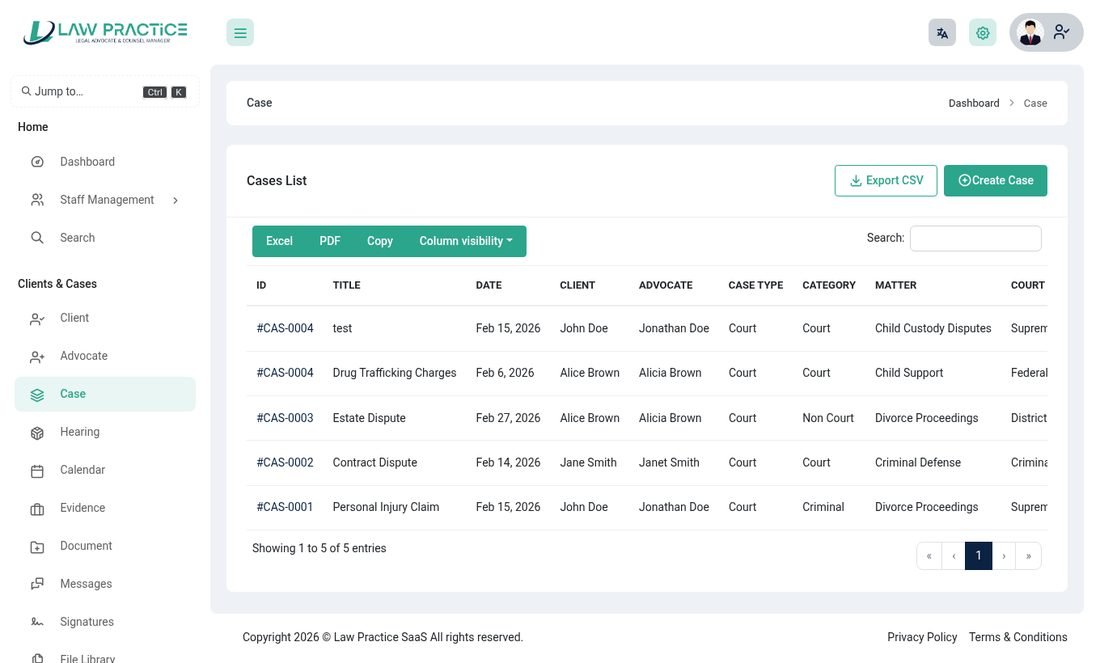
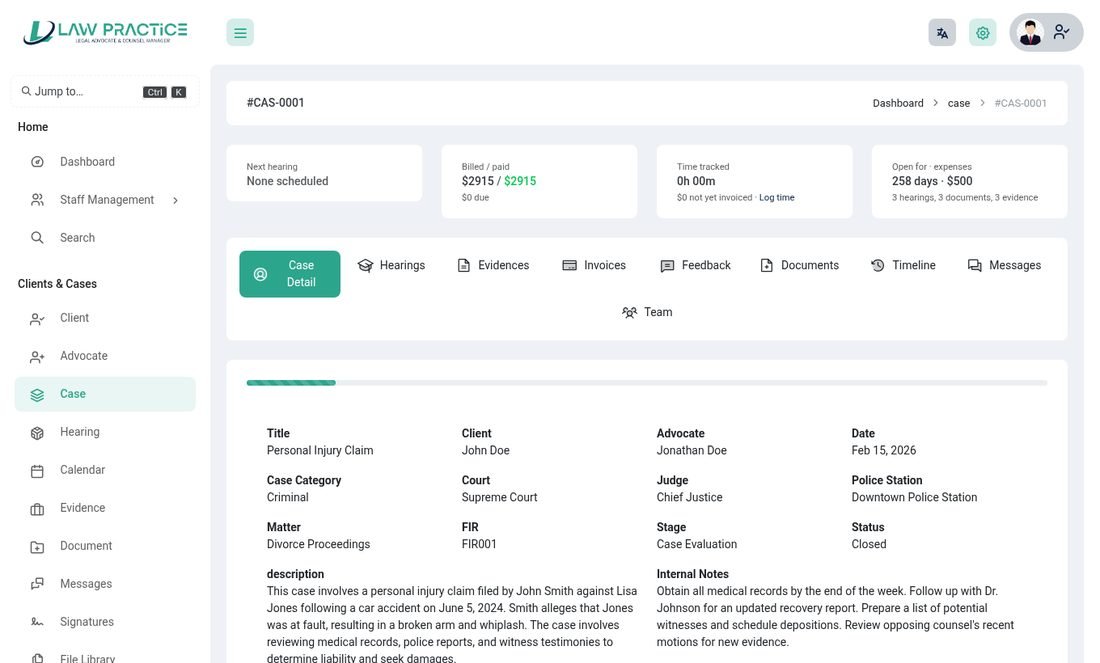
The case page
The strip at the top shows the next hearing, what has been billed and paid, the time tracked (and how much is not yet invoiced) and how long the case has been open. The tabs are:
- Case Detail – all the facts and notes.
- Hearings, Evidences, Invoices, Feedback, Documents – everything filed on the case, each with its own add button.
- Timeline – hearings, invoices, documents, messages and changes in date order.
- Messages – opens the conversation with the client.
- Team – see below.
Case team
The lead advocate is chosen on the case. On the Team tab add other advocates as Co-counsel, Associate, Junior, Paralegal or Consultant. A team member sees the case, its hearings, documents, messages, invoices and evidence like the lead does, and finds it in search and on their dashboard. Only the owner, staff with edit permission or the lead advocate can change the team.
Tasks and feedback
Tasks can be added to a case (with the standard tasks from System Setup). Feedback records a note from the client or the firm.
Hearings and calendar
Never miss a date.
Clients & Cases → Hearing lists hearings; Calendar shows them by month, week, day or list. A hearing has a date and time, a fee, witnesses, the judgement status and reason and a description. Hearings can be invoiced from the case.
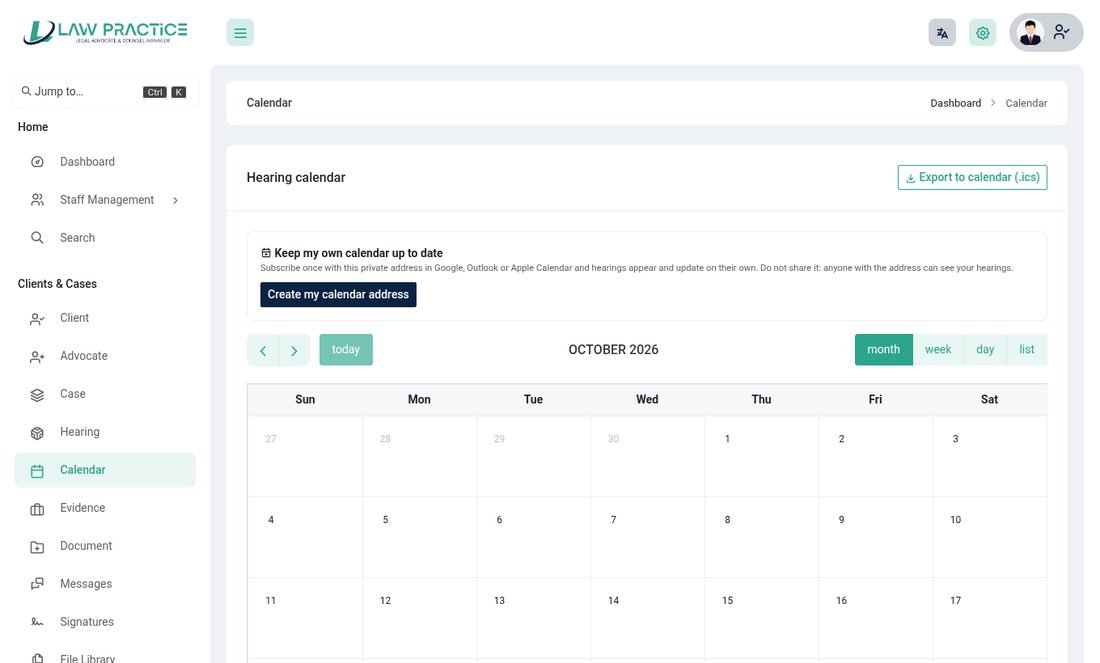
Your own calendar, kept up to date
On the Calendar page press Create my calendar address. Subscribe to that private address in Google, Outlook or Apple Calendar and hearings appear and update by themselves, each with a one-hour reminder. Everyone gets a feed of only the hearings they may see. Make a new address cancels the old one. The older Export to calendar (.ics) button still gives a one-off file.
Reminders
The daily cron sends reminders for upcoming hearings by email, SMS and WhatsApp (see Messages and automation).
Evidence, documents and files
Keep every paper with its case.
- Evidence – evidence items per hearing with who it favours and attachments.
- Document – documents per case with a category, notes and one or more attachments. Clients can add documents to their own cases too.
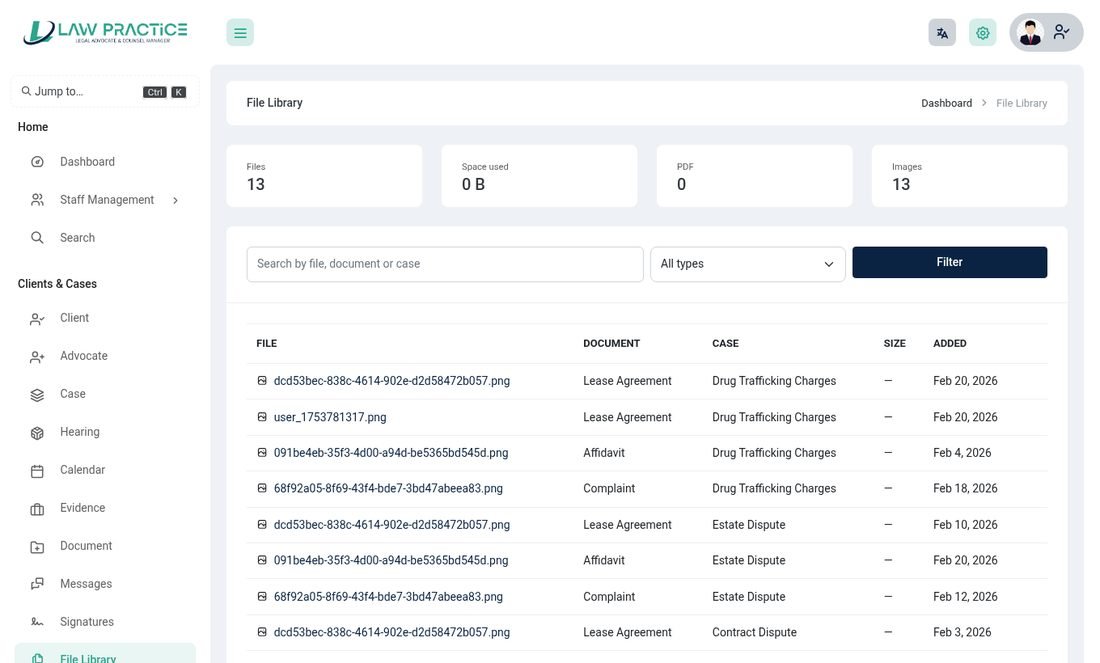
- File Library – one searchable list of every attached file, with the number of files and the space used, and a filter by type (PDF, images, text documents, spreadsheets). Sizes show for files kept on this server; files on S3 or Wasabi show without a size.
Advice
For consultations before a case exists.
Clients & Cases → Advice records an advice matter with the client, advocate, date, fee and notes. When the client decides to go ahead, convert it to a case in one step.
Time, invoices and payments
From hours worked to money received.
Time tracking
Billing → Time Tracking. Press Start timer (also on the dashboard) on a case, or add an entry by hand. Mark entries billable and give an hourly rate. The dashboard and the case page show unbilled time so nothing is forgotten; invoicing it marks the entries as billed.
Invoices
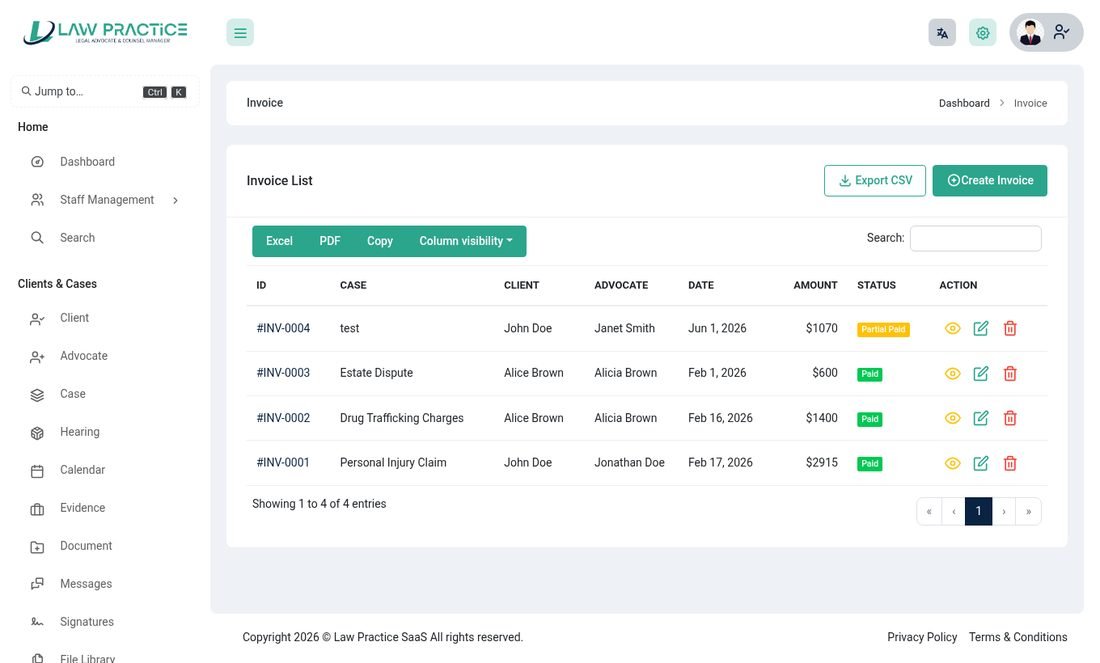
Billing → Invoice. Create an invoice from a case with as many lines as you need (you can pull in hearings). The status moves from open to paid as payments arrive. The invoice page shows the lines, payments and the balance, and can be printed.
Payments
Clients can pay online when you switch on a gateway in Settings → Payment: Stripe, PayPal, Flutterwave, Paystack, Razorpay and Bank Transfer. A bank transfer is recorded as pending with the client's receipt; it only counts once you approve it in Billing → Pending Bank Transfers. A transaction reference can only be used once, so a payment cannot be counted twice.
Expenses
Billing → Expense records what the firm spends per case or in general, using the expense types you set up.
Reports and insights
See how the firm is doing.
Management Reports
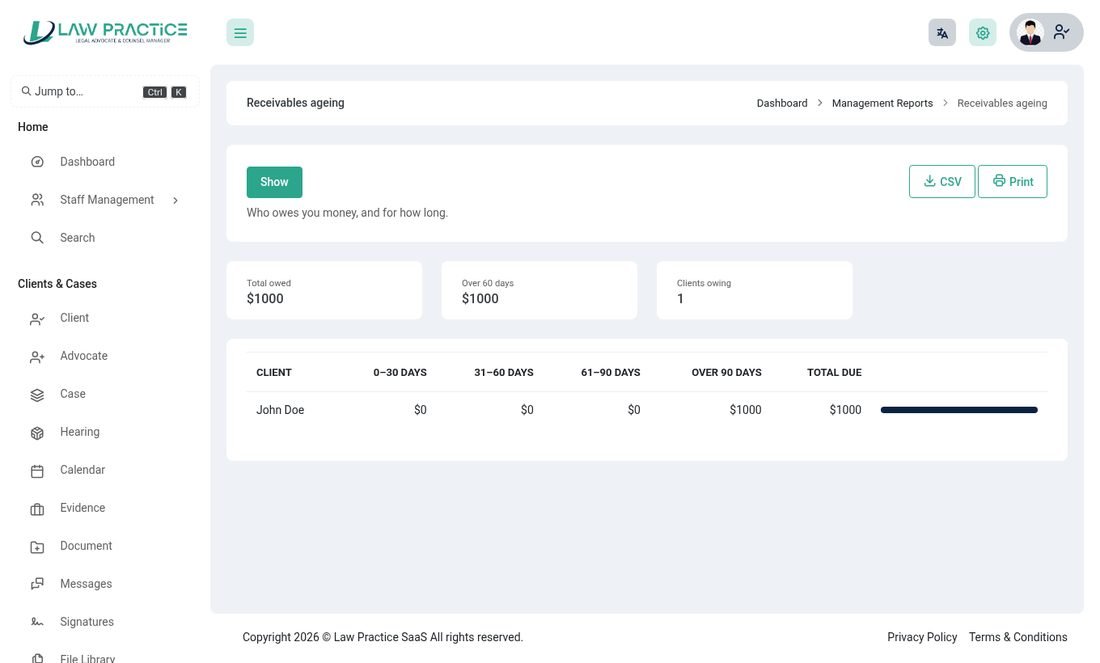
Insights → Management Reports are for the owner. Each one has a date filter, a CSV download and a Print button.
| Report | Answers |
|---|---|
| Receivables ageing | Who owes you money, and for how long (0-30, 31-60, 61-90, over 90 days). |
| Revenue vs expenses | Billed, collected and spent, month by month. |
| Time & billing | Hours worked, billable share and unbilled value. |
| Caseload | Open and closed matters, and how long they have been open. |
| Hearing outlook | Everything scheduled in the coming weeks. |
| Website enquiries | Leads from your website by month and topic. |
| AI usage | Requests by provider and month. |
Report
Insights → Report holds the classic lists: Advice, Cases, Hearing, Evidence, Document, Invoice and Expense reports, each with filters.
Activity log
Insights → Activity Log shows who created, changed or deleted what, and when – useful for accountability. The same events appear in case, client and advocate timelines.
Search, Jump-to and other tools
Small things that save time.
- Search – one box across clients, advocates, cases, hearings, documents and contacts (see Conflict check).
- Jump to – press Ctrl + K (or /) anywhere. Type a page name, a client, a case or an invoice number, use the arrow keys and press Enter. It only offers what the person is allowed to open.
- Exports – CSV on the list pages and reports;
.icsfor hearings. - Contact Diary – people who are not clients (opponents, witnesses, courts' clerks).
- Notice Board – announcements for staff and clients.
Dashboards
Each role gets a dashboard for its own work.
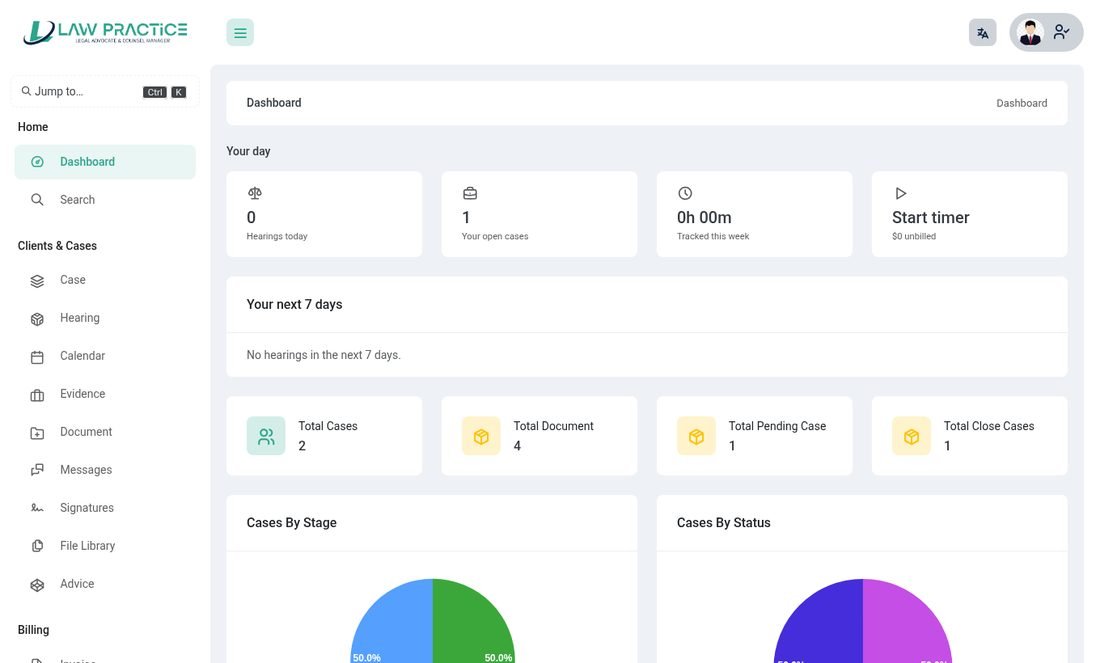
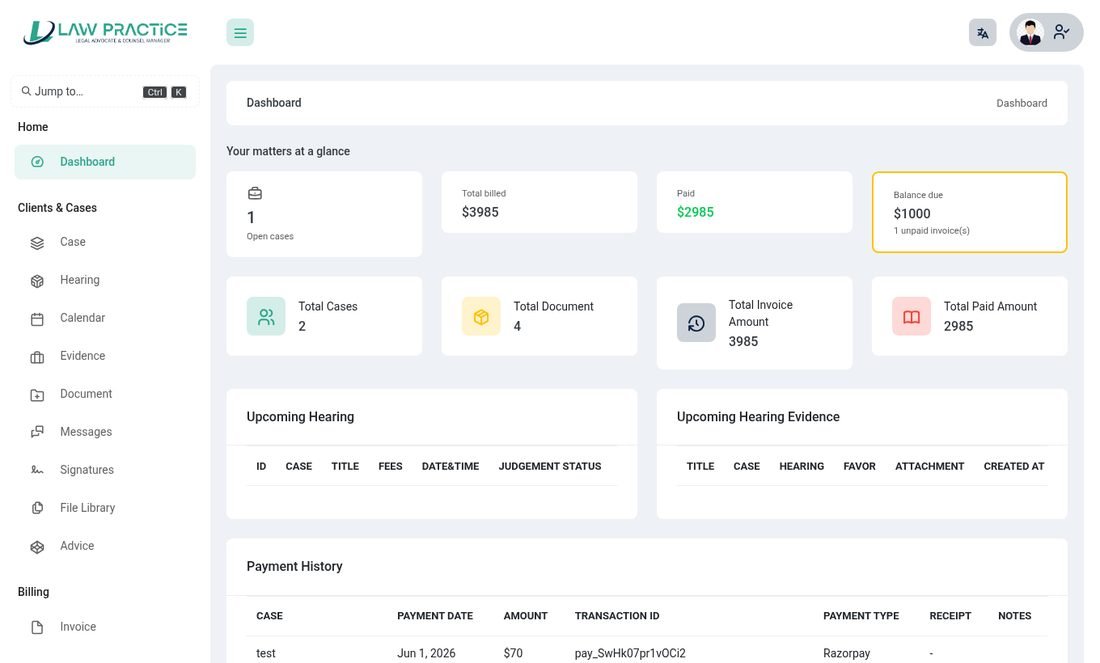
- Owner – Today & needs your attention (hearings today, open cases, bank transfers to confirm, new website enquiries, overdue invoices, unbilled time), billed / collected / still to collect, the next 7 days, quick actions (new case, client, invoice, start timer, conflict check), website status, AI use, a this month vs last month strip and charts of cases by stage and status.
- Advocate – their own cases, hearings, time and invoices.
- Client – their cases, documents, payments and upcoming hearings.
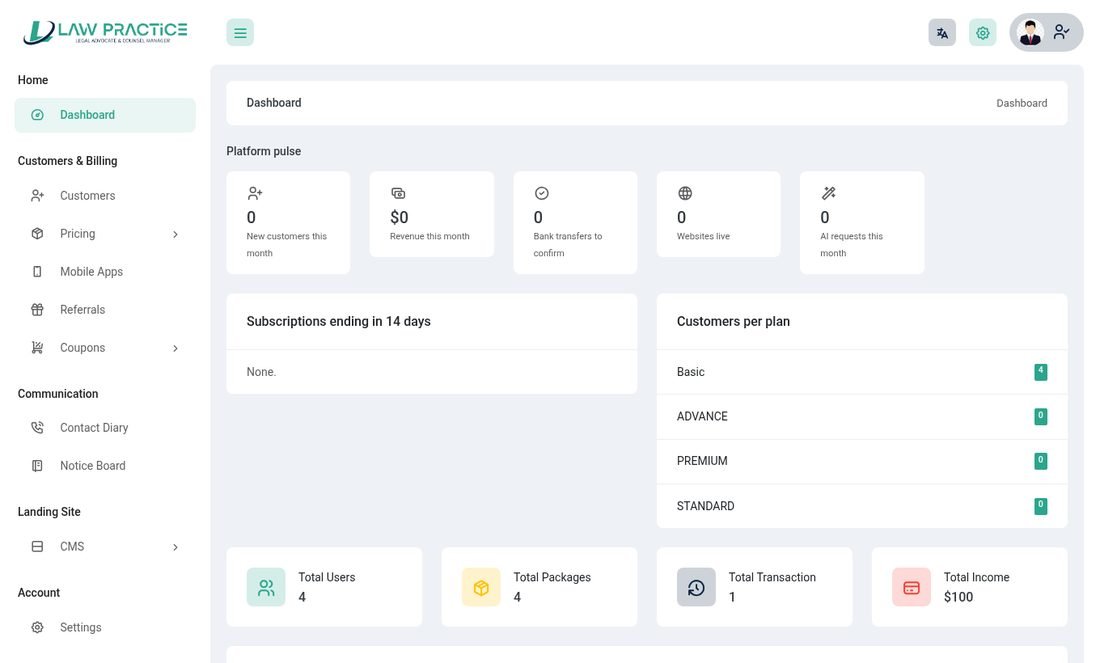
- Super admin – platform pulse: customers, plans, subscriptions ending soon, transactions and income.
Messages
Talk about a case without leaving the system.
Clients & Cases → Messages lists conversations with an unread count; open a case and press Messages to write. Each case has one conversation, seen by the client, the lead advocate, the case team and the firm's staff. Messages are plain text up to 2,000 characters.
- Opening a conversation marks it read.
- The other people get an email alert (at most one per person per case every 30 minutes) and, for clients, an item in the app inbox.
- Nobody outside the case, and no other firm, can read or write in it.
E-signature
Get a document signed without printing it.
- Pick the fileOpen File Library and press Request signature next to a file kept on your server.
- Say who signsEnter the signer's name and email, an optional note and how many days the request stays valid (default 14). If the email is one of your clients the request also appears in their login and the app.
- Send the linkCopy the private signing link (the signer also gets it by email). The signer needs no account: they read the document, type their full name, draw their signature and tick the consent box – or decline.
- Keep the proofThe Certificate shows who signed, when, from which IP address and browser, the drawn signature and a SHA-256 fingerprint of the exact file. It also tells you whether the stored file is still identical to the one that was signed.
Client login
Clients get their own, much shorter, workspace.
- Dashboard – their cases, documents, payments and upcoming hearings.
- Case, Hearing, Calendar, Evidence, Document – only their own matters. They can add documents to their cases.
- Messages and Signatures – write to the firm and sign what was sent to them.
- Invoice – see invoices and pay online.
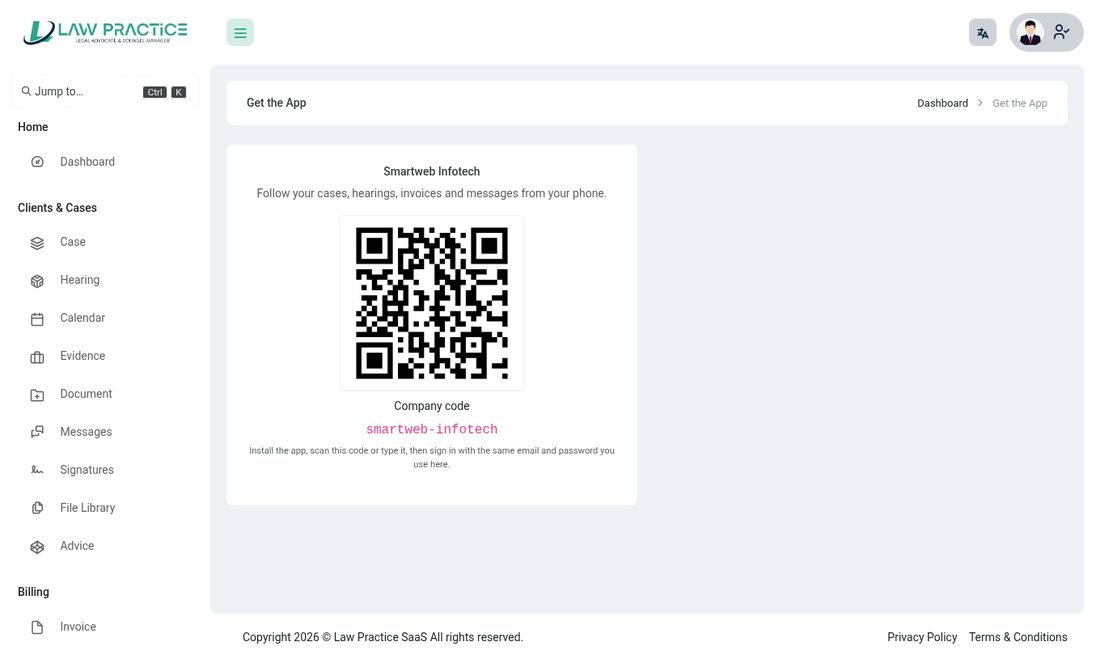
- Get the App – the firm's QR code, company code and store buttons for the client app.
Firm website
Every owner gets a public website, built from blocks they can edit, on their own domain if they like.
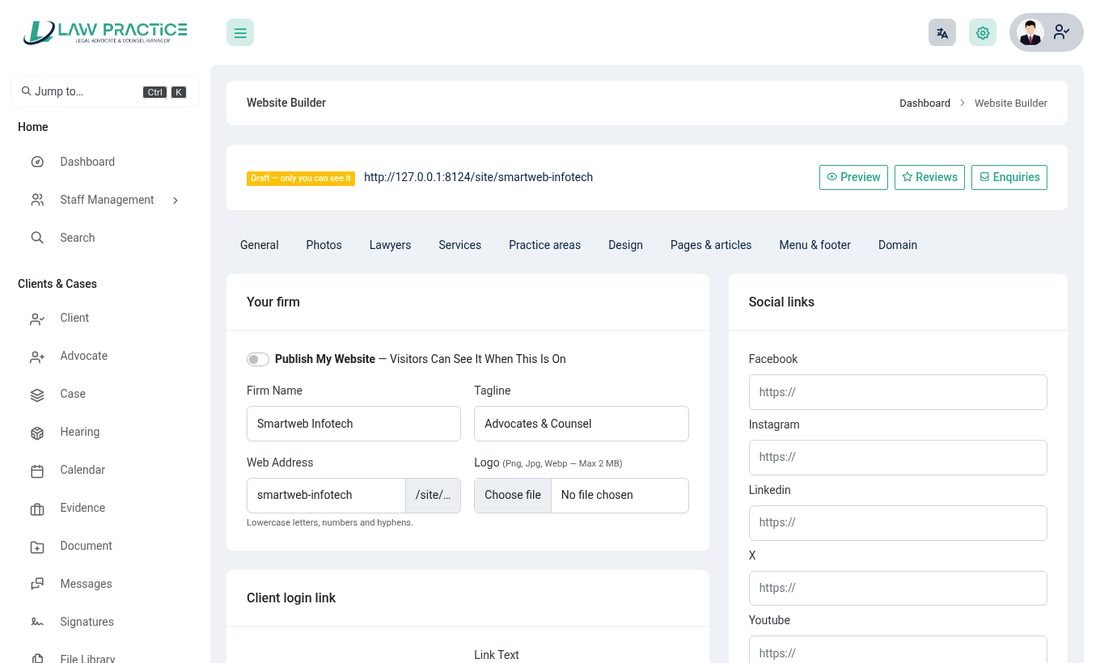
Owners open My Website → Website Builder. Until the site is switched on only the owner can see it. A new site is created with Home, About, Services, Practice areas and Contact pages so there is something to edit straight away; its colours follow the owner's own application theme until they choose others.
What you can edit
| Tab | What it does |
|---|---|
| General | Firm name, tagline, address, phone, email, social links, whether to show a client login link, and the closing banner. |
| Photos | The picture library used everywhere on the site. |
| Lawyers | Lawyer profiles with photo, title, practice areas and biography. Each gets its own page. Advocates can upload their photo in their own login. |
| Services | Fixed-fee services with price, duration and what is included. |
| Practice areas | A page for each area of law, listing the lawyers and services for it. |
| Design | Colours, font, corner style and light or dark. Choose "same as my application theme" to follow your own colours. |
| Pages & posts | Pages built from blocks (hero, text and picture, cards, steps, FAQ, team, reviews, gallery and more) and a blog. |
| Menu & footer | The header menu and footer links and text. |
| Domain | Your address on this platform, and an optional own domain. |
Enquiries and reviews
Visitors send an enquiry through the form; it lands in Enquiries and the owner is notified. Visitors can also leave a star review, which the owner approves before it is shown.
Your own domain
- Point the domain at your serverAt your domain registrar create an
Arecord for the domain (andwww) pointing at this server's IP address, and make your web server accept that host name. - Enter itIn the Domain tab type the host name, for example
www.hale-law.com, withouthttps://. The page checks the DNS for you. - Switch the website onTick Website is live and save.
- CheckOpen the domain. Every page is served on it, and the address on this platform keeps working too.
Search engines
Every page has its own title, description and canonical address, and sitemap.xml and robots.txt are made for you. Pages you have not published are never listed.
Client app page
Every website has a Client app page (linked in the footer) showing the firm's company code, QR code and the store buttons. It disappears if the platform switches the firm's app off.
Client app
A Flutter app for the firm's clients, for Android and iPhone. The app is an add-on: its source code comes in the add-on's mobile_app folder, and the server side (API, company codes, QR, branding, console) is included in the main package.
| Folder | App | For |
|---|---|---|
client_app/android_app and iphone_app | Law Client | Clients |
The two projects share the same code in lib/; only android/ and ios/ differ. client_app/check-sync.sh tells you if they drift apart.
What clients can do
- Home – amount due and paid this year, the next payment, documents waiting for a signature, unread messages, the next hearings, cases by status, recent activity, new documents, "My legal team" with one-tap call and email, notices from the firm and quick actions.
- Cases – search; each case shows its facts, hearings, legal team, evidence and history. From a case the client can message the firm, add a document or request a meeting. Internal time and expenses are never shown to clients.
- Messages – one conversation per case.
- Invoices and payments – lines, payments and balance, pay online (opens the firm's secure payment page in the browser, already signed in), and a payment history that also shows bank transfers waiting for the firm to confirm.
- More – Hearing calendar (with add to my phone's calendar), hearings by case, Request a meeting (written in the case conversation), My legal team, Payments, Notice board, Documents (open files; add a picture or a PDF, Word or text file up to 10 MB) and Signatures (read, sign with a finger, or decline).
- Inbox – what the firm sent: messages, hearings, invoices, documents to sign.
- A fingerprint or face lock, two-factor sign-in, and a profile and password page.
Company code and branding
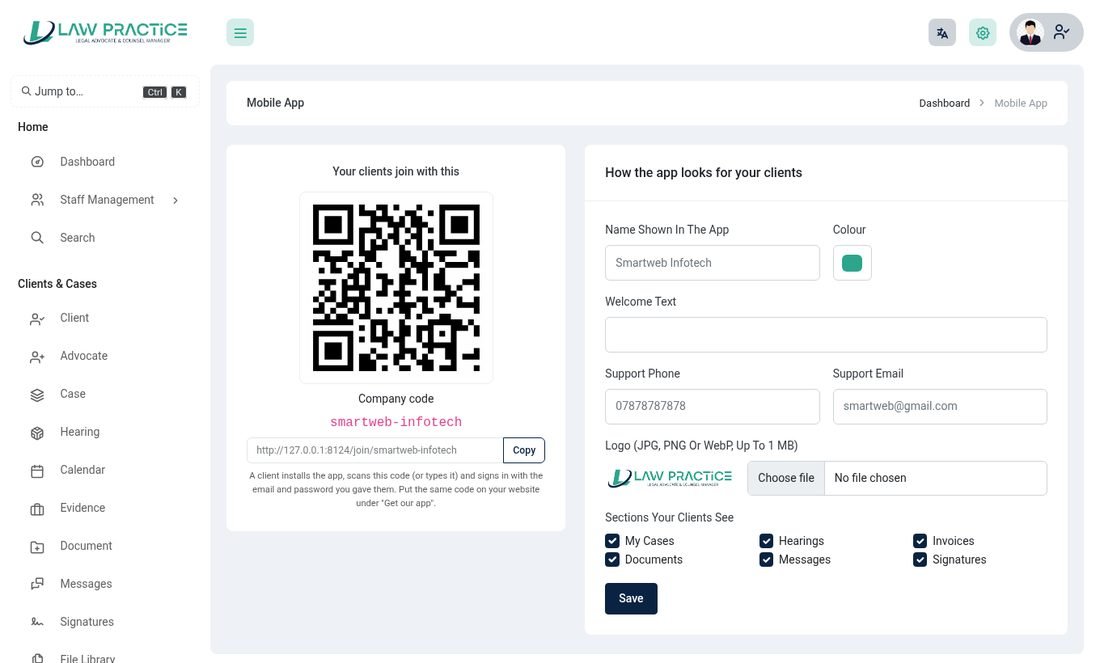
The app is published once and serves every firm. A client finds their firm by typing the company code, scanning the firm's QR code or opening its invite link (/join/your-code). The app then shows that firm's logo, name, colour and welcome text before the client signs in with the email and password the firm gave them. An account that belongs to another firm is refused.
Owner: open Account → Mobile App to see the company code and QR, and to change the name shown in the app, the colour, welcome text, support phone and email, the logo, and which sections clients see (cases, hearings, invoices, documents, messages, signatures, notice board). A hidden section is refused by the server too, not only hidden in the app.
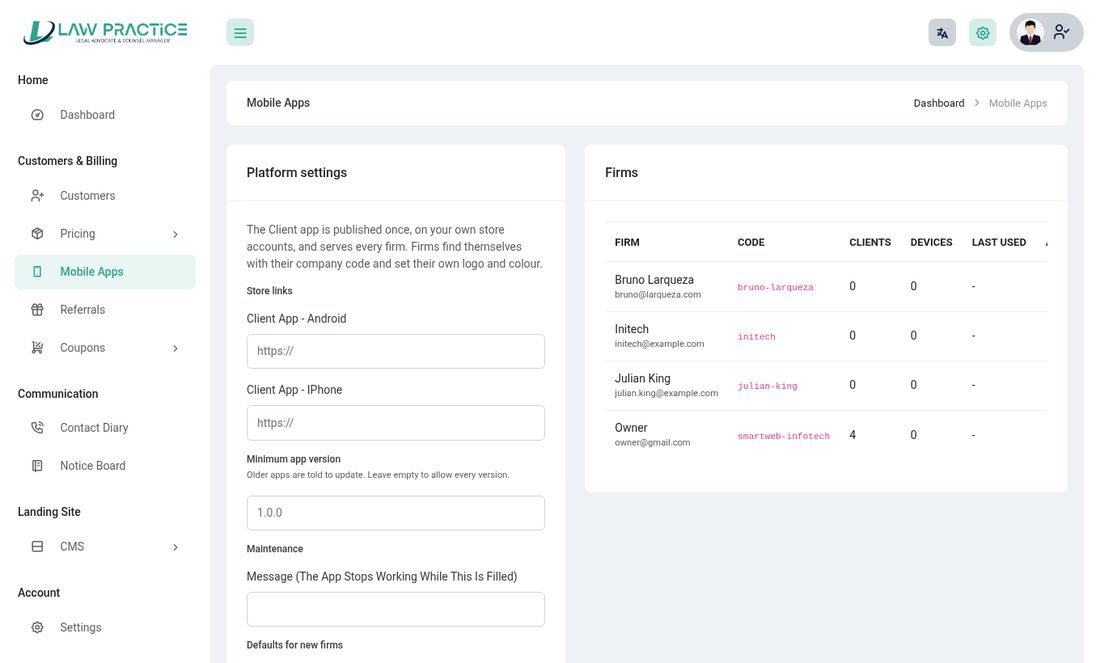
Super admin: open Customers & Billing → Mobile Apps. Enter the Android and iPhone store links, the minimum app version (older apps are asked to update), a maintenance message (the app pauses while it is filled) and the defaults for new firms. The list shows each firm's code, clients, devices, last use and an On / Off switch; turning a firm off signs its clients out at once. Only the super admin publishes the app.
Signing in and security
Email and password, a two-factor code (or a recovery code) when it is on, and an optional fingerprint or face lock. Sign-ins last 90 days (SANCTUM_EXPIRATION_MINUTES); changing the password signs the person out of their other phones. Only clients can use the app; staff sign in on the website.
Build and publish the app
You need the Flutter SDK (flutter doctor). Open a project folder, for example mobile_app/client_app/android_app.
flutter pub get
flutter run --dart-define=API_BASE_URL=https://your-server
flutter test && flutter analyze
flutter build appbundle --dart-define=API_BASE_URL=https://your-server   # Android (Google Play)
flutter build ipa       --dart-define=API_BASE_URL=https://your-server   # iPhone, on a Mac with Xcode
Leave API_BASE_URL out and the sign-in screen asks for the server address (handy while testing; debug builds accept plain http://).
flutter pub get, flutter analyze and flutter test and fix anything the analyser reports before you publish.Before publishing
- Application id / bundle id –
com.lawpractice.law_client(Android) andcom.lawpractice.lawClient(iPhone). Change them to your own. - Android signing – create a key with
keytooland put its details inandroid/key.properties(it is git-ignored). - Icons – replace
assets/icon.pngandassets/icon_foreground.png, then rundart run flutter_launcher_icons. - iPhone – open
ios/Runner.xcworkspaceon a Mac, set your team and bundle id. - Store links – once the app is live, enter its links under Mobile Apps so firms' invite pages and websites show them.
- Invite links –
lawclient://join/<code>opens the app. To make normalhttps://your-server/join/<code>links open it too, add Android App Links / iPhone Associated Domains for your domain. - Push notifications (optional) – add
google-services.json/GoogleService-Info.plistto the app. On the server create a Firebase service account key (Firebase console → Project settings → Service accounts → Generate new private key), save it outside the web root and setFCM_CREDENTIALS=/full/path/to/key.jsonin.env. Every inbox item (new message, hearing, invoice, document to sign) is then pushed to the client's phones. The Mobile Apps page shows whether push is on; without it the in-app Inbox still works.
AI tools
Use the AI service you prefer, and let each firm bring its own key.
Open Settings → AI Settings. The platform supports OpenAI, Anthropic Claude, Google Gemini and any OpenAI-compatible service.
- Each owner adds their own key and picks a default provider. Keys are stored encrypted and never shown again.
- The plan decides which providers a firm may use and how many AI requests it gets per month (see SaaS administration). The dashboard shows the use.
- Where it appears – an AI button on forms such as case category and stage, advice, evidence, hearing, task and custom pages drafts the description for you. Test a provider from the settings page before relying on it.
- Usage – the AI usage management report lists requests by provider and month.
Messages and automation
The system tells people what they need to know.
- Email notification templates – Communication → Email Notification: edit the wording and switch each message on or off.
- SMS and WhatsApp – add your Twilio details under Settings; hearing reminders and other messages can then go by SMS or WhatsApp.
- Hearing reminders – sent by the daily cron through the queue, once per person per day, with a retry if the mail server is busy.
- Message and signature alerts – emailed when a message is posted and when a signature is requested, signed or declined.
- n8n – Communication → N8N sends events (new case, hearing, invoice ...) to your n8n workflows by webhook.
Settings and integrations
Everything under Account → Settings.
| Tab | What it holds |
|---|---|
| AI Settings | Your AI providers and keys. |
| Account / Password / 2FA | Your profile, password and two-factor sign-in. |
| General / Company | Logo, company name, address, currency, date and time format, time zone. |
| Email SMTP | Mail server for every message the system sends. Send a test email after saving. |
| Payment | Currency and the payment gateways: Bank Transfer, Stripe, PayPal, Flutterwave, Paystack, Razorpay. |
| SEO / reCAPTCHA / Storage | Site SEO, Google reCAPTCHA on login and register, and cloud storage (super admin). |
| Theme | Colour presets or a custom colour, light or dark mode, font, RTL layout. |
Languages and themes
Twelve languages are included.
Arabic, Danish, Dutch, English, French, German, Italian, Japanese, Polish, Portuguese, Russian and Spanish. Each user picks a language in the top bar; Arabic switches the layout to right-to-left. Translations live in resources/lang. The theme (colour, font, light or dark) is set in Settings, and the firm website can follow it.
API
A REST API serves the client app and can be used by your own tools. The full list of calls is in mobile_app/client_app/android_app/docs/client-api.md.
- Base address
https://your-server/api/v1; answers are JSON{"data": ...}or{"message", "code"}. - Bearer-token authentication (Laravel Sanctum).
POST auth/loginwith the email, password and company code returns a token valid for 90 days. - Public calls:
GET company/{code}(a firm's look) andGET platform(maintenance, minimum version, store links). - A client's own data under
/client/...: dashboard, cases, hearings, invoices, documents, messages and signatures. Each section can be hidden by the firm. - Every call checks the platform rules:
426app too old,503maintenance,403firm switched off or account inactive. - Files are opened through ten-minute signed links; an invoice page opens through a one-time sign-in link.
SaaS administration
What the super admin does to run the platform.
- Customers – every firm, with its plan and status. Impersonate logs you in as an owner to help.
- Pricing → Packages – monthly, quarterly or yearly plans with limits for users, advocates and clients, and features: logged history, AI providers and monthly AI limit, website and mobile app. Transactions lists payments and lets you approve bank transfers.
- Coupons – discount codes with usage limits, and the history of who used them.
- Referrals – switch the programme on and set the bonus days. See below.
- Mobile Apps – store links, minimum version, maintenance and the per-firm switch (see Client app).
- Landing Site → CMS – edit the public landing page, custom pages, FAQ and footer. The landing page, the register page, pricing and owner email verification can each be switched on or off.
Referral programme: give a month, get a month
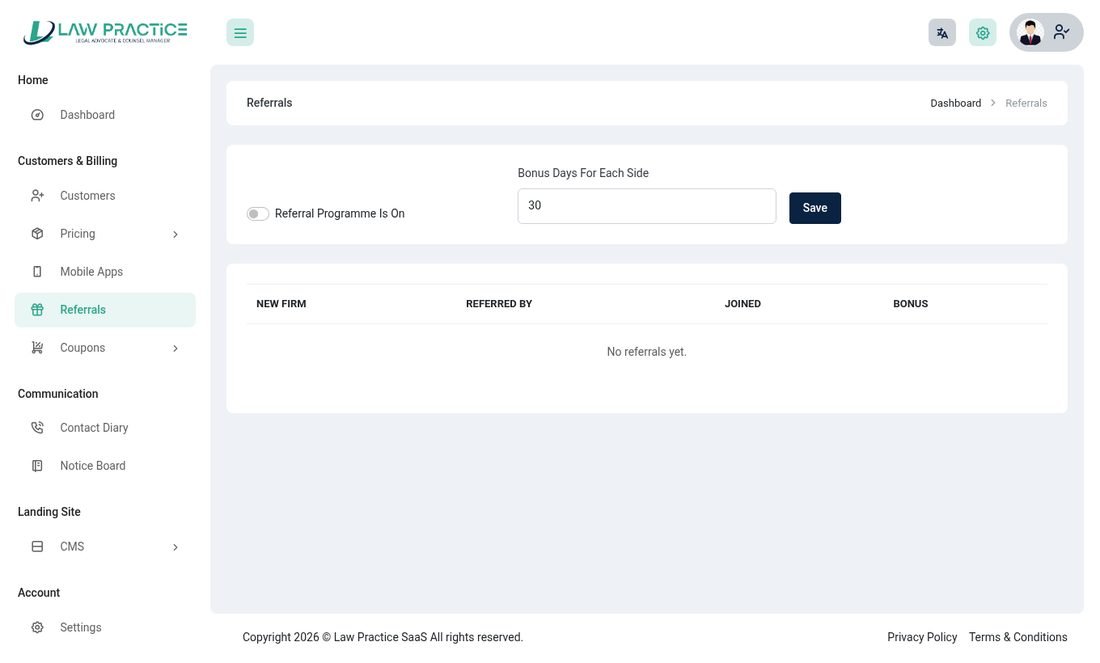
- Switch it onSuper admin: Customers & Billing → Referrals, tick Referral programme is on and set the bonus days (default 30).
- Owners share a linkEach owner finds a personal link under Account → Refer & Earn, like
/register?ref=ABCD2345. - A new firm signs up through itThe code is remembered on the register page and the new owner is recorded as referred by that firm. Unknown codes and a firm referring itself are ignored.
- The first paid plan pays outWhen the new firm is put on a plan that costs money, both firms get the bonus days added to their subscription – once per referred firm. Free plans pay nothing.
Upgrading
Always back up first.
- Back upDownload your
.envfile,.htaccessand thestoragefolder, and export the database. - Replace the filesUpload and replace everything with the contents of
main_filefrom the new version. - RestorePut your
.env,.htaccessandstorageback. - Run the updateRun
php artisan migrate --forceon the command line (or follow the update wizard if your version has one). - Clear cachesRun
php artisan optimize:clear(or delete the files inbootstrap/cacheandstorage/framework/views).
resources/lang. Keep a copy of any translation you changed. Changes to core files are also lost, so keep your own customisations separate.Going live checklist
Before real customers use it.
APP_ENV=production,APP_DEBUG=falseand the correctAPP_URL(with https).- Change all default passwords and turn on two-factor for owners.
- Use
QUEUE_CONNECTION=databasewith a queue worker and the cron line so emails and reminders are sent in the background. - Set up SMTP and send a test email; set up the payment gateways in live mode.
- Install an SSL certificate (also on every custom website domain).
- Run the web server and the cron job as the same user, so cached files can be shared (see Troubleshooting).
- Run
php artisan migrateandphp artisan optimize:clearafter every update. - Take regular database and
storagebackups, includingstorage/upload. - Never copy a
.envfile or session files into a public code repository.
Troubleshooting and FAQ
Common problems and what to try.
| Problem | Try this |
|---|---|
| A blank page or 500 error | Check storage/logs/laravel.log. Make sure storage and bootstrap/cache are writable, then run php artisan optimize:clear. |
| "Failed to open stream" for a cache or view file | The web server and the cron job (or a command you ran) run as different users, so one cannot overwrite the other's cached files. Run both as the same user, or make storage and bootstrap/cache writable by both, then clear the caches. |
| A new menu item or permission does not show | Permissions are cached. Run php artisan optimize:clear; if it persists, log out and in. |
| Emails are not sent | Check Settings → Email SMTP and send a test. With a database queue, make sure the queue worker is running. |
| Hearing reminders do not arrive | Confirm the cron line runs every minute, SMTP works, and (for SMS / WhatsApp) the Twilio details are right. |
| The client app says the company was not found | Check the code, that the platform has the firm's app switched On under Mobile Apps, and that the app's server address points at this site. |
| The app asks to update, or says maintenance | The minimum version or maintenance message is set under Mobile Apps. Clear it to let everyone in. |
| A custom domain shows the wrong site | Check the A record, that your web server accepts the host name, and that the domain is saved in the website's Domain tab. |
| A client cannot sign in to the app | They must be a client with a verified email and an active account, and the company code must be their firm's. Staff cannot use the client app. |
| Uploads fail | Raise upload_max_filesize and post_max_size in php.ini. |
Environment variables
Set in the .env file. Run php artisan optimize:clear after changing it.
| Key | Default | Purpose |
|---|---|---|
APP_ENV / APP_DEBUG / APP_URL | - | Environment, debug output and the public address. |
DB_* | - | Database host, name, user and password (set by the installer). |
MAIL_* | - | Fallback mail server; each firm normally sets its own under Settings. |
QUEUE_CONNECTION | sync | database sends reminders and notices in the background (needs a queue worker). |
SANCTUM_EXPIRATION_MINUTES | 129600 | How long an app sign-in lasts (90 days). |
FCM_CREDENTIALS | - | Full path to the Firebase service-account key; turns on push notifications to the client app. |
Change log
What changed, newest first.
Version 1.7 – 31 October 2026
- Client app for Android and iPhone (Flutter, available as an add-on) with company code and QR sign-in, firm branding, a platform console and a client API.
- Messages per case, e-signature with certificates, case team, client document upload and the file library.
- A public website for every firm with a block editor, lawyer profiles, services, blog, enquiries, reviews and custom domains.
- Time tracking, management reports, search, conflict check and the Jump-to palette, activity log and timelines.
- Private calendar address for Google, Outlook and Apple Calendar.
- Multiple AI services with each owner's own key, included by plan with a monthly limit.
- Referral programme, email alerts for messages and signature requests, queued hearing reminders.
- Stronger access control, bank transfer approval, two-factor recovery codes; menus regrouped and shortened for advocates and clients.
Version 1.6 – 4 June 2026
- WhatsApp notifications, Razorpay, hearing reminders by cron, new UI and dashboards.
Version 1.5 – 18 February 2026
- Twilio SMS and templates, reports, n8n and ChatGPT integration.
Earlier versions
- 1.4 (23 Aug 2025) – AWS / Wasabi storage, categories, documents, calendar, client and advocate logins, feedback, Paystack.
- 1.3 (29 Feb 2025) – landing page CMS, pricing switch, 2-factor, impersonate, custom colour.
- 1.2 (16 Dec 2024) – email notification switch, owner email verification, templates.
- 1.1 (21 Sep 2024) – Flutterwave.
- 1.0 (30 Jul 2024) – initial release.
Support
Stuck? We are happy to help.
Open a ticket at support.smartwebinfotech.com. Please include your purchase code, the page you were on, what you expected and what happened, and, if you can, the last lines of storage/logs/laravel.log.