
Finance Lend documentation
Everything you need to install, set up and run your lending business: loans and repayments, approvals, collections, the customer portal, your own website, the Android and iPhone apps, and the AI tools.
Overview
Finance Lend is a complete loan management system. You can run it for your own lending business, or as a SaaS: lenders sign up, pick a plan and manage everything in one place, with their data kept completely separate.
How the pieces fit together
| Part | What it is | Who uses it |
|---|---|---|
| Admin panel | The back office: customers, loans, approvals, collections, accounts, reports and settings. | Super admin, lender (owner) and staff |
| Customer portal | The same login, with a customer's own view: loans, payments, documents, requests and statements. | Customers |
| Lender website | A public website for each lender with loan products, a calculator, enquiries, online sign-up and the Get our app page. | Visitors and customers |
| Mobile apps | Flutter apps for Android and iPhone, one app serving every lender; customers find their lender by search, code or QR. | Customers |
| API | A read-only REST API for lenders' own tools, and a customer API that powers the apps. | Developers |
Quick-start checklist
- InstallCheck the requirements, create the database, upload the files and run the installer.
- Log in and secure the accountsUse the default logins once, then change every password.
- Switch on the background workAdd the cron line so reminders, collections and the queue run.
- Email and company detailsIn Settings fill in the company and email (SMTP) tabs. See Settings.
- Describe what you lendAdd branches, loan types, document types and, if you want, approval rules.
- Add customers and loansOr switch on online sign-up on the website.
Server requirements
Finance Lend is built with Laravel. Make sure your hosting meets the following before you start.
- PHP
- 8.1 or newer (8.2 or 8.3 is fine)
- Database
- MySQL 5.7+ or MariaDB 10.3+
- Web server
- Apache (with
mod_rewrite) or Nginx - HTTPS
- Strongly recommended. Required for the mobile apps, online payments and push notifications.
- Cron
- One cron line, see Background work
Required PHP extensions
Folders that must be writable
storage, bootstrap/cache and the upload folders under public. The installer checks these too. For a live server, lock everything else down.
Create the database
The steps below use cPanel. Other hosting panels offer the same options under similar names.
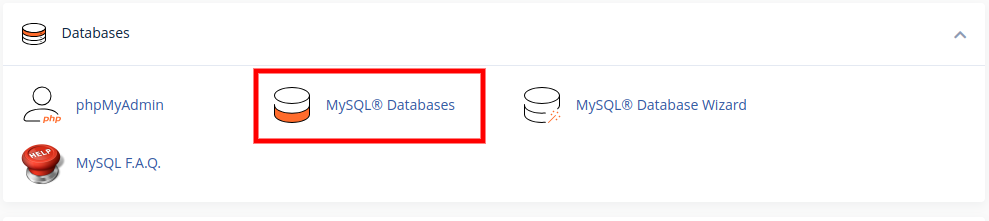
- Open the database toolIn your hosting panel go to Databases and click MySQL® Databases. This tool creates databases and database users.
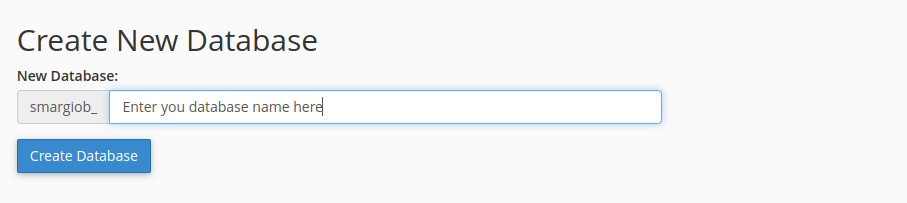
- Create the databaseType a name and click Create Database. Your host adds a prefix to the name; write the full name down.
- Create a database userIn Add New User enter a user name and a strong password (use the generator) and click Create User.
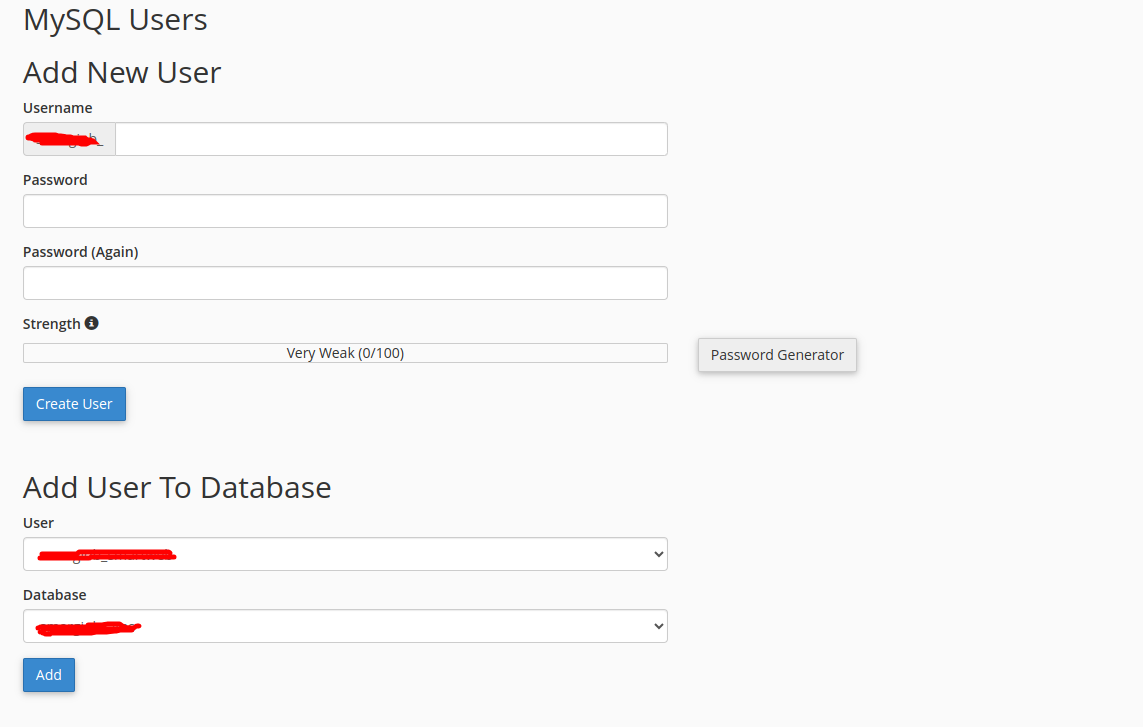
- Add the user to the databaseIn Add User To Database choose the user and the database, then click Add.
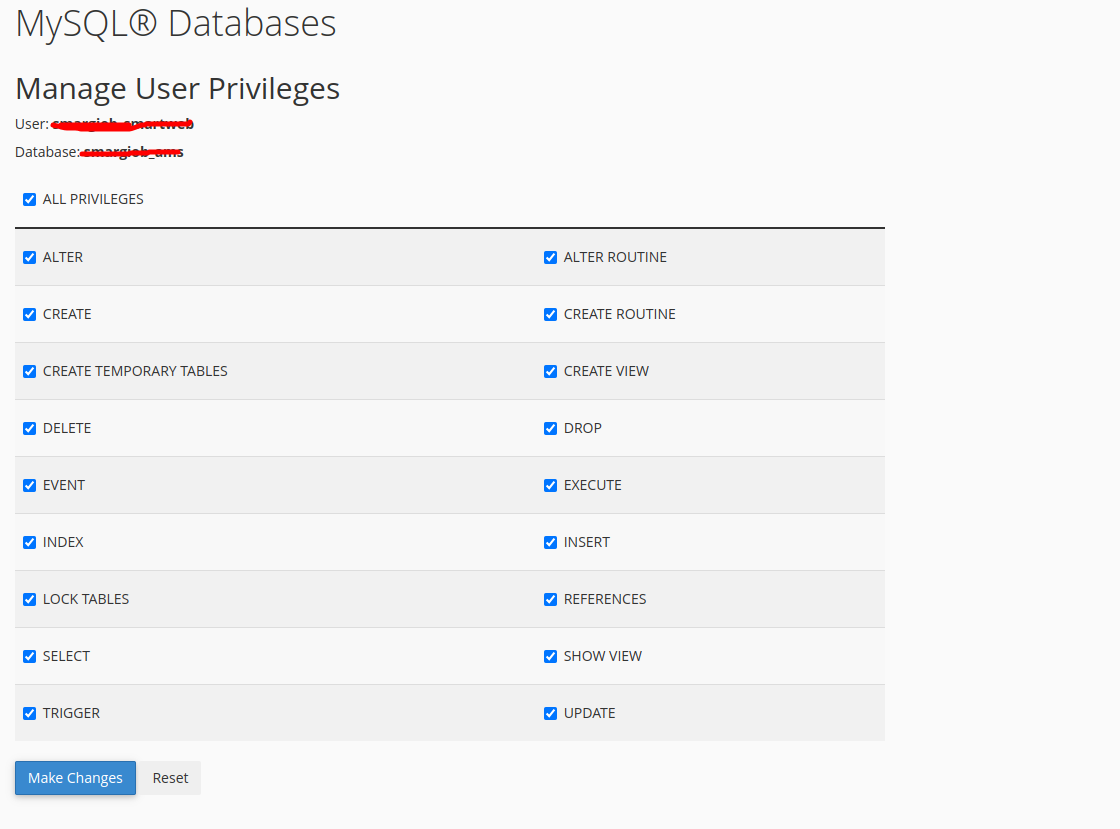
- Give all privilegesTick ALL PRIVILEGES and click Make Changes.
localhost), database name, user name and password. The installer asks for them in step 5.Upload the files
Upload the contents of the main_file folder from your download to your web root.
- Open the File ManagerLog in to cPanel and open File Manager under Files.
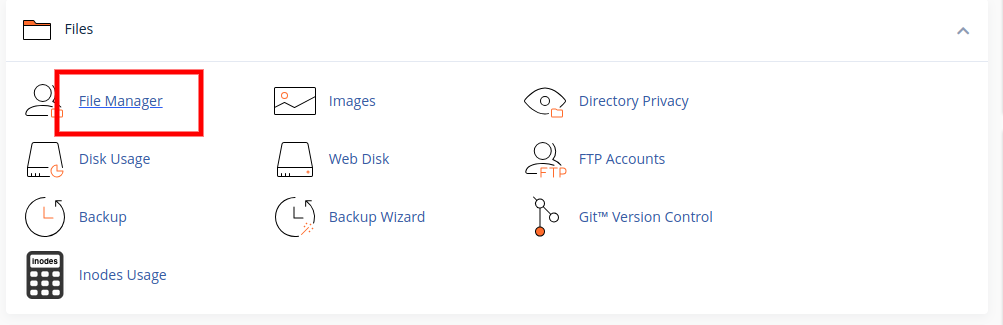
- Go to the right folderFor your main domain this is
public_html. For a sub-domain or sub-folder, open that folder instead.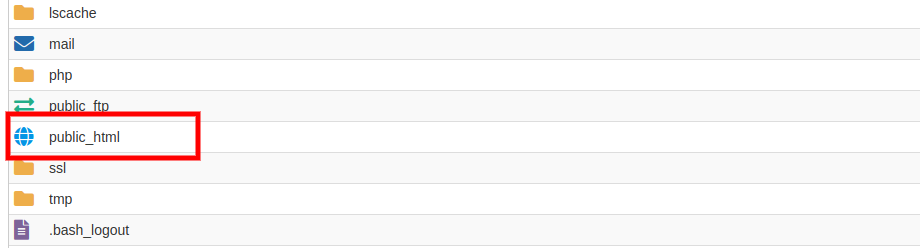
- Upload and extractClick Upload, choose the zip file, wait for 100%, then right-click it and choose Extract. Make sure the files from
main_file(including the hidden.htaccess) end up directly in the folder. - CheckYou should see
app,bootstrap,config,public,storage,artisanand the other Laravel folders.
documentation or mobile_app folders to the web root. They are for you, not for visitors.Run the installer
A web installer sets up the application in a few minutes.
- StartOpen
https://yourdomain.com/installin your browser. This starts the App Installation Process.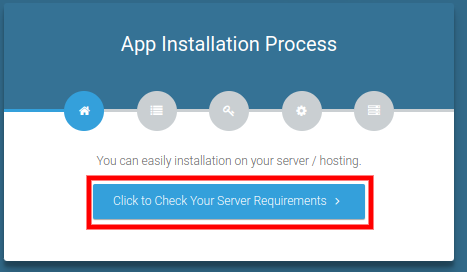
- Check the serverClick Click to Check Your Server Requirements. Everything should be ticked.
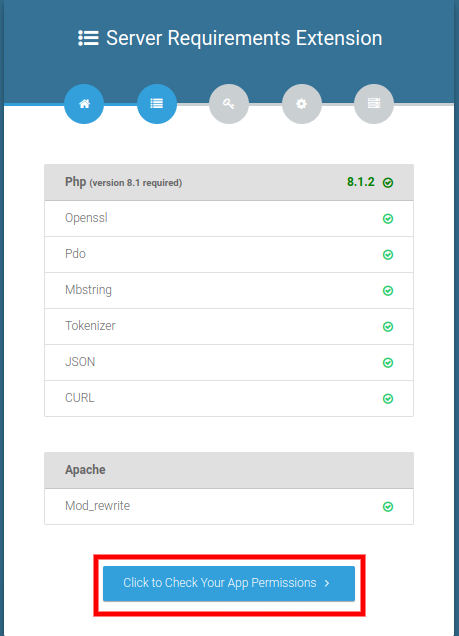
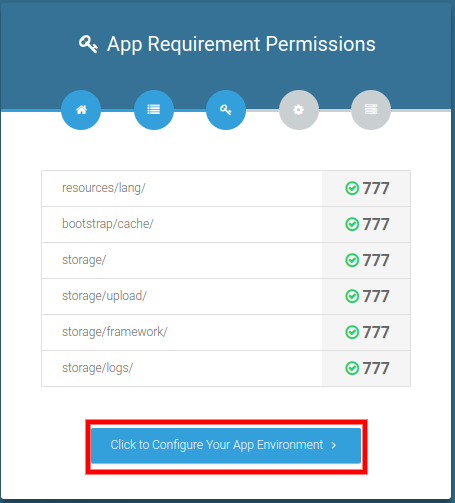
- Check permissionsThe installer checks the folder permissions. When all are fine, click Click to Configure Your App Environment.
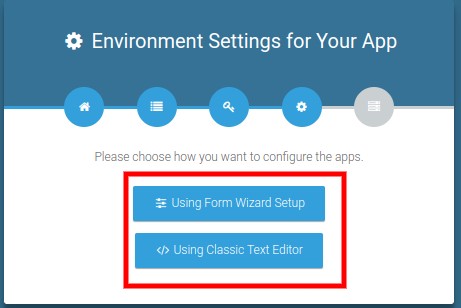
- Choose the setup typeSelect Using Form Wizard Setup.
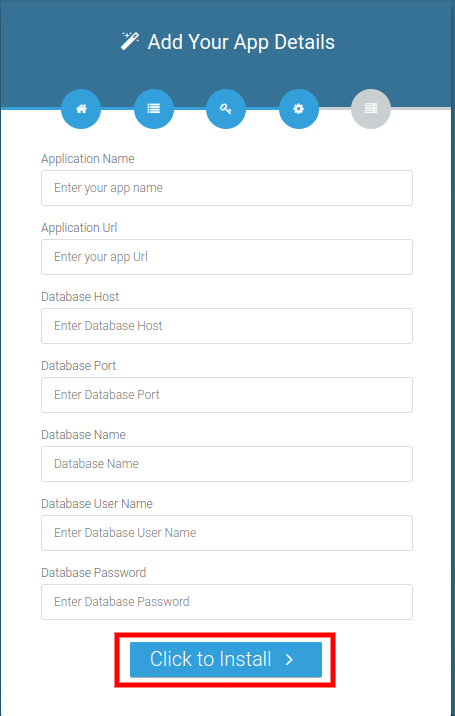
- Enter the app and database detailsFill in the database host, name, user and password from the previous step, plus an application name and the application URL. Click Click to Install.
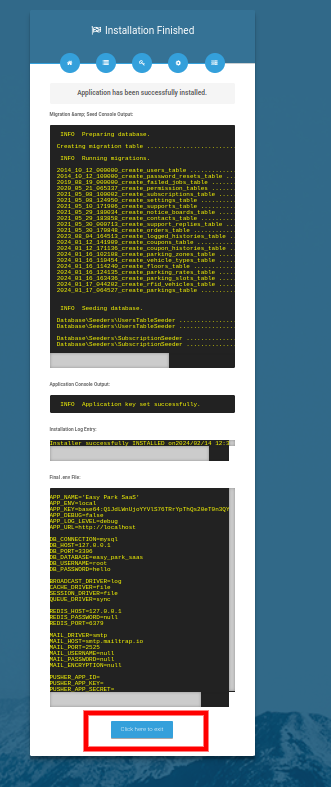
- FinishWhen you see Application has been successfully installed, click Click here to exit.
DEFAULT_USER_PASSWORD=a-long-secret to the .env file if it already exists. The installer then gives the default accounts that password instead of 123456. See Default logins.After installation
A few minutes of setup now saves problems later.
- Log inOpen your site and sign in with a default account.
- Change the passwordsOpen Settings → Password for each default account. Passwords need at least 8 characters with a letter and a number.
- Add the cron lineSee Background work. Without it reminders and queued messages do not go out.
- Set up emailSettings → Email SMTP, then send a test message. Customer invitations, sign-in codes and reminders all use it.
- Fill in the company detailsName, logo, address, currency and date format under the General and Company tabs.
- Turn debug offIn
.envsetAPP_ENV=productionandAPP_DEBUG=false. See Going live.
Background work (cron job)
Finance Lend does some work on its own: payment reminders, assigning collectors to overdue instalments, mobile reminders and queued messages. A single cron line makes it all run.
Option 1: the scheduler (recommended)
In cPanel open Cron Jobs and add this line to run every minute. Replace the path with the folder that contains artisan.
* * * * * cd /home/youraccount/public_html && php artisan schedule:run >> /dev/null 2>&1
| Task | When | What it does |
|---|---|---|
| Repayment schedules | Every minute check | Sends due and overdue reminders to customers and assigns collectors to late instalments. |
| Mobile reminders | Daily at 08:00 | Sends app push and inbox reminders for upcoming and late instalments. |
| Queue worker | Continuously, when QUEUE_CONNECTION is not sync | Sends emails and other queued jobs in the background. |
Option 2: a web cron
If your host cannot run schedule:run, use a URL cron instead. As super admin open Settings → Cronjob, generate the key, and add a cron that opens the URL shown there:
https://yourdomain.com/cronjob?key=YOUR_KEY
This runs the reminders and collector assignment. The last run time is shown on the same page.
REMINDER_SEND_HOUR on the days set by REMINDER_BEFORE_DAYS (default 7, 1, 0) and REMINDER_AFTER_DAYS (default 1, 3, 7, 14, 30). See Environment variables.Default logins
The installer creates three accounts so you can look around straight away.
| Role | Password | |
|---|---|---|
| Super admin | superadmin@gmail.com | 123456 |
| Owner (lender) | owner@gmail.com | 123456 |
| Manager (staff) | manager@gmail.com | 123456 |
DEFAULT_USER_PASSWORD in .env before installing.Roles and how it fits together
There are four kinds of people in the system, and everyone sees only what belongs to them.
| Role | What they can do |
|---|---|
| Super admin | Runs the platform: lenders, plans, coupons, payments and the platform website. Cannot see a lender's customers' loans. |
| Owner | The lender. Has the full admin panel for their own business and their own data only. |
| Staff | Managers, collectors and others the owner creates. Permissions come from the role the owner gives them. |
| Customer | The borrower. Uses the portal, the lender's website or the app. |
The owner's menu
| Group | Contains |
|---|---|
| Dashboard | Portfolio figures, charts and the AI brief. Staff Management (users, roles) sits right below it. |
| Lending | Customer, Loan, Approvals, Collections, Requests, Loan Payment |
| Money | Finance (accounts and transactions), Expense, Report |
| Communication | Contact Diary, Notice Board, Website |
| AI & Apps | AI Assistant, AI Usage, Mobile Apps, API Tokens, N8N |
| System Configuration | Branch, Loan Type, Document Type, Account Type, Expense Type, Approval Rules, Email Notification, Accounting Export, Audit Log |
| System Settings | Settings (the super admin also sees CMS, Pricing and Coupons) |
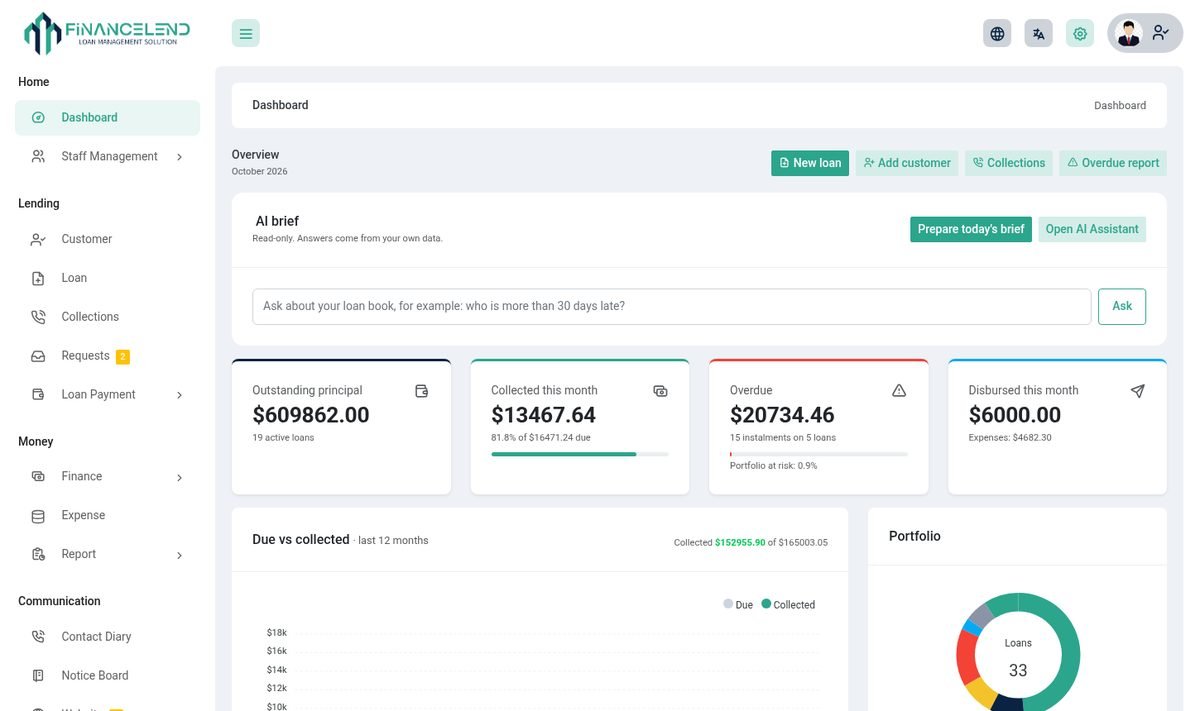
Setting up your business
Describe what you lend and how, once, under System Configuration. Everything else builds on this.
| Feature | What it does |
|---|---|
| Branch | Offices or regions. Customers and loans belong to a branch, and you can filter and report by it. |
| Loan Type | Your products: minimum and maximum amount, interest rate, term, interest method, penalty and grace rules. |
| Document Type | The documents customers must supply (ID, address proof, income proof). Used for KYC and as loan requirements. |
| Account Type | Kinds of bank or cash accounts your business keeps. |
| Expense Type | Categories for your business expenses. |
| Email Notification | Switch on or off, and edit, the emails the system sends. See Messages. |
| Approval Rules | Who must approve a loan before it is paid out. See Approvals. |
Where: System Configuration in the left menu.
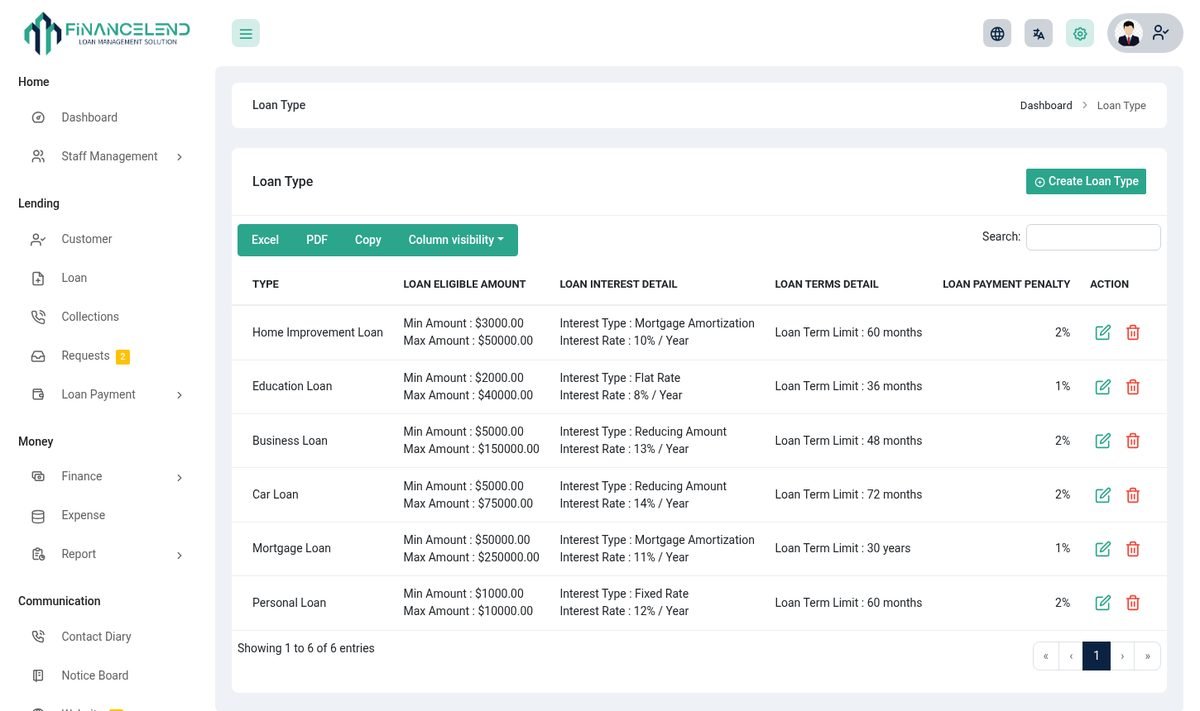
Interest methods
Each loan type uses one method. The instalment schedule is built from it automatically.
| Method | How the interest is worked out |
|---|---|
| Fixed rate | A fixed percentage of the original principal is charged in every instalment. |
| Flat rate | The total interest is worked out once and spread evenly across the instalments. |
| Reducing amount | Equal principal each instalment, with interest charged on the balance that remains. |
| Mortgage amortization | Equal instalments (EMI) that mix principal and interest, with interest falling over time. |
| One-time payment | Principal and interest are repaid together in a single payment at the end. |
Customers and staff
Keep a record of every borrower, with their documents, and give your team the access they need and no more.
| Feature | What it does |
|---|---|
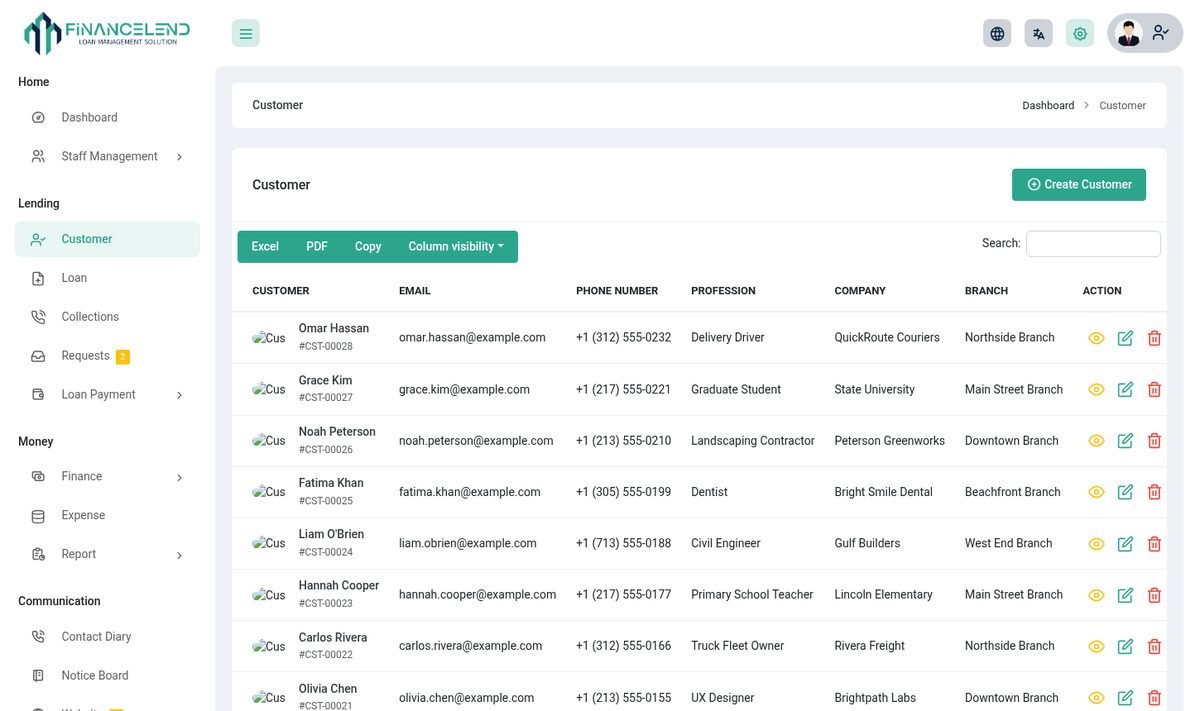
| Customer list | Search, filter by branch, create, edit and open any customer. |
| Customer page | Profile, loans, repayments, documents and notes in one place. |
| Invitation | A customer created by staff gets an email invitation to choose their own password. If you type a password for them they must change it at first sign-in. |
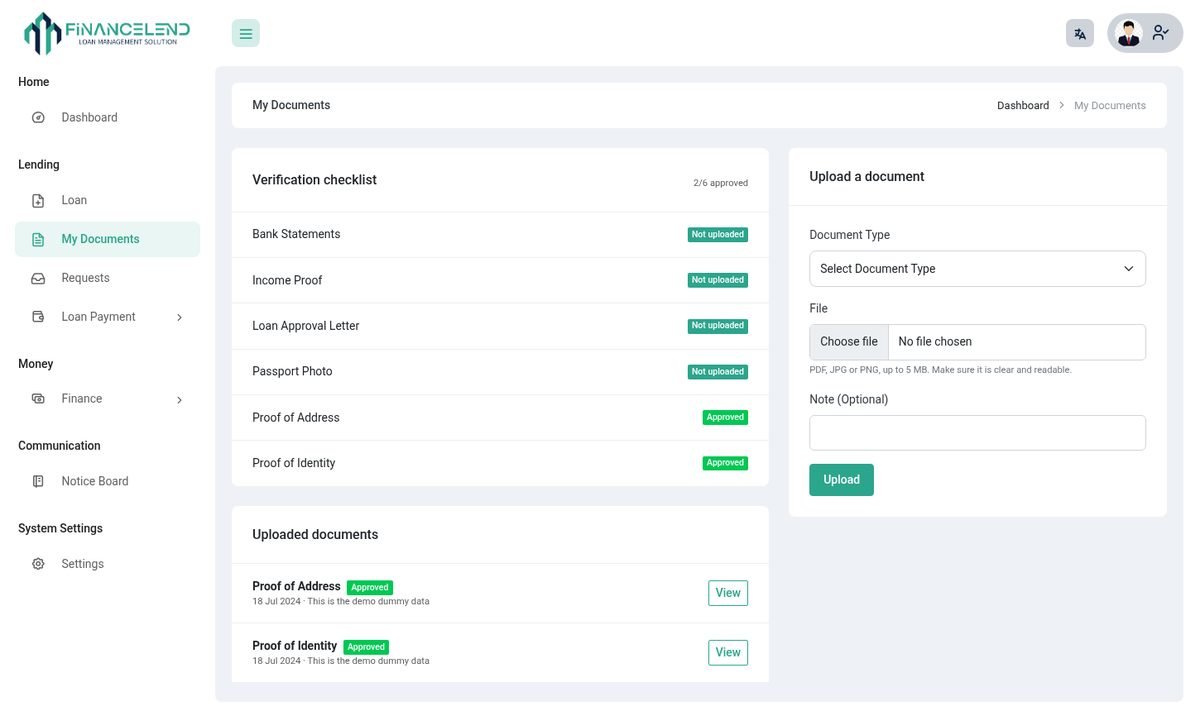
| KYC documents | Customers upload documents (PDF, JPG, PNG up to 5 MB). Staff approve or reject each one with a note, and the customer is told. |
| Contact Diary | Log calls, visits and promises to pay against a customer. |
| Staff Management | Create users and roles, and choose exactly which permissions each role has. |
Where: Lending → Customer, Communication → Contact Diary, Staff Management.
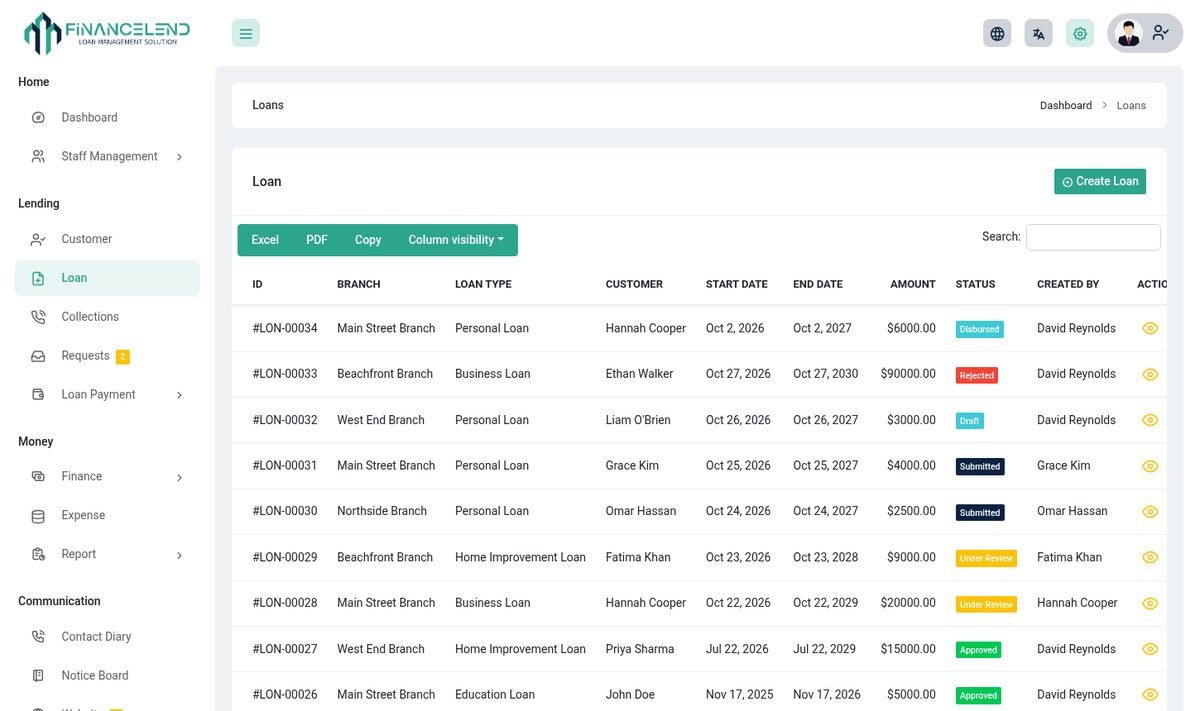
Loans and schedules
Create a loan, and the system builds the repayment schedule, tracks every payment and works out what is late.
| Feature | What it does |
|---|---|
| Create a loan | Choose the customer and loan type, enter amount, term and start date. The schedule is generated for you. |
| Statuses | Draft, submitted, approved, disbursed, rejected, closed. Only approved and disbursed loans count as owed and payable. |
| Repayment schedule | Every instalment with its date, principal, interest, penalty and paid status. |
| Penalties and grace | Late fees start after the grace days you set on the loan type. |
| Partial payments | Record any amount. It is applied to the oldest unpaid instalment first. |
| Early closure | Settle a loan before the end of its term from the loan page. |
| Restructure and top-up | Change the terms of a running loan, or add more money to it. These can have their own approval rules. |
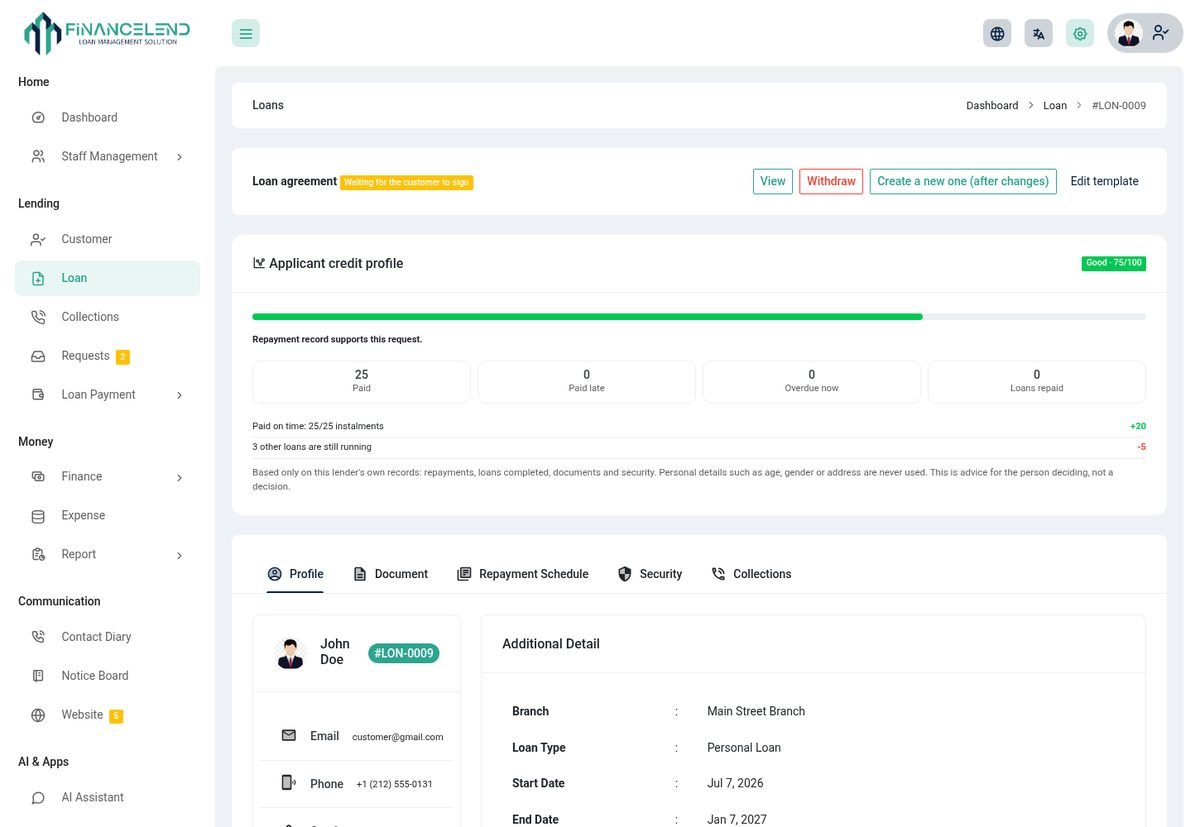
| Loan page | Summary, schedule, payments, receipts, documents, collateral, agreement and the AI brief. |
Where: Lending → Loan.
Approvals and credit profile
Decide who must say yes before money moves, and see a customer's track record before you decide.
| Feature | What it does |
|---|---|
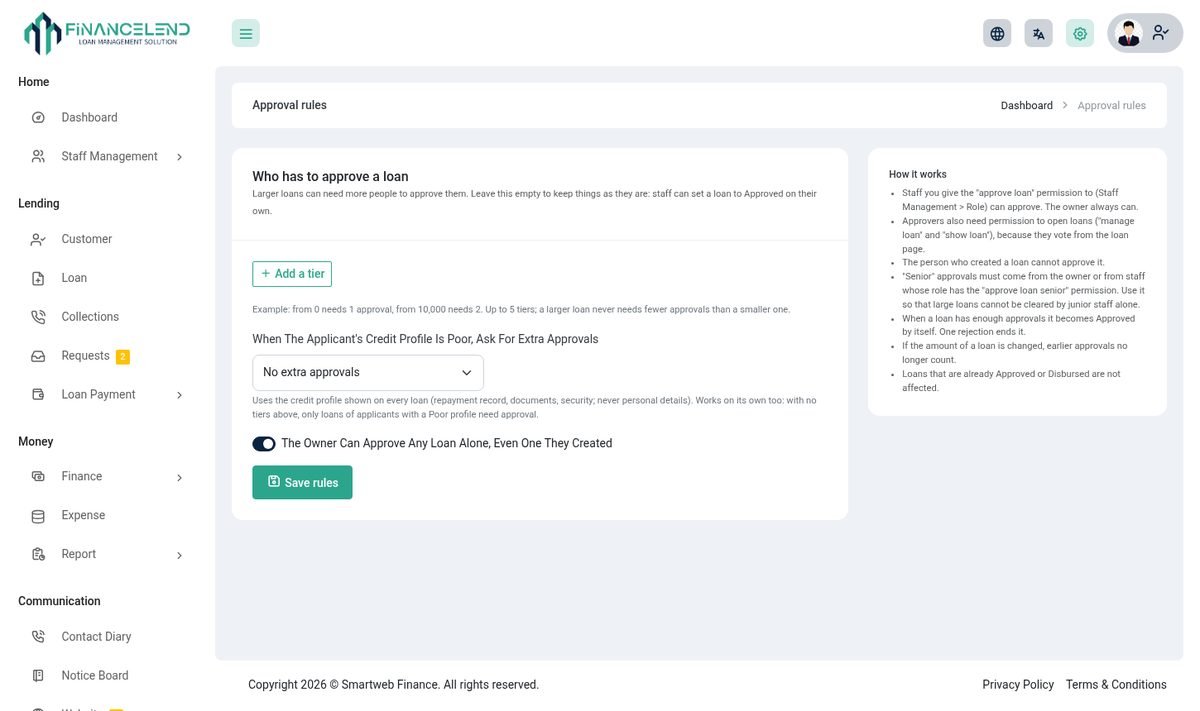
| Approval rules | Require one or more approvers, depending on the loan amount. Applies to new loans, restructures and top-ups. |
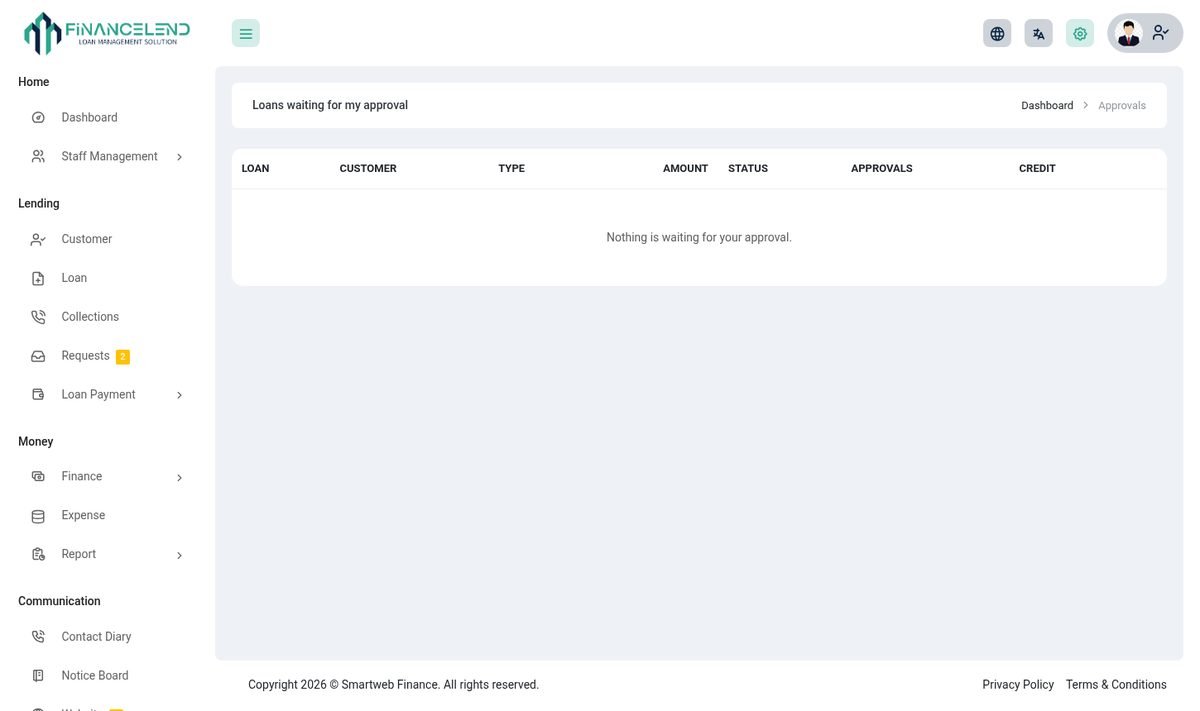
| Approvals queue | Each approver sees the loans waiting for them and approves or rejects, with a comment. |
| Credit profile | On the loan page: past loans, on-time record, current arrears and documents, so you can decide quickly. |
| Notifications | The customer is told when their loan is approved or rejected. |
Where: Lending → Approvals and System Configuration → Approval Rules.
Payments and receipts
Take money in by hand or online, and give the customer a receipt every time.
| Feature | What it does |
|---|---|
| Loan Payment | Record a payment against a loan: amount, date, method and account. The schedule updates at once. |
| Receipts | Printable receipts for every payment, available to staff and to the customer. |
| Online payment | Customers pay from the portal, a reminder link or the app using the gateways you have switched on in Settings. |
| Pay links | Reminder emails and messages carry a secure link that opens the payment page directly. |
| Requests | Customers' loan requests and payment requests arrive here for review. |
Where: Lending → Loan Payment and Lending → Requests.
Collections and reminders
Know who is late, who is chasing them and what was promised.
| Feature | What it does |
|---|---|
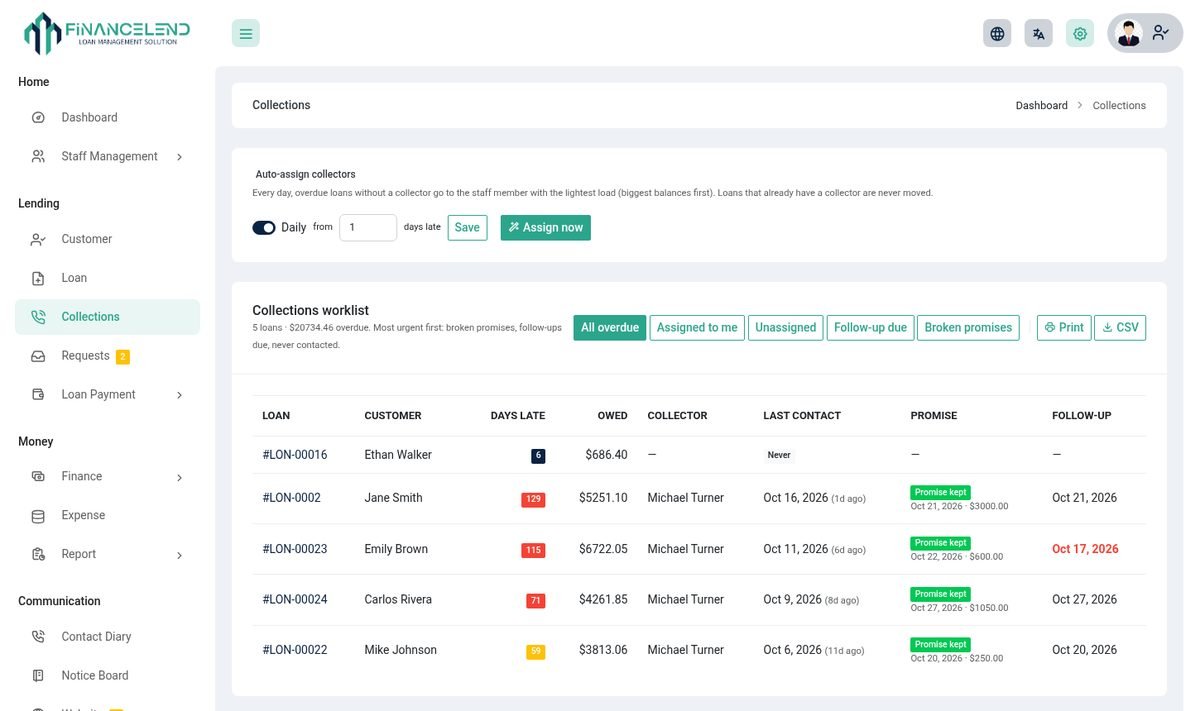
| Collections board | Every late instalment, grouped by how overdue it is, with the collector assigned. |
| Auto-assign | The scheduler gives late instalments to collectors automatically. |
| Follow-up notes | Record calls, visits and promises to pay, with the next follow-up date. |
| Reminders | Emails (and app notifications) before and after the due date, with a pay link. |
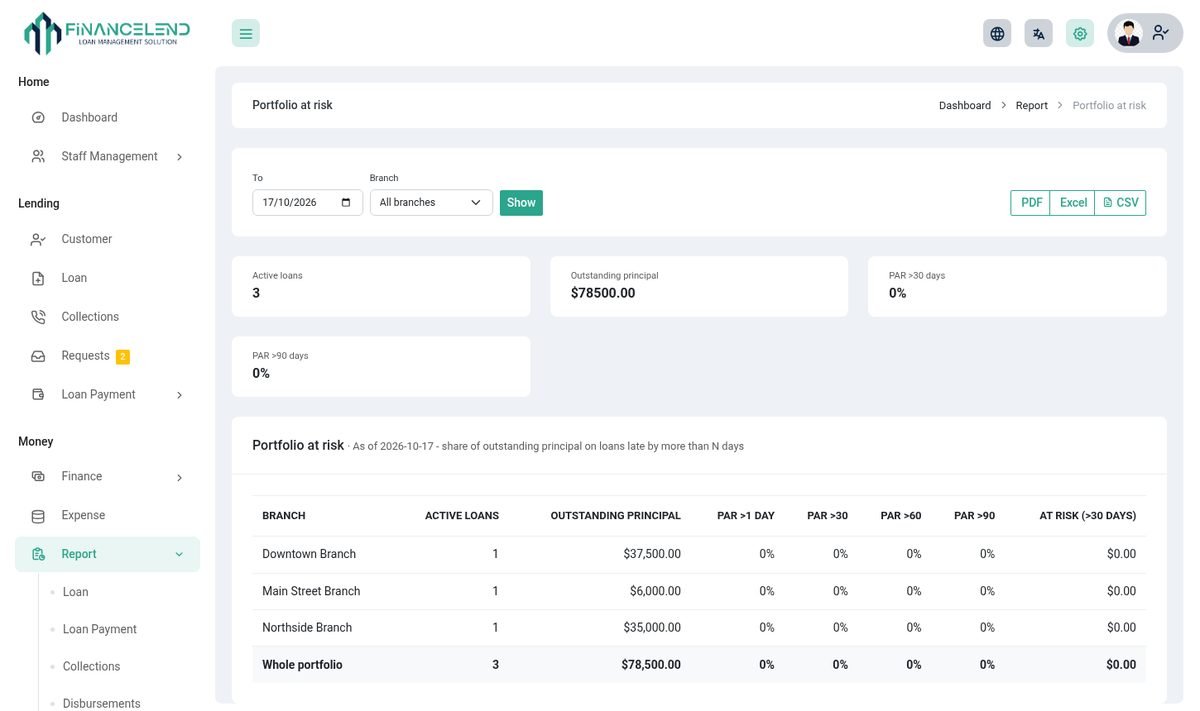
| Portfolio at risk | A report of how much of the portfolio is overdue by 1, 30, 60 and 90 days. |
Where: Lending → Collections, Money → Report.
Collateral and agreements
Record what backs a loan and keep the signed paperwork with it.
| Feature | What it does |
|---|---|
| Security tab | On the loan page: collateral items and guarantors with description and value. |
| Agreement | A printable loan agreement filled in with the loan's details. |
| Documents | Attach files to the loan and to the customer. |
Accounts and expenses
Keep the business money side next to the loans.
| Feature | What it does |
|---|---|
| Accounts | Bank and cash accounts with their balance. |
| Transactions | Deposits and withdrawals per account. Loan payments and disbursements post here. |
| Expenses | Record business costs by expense type, with date and notes. |
Where: Money → Finance and Money → Expense.
Reports and accounting export
Answer questions from your accountant, your bank or yourself.
| Report | What it shows |
|---|---|
| Loan | All loans with status, amount and balance. |
| Loan payment | Payments received in a period. |
| Collections | Collected against expected. |
| Disbursements | Money lent out in a period. |
| Overdue | Late instalments and how much is owed. |
| Portfolio at risk | Overdue share of the portfolio by age. |
| Account and Transaction | Balances and money movements. |
| Expense | Costs by type. |
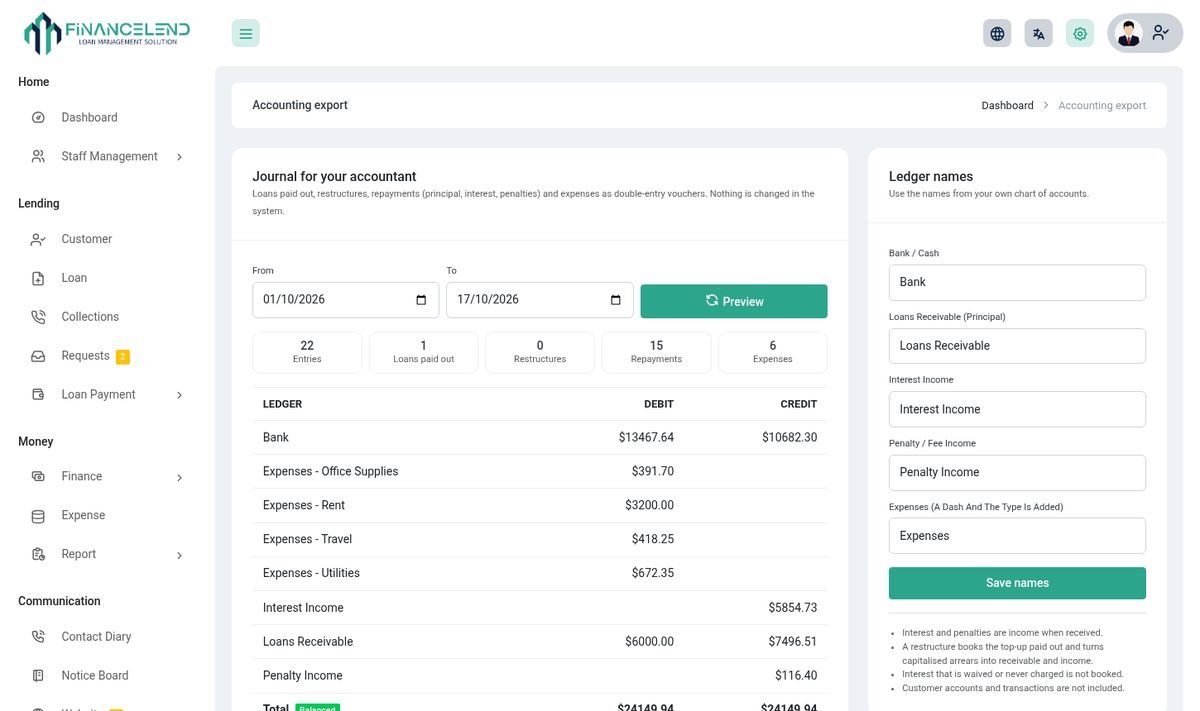
Reports can be downloaded as PDF, Excel or CSV. The Accounting Export page produces files for accounting software (including QuickBooks and Tally formats).
Where: Money → Report and System Configuration → Accounting Export.
Audit log
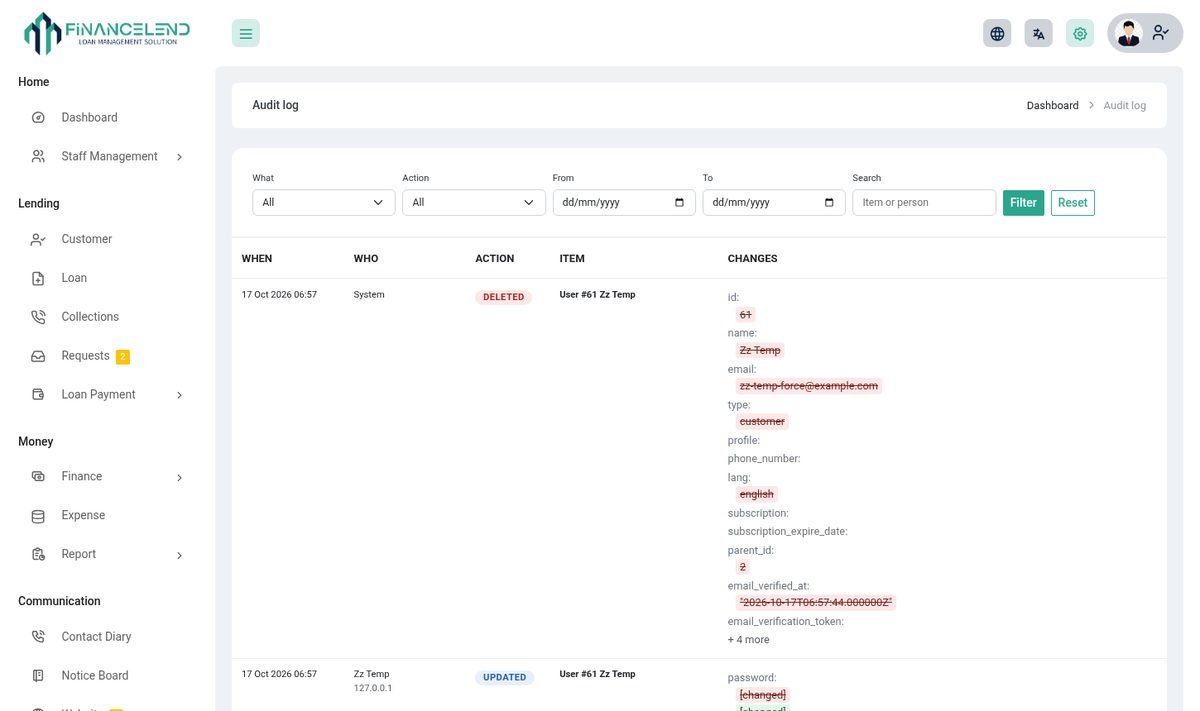
A record of who changed what and when, so nothing important happens unseen.
Changes to loans, payments, approvals, customers and settings are recorded with the person, the time and the before and after values.
Where: System Configuration → Audit Log.
Customer portal
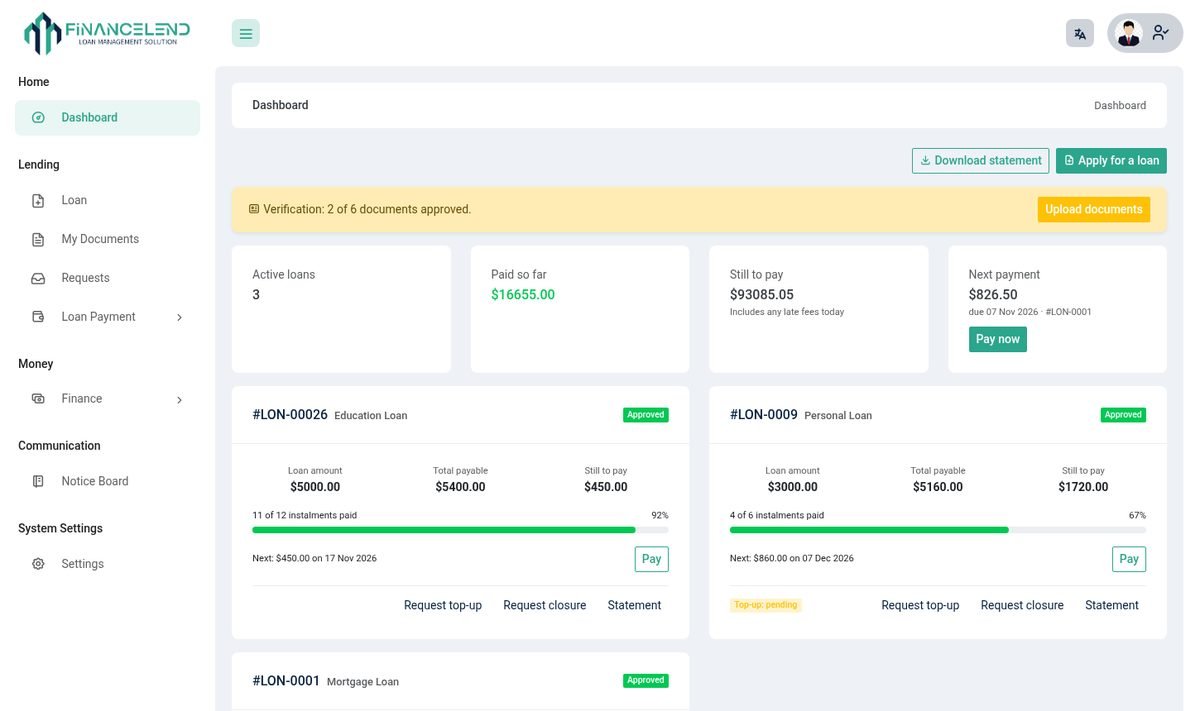
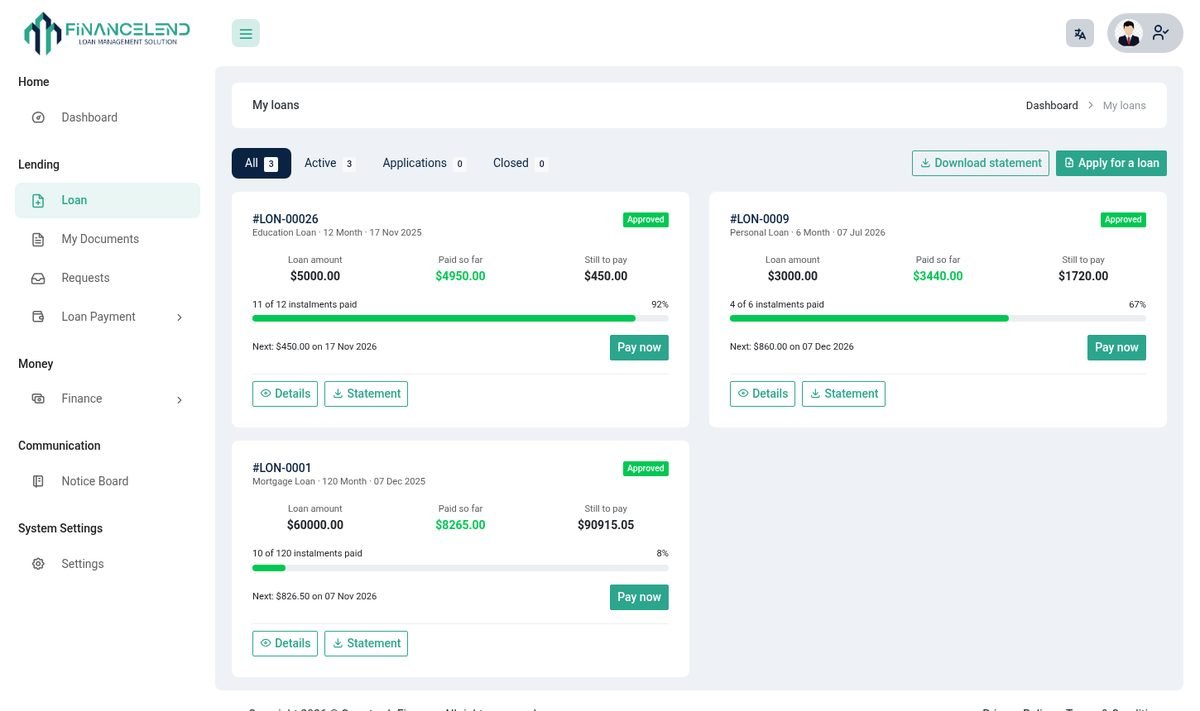
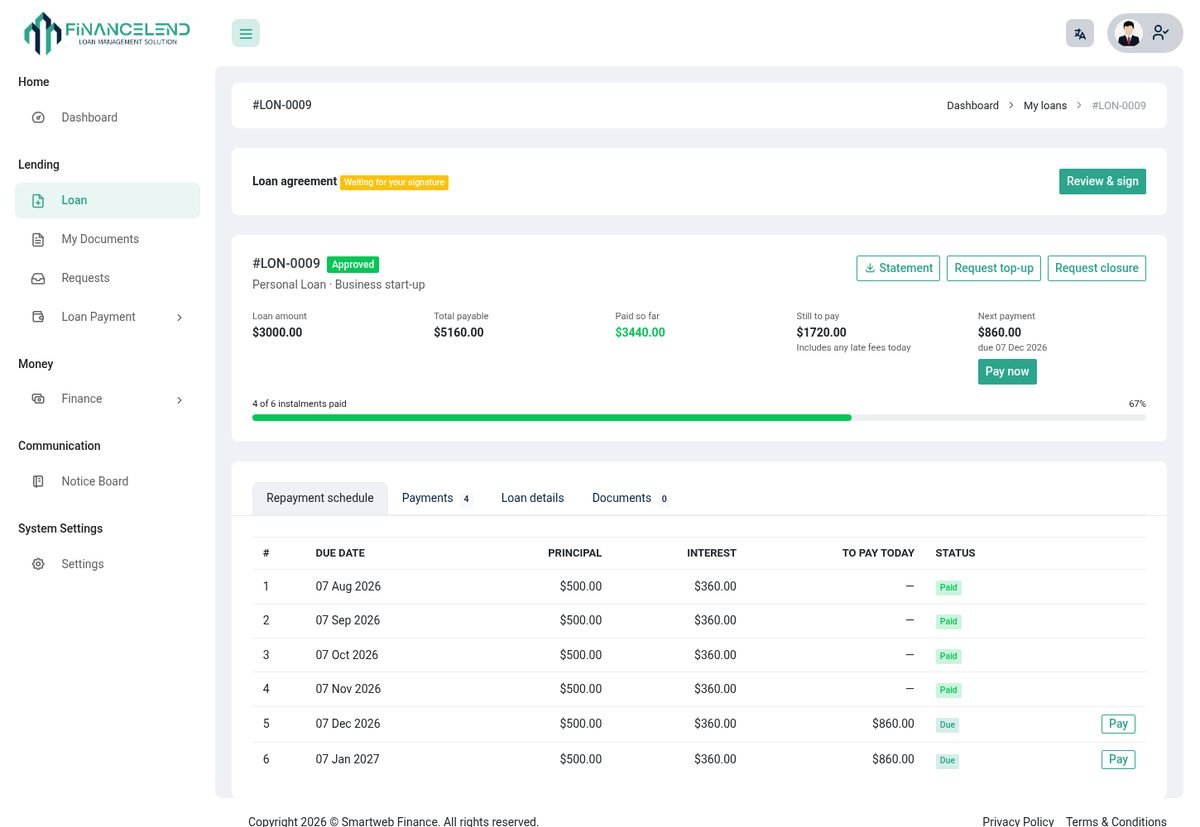
After signing in, a customer gets their own view: what they owe, what is late, and how to pay.
| Feature | What it does |
|---|---|
| Dashboard | Summary tiles (outstanding, next payment, overdue), an overdue alert listing each late loan with a Pay oldest button, and the lender's notices. |
| My loans | One card per loan with filters. Open a loan for its summary, schedule, payments and receipts. |
| Apply for a loan | Choose a loan type, amount and term and send the request to the lender. |
| Documents (KYC) | Upload identity and address documents and see whether each is pending, approved or rejected. |
| Notices | Announcements the lender chose to show to customers (set in Notice Board). |
| Profile and security | Change the password and see where the account was signed in. |
Online sign-up and login
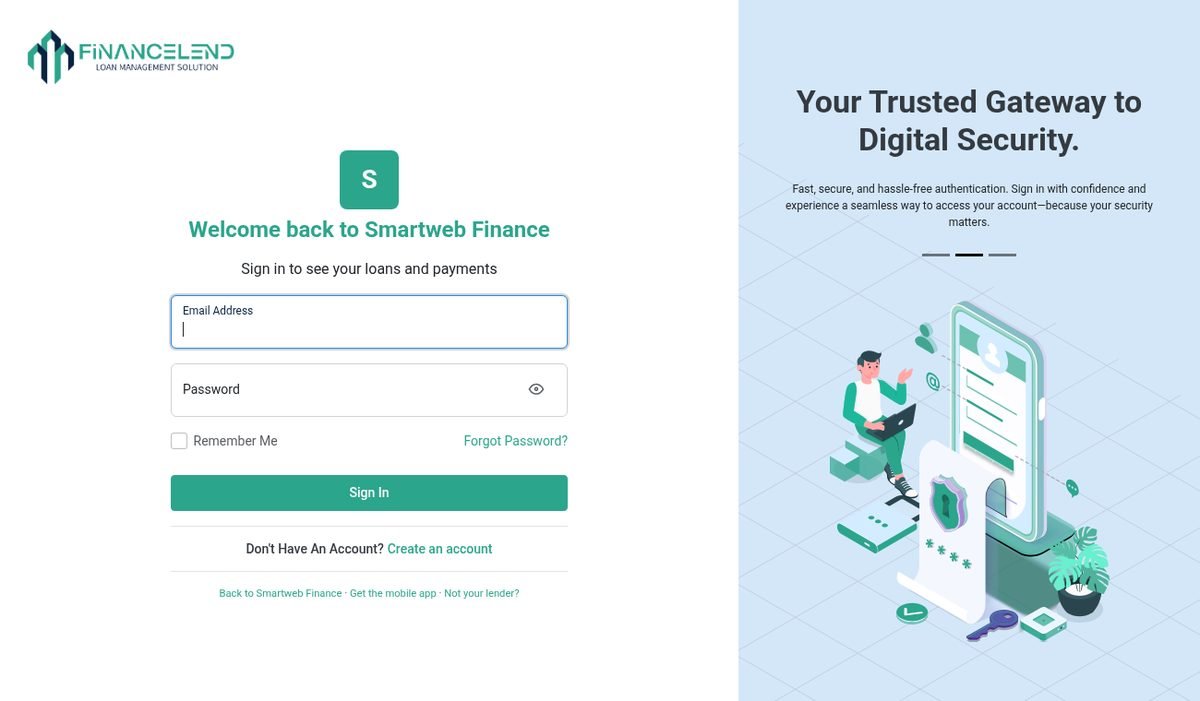
Customers can register themselves on your website and sign in on a page that carries your branding.
| Feature | What it does |
|---|---|
| Self sign-up | A customer registers on your site, confirms their email and carries on to documents and a loan application. |
| Branded login | Your logo and colours on the sign-in page of your website. |
| Password rule | One rule everywhere: at least 8 characters, with a letter and a number. |
| Remember me | Keeps the customer signed in on their device. |
| Security emails | The customer is emailed when the password changes or a new device signs in. Every sign-in is recorded. |
| Resend confirmation | One click to send the confirmation email again. |
LOGIN_GEO_LOOKUP=true to turn it on.Lender website
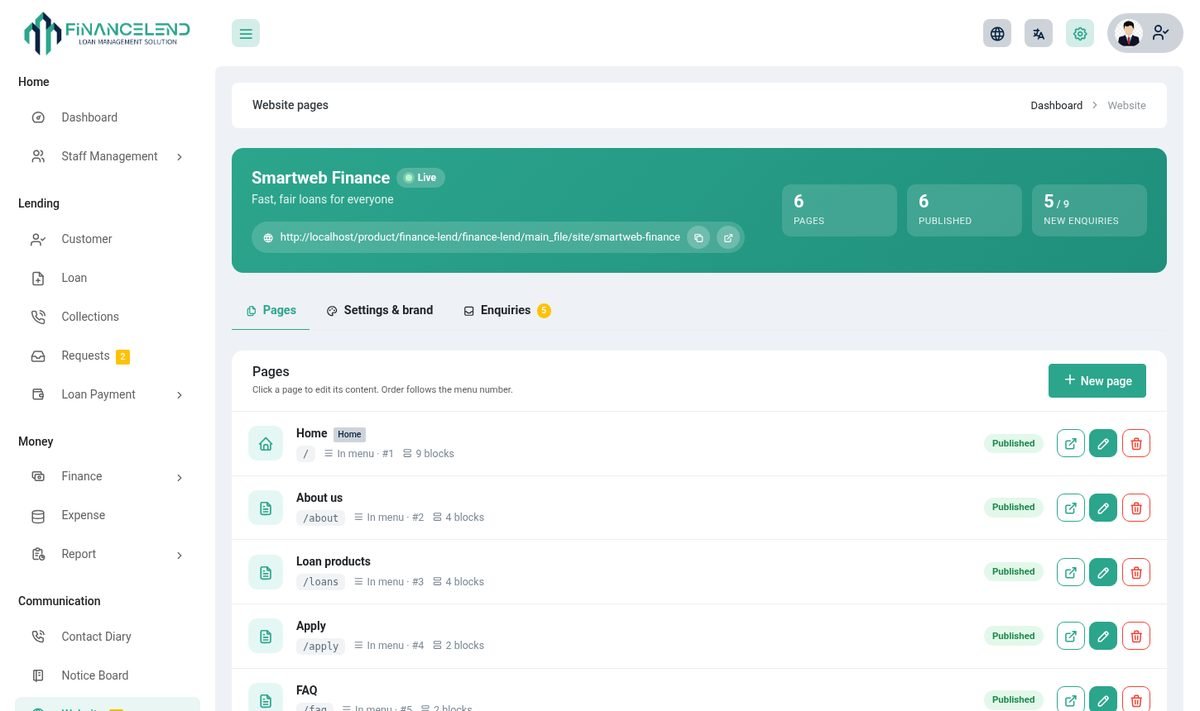
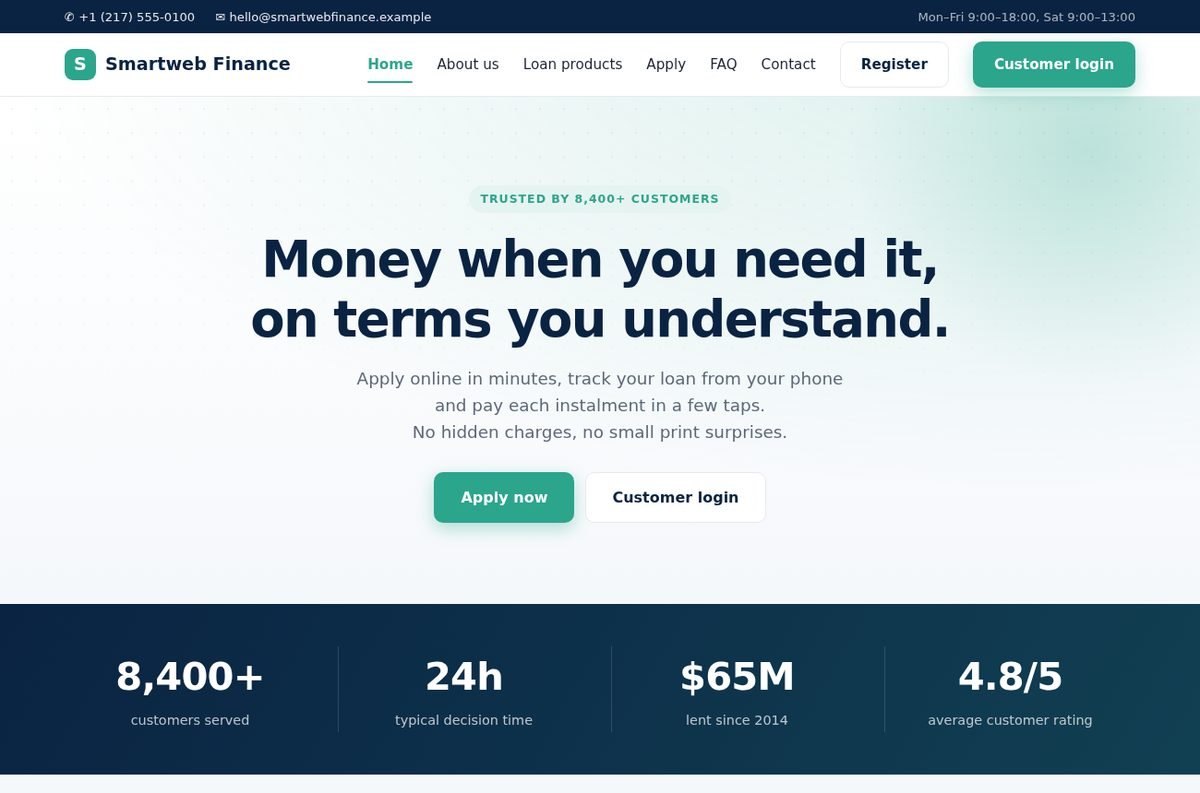
Every lender can publish a website with their loan products, a calculator and a sign-up, without any design work.
| Feature | What it does |
|---|---|
| Website builder | Pages, texts, images, colours and contact details. |
| Addresses | A free address on the platform, plus the lender's own domain if you connect one. |
| My website menu | A world icon in the top bar of the admin shows the live addresses with copy and open buttons, and whether the site is live. |
| Loan products and calculator | Visitors see your loan types and can work out repayments. |
| Enquiries | The contact form sends messages to you. |
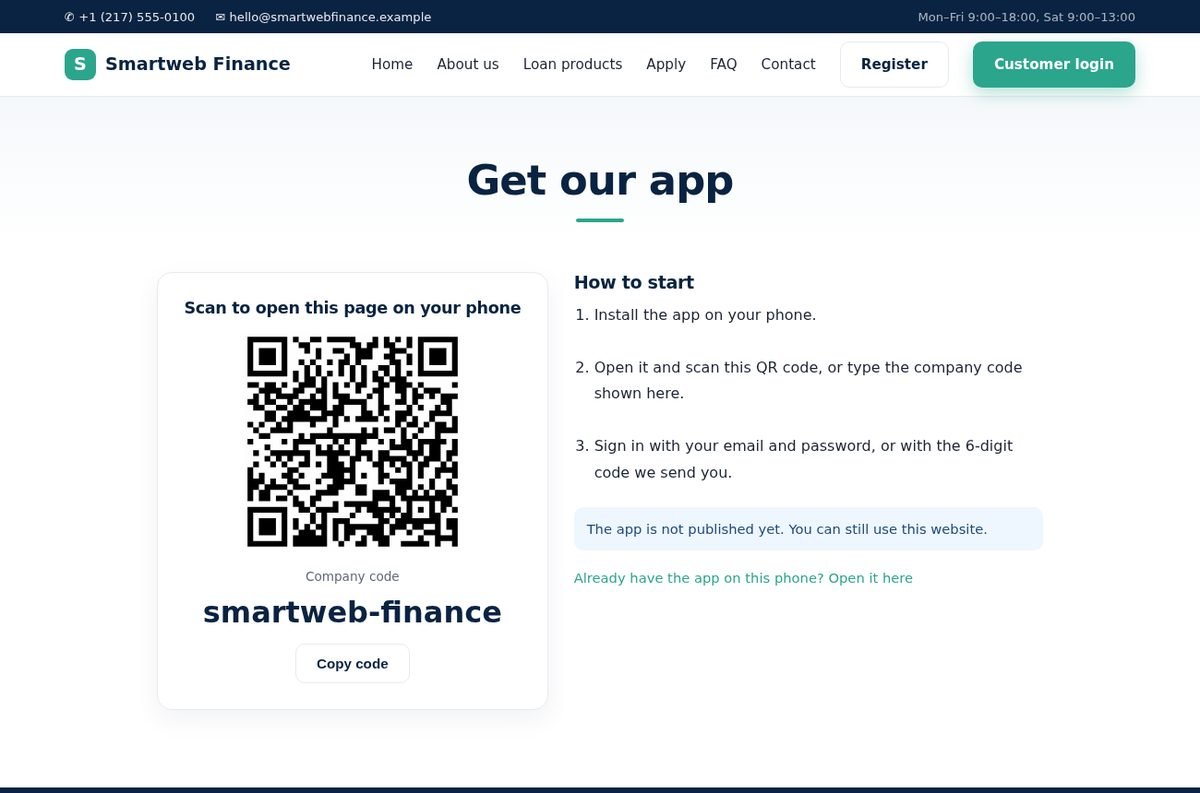
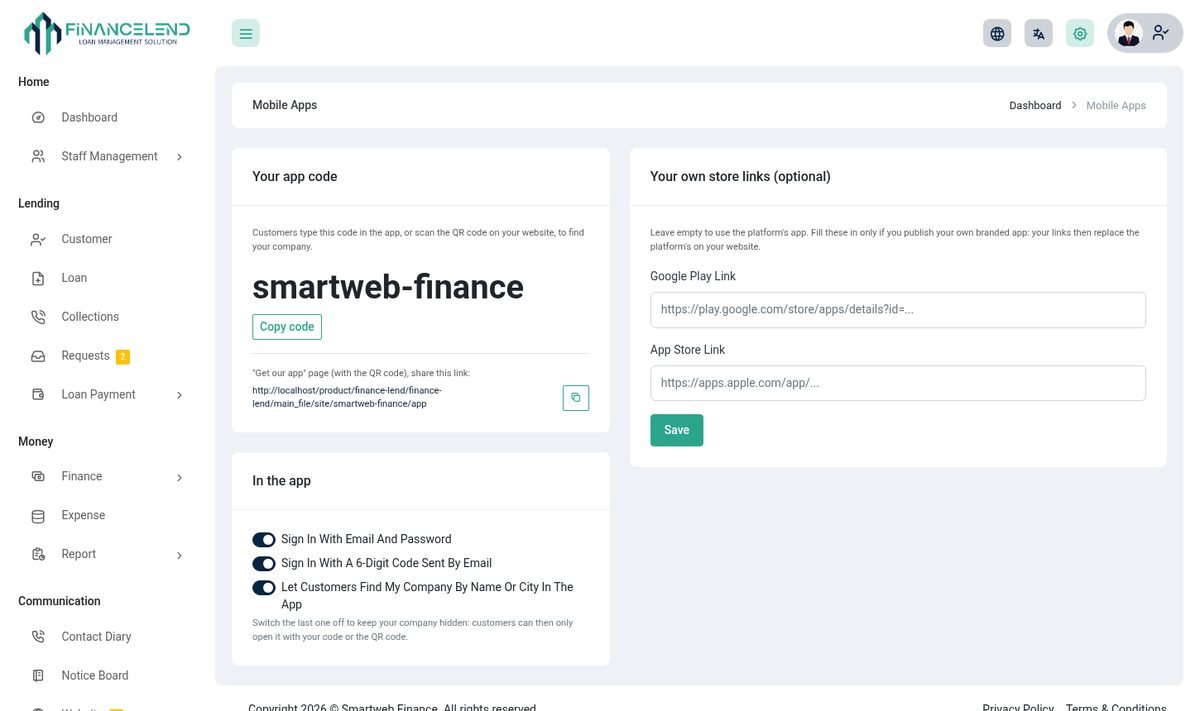
| Get our app | A page at /site/{code}/app with a QR code, store buttons and the company code. |
Where: Communication → Website.
Mobile apps
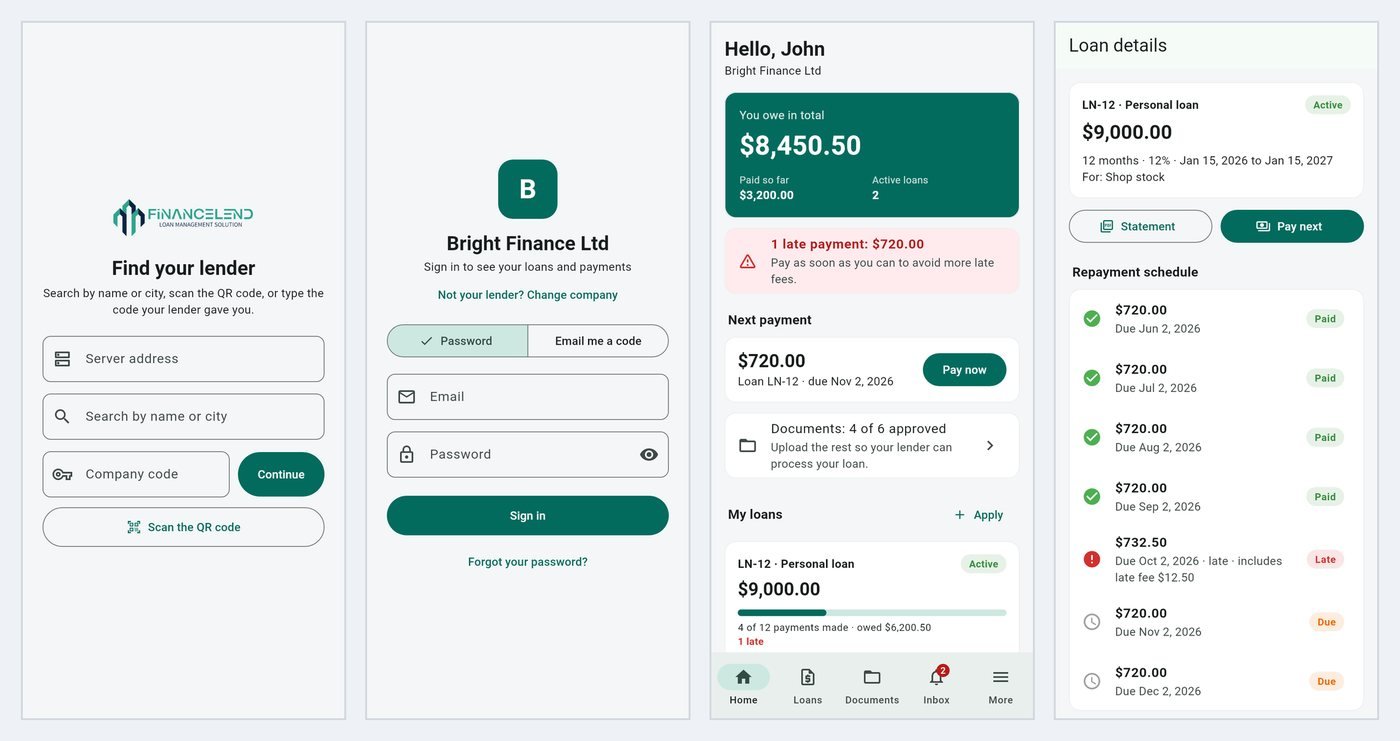
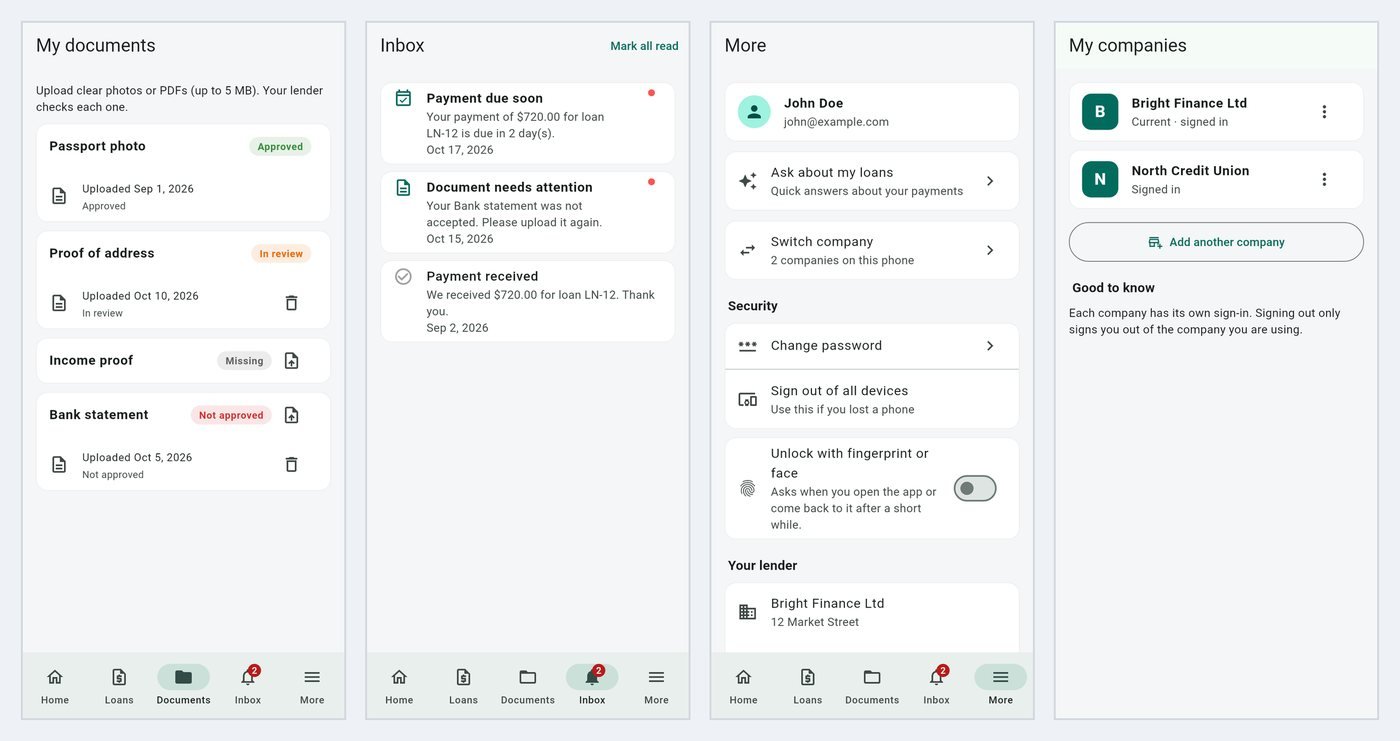
One Android app and one iPhone app serve every lender. The customer finds their lender, signs in and sees their own loans.
Finding the lender
| Way in | How it works |
|---|---|
| Company code | The customer types the lender's short code. |
| Search | The customer searches by company name. |
| QR code | Scan the QR on the lender's website. The app opens on that lender, ready to sign in. |
| Link | A link opens the app straight on the lender. |
In the app
| Feature | What it does |
|---|---|
| Home | What is owed, what is late and the next payment. |
| Loans | Every loan with schedule, payments and receipts. |
| Pay | Opens the lender's secure payment page. |
| Apply | Send a loan request. |
| Documents | Upload KYC documents from the camera or files. |
| Inbox and push | Reminders and updates, in the app and as push notifications. |
| Assistant | Ask questions about loans, if the lender has switched on AI. |
| Switch company | Customers of several lenders move between them without signing in again. |
| Biometric lock | Fingerprint or face unlock for the app. |
Signing in and security
- Sign in with email and password, or with a one-time emailed code (needs SMTP).
- Changing the password signs the app out everywhere. Sign out of all devices is in the app.
- An app that is not used for
MOBILE_TOKEN_IDLE_DAYSdays (default 90) is signed out. - A customer created by staff with a typed password must change it at first sign-in.
Where (owner): AI & Apps → Mobile Apps shows the QR, the company code and lets you add the store links.
Build and publish the apps
The two apps are in mobile_app/android_app and mobile_app/iphone_app. They are built with Flutter and are separate projects.
- Install FlutterInstall the Flutter SDK, plus Android Studio for Android, or Xcode on a Mac for iPhone.
- Point the app at your serverPass your server address when you build:
--dart-define=API_BASE_URL=https://yourdomain.com. Optionally add--dart-define=COMPANY=your-codeto lock the app to one lender. - Run itIn the project folder run
flutter pub getand thenflutter run --dart-define=API_BASE_URL=https://yourdomain.com. - Build for the storeAndroid:
flutter build appbundle --dart-define=API_BASE_URL=.... iPhone:flutter build ipa --dart-define=API_BASE_URL=.... - PublishUpload to Google Play and the App Store, then paste both links into Mobile Apps so the website shows the store buttons.
Push notifications (optional)
Create a Firebase project, add the Android and iPhone apps, and download a service-account key. Put the path in .env as FCM_CREDENTIALS. Without it, reminders still arrive in the app inbox.
Controls
| Setting | Meaning |
|---|---|
MOBILE_MIN_APP_VERSION | Apps older than this are asked to update. |
MOBILE_MAINTENANCE | Put the apps into maintenance mode. |
MOBILE_REMINDER_DAYS | Days before and after the due date to send app reminders. |
MOBILE_TOKEN_IDLE_DAYS | Idle days before an app is signed out. |
AI tools
Finance Lend uses Anthropic's Claude to save time. Every tool is optional and each lender can use their own key.
| Tool | What it does |
|---|---|
| AI Assistant | Ask about your portfolio in plain words: who is late, what was collected, loan details. |
| Dashboard brief | A short written summary of the portfolio at the top of the dashboard. |
| Loan brief | On the loan page, a plain summary of the loan and the customer's record. |
| Writer | Drafts collection reminders, notices and messages in the tone you choose. |
| Slip reader | Reads a payment slip photo and fills in the payment details. |
| Document review | Optional pre-check of uploaded customer documents. |
| Customer assistant | Lets customers ask about their own loans in the portal and app. |
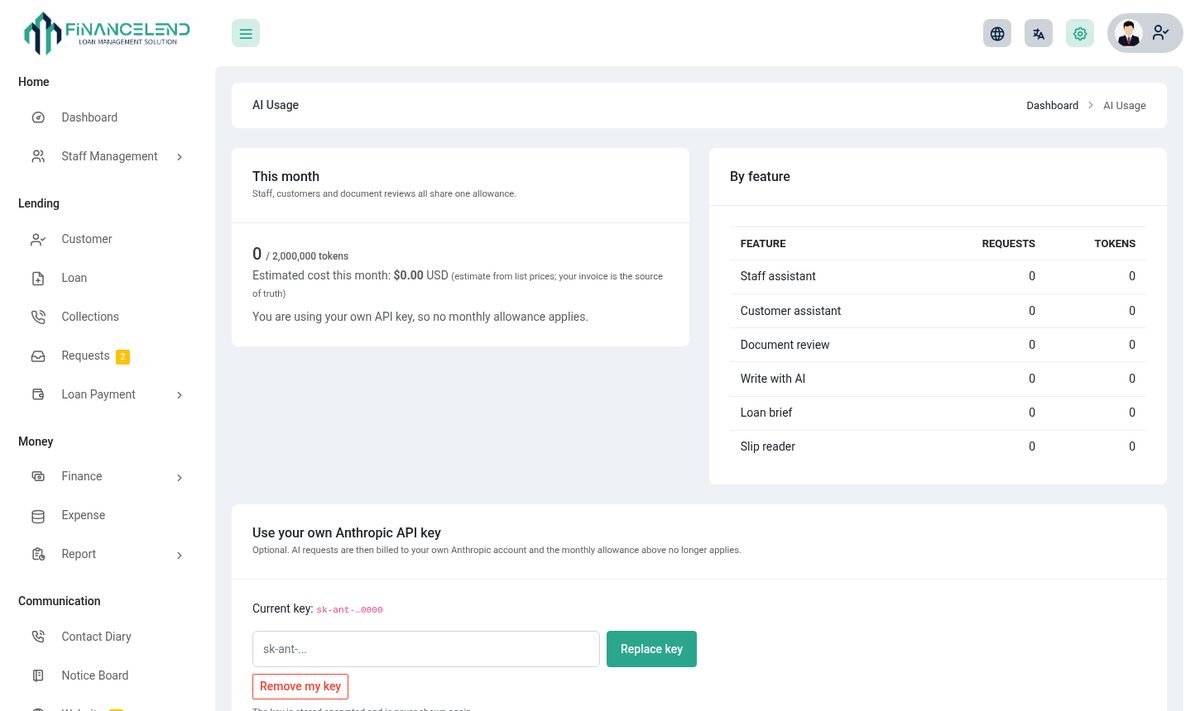
| AI Settings | Your own key, the optional switches, and how much each tool has used against your monthly limit. |
Where: AI & Apps → AI Assistant and AI Settings (key, switches and usage).
Plans and each lender's own settings
- By plan: when you sell plans, the plan form has an Include AI tools switch. A lender on a plan without it sees an upgrade notice on AI Settings and the AI tools stay hidden. Existing plans keep AI when you upgrade; a lender with no plan assigned is not restricted.
- By lender: on AI Settings each lender can add their own Anthropic key (billed to them, no platform allowance) and switch the Customer assistant and Document review on or off for their own business.
Keys and limits
Setting in .env | Meaning |
|---|---|
ANTHROPIC_API_KEY | The platform key used when a lender has not added their own. |
ANTHROPIC_DOCUMENT_REVIEW | Switch the document pre-check on or off. |
ANTHROPIC_CUSTOMER_ASSISTANT | Switch the customer assistant on or off. |
ANTHROPIC_MONTHLY_TOKEN_LIMIT | Monthly usage cap per lender. |
Messages and automation
Decide what the system tells customers and staff, and connect it to your other tools.
Email templates
Edit the wording and switch each on or off under Email Notification.
| Template | Sent when |
|---|---|
| User created | A staff user is added. |
| Customer created | A customer is added (the invitation). |
| Loan created | A loan is created. |
| Loan status update | A loan is approved, rejected or changes status. |
| Repayment created | A payment is recorded. |
| Account created | An account is added. |
| Transaction created | A transaction is posted. |
| Payment reminder | An instalment is coming up or late. |
N8N and webhooks
Send events to n8n (or any webhook) to start your own workflows. Events: create customer, create user, new loan, loan status update, new account, new repayment and payment reminder. Set the webhook under AI & Apps → N8N. Passwords are never sent.
Notice Board
Post announcements for staff, and choose which ones customers can also see.
Settings and integrations
Everything that is set once and rarely touched lives in Settings.
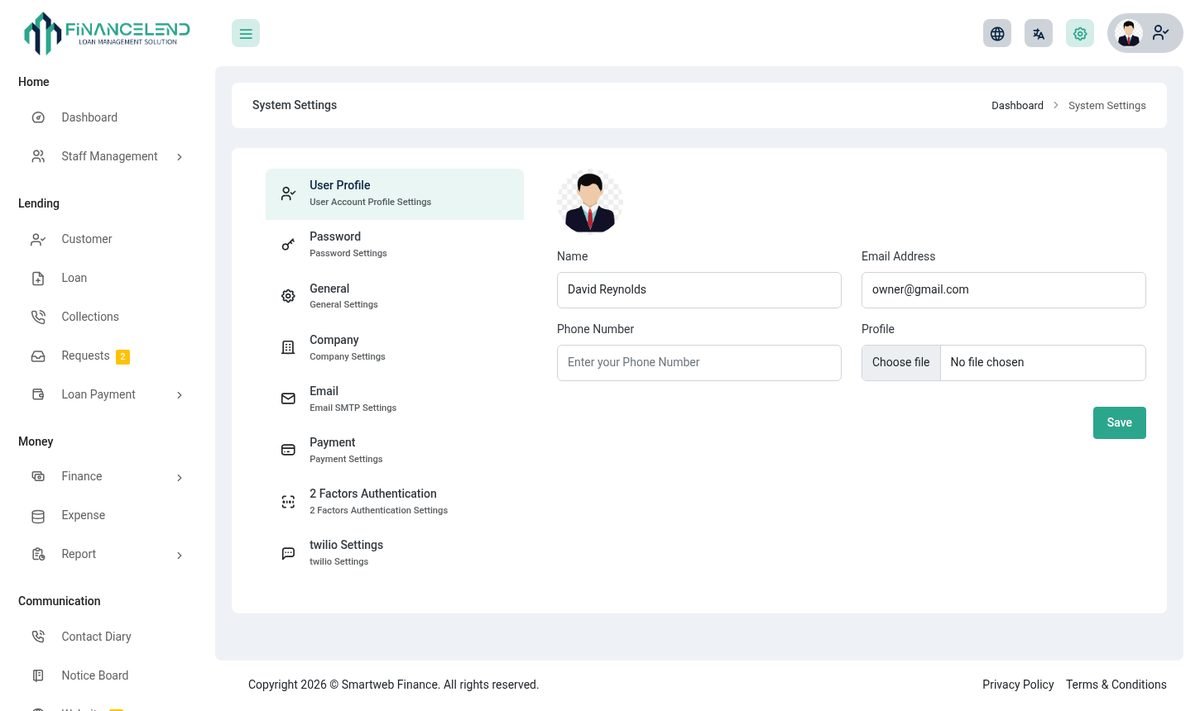
| Tab | What it does |
|---|---|
| User Profile | Your name, email and picture. |
| Password | Change your password. |
| General | Logo, favicon, title, footer, date and currency format, language. |
| Company | Company name, address and contact details used on documents. |
| Email SMTP | The mail server for all emails, with a test button. |
| Payment | The payment gateways customers pay with. |
| Site SEO | Title, description and keywords for search engines. |
| Google reCAPTCHA | Protects sign-up and login forms from bots. |
| 2FA | Two-factor sign-in with an authenticator app. |
| Cloud Storage | Keep uploads locally, or on S3 or Wasabi. |
| Twilio | SMS messages. |
| Cronjob | The web cron key and last run (super admin). |
Languages and themes
Twelve languages are included: Arabic, Danish, Dutch, English, French, German, Italian, Japanese, Polish, Portuguese, Russian and Spanish.
- Each user picks a language from the language icon in the top bar.
- Translation files are in
resources/langas JSON. Edit a file, or copy one to add a new language. - Owners and the super admin can change layout, sidebar and colours from the settings icon in the top bar.
API
Two APIs are included.
| API | For | Notes |
|---|---|---|
| Owner REST API (v1) | Your own tools and reports | Read-only. Create a token under AI & Apps → API Tokens and send it as a bearer token. |
| Customer mobile API | The Android and iPhone apps | Under /api/mobile/v1, for customers only, with rate limits. |
The mobile endpoints are described in main_file/MOBILE_API.md.
SaaS administration
For the platform owner (super admin): sell the system to many lenders.
| Feature | What it does |
|---|---|
| Lenders (owners) | Create, edit and disable lenders, and sign in as one to help them. |
| Plans (Pricing) | Limits on users, customers and loans, and the price. |
| Coupons | Discount codes for sign-ups. |
| Payments | Subscription payments from lenders. |
| CMS | The platform's own website pages. |
| Settings | Email, payment gateways, storage and the cron key for the whole platform. |
Upgrading
Always back up first.
- Back upDownload your
.envfile,.htaccessand thestoragefolder, and export the database. - Replace the filesDelete the old files and upload the new
main_filecontents. - RestorePut your
.env,.htaccessandstorageback. - Allow the updaterSet
INSTALLER_UPDATER_ENABLED=truein.envand open/updateto run the update wizard, or runphp artisan migrateon the command line. - Clear cachesRun
php artisan optimize:clear(or delete the files inbootstrap/cacheandstorage/framework/views). - Lock the updater againSet
INSTALLER_UPDATER_ENABLED=false.
Going live checklist
APP_ENV=productionandAPP_DEBUG=false, and the correctAPP_URL(with https).- Change all default passwords.
- Use
QUEUE_CONNECTION=databaseand the cron line so emails are sent in the background. - Set up SMTP and send a test email.
- Lock down file permissions with
deploy/harden-permissions.sh(run with--dry-runfirst to see what it will do). - Run the web server and the cron job as the same user, so cached views are shared.
- Run
php artisan migrateandphp artisan optimize:clearafter every update. - Take regular database and
storagebackups.
Troubleshooting and FAQ
| Problem | Try this |
|---|---|
| A blank page or 500 error | Check storage/logs/laravel.log. Make sure storage and bootstrap/cache are writable, then run php artisan optimize:clear. |
| Emails are not arriving | Test SMTP in Settings. Check the cron line is running and, if you use a queue, that the worker is running. |
| Reminders are not sent | Check the cron line, the email template is switched on, and the send hour. |
| Page looks old after an update | Run php artisan optimize:clear and hard-refresh the browser. |
| Cannot write to cache after an update | Make sure the web server and CLI run as the same user, or reset ownership of storage. |
| The app cannot find my company | Check the company code, that the website is published, and that your server uses https. |
| The QR code does not open the app | The app must be installed first. Check the store links are saved in Mobile Apps. |
| AI says it is not available | Add an API key and check the monthly limit in AI Usage. |
Environment variables
Set in the .env file. Run php artisan optimize:clear after changing it.
| Key | Default | Purpose |
|---|---|---|
APP_ENV / APP_DEBUG / APP_URL | - | Environment, debug output and the public address. |
QUEUE_CONNECTION | sync | Use database in production. |
DEFAULT_USER_PASSWORD | 123456 | Password given to the default accounts at install. |
INSTALLER_UPDATER_ENABLED | false | Turn on only while upgrading. |
REMINDER_SEND_HOUR | - | Hour of day reminders go out. |
REMINDER_BEFORE_DAYS | 7,1,0 | Days before the due date. |
REMINDER_AFTER_DAYS | 1,3,7,14,30 | Days after the due date. |
REMINDER_PAY_LINK_DAYS | 30 | How long a pay link stays valid. |
ANTHROPIC_* | - | See AI tools. |
FCM_CREDENTIALS | - | Firebase key for push. |
MOBILE_* | - | See Mobile apps. |
LOGIN_GEO_LOOKUP | off | Show a rough location in the sign-in history. |
Change log
Version 2.0 – 17 October 2026
- Customer mobile apps for Android and iPhone, with company code, search, QR and links, push and an inbox.
- AI tools: assistant, dashboard and loan briefs, writer, slip reader and usage limits.
- Customer portal redesign, branded customer login and stronger sign-in security.
- Lender websites with a Get our app page and a My website menu.
- Regrouped menu with Staff Management under the dashboard.
- Approval rules, collections board, portfolio at risk, accounting export and audit log.
Support
Stuck? We are happy to help.
Open a ticket at support.smartwebinfotech.com. Please include your purchase code, the page you were on, what you expected, and the last lines of storage/logs/laravel.log.