
Easy Park documentation
Everything you need to install, set up and run your parking business: car parks, slots and rates, vehicle entry and exit, reservations, monthly passes, shifts, reports, the customer website, the Android and iPhone apps, and the AI tools.
Overview
Easy Park is a complete vehicle parking management system. Run it for your own car parks, or as a SaaS: parking companies sign up, pick a plan and manage zones, slots, rates, vehicles, passes, bookings and income in one place, with their data kept completely separate.
How the pieces fit together
| Part | What it is | Who uses it |
|---|---|---|
| Admin panel | The back office: car parks, slots, rates, parked vehicles, reservations, passes, shifts, reports and settings. | Super admin, owner, managers, cashiers |
| Staff app | Android and iPhone app for the people at the gate: vehicle entry and exit, plate scan, receipts on a Bluetooth printer, passes, EV bays, expenses. Works with a poor connection. | Owners and staff |
| Customer app and website | Drivers sign in with their phone number (an SMS code), book a space, pay online, cancel, and keep their vehicles. The same booking is available on your car park website. | Drivers (customers) |
| Public website | A website for every owner, built from blocks, with online booking, rates, locations and an enquiry form. | Anyone visiting |
| Platform console | Super admin only: subscription plans, coupons, transactions, mobile app store links, the address the apps use, maintenance mode. | Super admin |
| API | A REST API under /api/v1 used by the apps, cameras and your own tools. | Apps, ANPR cameras, developers |
Quick-start checklist
- InstallCheck the requirements, create the database, upload the files and run the installer.
- Log in and secure the accountsUse the default logins once, then change every password.
- Switch on the background workAdd the cron line so overstay alerts, pass reminders and reservation clean-up run.
- Company and emailIn Settings fill in the company and email (SMTP) details. See Settings.
- Describe your car parkAdd zones, floors, vehicle types, slots and rates.
- Take your first vehicleCreate an entry, then check it out and print the receipt. Then open online booking.
Server requirements
Easy Park is built with Laravel. Make sure your hosting meets the following before you start.
- PHP
- 8.1 or newer (8.2 or 8.3 is fine)
- Database
- MySQL 5.7+ (8 recommended) or MariaDB 10.3+
- Web server
- Apache (with
mod_rewrite) or Nginx - HTTPS
- Strongly recommended. Required for the mobile apps, online payments and push notifications.
- Cron
- One cron line, see Background work
Required PHP extensions
Folders that must be writable
storage, bootstrap/cache and public/uploads (website pictures). The installer checks these too.
Create the database
The steps below use cPanel. Other hosting panels offer the same options under similar names.
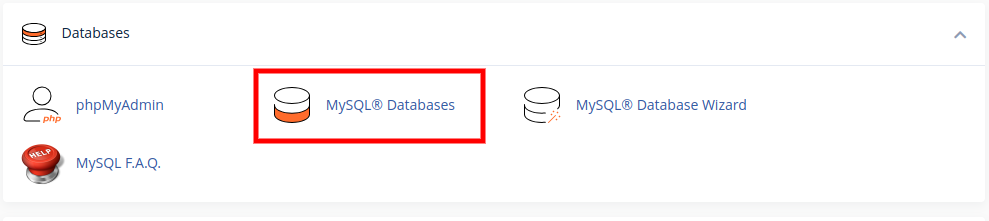
- Open the database toolIn your hosting panel go to Databases and click MySQL® Databases.
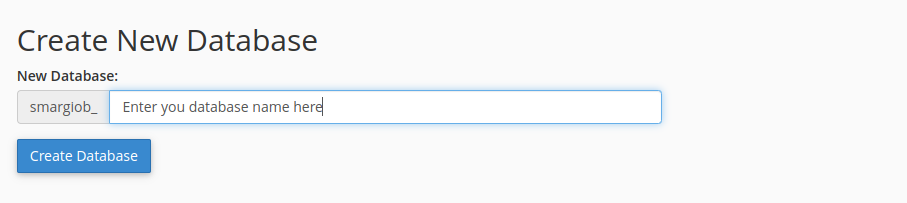
- Create the databaseType a name and click Create Database. Your host adds a prefix to the name; write the full name down.
- Create a database userIn Add New User enter a user name and a strong password and click Create User.
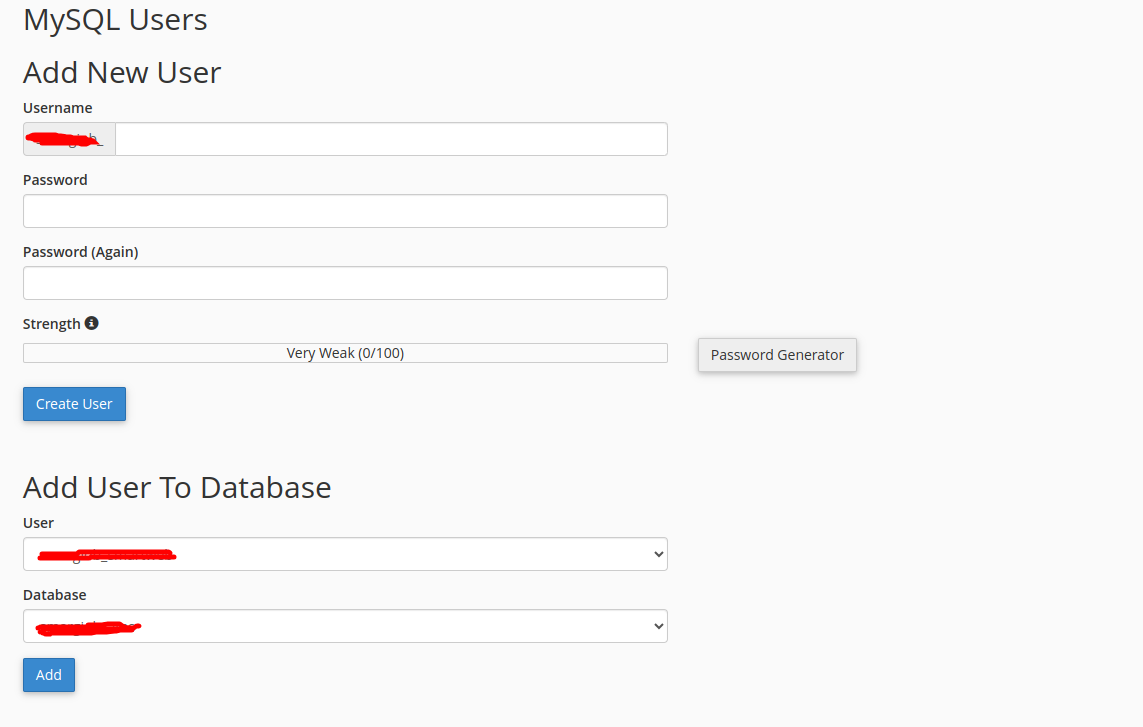
- Add the user to the databaseIn Add User To Database choose the user and the database, then click Add.
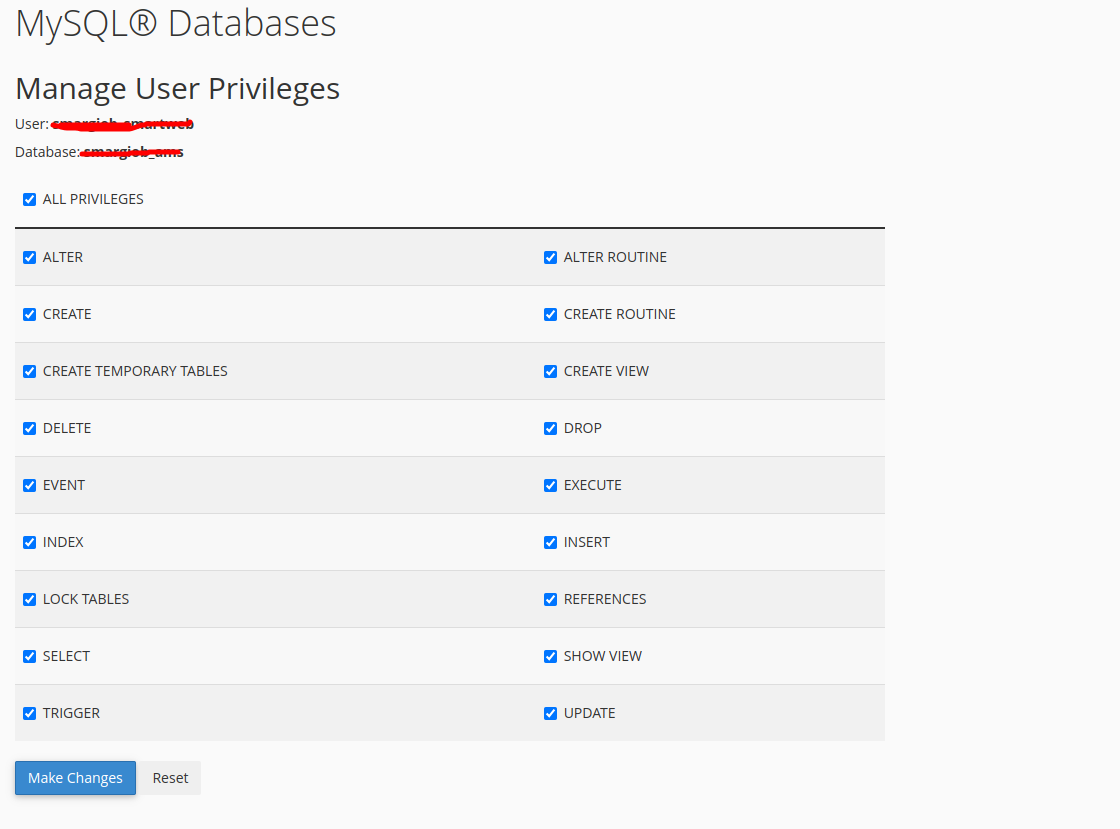
- Give all privilegesTick ALL PRIVILEGES and click Make Changes.
localhost), database name, user name and password. The installer asks for them.Upload the files
Upload the contents of the main_file folder from your download to your web root.
- Open the File ManagerLog in to cPanel and open File Manager under Files.
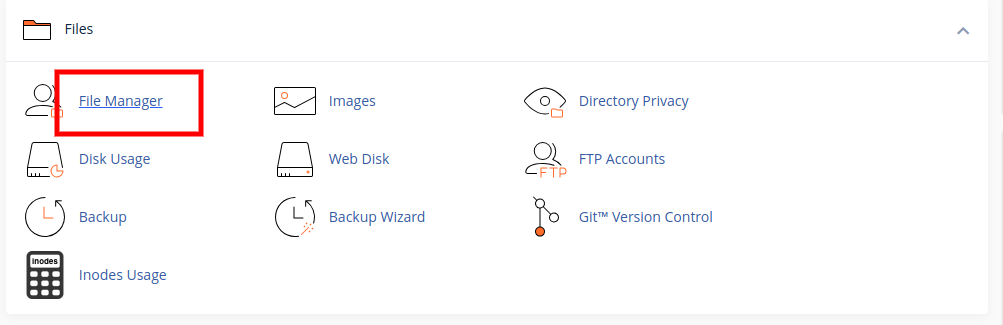
- Go to the right folderFor your main domain this is
public_html. For a sub-domain or sub-folder, open that folder instead.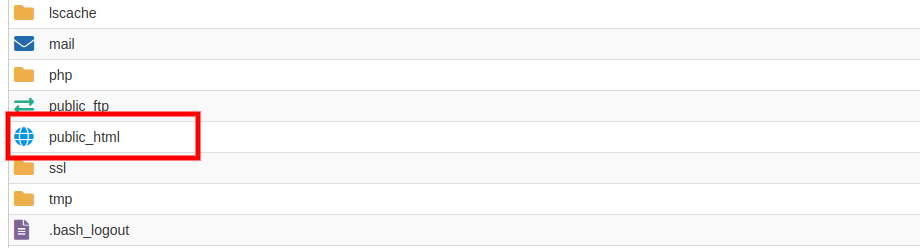
- Upload and extractClick Upload, choose the zip file, wait for 100%, then right-click it and choose Extract. Make sure the files from
main_file(including the hidden.htaccess) end up directly in the folder. - CheckYou should see
app,bootstrap,config,public,storage,artisanand the other Laravel folders.
documentation or mobile_app folders to the web root. They are for you, not for visitors.Run the installer
A web installer sets up the application in a few minutes.
- StartOpen
https://yourdomain.com/installin your browser. This starts the App Installation Process.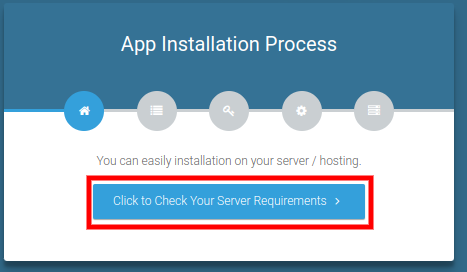
- Check the serverClick Click to Check Your Server Requirements. Everything should be ticked.
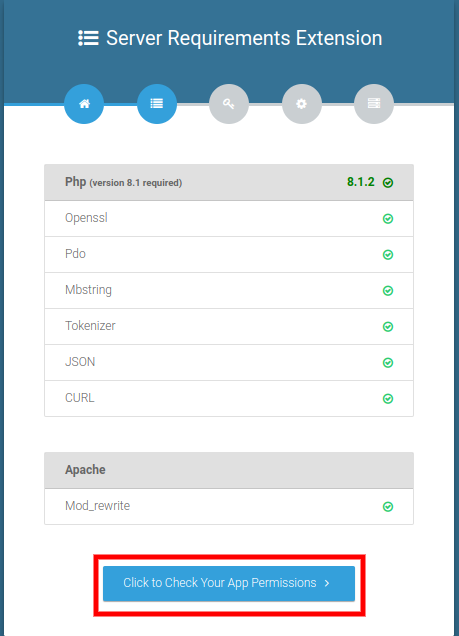
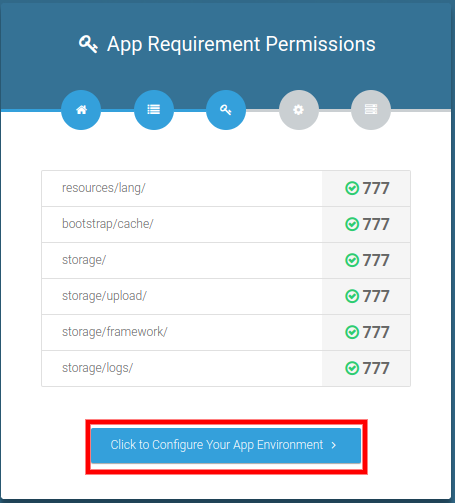
- Check permissionsThe installer checks the folder permissions. When all are fine, click Click to Configure Your App Environment.
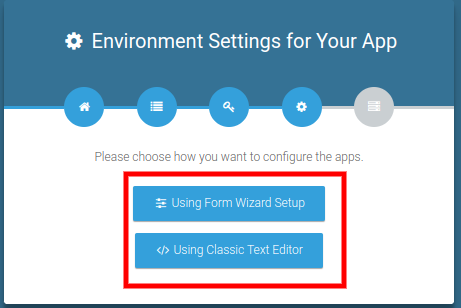
- Choose the setup typeSelect Using Form Wizard Setup.
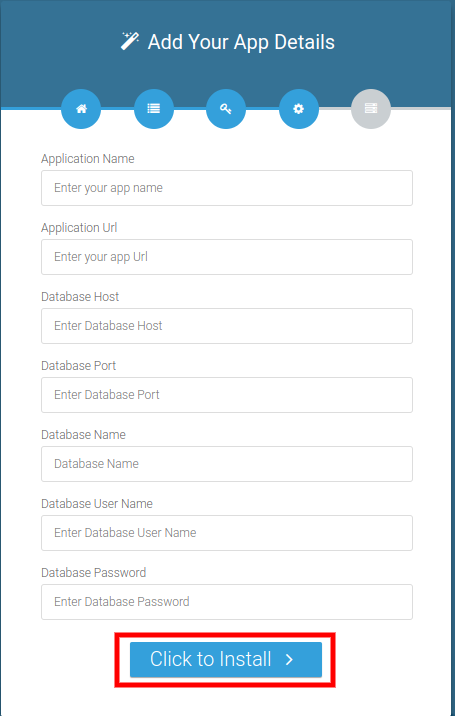
- Enter the app and database detailsFill in the database host, name, user and password, plus an application name and the application URL. Click Click to Install.
- FinishWhen you see Application has been successfully installed, click Click here to exit.
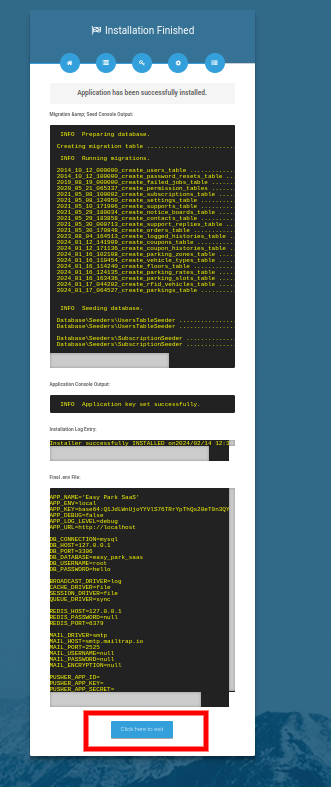
After installation
A few things to do straight away.
- Change the default passwords of the super admin, owner and manager accounts (see below), or delete the demo accounts.
- Set the application URL in
.env(APP_URL) to your real address, includinghttps://. - Fill in Settings > Email (SMTP) and send the test message, so password resets, receipts and notifications work.
- Add the cron line.
- If you will sell subscriptions, open Packages and Payment settings and add at least one payment method.
Background work (cron job)
Some things happen without anyone clicking: overstay alerts, pass reminders, and releasing reservations that were never used.
The scheduler
Add one cron entry that runs every minute (change the path to your install folder):
* * * * * cd /path/to/your/site && php artisan schedule:run >> /dev/null 2>&1| Task | How often | What it does |
|---|---|---|
parking:check-overstays | Every hour | Finds vehicles parked longer than the overstay hours setting (24 by default) and tells the owner once per vehicle: a push notification, the dashboard warning, and the overstay n8n webhook. Also reminds holders of monthly passes that end within 7 days (email, SMS when Twilio is set up, and the pass_expiring webhook), once per pass. |
parking:expire-reservations | Every 5 minutes | Marks reservations that nobody turned up for as no-show and frees the slot. |
php artisan schedule:list to see both tasks, or run one by hand, for example php artisan parking:check-overstays.Default logins
The demo data comes with these accounts. Change the passwords before going live.
| Role | Password | |
|---|---|---|
| Super admin | superadmin@gmail.com | 123456 |
| Owner | owner@gmail.com | 123456 |
| Manager | manager@gmail.com | 123456 |
Roles and the menu
Everyone sees only what they are allowed to use.
- Super admin – runs the platform: customers (owners), packages, coupons, transactions, website content, mobile app settings and system settings.
- Owner – full control of their own car parks, staff, customers, website and settings.
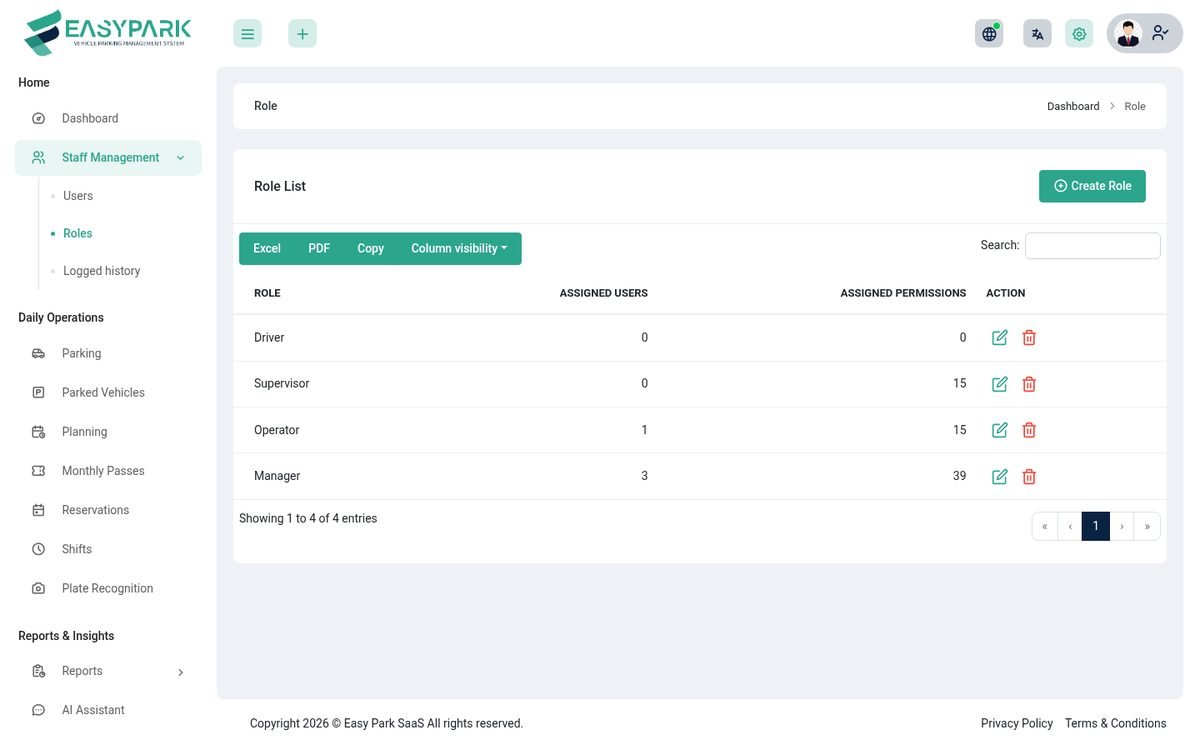
- Staff (manager, cashier, supervisor, operator and any role you create) – the menus their role allows. Roles are lists of permissions you tick.
- Customer – a driver with an account. Customers use the customer app and the website, not the admin panel.
The owner's menu
| Group | Menus |
|---|---|
| Home | Dashboard, Staff management (Users, Roles, Logged history) |
| Daily operations | Parking, Parked vehicles, Planning, Monthly passes, Reservations, Shifts, Plate recognition |
| Reports & insights | Reports (All reports, Income report, Shift report, Slot availability), AI assistant |
| Money | Expenses |
| Parking setup | Layout (Zones, Floors, Slots), Vehicle types, Locations, Parking rates, RFID vehicles, Expense types |
| Customers & communication | Customer accounts, Contact diary, Notice board, Email notifications, Automation (n8n) |
| Website | My Website |
| Plan & billing | My plan, Billing history |
| System | Settings (including Branding & Mobile App) |
Dashboards
Each person starts on a page made for their job.
| Who | What the dashboard shows |
|---|---|
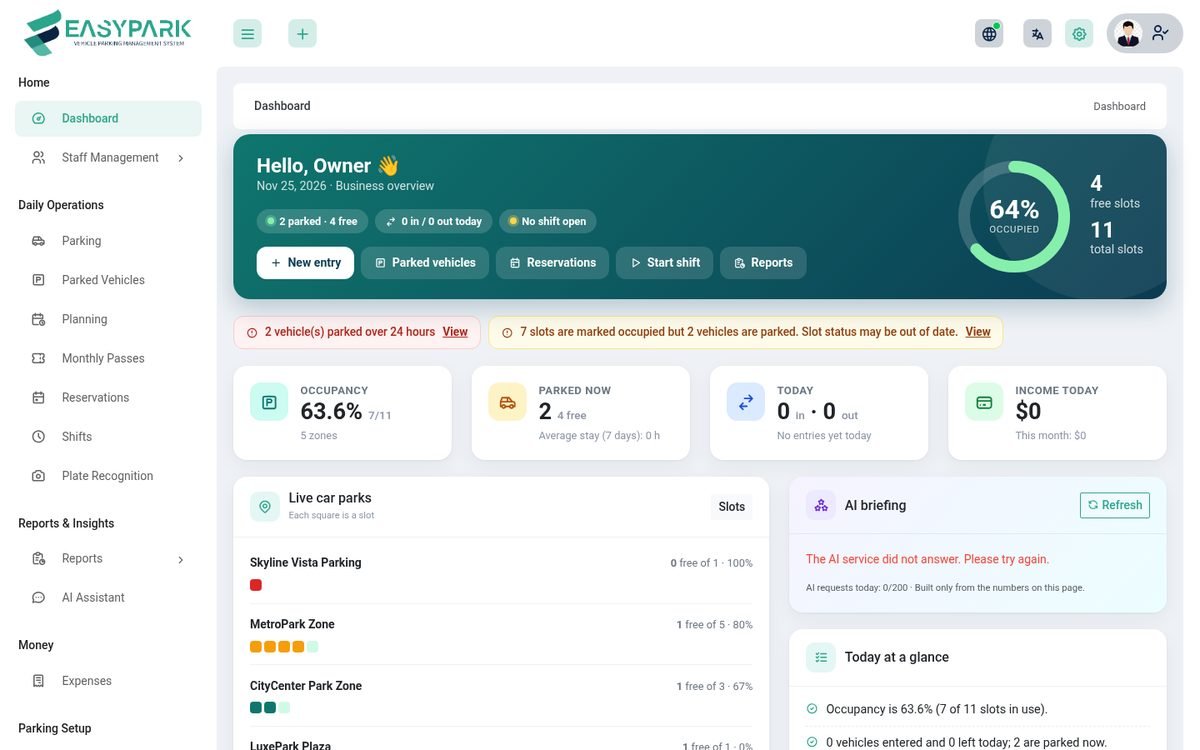
| Owner | A greeting with the car park occupancy ring and free / total slots, quick buttons (new entry, parked vehicles, reservations, start shift, reports), warnings (vehicles parked too long, slots whose status looks out of date), occupancy, vehicles parked, today's entries and exits, income today and this month, every car park as a row of slots, an AI briefing and a "today at a glance" list. |
| Staff | The same live numbers for the car park they work in, with only the buttons their role allows. |
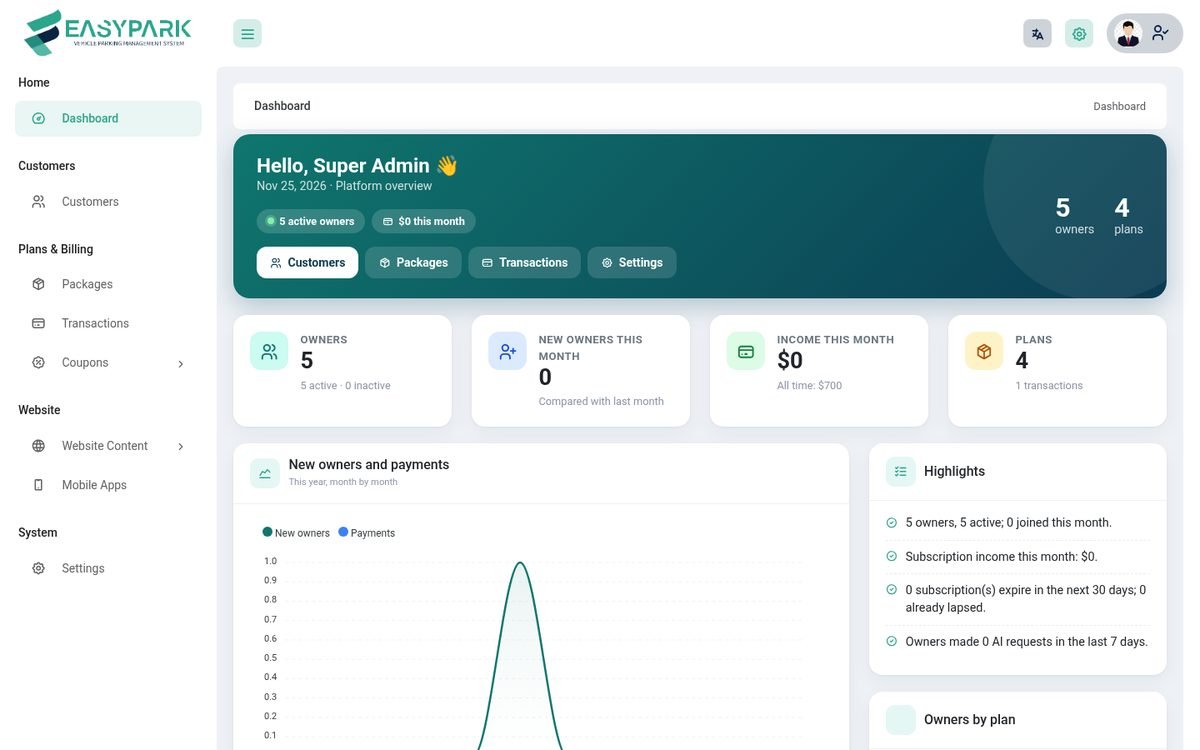
| Super admin | Owners and active subscriptions, new owners and income this month, plans, highlights and owners by plan, with quick links to customers, packages and transactions. |
Setting up your car park
Describe the place once; everything else (entry, rates, bookings, reports) uses it.
Zones and floors
A parking zone is a car park or area (for example "Skyline Vista Parking"). Add the floors or levels under Floors. Zones can also be given a map location so they appear on your website and to customers.

Vehicle types
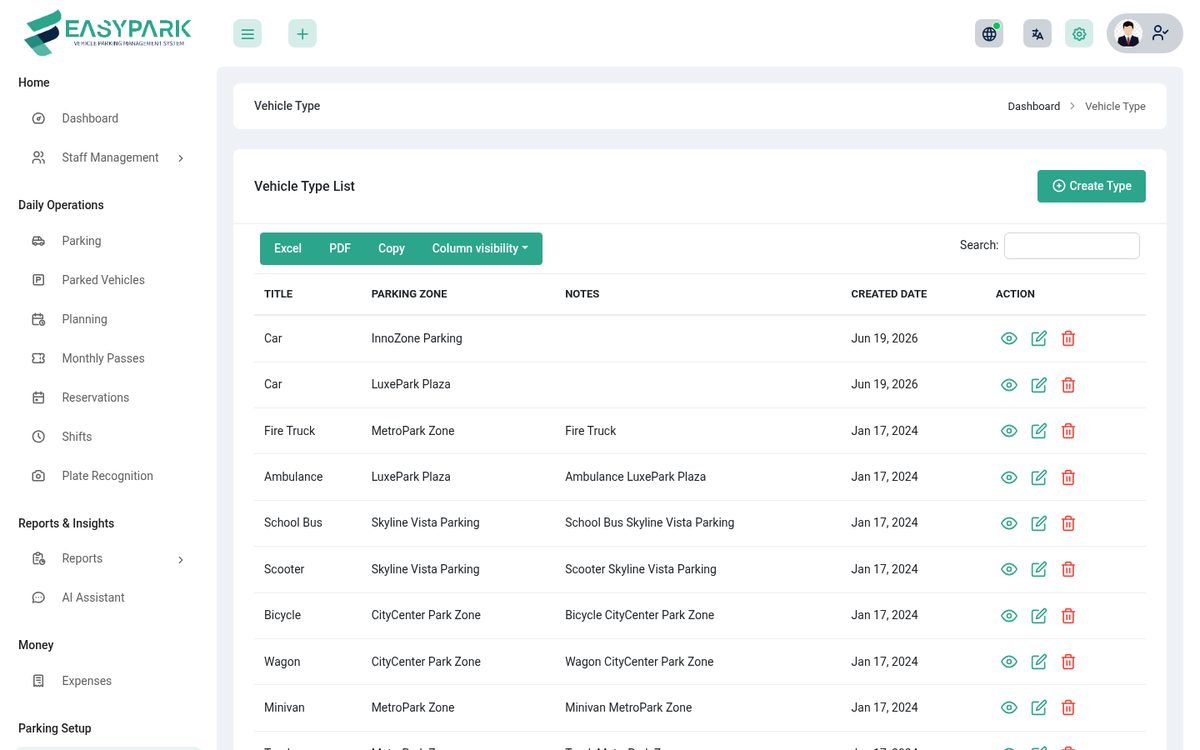
Cars, bikes, trucks, buses, EVs or anything you charge differently. Each slot and each rate belongs to a vehicle type.
Slots
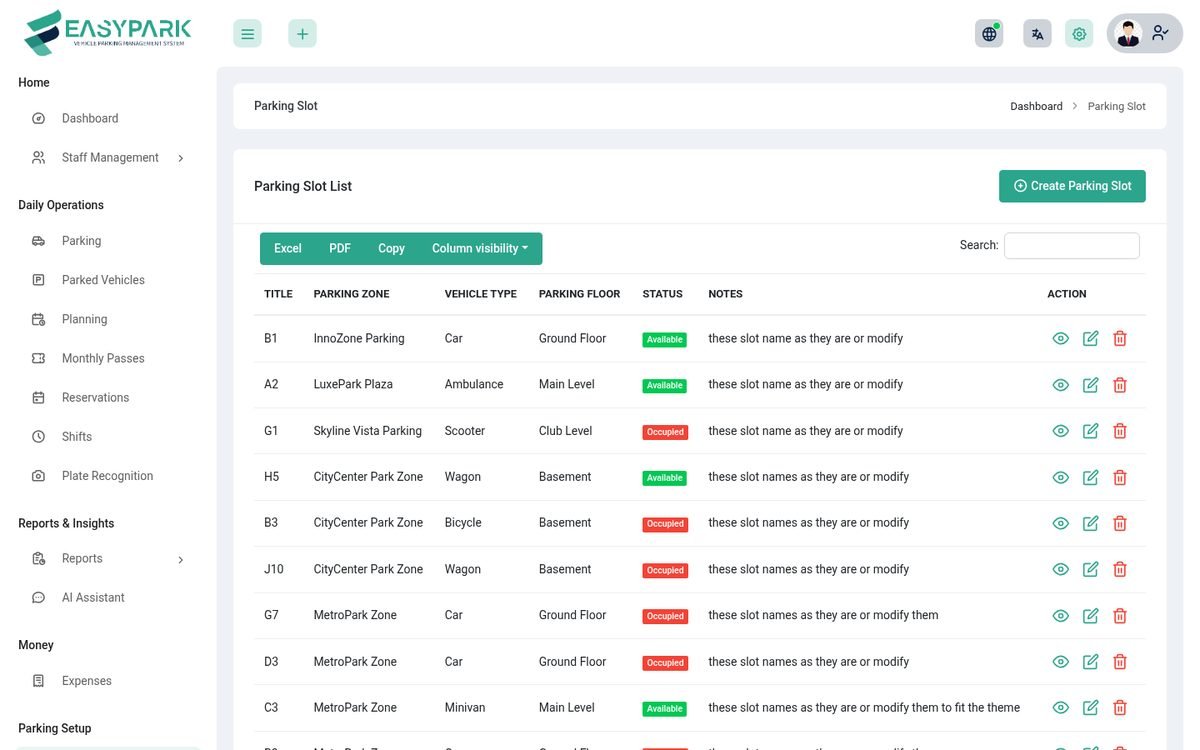
Create each bay with a name (S1, B4), its zone, floor and vehicle type. A slot is free or occupied; the system changes this for you when a vehicle enters or leaves, and the dashboard warns you if the numbers ever disagree with the vehicles actually parked.
Rates
Rates are set per vehicle type and zone, with a start date and a valid-until date, so you can add next season's prices in advance. Each rate has an hourly rate and a fixed rate for stays shorter than an hour. The fee is worked out from the real entry and exit time when the vehicle leaves, and the receipt shows how it was calculated (for example "3 h × 40.00").

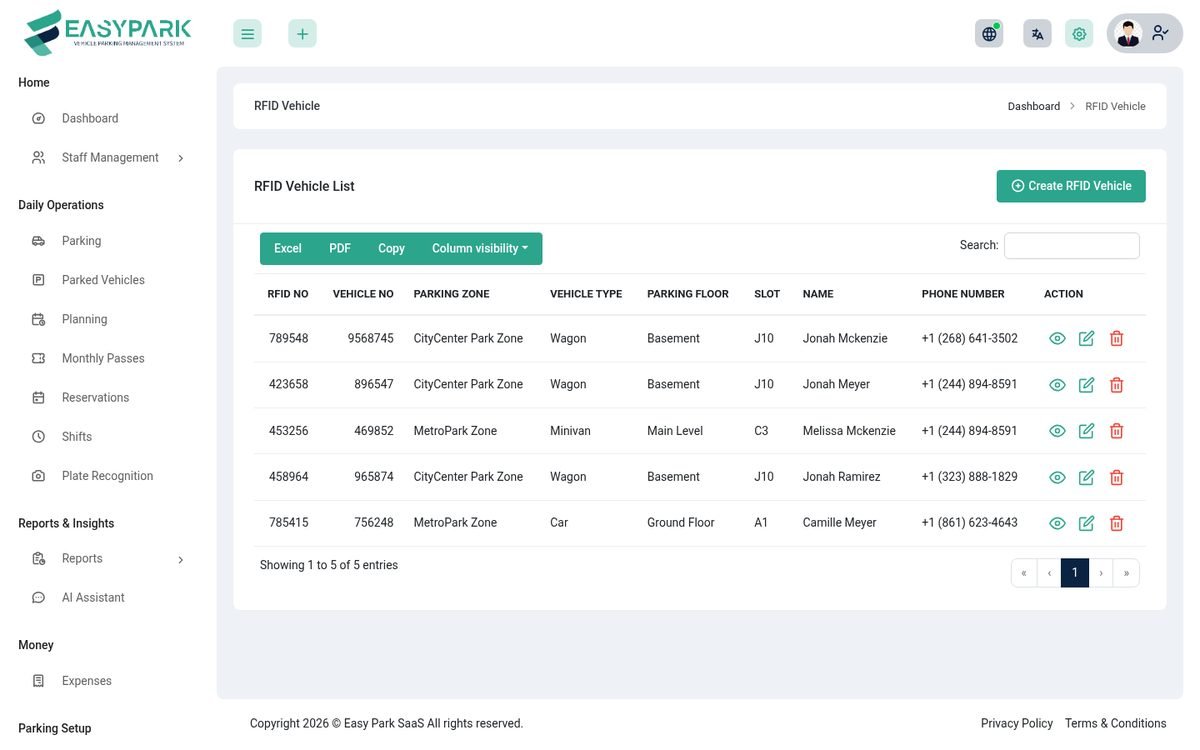
RFID vehicles
Register vehicles that carry an RFID tag with their owner and phone number. A tag scan then finds the vehicle and starts its entry or exit.
Settings that change how entry works
| Setting | Where | What it does |
|---|---|---|
| Parking number prefix | Settings > Company | The letters in front of each ticket number, for example PARK-. |
| Overstay alert after (hours) | Settings > Company | After this many hours a parked vehicle triggers the overstay alert (default 24). |
| Staff must start a shift before taking payments | Settings > Smart Parking | Cashiers must start a shift before they can take an exit payment. |
| Price per kWh | Settings > Smart Parking | The price used when EV charging is billed. 0 means charging is not offered. |
| Time zone, date and time format | Settings > Company | Entry and exit times, receipts and reports follow these. |
Vehicle entry, exit and receipts
The heart of the system: a vehicle comes in, a slot is held, and it pays when it leaves.
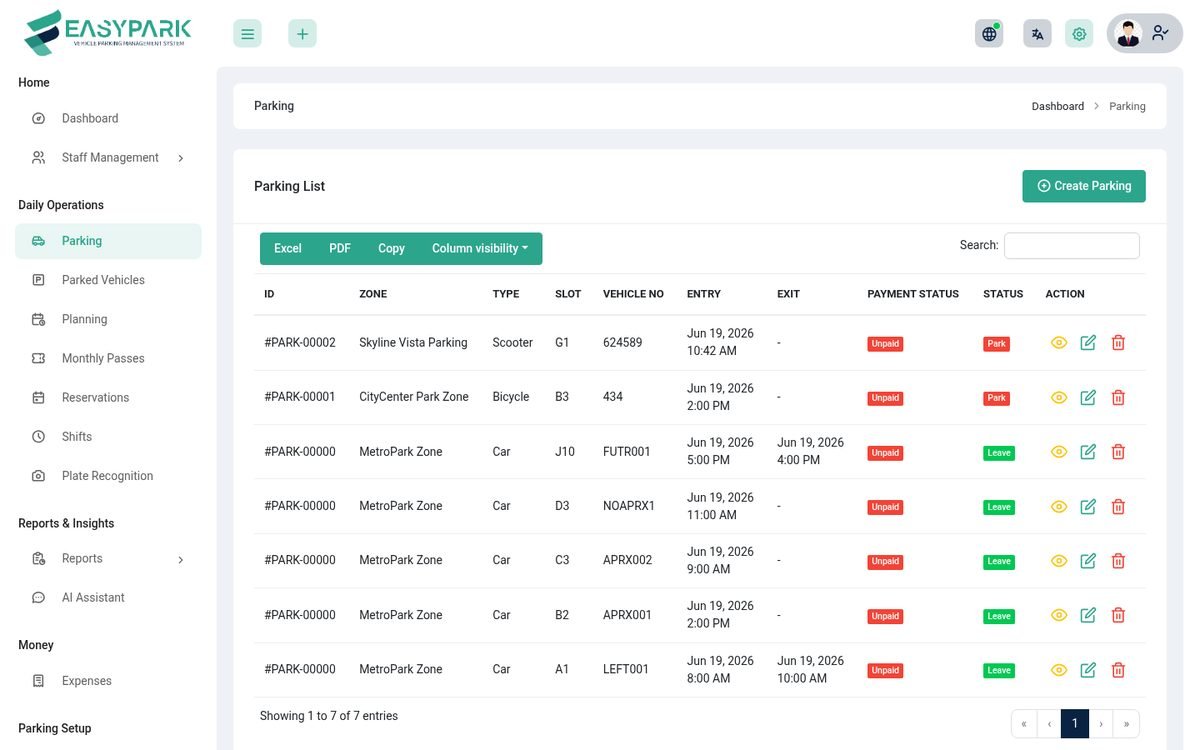
- EntryParking > Create (or New entry in the Staff app): vehicle number, zone, vehicle type, floor and slot, and optionally the driver's name, phone and email. The slot becomes occupied and a ticket number is printed. In the Staff app you can photograph the number plate and the plate fills in for you.
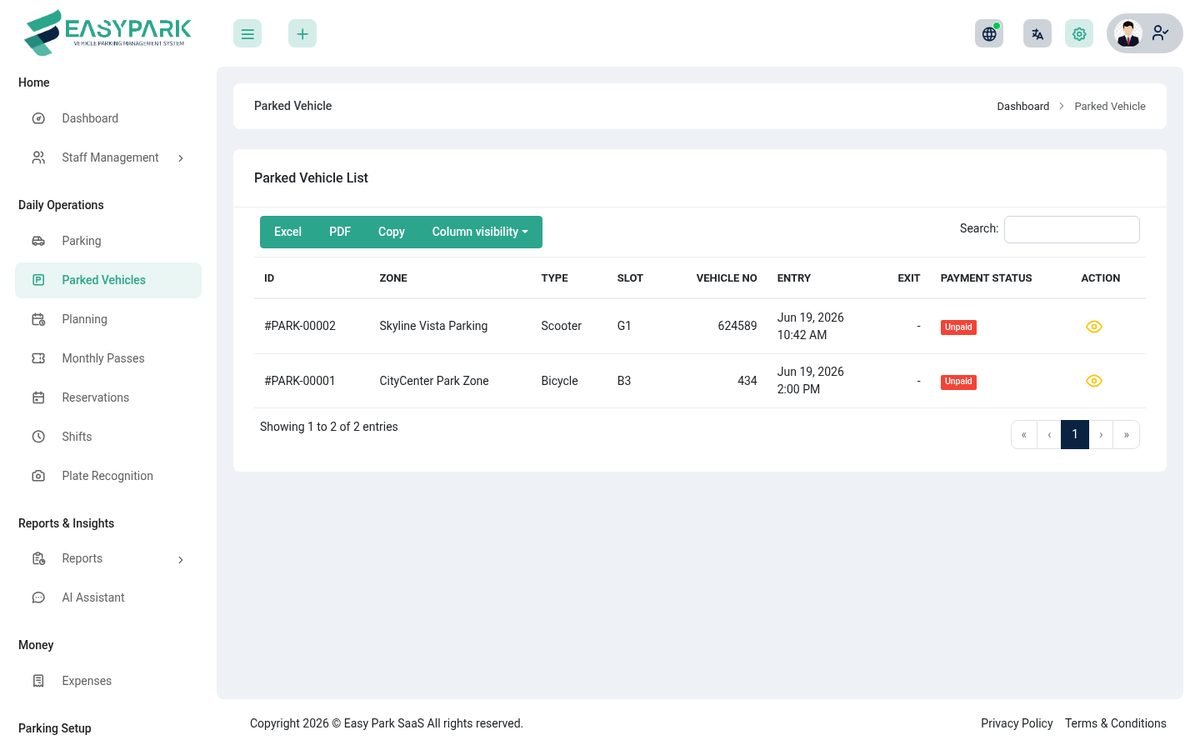
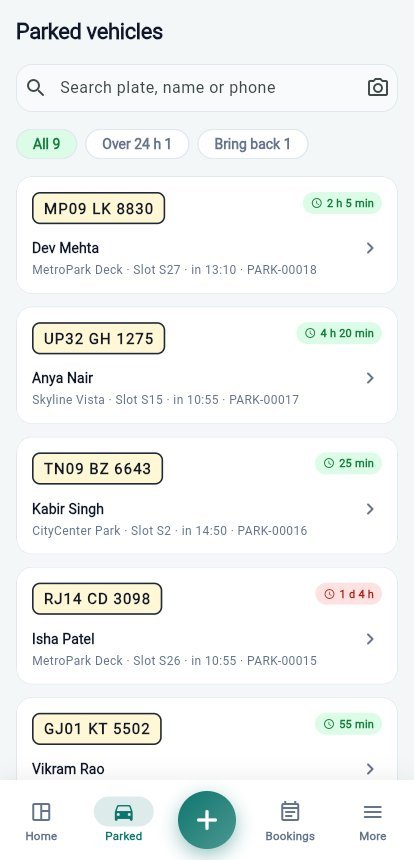
- While parkedParked Vehicles lists everything inside right now with how long each has been there. Search by plate, name or phone. A driver can ask for their car to be brought back (valet), and staff see it in the bring-back queue.
- ExitOpen the vehicle and check it out. The fee is calculated from the rate, any monthly pass or prepaid reservation is taken into account, and you choose how it was paid. The slot is freed.
- ReceiptA thermal receipt prints from the browser. In the Staff app, print to a Bluetooth ESC/POS printer, or share the receipt as a PDF or text on WhatsApp or email.
Alerts
- Overstay – after the number of hours set in Settings the owner gets a push notification and a dashboard warning, once per vehicle.
- Slot status out of date – the dashboard warns when more slots are marked occupied than there are vehicles parked.
- Unusual payments – the report lists stays that were charged nothing, charged differently from the rate card, or lasted unusually long.
Planning and slot availability
See the day at a glance, and find a free slot fast.
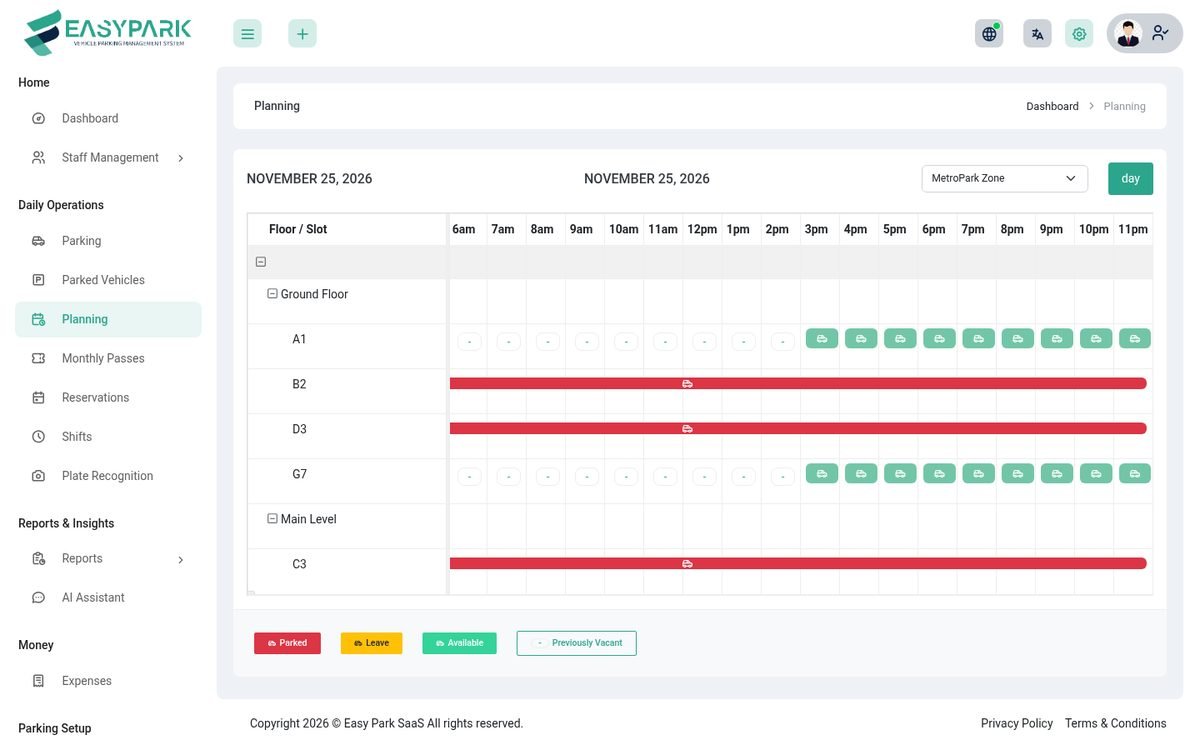
- Planning – a timeline for each slot across the day, with parked vehicles and reservations as coloured bars. Use it to see what is free later today and where a booking will go.
- Slot availability – choose a zone and floor to see which slots are free right now.
Monthly passes
Regular customers pay once for a month or more; their vehicle then parks without a fee.
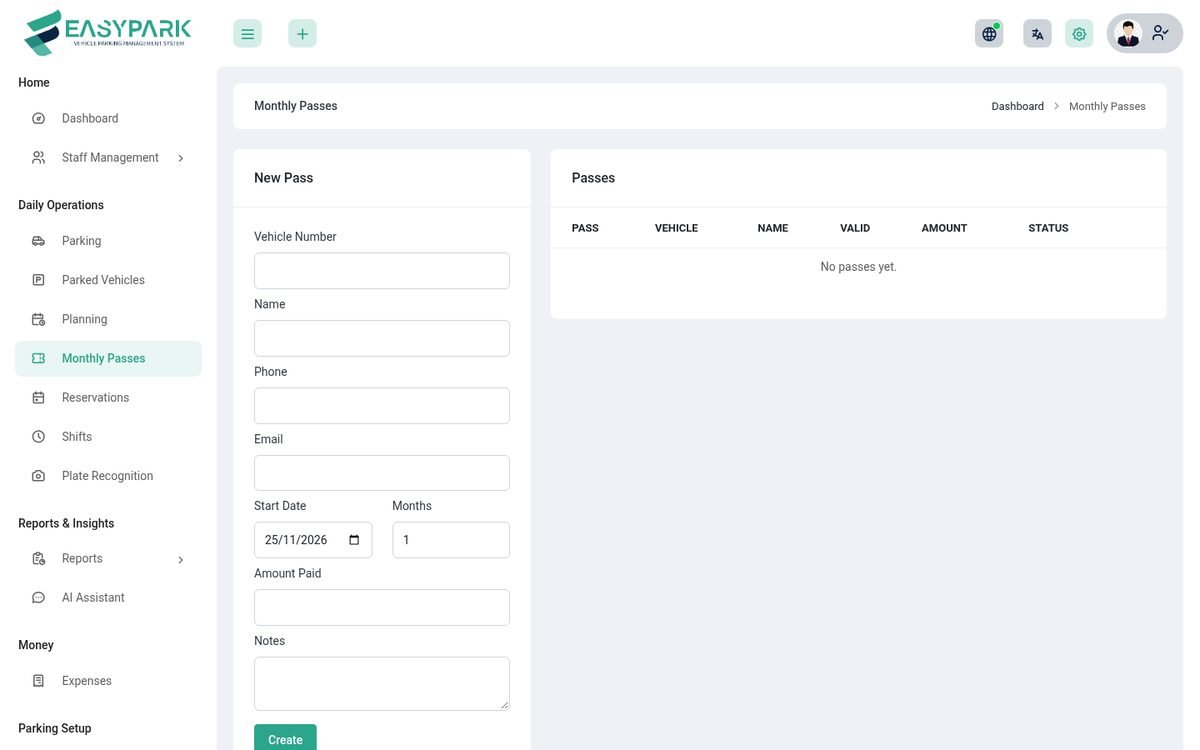
- Create a pass with the vehicle number, holder, phone, email, start date, number of months (1 to 36) and the amount paid. A pass number is made for you.
- Renew a pass from the list: the new period starts when the old one ends.
- A vehicle with an active pass is recognised at entry and shown as covered by a pass; no fee is charged at exit.
- Reminders – 7 days before a pass ends the holder gets an email (and an SMS if Twilio is set up) and the
pass_expiringwebhook fires, once per pass. The owner sees "N monthly passes expire within 7 days" on the dashboard. - The Monthly passes report lists active, expiring and expired passes and what they brought in.
Reservations and online booking
Drivers reserve a space in advance from your website or the Customer app.
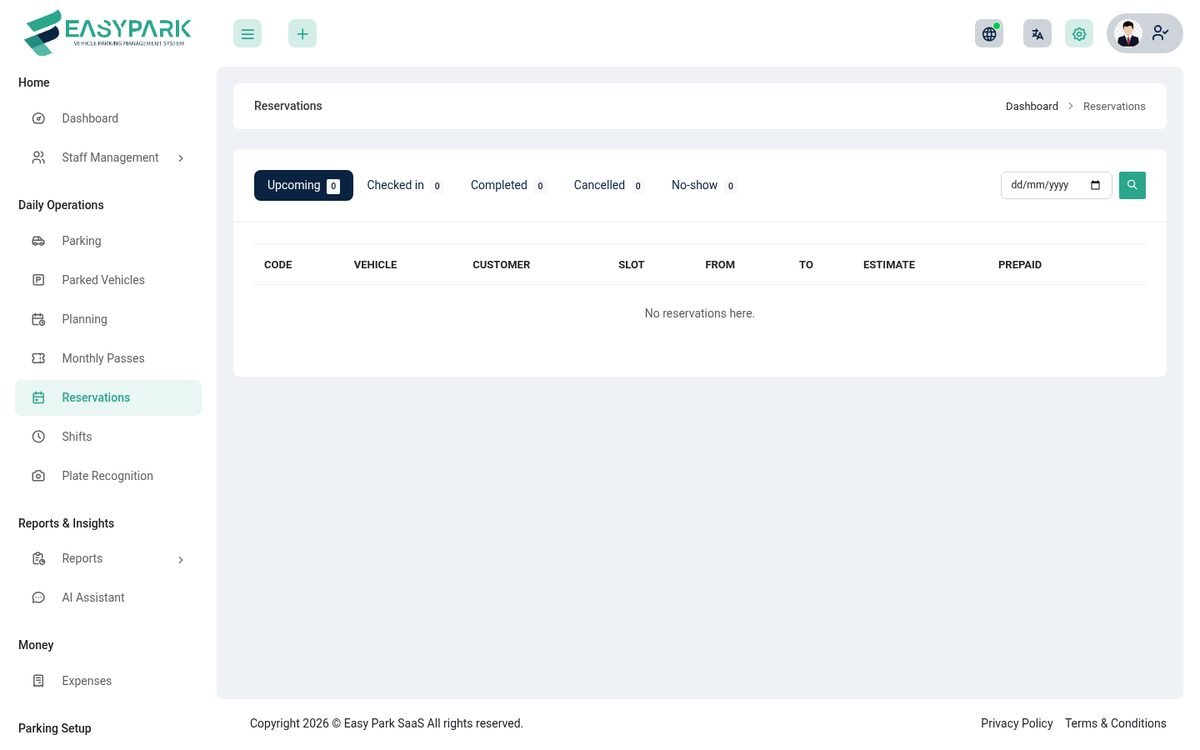
- The driver picks a car park, vehicle type and arrival and leaving time. The system shows live availability and the estimated price, then holds a slot for them.
- Prepay – if you have turned on online payment (Stripe or Razorpay), the driver can pay on a secure hosted page. Prepaid amounts are taken off the fee at exit.
- Arrival – staff open Reservations (or the Bookings tab in the Staff app) and press Check in when the driver arrives. That creates the parking entry on the reserved slot.
- No-show – a reservation is kept for a short time after its start time. After that, the five-minute scheduled task marks it as no-show and frees the slot.
- Cancel – drivers cancel from the app or the website; staff can cancel too. Prepaid reservations show as paid, and staff can mark a reservation as paid when money was taken at the desk.
- The Reservations report shows how many were used, cancelled or never showed up, and how much was prepaid.
Shifts and the cash drawer
Know who took what, and whether the drawer adds up.
- A cashier starts a shift by counting the cash in the drawer, and ends it by counting again.
- Entries and exits taken during the shift are tied to it. The system works out what the drawer should hold and shows the difference.
- Turn on Staff must start a shift before taking payments in Settings > Smart Parking to stop anyone taking payments without one.
- The Shift report and the Staff & cashier performance report show every shift, cash collected and differences per person.

EV charging and valet
Two extras for parked vehicles.
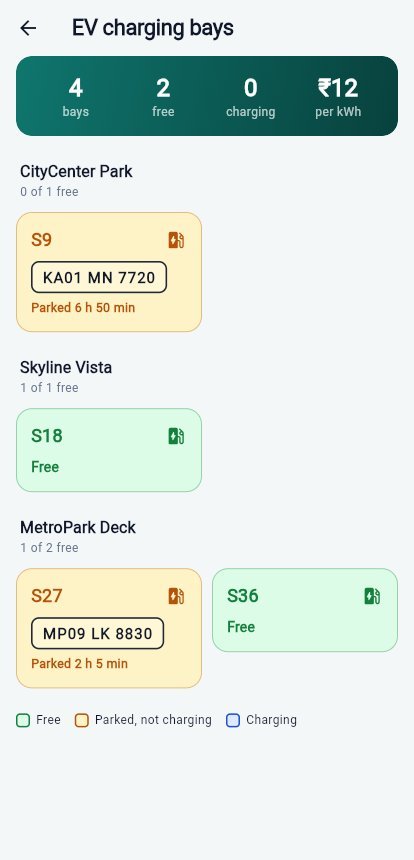
- EV charging – on a parked vehicle choose Start charging, enter the meter reading, and Stop when done. The energy used is billed at the Price per kWh from Settings > Smart Parking and added to the exit fee. The Staff app has an EV charging bays map: free, occupied and charging.
- Bring-back (valet) – a driver or the front desk requests the car; staff see the queue on the dashboard and in the app.
- The EV charging report lists sessions, energy delivered and the amount billed.
Plate recognition (ANPR)
Connect a camera and let plates start entries and exits.
Cameras or your ANPR software send each plate read to POST /api/v1/anpr/event (or /anpr/read for a photo). The system matches the plate to a parked vehicle and decides what to do.
- In Settings > Smart Parking > Plate recognition (cameras): act automatically only above this confidence (reads below it go to the review list), check cars out automatically at the exit camera, and where unknown plates go (a zone, or the review list).
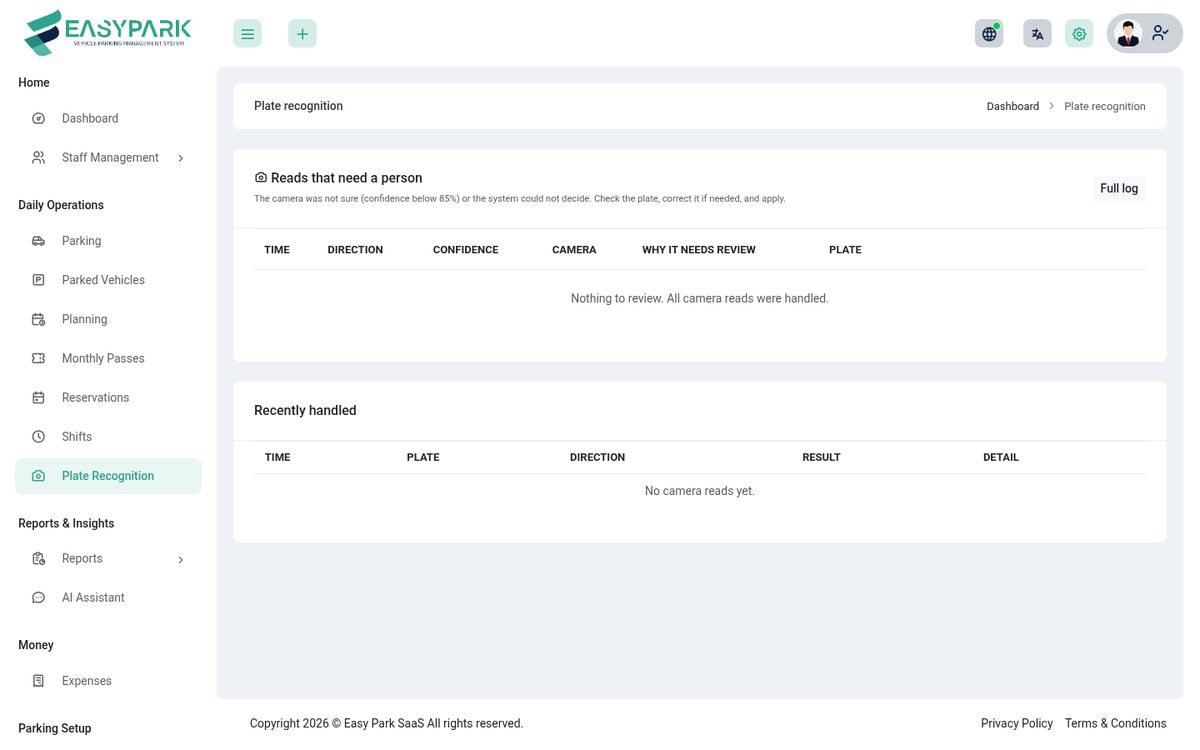
- Plate Recognition shows the reads the system was not sure about (staff confirm or correct the plate, then apply it) and the log of everything that was handled; the Plate recognition log report helps you tune the confidence setting.
Expenses
Record what the car park costs to run.
- Create expense types (electricity, salaries, maintenance) then add each expense with a date, amount, notes and a receipt.
- The Staff app can add an expense with a photo of the receipt.
- The Expense report and the Profit & loss report use these figures: parking income plus pass sales minus expenses, month by month.

Reports and insights
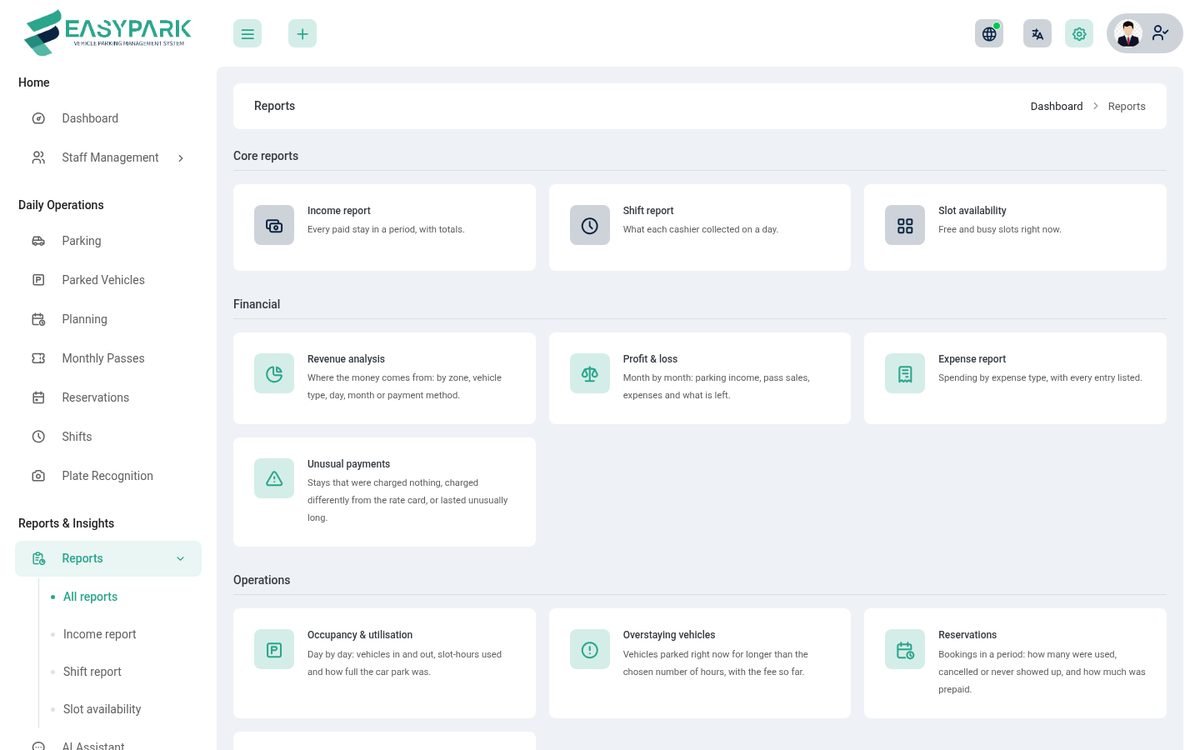
Sixteen reports, each with filters, a chart and Excel / PDF / CSV export.
| Report | Answers |
|---|---|
| Income report | Money taken in the period. |
| Revenue analysis | Where the money comes from: by zone, vehicle type, day, month or payment method. |
| Occupancy & utilisation | Day by day: vehicles in and out, slot-hours used and how full the car park was. |
| Slot availability | Free and occupied slots by zone and floor. |
| Overstaying vehicles | Vehicles parked right now for longer than the chosen number of hours, with the fee so far. |
| Customers & repeat visitors | Best customers by spend and visits; search by plate or name. |
| Reservations | Bookings used, cancelled and no-show, and prepaid money. |
| Monthly passes | Active, expiring and expired passes and their income. |
| EV charging | Charging sessions, energy delivered and billed. |
| Shift report | Every shift with cash collected and drawer differences. |
| Staff & cashier performance | Per person: vehicles checked out, money collected, passes sold and cash differences. |
| Unusual payments | Stays charged nothing, charged differently from the rate card, or very long. |
| Expense report | Spending by expense type with every entry listed. |
| Profit & loss | Month by month: parking income, pass sales, expenses and what is left. |
| Plate recognition log | Every camera read and what the system did with it. |
| AI usage | How many AI requests your team made, by feature, against the plan limit. |
Staff, roles and permissions
Give each person exactly the access they need.
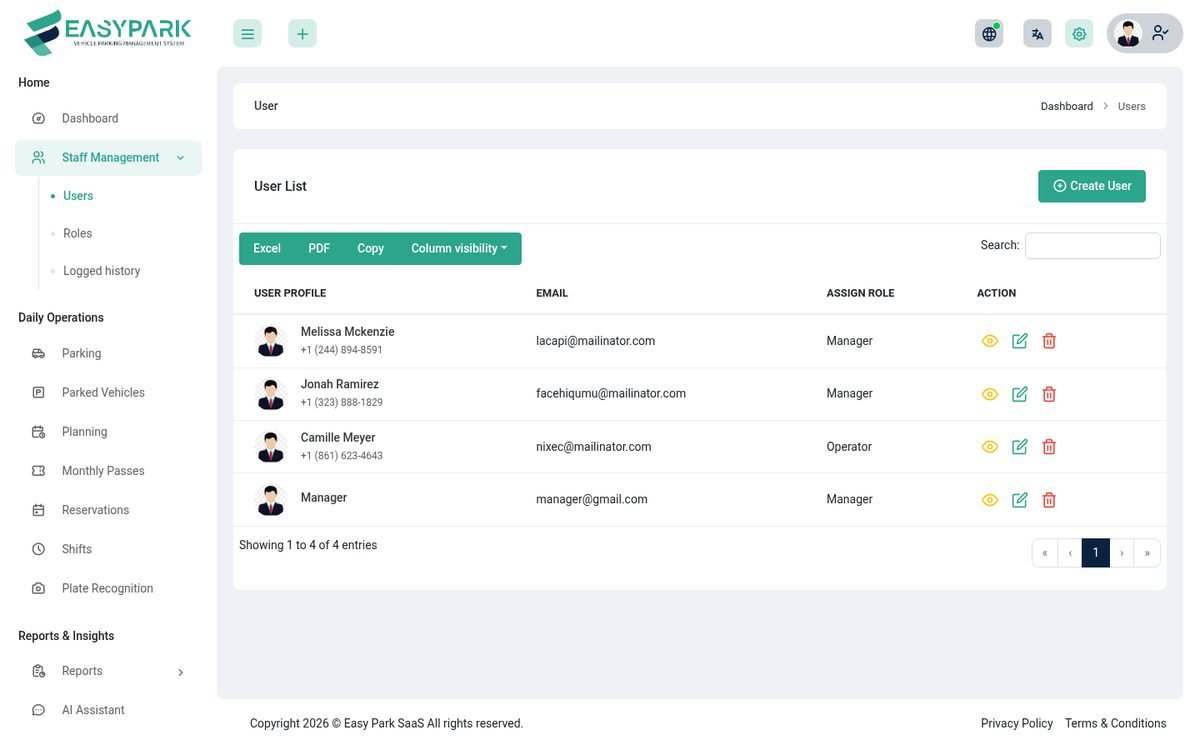
- Users – add staff with a name, email, password and a role. Switch a user off to stop them signing in without deleting their history.
- Roles and permissions – create roles such as Manager, Supervisor, Cashier or Operator and tick what each can see, create, edit and delete.
- Sign-in history – who signed in, when and from where.
- Two-factor authentication – every user can protect their account with a code from an authenticator app (Settings > 2 Factors Authentication).
- Impersonate – the super admin can sign in as an owner to help, and leave with one click.
Customer accounts
Drivers sign in with their phone number only. There is no email, no password and no sign-up form.
- How it works – in the app the driver chooses the car park (skipped when there is only one), types their phone number and receives a 6-digit SMS code. The code works for 10 minutes and allows five tries. The SMS is sent through that car park's own Twilio account (Settings > Twilio). Without Twilio no code can be sent.
- Accounts are made for you – the first time a number signs in, the account is created for that car park. The name comes from what you already know about the number (earlier entries, monthly passes, bookings), and bookings made earlier with that number appear under My bookings. The same number typed differently (with or without +91, spaces or a leading zero) is the same customer.
- Adding a customer by hand – Customer accounts lets you add a name and a phone number. You never have to; it is optional.
- Switching a customer off signs them out of every phone and stops them signing in again.
- Saved vehicles – customers save up to 10 number plates and pick one with a tap when booking.
- Limits that protect your SMS cost – one code per number per minute, five per hour, and a limit on requests per phone. The reply to "send me a code" is always the same, so nobody can use it to find out who your customers are.
- Customers can only ever see their own bookings. They cannot open the admin panel or any staff feature.

Company website
Every owner gets a public website with no coding: pages, rates, online booking and an enquiry form.
Pages and the page editor
Build each page from blocks and drag them into order. Available blocks:
Look and feel
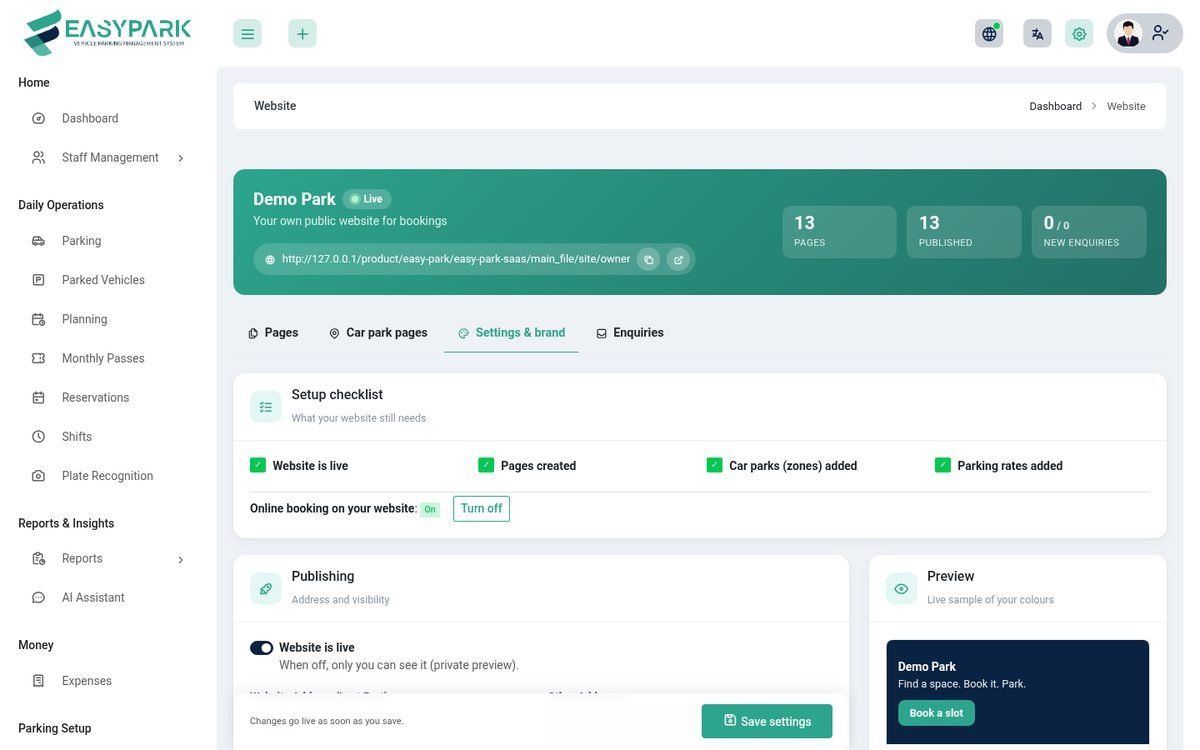
Choose one of nine colour themes (Emerald, Ocean, Sunset, Royal, Rose, Forest, Slate, Gold or the dark Midnight) or set your own colours, a font and the corner style. Upload your logo and pictures to the picture library, and set the header, footer and search-engine title and description.
Car park pages
Each zone can have its own page with its address, map, pictures, opening hours, rates and a booking button.
Booking and enquiries
- Online booking – drivers choose a car park, vehicle and time, see the live price and book. Turn it on in Website > Settings & brand.
- Manage my booking – drivers look up a booking with its code to pay or cancel.
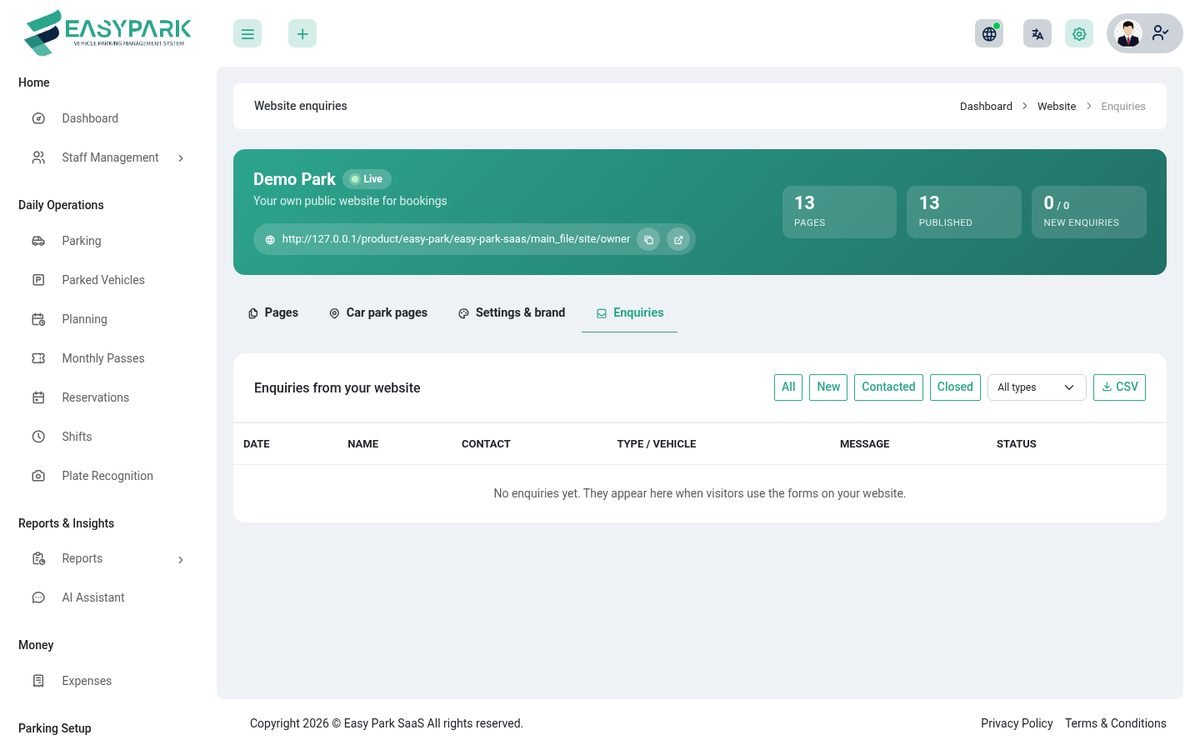
- Enquiries – "Call me back", monthly-parking and business enquiries arrive in Website > Enquiries (also in the Staff app) where you mark them contacted or closed, and can export them to CSV.
- Customer app page – explains how to install the app and sign in with a phone number; there is no sign-up form.
- App download section – store buttons for your apps appear in the footer once the super admin has added the store links.
Your own domain
Every website is reachable at /site/your-name. If your plan includes it, point your own domain (or a sub-domain of the platform) at the server and add it under the website settings; the system answers on that domain and serves the owner's site there.
Mobile apps
Two Flutter apps for Android and iPhone: Easy Park Staff for the people running the car park and Easy Park for drivers.
Easy Park Staff
- Dashboard with live numbers and "needs attention" cards; parked vehicles with search; one-tap call and WhatsApp to the driver.
- New entry with number plate scan by camera, slot picking and an offline queue: if the signal drops the entry is kept on the phone with its real time and sent later.
- Checkout with receipt as PDF or text, or printed on a Bluetooth thermal printer.
- Reservations (check in, cancel), monthly passes, shifts, EV bay map, expenses with a photo of the receipt, website enquiries, reports and CSV export.
- PIN lock, push notifications (new booking, bring-back request, overstay, new enquiry) and four languages (below).

Easy Park (customers)
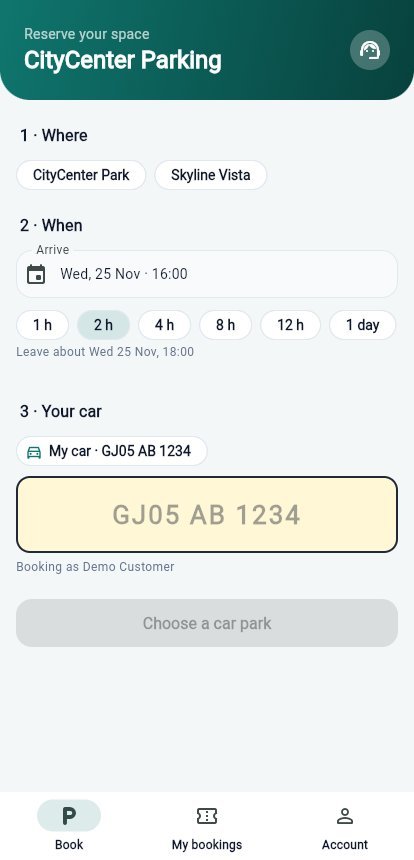
- Sign in with a phone number and an SMS code. No email, no password, no sign-up. The driver picks the car park once (skipped when there is only one) and the app remembers it.
- Book a space with live availability and price, see My bookings (they follow the account to any phone), pay online, cancel, and manage saved vehicles.
- The app wears the owner's logo, colour, name and welcome text and hides features the owner switched off.
Branding, store links and the server address
| Who | Where | What |
|---|---|---|
| Owner | Settings > Branding & Mobile App | App name, colour, logo, welcome text, support phone and email, and which customer features are on (book, my bookings, pay online, contact). |
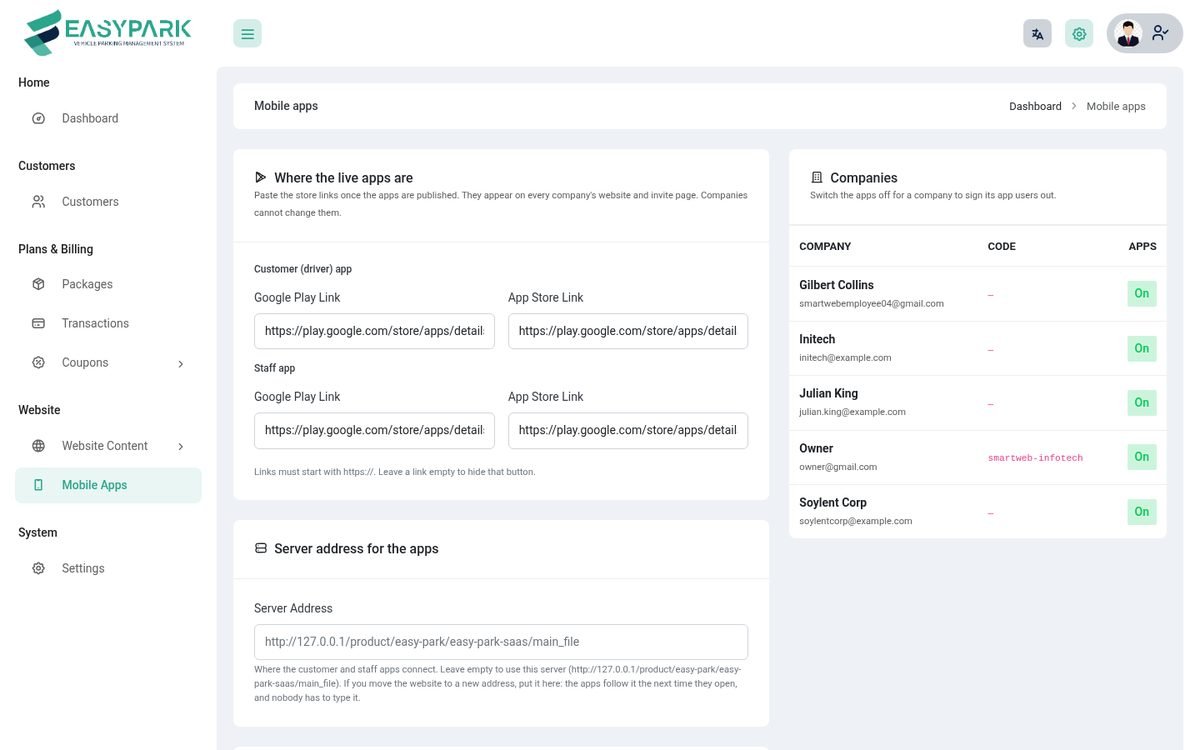
| Super admin | Website > Mobile apps | Google Play and App Store links (shown on every owner's website), oldest app version allowed, a maintenance message, and an on/off switch for each owner. |
| Super admin | Website > Mobile apps > Server address for the apps | The address the apps talk to. Leave it empty to use this server. If you move the website, enter the new address: the apps follow it the next time they open, without anyone typing it. |
Build and publish the apps
The apps are in the mobile_app folder of your download. Full steps are in its README.md.
The two apps
| App | Entry file | Android flavour and ID |
|---|---|---|
| Easy Park Staff | lib/main.dart | staff · com.easypark.staff |
| Easy Park (customers) | lib/main_driver.dart | driver · com.easypark.driver |
Build
Install Flutter, set your server address in lib/core/config.dart (or pass it on the command line), then:
flutter pub get
flutter build apk --release --flavor staff  -t lib/main.dart        --dart-define=SERVER_URL=https://your-domain.com
flutter build apk --release --flavor driver -t lib/main_driver.dart --dart-define=SERVER_URL=https://your-domain.com
Try an app without a server by adding --dart-define=DEMO=true.
Before publishing
- Create your own release keystore and sign the app with it (the downloaded build is signed with a debug key, which is fine for testing only). Google Play and the App Store need your own signing.
- Use HTTPS. Android only allows plain http for local test servers.
- Change the app names, icons (
assets/icon) and bundle IDs to your own if you publish under your name. - Put the store links in Super admin > Website > Mobile apps so they appear on every owner's website.
Push notifications (optional)
Without this step the apps work, but nobody gets pushes. Create a Firebase project, then:
- Add the appsIn Firebase add Android apps
com.easypark.staffandcom.easypark.driver(and the iOS apps). - Add the config filesPut
google-services.jsoninandroid/app/src/staff/andandroid/app/src/driver/, andGoogleService-Info.plistinios/Runner/. Add thecom.google.gms.google-servicesGradle plugin. On iOS upload an APNs key in Firebase. - Turn it on in the serverIn
.envsetPUSH_DRIVER=fcmandPUSH_FCM_CREDENTIALS=/path/service-account.json(Firebase > Project settings > Service accounts).
AI tools
Optional helpers that read your car park's own numbers. Nothing is invented: the AI only sees the figures from the page it is helping with.
- AI briefing on the dashboard: a short summary of today with what to look at.
- AI Assistant (Reports & Insights): ask questions about your car park in plain words, such as "which zone earned the most this week?".
- Forecast and unusual payments in the analytics pages.
Connect your AI service (owner)
Open Settings > AI Settings, choose your AI service, paste your own key and save. The key is stored encrypted.
AI and plans
The super admin decides per package whether AI is included and the daily request limit (200 by default). The AI usage report shows requests by feature against that limit.
Messages and automation
Email, SMS, WhatsApp and webhooks.
Email, SMS and WhatsApp templates
Email notifications lists every message the system sends (new owner, password reset and more). Switch each on or off and edit the wording. Email needs the SMTP settings; SMS and WhatsApp need your Twilio details in Settings > Twilio.
n8n and webhooks
Under Automation (n8n) add a webhook address for any event and Easy Park posts the details to it: for example overstay and pass_expiring. Build your own flows (a message to a manager, a row in a spreadsheet) without touching the code.
Settings and integrations
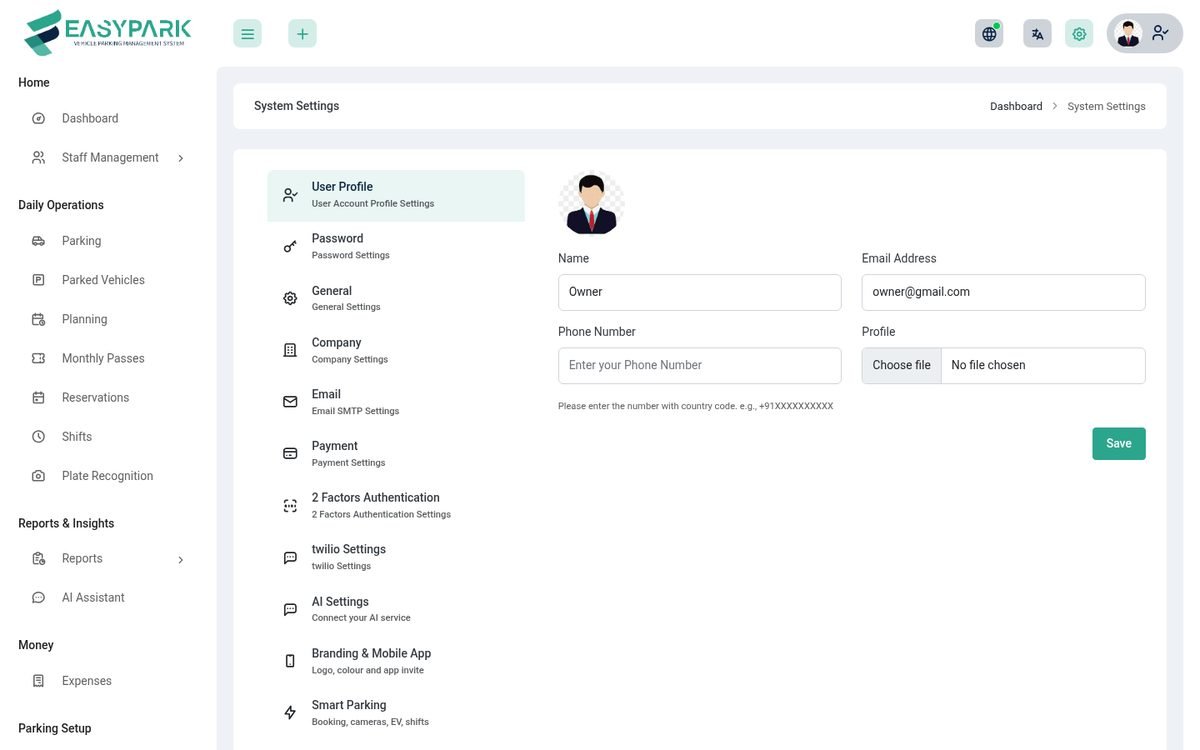
Settings has one tab for each topic.
| Tab | What it holds |
|---|---|
| User Profile, Password | Name, photo, phone, new password. |
| General (super admin) | Application name, copyright, logos and favicon, owner email verification, and the switches for the registration page, the landing page and pricing. |
| Company | Company name, email, phone, address, time zone, parking number prefix, overstay alert hours, date and time format. |
| SMTP mail server, with a test button. | |
| Payment | Keys for Stripe, PayPal, Bank transfer, Flutterwave, Paystack and Razorpay. The super admin uses them for subscriptions; an owner adds their own Stripe or Razorpay keys to take online booking payments. |
| Site SEO, Google Recaptcha, 2 Factors Authentication | Search-engine tags, bot protection for sign-in and register pages, and two-factor sign-in. |
| Twilio | Account details for SMS and WhatsApp messages and phone-code sign-in. |
| AI Settings | Your AI service and key. |
| Branding & Mobile App | App name, colour, logo, welcome text, support contacts and customer features. |
| Smart Parking | Online booking (booking address, Stripe signing secret, Razorpay webhook secret), plate recognition (confidence, automatic exit, unknown plates), EV price per kWh and requiring an open shift. |
Languages and themes
- 12 languages are included: English, Arabic, Danish, Dutch, French, German, Italian, Japanese, Polish, Portuguese, Russian and Spanish, with right-to-left layout for Arabic. Users pick their language from the language button at the top.
- Add another language by copying a file in
resources/lang(for exampleenglish.json), translating the right-hand side and adding it in the language settings. - Theme settings – colours (including a custom colour picker), light or dark mode, font style and RTL / LTR.
API
A REST API under /api/v1 powers the apps and lets you connect other systems.
Sign in with POST /api/v1/login (email, password) to get a token, then send it as Authorization: Bearer <token>. Staff and customer accounts have separate endpoints; each can reach only its own data.
| Group | Examples |
|---|---|
| Account | login, logout, me, password/forgot, password/reset, devices |
| Parking | parkings/entry, parkings/{id}/exit, parkings/active, parkings/lookup, parkings/retrieval-queue, rfid/scan, slots/availability, catalog, dashboard |
| EV and valet | parkings/{id}/charging/start, parkings/{id}/charging/stop, parkings/{id}/request-retrieval |
| Reservations | reservations, reservations/{code}/checkin, /cancel, /mark-paid |
| Passes, shifts, expenses | passes, passes/{id}/renew, shifts, shifts/start, shifts/end, expenses |
| Reports and analytics | reports/catalog, reports/{key}, analytics/summary, analytics/forecast, analytics/anomalies |
| Plate recognition | anpr/event, anpr/read, anpr/events, anpr/events/{id}/apply |
| Customer app | customer/car-parks, customer/home, customer/availability, customer/reservations, customer/vehicles, customer/profile, customer/otp/request, customer/otp/verify (phone + car_park) |
| Public booking | public/{key}/catalog, /availability, /reservations (for your own website or kiosk) |
| App config | app-config/{code} |
SaaS administration
For the person who runs the platform (super admin).
- Customers – the owners who signed up: switch on or off, impersonate, see their plan.
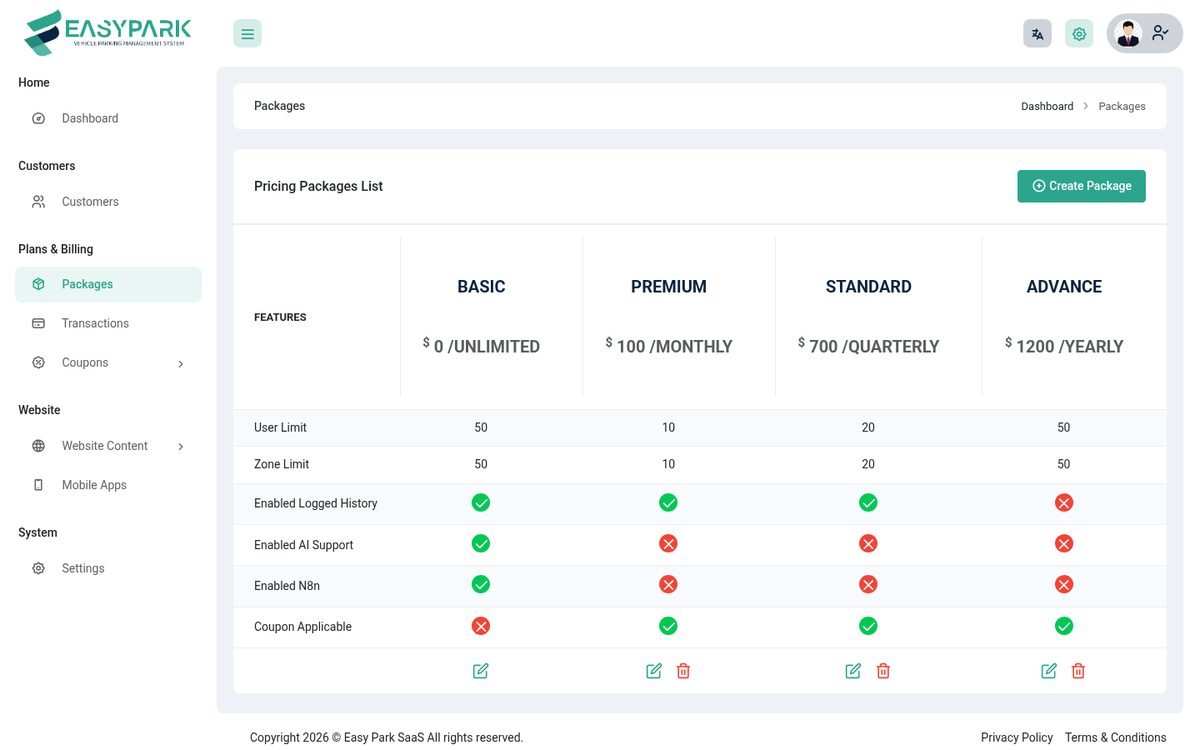
- Packages – price per month, quarter or year plus limits and options: user limit, zone limit, logged history, AI support with its daily request limit, n8n and coupon use.
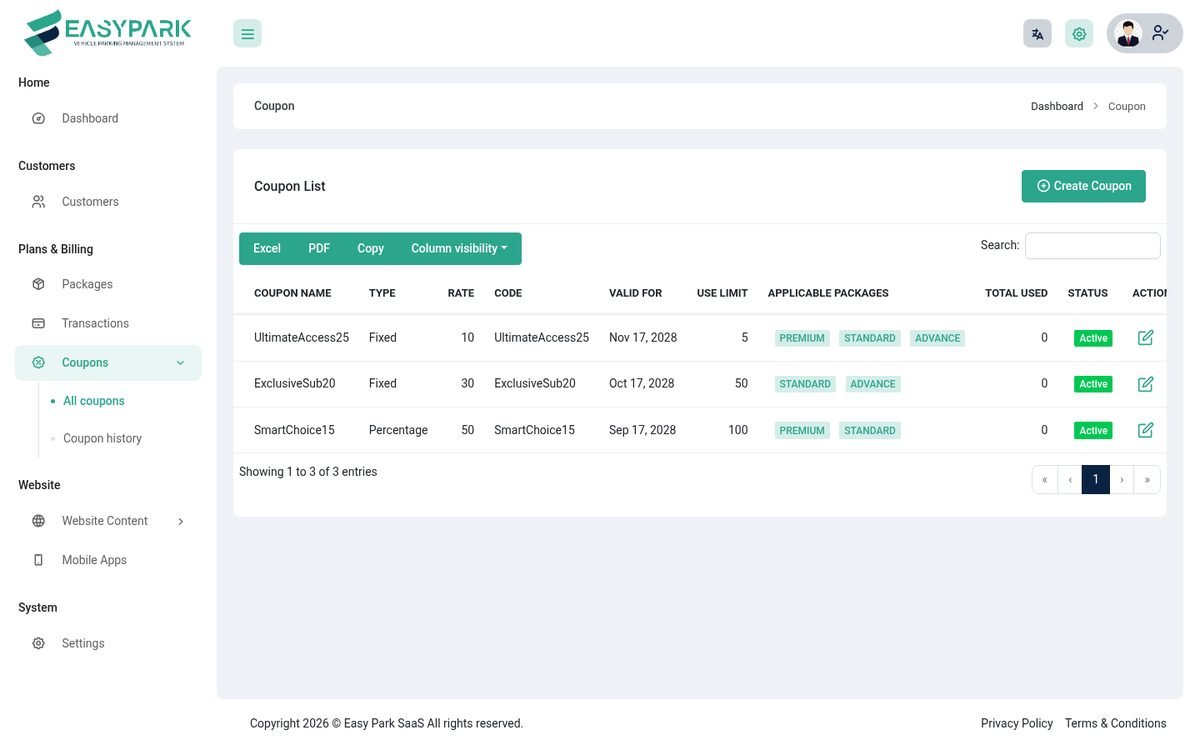
- Coupons – percent or fixed discounts with limits, dates and a history of who used them.
- Transactions – every payment, with approval for bank transfers.
- Payment methods – Bank transfer, PayPal, Stripe, Flutterwave, Paystack and Razorpay.
- Website content – edit the home page, custom pages, FAQ, footer and sign-in page text; switch the landing page, the register page, pricing and owner email verification on or off (Settings > General).
- Website > Mobile apps – store links, versions, maintenance message and the server address (see Mobile apps).
Upgrading
Always take a backup of the files and the database first.
- Back upCopy the site folder and export the database.
- Upload the new filesReplace the application files with the new version, but keep your
.envfile and thestorageandpublic/uploadsfolders. - Update the databaseSign in as super admin and open
https://yourdomain.com/update, then follow the steps, or runphp artisan migrate --force. - Clear cachesRun
php artisan optimize:clear, or ask your host to.
Going live checklist
- Passwords of the default accounts changed.
.envhasAPP_ENV=production,APP_DEBUG=falseand the realAPP_URLwithhttps://.- SMTP set and a test email received.
- The cron line added and
php artisan schedule:listshows both tasks. - At least one payment method added and a small test payment made.
- Zones, slots, vehicle types and rates created; one test entry and exit done with a receipt.
- Backups scheduled for files and database.
- Apps built with your server address, signed with your own keystore.
Troubleshooting and FAQ
| Problem | What to check |
|---|---|
| 500 error or a blank page after upload | Make sure storage and bootstrap/cache are writable and the PHP version is 8.1 or newer. The log is storage/logs/laravel.log. |
| Emails are not arriving | Check Settings > Email and press the test button; check the spam folder; confirm the template is switched on under Email notifications. |
| Overstay alerts or pass reminders never come | The cron line is missing. Run php artisan parking:check-overstays by hand to see the result. |
| Slots look occupied but nobody is parked | The dashboard warning shows how many are out of step. Open the slot and set it free, or check out any vehicle still marked as parked. |
| A customer says no code arrives | Twilio is not set up for that car park (Settings > Twilio), or they asked again within a minute, or more than five times in an hour. Check the number, and that the customer chose the right car park. |
| The app says it is not connected to a server | The build has no server address. Set it in lib/core/config.dart or build with --dart-define=SERVER_URL=https://your-domain.com. |
| The app cannot reach the server over http | Android blocks plain http except for local test servers. Use https. |
| No push notifications | Follow Push notifications: Firebase config files in the app, and PUSH_DRIVER=fcm on the server. |
| Online payment does not mark the booking as paid | The payment provider's webhook is not reaching the server. Check the signing / webhook secret in Settings > Smart Parking and that the site uses https. |
Environment variables
Set in the .env file in the site folder. The installer writes the basics for you.
| Variable | Purpose |
|---|---|
APP_URL | The site's public address, with https. |
DB_HOST, DB_DATABASE, DB_USERNAME, DB_PASSWORD | Database connection. |
PUSH_DRIVER | log (default, sends nothing), fcm or null. |
PUSH_FCM_CREDENTIALS | Path to the Firebase service-account JSON (when the driver is fcm). |
SITE_BASE_DOMAIN, SITE_SERVER_IP | Used for owner sub-domains and custom domains. |
SITE_MEDIA_PATH | Where website pictures are stored, if not the default. |
Change log
What changed, newest first.
Version 2.1 – 25 November 2026
- Mobile apps: Easy Park Staff and Easy Park (customer) apps for Android and iPhone, with offline entries, number plate scan, Bluetooth receipt printing, EV bay map, PIN lock, push notifications and four languages.
- Customers: sign in with just a phone number and an SMS code (no email or password), accounts created automatically, earlier bookings picked up by number, and saved vehicles.
- Company website: a block-based website builder for every owner with themes, car park pages, online booking, manage-my-booking, enquiries and custom domain.
- Reservations and prepayment with Stripe and Razorpay, check-in and automatic no-show clean-up.
- Monthly passes with renewals and expiry reminders; shifts and the cash drawer; EV charging; valet bring-back; plate recognition (ANPR) and RFID scan.
- Reports: a reports hub with 16 reports, export to Excel, PDF and CSV, plus profit and loss and unusual-payment checks.
- New dashboards for super admin and owner, with live refresh and an AI briefing.
- AI: works with OpenAI, Claude, Gemini or any compatible service, with the owner's own key and a daily limit per plan.
- Platform console: app store links, minimum versions, maintenance message, per-owner app switch and the server address the apps use.
- Translations updated for all 12 languages; documentation rewritten.
Version 2.0 – 19 June 2026
- WhatsApp notifications, Razorpay payments, Expense and Expense Type modules, Vehicle Parking Planning.
Earlier versions
- 1.9 (7 Mar 2026): n8n and OpenAI integration. 1.8 (23 Aug 2025): SMS templates, Twilio, Paystack, parking slot availability and income report. 1.7 (8 Apr 2025): landing page CMS, two-factor authentication, impersonate, custom colour picker. 1.6 and 1.5: email notification options, Flutterwave. 1.1 (19 Jan 2024): thermal receipt print. 1.0 (18 Jan 2024): first release.
Support
Stuck? We are happy to help.
Open a ticket at support.smartwebinfotech.com. Please include your purchase code, the page you were on, what you expected and what happened, and, if you can, the last lines of storage/logs/laravel.log.